
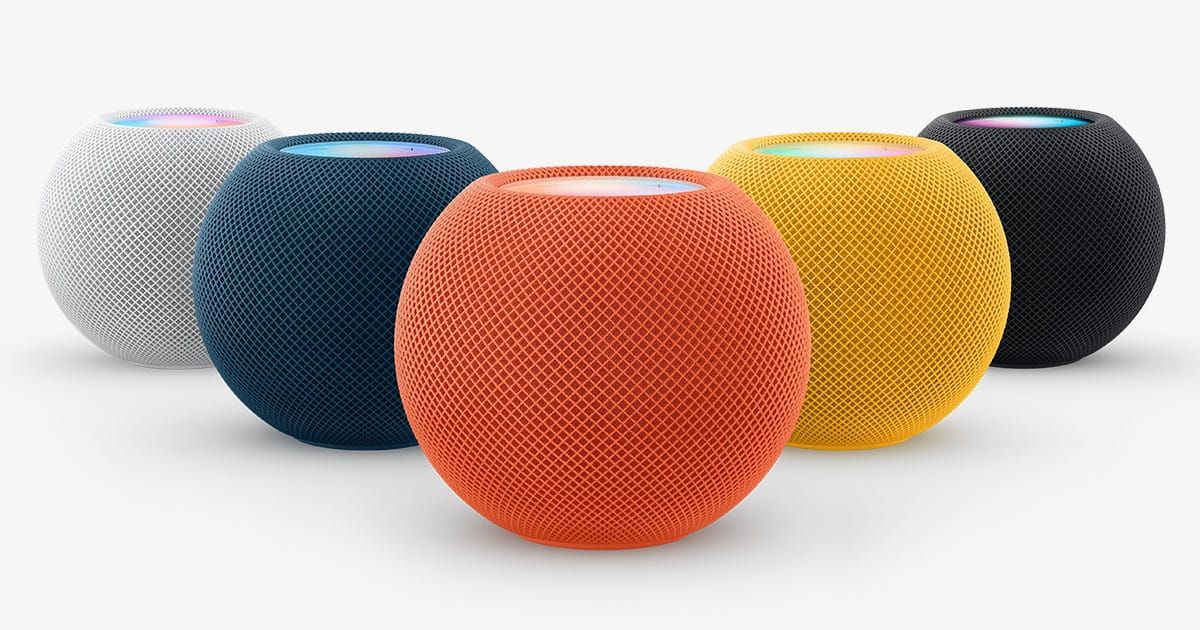

HomePod Intercom is a built-in feature that lets you broadcast voice messages to every HomePod and HomePod mini in your home from your iPhone, Apple Watch, iPad, AirPods, or any HomePod speaker — instantly, hands-free, with no app to open first. Think of it as the overhead PA system at a grocery store, except the announcements are yours and the audience is your household.
The catch is that most people who set up a HomePod and call it done have never interacted with Intercom once. It does not announce itself. There is no onboarding screen or pop-up suggesting you try it, and the button that launches it in the Home app is tucked behind an icon that looks like it belongs to a completely different feature. Once you know where it lives, the feature becomes genuinely useful in ways a group text simply cannot match — but getting there takes a minute of configuration most owners skip entirely.
 Ad
AdWhat Intercom Actually Does
When you send an Intercom message, every HomePod and HomePod mini in your home plays the audio — aloud, at whatever volume those speakers are currently set to, even if they are in a different room. Your iPhone and your family members’ iPhones receive a notification at the same time, so no one has to be standing near a speaker to hear the message. Unlike most HomePod features that only play from one speaker, Intercom reaches all of them at once — that is the thing that makes it genuinely different from just asking Siri to send a message.
You can also target specific rooms instead of broadcasting house-wide. Saying “Hey Siri, intercom the bedroom: the car is here” sends that message only to the HomePod assigned to your bedroom in the Home app. Apple’s official HomePod Intercom support documentation confirms that AirPods and compatible Beats headphones connected to an iPhone or iPad also receive and send Intercom messages — a detail most setup guides leave out.
Replies work the same way in reverse. If the original message went to the whole home, a reply from any HomePod returns to every device. If it went to a specific room, the reply goes back only to the device that sent the message in the first place.
Intercom has been part of HomePod since late 2020, but the current version in HomePod Software 26 is more reliable and cross-device consistent than the original release. If you have a HomePod that has not been updated in a while, make sure HomePod software is current through the Home app settings — an outdated HomePod in your home can cause inconsistent behavior where some speakers receive messages and others do not.
 Ad
AdHow to Send a Message from Any Device
The fastest route is Siri. From your iPhone, say “Hey Siri, intercom” and speak your message — no screen-tapping required. Siri confirms the recording and broadcasts it immediately. If you prefer using the Home app directly, open it, tap the intercom icon in the top-right corner of the main screen, record your message, and tap Done. Both paths end up in the same place.
On Apple Watch, the workflow is identical to any other Siri command. Raise your wrist, say “Hey Siri, intercom ‘dinner is ready,’” and it goes out. This is where the feature makes the most sense in daily use. You are almost never near your phone when you need to reach everyone in the house quickly, but your Apple Watch is always on your wrist. I think Apple got that part exactly right — Intercom from your wrist is a significantly more natural workflow than finding your phone, unlocking it, opening the Home app, and hitting record. The round-trip — message sent, message heard, reply sent — takes under five seconds in a well-configured home.
Sending from a HomePod itself is equally direct. Say “Hey Siri, intercom ‘the game starts in ten minutes’” near any speaker, and it broadcasts to every other HomePod in the home. The originating speaker does not repeat the message back to itself — which is the correct behavior, though it catches you off guard once if you expect to hear the confirmation through that same speaker.
AirPods connected to an iPhone work here too. Speak the Intercom command with your AirPods in and the reply — when someone responds from their HomePod — comes back as audio through your earbuds. That two-way audio loop feels surprisingly natural once you stop thinking about the mechanics behind it.
Adjusting Who Gets Notified
Intercom notifications can be tailored by person and by presence. The settings live in the Home app: tap the menu icon in the top-left corner, select Home Settings, then tap Intercom. From here, you can see every HomePod in your home and toggle any of them off individually. A HomePod in a guest room that nobody uses regularly does not need to be announcing family messages. Below the speakers list is a People section where you can disable Intercom for any household member entirely.
Check the notification timing option before you leave it at default. Under your device-specific settings, you can choose Never, When I’m Home, or Anywhere. I think “When I’m Home” is the right call for most people — you probably do not need Intercom notifications from your family’s HomePods while you are in a meeting two miles away. Setting it to Anywhere makes sense if you work remotely and genuinely want to stay in the loop on house-level logistics.
One thing to keep in mind: the “When I’m Home” option depends on Location Services. If the Home app does not have location access set to Always, presence detection becomes unreliable and you may miss messages even when you are physically home. That setting lives in the iOS Settings app under Privacy and Security, then Location Services, then Home.
The Voice Recognition Catch
This one I did not expect. If you have personal voice recognition set up on your HomePod — the feature that lets the speaker identify your voice and pull up your calendar, reminders, and messages — Intercom messages you send from that HomePod are not forwarded to your iPhone, iPad, or Apple Watch. They still broadcast to the other HomePods in the home, but your own devices stay silent.
The reason is a privacy boundary built into how voice recognition interacts with device routing. When HomePod recognizes your voice, it treats that session as tied to your identity on that specific speaker rather than pushing the message across your other Apple devices. Apple explains this behavior in its HomePod support documentation, and while the rationale makes sense on paper, it is the kind of thing that should probably surface as a warning during voice recognition setup rather than something you discover by accident. It is a thoughtful compromise between privacy and cross-device convenience — but a confusing one the first time it catches you.
The practical workaround is to send the Intercom from your iPhone or Apple Watch instead of from the HomePod when you need your devices to receive a copy. If you want to understand how voice recognition works on HomePod before deciding whether to keep it enabled, our guide on HomePod personal voice recognition walks through the setup and what it actually gives you.
Setting Up Intercom for Your Actual Home
Group texts work for conversations. They break down for logistics — “we are leaving in five minutes,” “someone left the garage open.” Those messages require everyone to have their phone in hand, notifications active, and enough attention to read a text. Intercom bypasses all of that. The message plays audibly through every speaker in the house, reaches every connected device simultaneously, and nobody has to actively check anything.
The setup that makes Intercom genuinely useful is two or three well-placed HomePod speakers covering your main living spaces. A HomePod mini in the kitchen and another in a common area gives you enough reach that a broadcast hits people wherever they are. You do not need one in every room — coverage matters more than count, and a well-placed speaker in the right room is more useful than three speakers that all face the same wall.
If you are just adding a HomePod mini to a new room and want it to work as part of the Intercom system, the setup guide for HomePod mini covers the initial configuration and room assignment, which is where Intercom gets its targeting data from. Would you use Intercom to replace the family group chat for daily home logistics?

Related Posts
Five tvOS 26 Settings That Make Apple TV 4K Feel Personal
May 07, 2026
The HomeKit Automations Worth Setting Up in iOS 26
May 01, 2026
The HomeKit Automations Worth Setting Up in iOS 26
May 01, 2026