
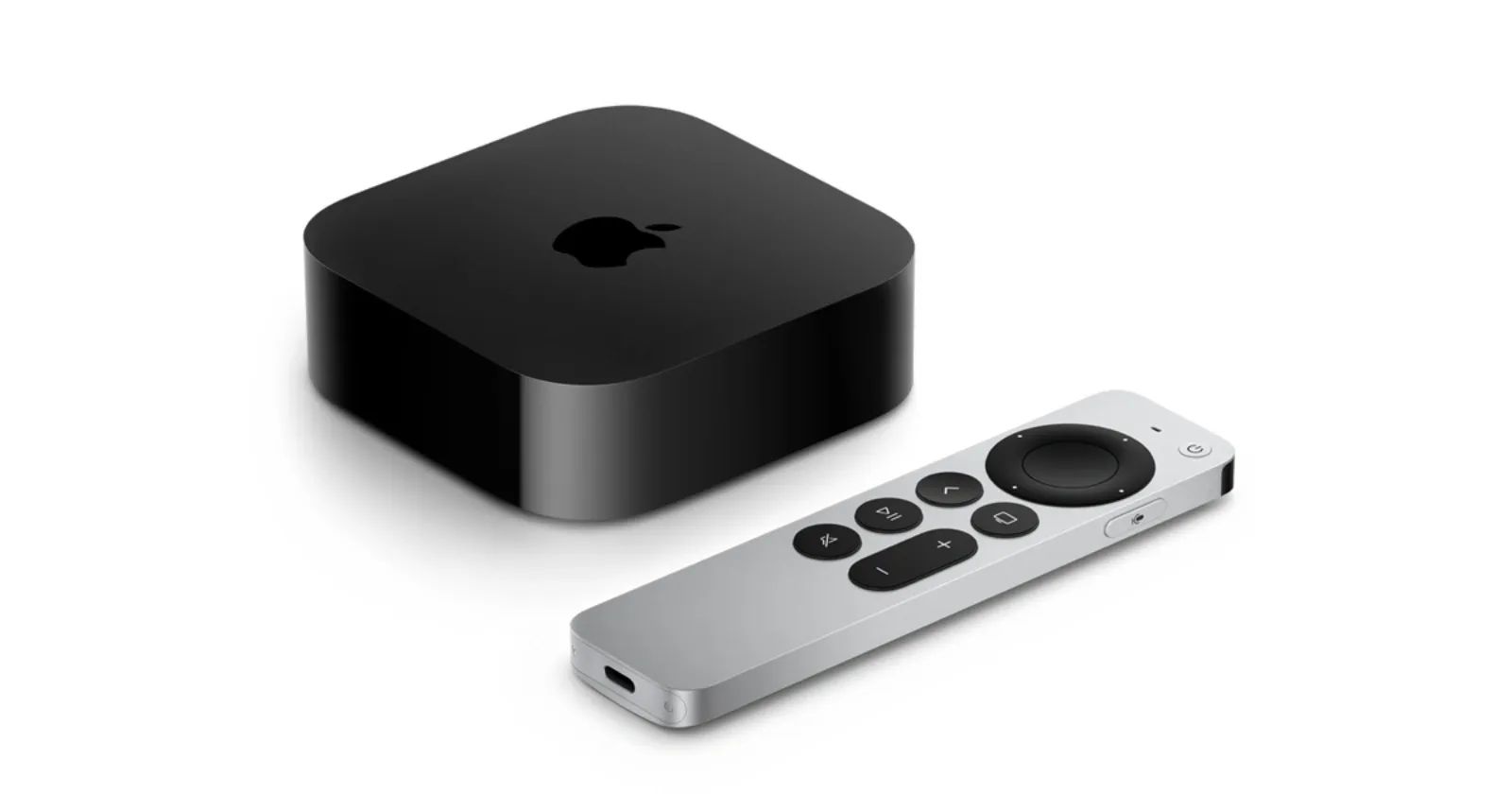

The Apple TV 4K is one of those devices that most people set up once and then walk away from. You sign in, grab a few apps, hand the remote to whoever’s sitting nearest the couch, and that’s your Apple TV setup for the next two years. tvOS 26 quietly added real personalization on top of all of that — profiles for the whole household, a custom screensaver playlist, subtitle controls during playback, and audio defaults that finally stick — and most of it is sitting untouched in Settings.
To be clear about what’s here: these settings aren’t hidden in any obscure sense. They’re in the Settings app, where Apple always puts things. But Settings on Apple TV doesn’t get the same attention it gets on iPhone, and so a lot of what tvOS 26 added has gone undiscovered.
 Ad
AdProfiles Are Here, and They’re Simpler Than You’d Expect
Profiles are the biggest addition to tvOS 26. If you’ve shared an Apple TV 4K with multiple people and watched everyone’s streaming recommendations bleed into one indistinct pile, profiles are what you’ve been waiting for. Each profile gets its own home screen arrangement, its own watchlist inside the Apple TV app, and its own viewing context — so one profile’s history doesn’t pollute another person’s recommendations.
Setting one up takes about two minutes. Head to Settings, tap Profiles, then select Add Profile. Enter a name, choose a content rating, and specify whether it’s a child profile. Thankfully, since tvOS 26.2, none of this requires an Apple Account attached to the profile. Someone in your household without an Apple ID can still have their own profile with just a name and a content rating assigned.
Child profiles are particularly well implemented. When a child profile is active, the Apple TV app automatically limits visible content to age-appropriate ratings — TV-Y, TV-Y7, and similar. It’s not a granular parental controls system, but I find it does exactly what it needs to do for keeping the wrong content off the screen when younger viewers take over the remote.
If you’re a one-person household or just don’t want to see a profile selection screen every time the Apple TV wakes, there’s a toggle in Settings under Profiles to disable it at startup. The profiles still exist and retain their state — you just skip the selection step and land directly on the last-used profile.
 Ad
AdBuild Your Own Screensaver Playlist
The aerial screensavers have always been one of the best things about Apple TV, but before tvOS 26, your control over them was blunt. You could disable entire categories — all Underwater, all Cityscape — but you couldn’t pick and choose which individual clips cycled through. That’s changed.
Under Settings > Screen Saver > Aerials > Choose Aerials, you’ll find individual toggles for every clip within four categories: Cityscape, Earth, Landscape, and Underwater. Disable the ones you’ve seen a thousand times. Keep the footage you still want to stop and look at. tvOS 26 also added new India aerial footage to the rotation — waterfalls, mountain panoramas, coastal shots — which is worth enabling if the existing clips have grown familiar to the point of invisibility.
There’s more the screensaver system can do that most owners scroll right past — the screensaver controls walkthrough covers the full range of older options, including timing, photo albums, and sleep behavior. The individual clip selection in tvOS 26 is new on top of all of that.
Subtitle Styles While the Video Is Playing
Before tvOS 26.4, changing subtitle style on Apple TV meant pausing your show, opening the Settings app, navigating into Accessibility, finding the captions section, adjusting the style, and then navigating back to your content. Nobody did this consistently. The default style stuck because the friction of changing it during an actual viewing session was too real.
tvOS 26.4 moved subtitle style controls into the video player itself. While watching content, open the same subtitle and audio menu where you’d normally switch languages or turn captions on — and you’ll now see four style options available directly: Classic, Large Text, Outline Text, and Transparent Background. They apply in real time while the video keeps playing.
Large Text is the most practical default for most living room setups. Subtitles that feel readable on a phone screen read noticeably smaller from a couch at eight feet. Transparent Background removes the opaque box around captions, which matters on high-contrast scenes where the box can interrupt the image. Keep in mind that how a streaming app renders caption styles varies — first-party Apple content and apps that use Apple’s native caption rendering behave more consistently than apps that handle their own subtitle display.
Set a Third-Party Speaker as Your Default
Before tvOS 26, only HomePod and HomePod mini could be designated as permanent default audio output for Apple TV. Any other AirPlay speaker — Sonos, Bose, whatever you had — could connect but wouldn’t stay. Every session started the same way: reconnect manually before hitting play, or accept whatever the television’s built-in speakers had to offer.
tvOS 26 extended the default speaker option to any AirPlay-compatible device. In Settings, navigate to the audio output section, select your speaker, and designate it as default. It holds now. The Apple TV connects to it automatically on wake.
Describing the friction before this feature honestly: most households with a Sonos setup and an Apple TV just used the TV speakers most of the time, because the reconnect step was annoying enough to skip on a tired evening. That’s a real quality-of-life problem. This setting is a thoughtful compromise from Apple — you keep the flexibility of AirPlay without the session-start tax.
Continuous Audio Connection for Those It Affects
This last setting is specific enough that I’ll say upfront: if you’ve never noticed an audio dropout or a format-switching artifact when your Apple TV transitions between apps or between content with different audio formats, you probably don’t need it.
For anyone who has noticed — and it tends to show up most with Sonos systems and older A/V receivers that don’t handle audio handshakes cleanly — tvOS 26.4 added a Continuous Audio Connection toggle under Settings > Video and Audio > Audio Format > HDMI Output. It maintains a persistent Dolby MAT stream across content transitions, which eliminates the dropout at the cost of potentially showing an Atmos indicator on your receiver even when the source material isn’t Atmos. Apple acknowledges this trade-off in the settings description itself.
In the worst case, you see a misleading indicator on your receiver’s display. In the best case, you eliminate a dropout that made your audio setup feel unreliable. If you haven’t revisited the Apple TV AV settings guide since initial setup, the video output controls — color space, HDR format, frame rate matching — are worth a look too.
Quick-Action Checklist: tvOS 26 Personalization
- Settings > Profiles > Add Profile — name, content rating, no Apple Account required
- Settings > Profiles — toggle Show at Startup on or off based on your household
- Settings > Screen Saver > Aerials > Choose Aerials — deselect clips you’re tired of; enable India footage
- Settings > (audio output section) — select your AirPlay speaker and designate it as default
- Settings > Video and Audio > Audio Format > HDMI Output — enable Continuous Audio Connection if audio dropouts have been a persistent issue
- Subtitle styles require no prior setup — they’re in the video player menu when captions are active
Would you use profiles on your Apple TV 4K, or is the household still running on one Apple Account and shared recommendations?

Related Posts
Your HomePod Has a Whole-Home Intercom Most Owners Never Turn On
May 14, 2026
The HomeKit Automations Worth Setting Up in iOS 26
May 01, 2026
The HomeKit Automations Worth Setting Up in iOS 26
May 01, 2026