
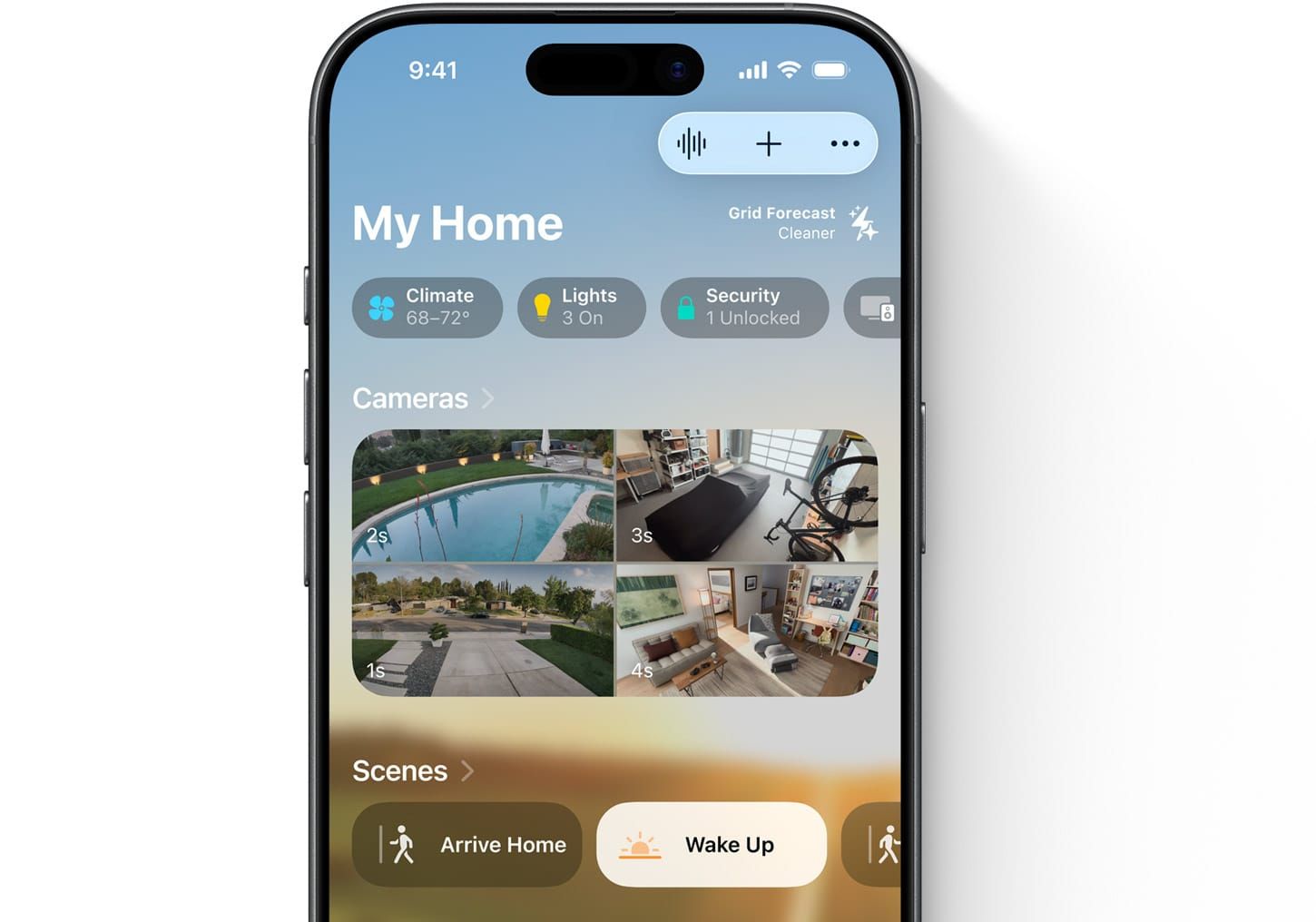

Most people set up exactly two HomeKit automations. Lights on at sunset. Lights off at a certain time. Then they forget the Home app exists until a light fails to turn off and they go looking for the toggle.
That’s a shame, because iOS 26 quietly delivered the most significant smart home upgrade Apple has made in years — one that goes well beyond lights and schedules. The centerpiece is Adaptive Temperature, a feature that uses on-device intelligence to predict when you’re heading home and adjusts your thermostat before you arrive. It sounds like a minor convenience. It changes how the home actually functions when you’re away.
The full automation toolkit in iOS 26 deserves a closer look, because the gap between what HomeKit can actually do and what most people have configured is genuinely surprising.
 Ad
AdWhat HomeKit Automations Can Actually Trigger
iOS 26 supports four main types of automation triggers in the Home app. Time-based triggers are the ones everyone knows: run something at sunrise, at sunset, or at a specific clock time on selected days. You can refine these with the condition “only when someone is home,” which turns a simple timer into something that actually thinks before it acts.
Location-based triggers are where things get more interesting. HomeKit tracks whether any home member is present using the same geofencing logic that powers Find My and Reminders. You can trigger automations when anyone arrives home, when a specific person arrives, when anyone leaves, and — the one most people miss — when the last person leaves. That last trigger is different from “when anyone leaves.” If you have two people in a household, “when anyone leaves” fires every morning when the first person heads out. “When the last person leaves” fires only when the house is actually empty. For running a “secure everything” sequence — locks, lights off, thermostat set to Away — it’s the right trigger.
The most effective setups combine trigger types. A location trigger for “when the last person leaves” can chain into accessory-triggered actions — thermostat to Away mode, front door locked, every light currently on turned off. That kind of multi-step sequence doesn’t require any third-party bridge or subscription hub. It runs entirely through the Home app, which still catches people off guard.
Sensor-based automations respond to motion sensors, contact sensors, water leak detectors, and smoke or CO alarms. Accessory-triggered automations let one device control another. Each trigger type supports time-window conditions — daytime only, nighttime only, or custom time ranges — which prevents a lot of the “why did my lights just turn on at 3am” situations.
 Ad
AdAdaptive Temperature Is the Feature That Finally Makes Smart Thermostats Smart
Here’s the headline addition in iOS 26. Adaptive Temperature is an automated thermostat system that uses on-device intelligence to predict your arrival time and bring the home to the right temperature before you walk in — and pulls back when you’ve been gone long enough to justify it.
The system works across three home activity states: Home (someone is present), Away (no one is home), and Extended Away, which activates when every household member has been gone for more than 24 hours. In the Away and Extended Away states, your thermostat shifts into an energy-saving mode. When Apple’s on-device intelligence detects that you’re likely heading back — using daily schedule patterns, Maps data, and your calendar — it starts conditioning the home to your preferred temperature before you get there.
Sleep schedule integration is the part that surprises people. If your iPhone has a sleep schedule set through the Health app, Adaptive Temperature can adjust the bedroom temperature toward a sleep-friendly range automatically, without a separate thermostat schedule entry.
The privacy protections here are actually robust. Your location data is never shared with the thermostat manufacturer or with Apple. The system logs only changes in your home’s activity state — not who was where, not location coordinates — and Apple cannot access that log. You can delete the previous month of Activity History at any time in Home app settings.
One friction worth knowing before you enable this: when iOS 26 shipped, not every compatible thermostat had the firmware update ready to expose the Adaptive Temperature toggle. If you’re on an ecobee, a Nest Thermostat with the Matter firmware, or a Honeywell Home model, look for Adaptive Temperature inside the thermostat’s detail page in the Home app. If the option isn’t there, check the manufacturer’s app for a firmware update first. The feature also requires a home hub — HomePod mini, full-sized HomePod, or Apple TV — and Location Services enabled for the Home app.
 Ad
AdGrid Forecast and What the Energy Tab Is Actually For
Separate from Adaptive Temperature, the Home app’s Energy tab includes Grid Forecast — a U.S.-only feature that shows when your local electricity grid is drawing on cleaner energy sources versus heavier ones. It’s available on iPhone, iPad, and Apple Watch. The idea is to help you shift when you run power-hungry appliances based on the grid’s carbon load rather than just your own schedule.
For homes in participating utility programs, the Energy tab can also display electricity rates, peak pricing windows, and usage data pulled directly from your utility account. EnergyKit — a new Apple developer framework introduced in iOS 26 — gives third-party HVAC apps and EV charging apps access to the same grid forecast data Apple uses internally, so compatible apps can automatically schedule activity during cheap or clean grid windows.
Practically speaking, Grid Forecast is most useful if your utility participates in the rate integration. Without that connection, you get the grid forecast but no pricing data — still useful for scheduling laundry or the dishwasher, just not a precise cost-optimization tool.
New Device Categories That Actually Work With HomeKit Now
Matter protocol support means the device types that work inside Apple Home have expanded well beyond what most people picture. Robot vacuums joined the ecosystem through Matter 1.2. Roborock’s S8 MaxV Ultra, Saros Z70, and several Qrevo models work in the Home app and respond to Siri via firmware updates. iRobot Roomba has brought several Combo models into Matter as well. The practical result: you can add a robot vacuum to your “when last person leaves” automation and have it run whenever the house empties, no separate app required.
Thermostats are in the strongest position they’ve been in years. ecobee has supported HomeKit natively for a decade. The Google Nest Thermostat received Matter firmware in 2023 and now works inside Apple Home without a bridge. Honeywell Home’s newer X2S model includes ENERGY STAR certification, humidity monitoring, and native Matter support at around $79.
For cameras, Apple’s HomeKit Secure Video processes motion detection and person recognition entirely on-device through your home hub — nothing goes to a manufacturer’s cloud. That’s a meaningful privacy distinction from most smart home camera systems. If your cameras aren’t recording despite the setup looking correct, this guide covers the specific iCloud settings that need to be in place.
A Bug Worth Knowing About Before You Trust Location Automations
After iOS 26 launched, a number of users in Apple Community forums reported that location-based automations stopped triggering correctly — lights and locks that worked reliably in iOS 18 were simply not firing after the upgrade. The most consistent fix has been removing the affected automation and recreating it from scratch in iOS 26. It takes about two minutes and resolves the issue in most cases. If you recently upgraded and your location-triggered lights or locks seem unreliable, that’s the first thing to try. iOS 26.4 addressed several automation-adjacent bugs worth reviewing if you’re still seeing issues after recreating the automation.
Also: location automations require a home hub that’s online. If your HomePod or Apple TV has been offline, location triggers won’t fire regardless of what your iPhone detects about your position. Check the hub status in Home app account settings before you start troubleshooting anything else.
Accessibility and the Smart Home Case for HomeKit
HomeKit automations have real practical implications for users with mobility limitations. Motion-triggered lighting removes the need to reach wall switches in the dark or across a room. Location automations that unlock a door on arrival eliminate the fine-motor demands of keys. Voice control through Siri on HomePod works entirely without a screen interaction — no unlock, no app navigation.
Apple’s local processing model is an accessibility benefit that rarely gets mentioned. Automations run over your home network when internet is unavailable, which matters when the system is handling safety-adjacent tasks like door locks, alarm systems, or water leak shutoffs. The Home app’s lock screen and Control Center widgets put the most-used controls within immediate reach without requiring menu navigation, which is meaningful for users who find deep UI traversal difficult or fatiguing.
Quick-Setup Checklist for HomeKit Automations in iOS 26
Before your first automation runs:
- Confirm a home hub is active: HomePod, HomePod mini, or Apple TV
- Enable Location Services for Home under Settings > Privacy & Security > Location Services > Home > Always
- Share your location in the Home app under your household profile
To add a “When the Last Person Leaves” automation:
- Open the Home app, tap the + button at the top right, then Automation
- Select “When Someone Arrives or Leaves”
- Choose “When the last person leaves”
- Add your actions: lights off, lock doors, thermostat to Away
- Set a time-of-day condition if needed to prevent overnight triggers
To enable Adaptive Temperature:
- Open the Home app, tap your thermostat accessory, then tap the settings gear
- Look for Adaptive Temperature in the thermostat’s detail settings
- If it doesn’t appear, check the manufacturer’s app for a firmware update first
- After enabling, confirm your Away and sleep temperature preferences

Related Posts
Your HomePod Has a Whole-Home Intercom Most Owners Never Turn On
May 14, 2026
Five tvOS 26 Settings That Make Apple TV 4K Feel Personal
May 07, 2026
The HomeKit Automations Worth Setting Up in iOS 26
May 01, 2026