

Listen to this article
Prefer to listen? An audio version of this article is available for accessibility and convenience.
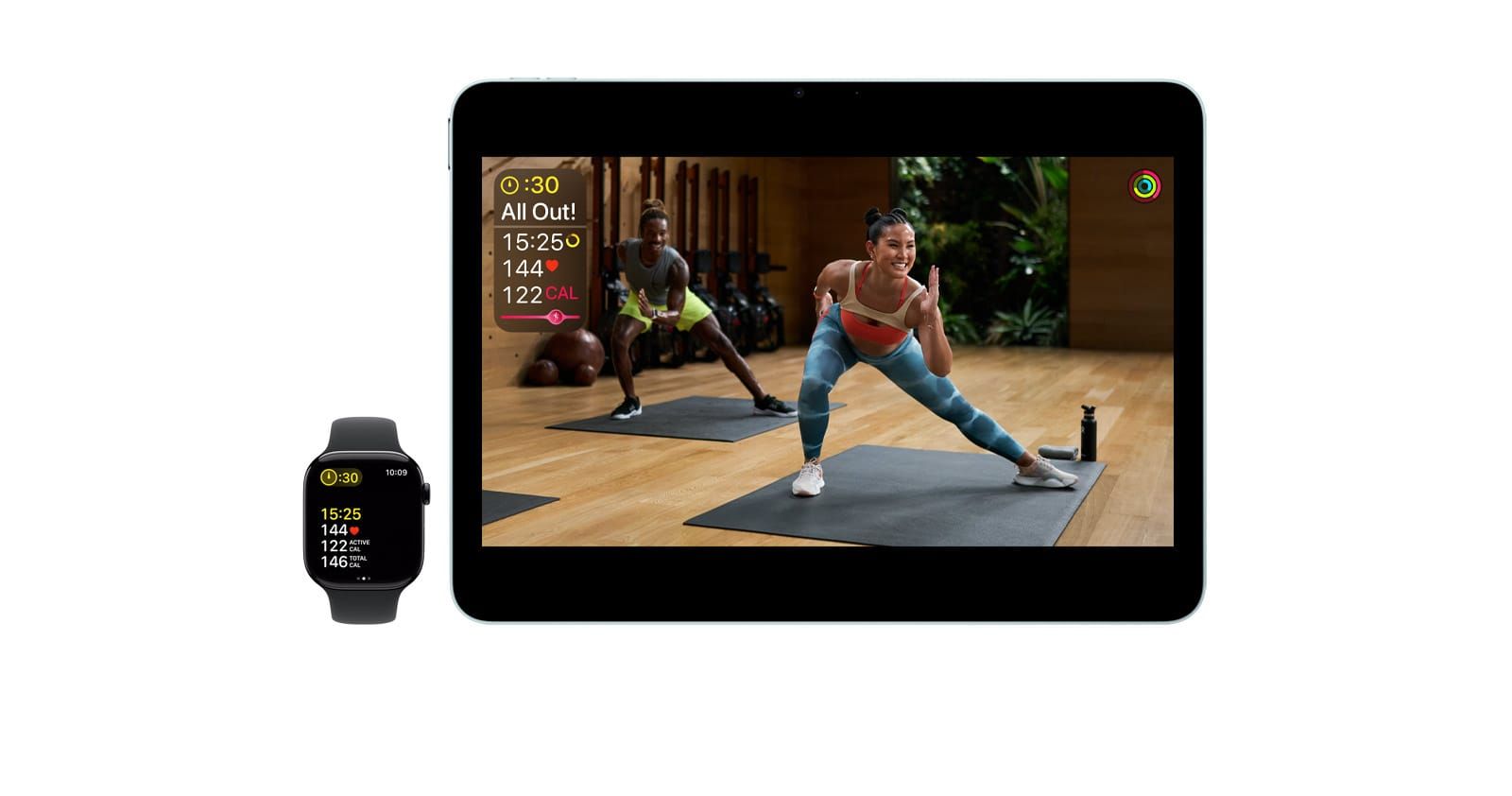
The watchOS 26 redesign was bold. Apple rebuilt the Workout app from scratch, added richer real-time metrics, and gave every workout type a dedicated card with more data upfront. What it also did was add an extra tap between you and actually starting your run. That tap became the most complained-about thing in the watchOS 26 release, and with good reason. When you're standing on a starting line, fumbling through an extra confirmation screen feels genuinely bad.
watchOS 26.4 fixes it. Tap the workout icon, and your watch starts the countdown. The one-tap behavior is back. But that's not the only thing that changed in this update, and two of the other additions are worth understanding if you train with Apple Watch regularly.
 Ad
AdWhat Apple Changed in watchOS 26
The redesigned Workout app in watchOS 26 introduced a Workout Detail View — a card-based layout where each workout type shows your average pace, heart rate zones, and route data before you begin. The idea was to let you review your last session and set a goal before starting. For casual gym-goers doing a quick session, that context is actually useful.
For people who run the same route every morning or log a swim at the same pool, it was an extra screen with nothing new on it. You'd tap Running, see your average from the last few sessions, and then tap Start. One extra tap, every single time. It seems small until you're in the middle of a cold morning and your watch is demanding extra navigation while you're wearing gloves.
Apple received consistent feedback from users and health-focused developers after watchOS 26 launched. The change wasn't a glitch — it was intentional — but the intention didn't match how serious athletes actually start workouts. The Workout app is the most-opened app on Apple Watch for a large segment of users. Making it slower was a strange call.
How the Fix Works in watchOS 26.4
The update restores direct launch behavior. Open the Workout app and tap the icon for your workout type — not the card, not a button labeled Start, just the workout icon itself. Your watch starts the three-second countdown immediately and begins tracking.
The Workout Detail View didn't disappear. It's still there. If you want to review your last run's stats before starting, tap the workout type name or the small info button next to it. The detail card slides in, you set your goal if you have one, and then tap Start. Both paths now exist — you're just no longer forced through the detail screen. For a full reference on every Workout app setting available on Apple Watch in watchOS 26, the workout settings guide covers what each toggle actually changes.
One thing worth knowing: custom workouts and interval training programs still require you to navigate through the detail screen to configure them. That's expected — they have configuration options that need to appear somewhere. But for standard workout types — Running, Outdoor Walk, Swimming, Cycling, HIIT, Yoga, and most others — the one-tap start is back. If you've built a habit around the watchOS 26 flow and want to keep reviewing your stats before each session, nothing changes. The fix is purely additive.
 Ad
AdControl Center Responds Faster While You're Active
The second workout-adjacent improvement in watchOS 26.4 is less visible but you'll notice it within the first week. Control Center — the slide-up panel that gives quick access to battery level, Do Not Disturb, Theater Mode, and airplane mode — had a lag problem when accessed during an active workout session.
The lag wasn't consistent. Sometimes Control Center opened instantly. Other times, especially during high-intensity intervals when the processor was logging heart rate more aggressively, it would pause for half a second before responding. That half-second doesn't matter if you're reaching for something on your couch. It matters quite a bit if you're pausing a treadmill run to toggle something quickly before the belt speeds up again.
watchOS 26.4 reduces that lag. Apple addressed how the processor prioritizes concurrent tasks during workout sessions, and the result is a Control Center that responds more quickly even at peak workout intensity. It's not a dramatic change, but it's the kind of improvement that makes the Apple Watch feel better precisely when you're using it for its main purpose.
Two Health Features That Arrived With the Update
watchOS 26.4, paired with iOS 26.4, brought two health additions that aren't directly about workouts but are relevant to anyone using Apple Watch for training.
The first is Average Bedtime — a new metric in the Health app that calculates your typical bedtime over a rolling two-week window using existing heart rate data and wrist motion. No manual input required. If you wear your Apple Watch to sleep, Average Bedtime just appears in your Sleep section automatically after the update. For athletes tracking recovery, this metric fills a gap that Sleep Duration alone couldn't cover: if your average bedtime has been drifting later over two weeks, your body is probably not recovering as fast as your workout log suggests. Apple Watch has a full sleep tracking system that most owners haven't fully set up, and Average Bedtime is a concrete reason to start.
I find this metric more useful than I expected. Duration tells you how long you slept. Bedtime consistency tells you something about routine quality, which exercise science research consistently ties to recovery outcomes. It's a simple addition, and it makes the health picture meaningfully more complete.
The second addition is Blood Oxygen reappearing in the iPhone Health app's Vitals overview for U.S. users. Apple had previously removed Blood Oxygen readings from prominent positions in Health due to ongoing patent disputes with Masimo. watchOS 26.4 brings Blood Oxygen back to the Vitals section, where you can track trends over time alongside heart rate and respiratory rate. For Apple Watch Series 10 and later, passive readings and historical data are now visible again in Health, though active measurement availability varies by model and region.
I think Apple should be more transparent about what this sensor can and cannot do depending on which Apple Watch model a person owns. The situation is more complicated than the product page implies, and users deserve clarity rather than confusion.
Your Two Paths in watchOS 26.4
Fast path, one tap to start:
- Open the Workout app on your Apple Watch.
- Find your workout type — Running, Cycling, HIIT, Swimming, Yoga, or any standard type.
- Tap the workout icon directly — not the name or info button beside it.
- The three-second countdown begins and tracking starts.
To review your history or set a goal before starting:
- Tap the workout type name or the small info button beside it.
- Review your recent averages and set a distance, time, calorie, or open goal.
- Tap Start when ready.
Both paths produce identical workout data. The difference is whether you spend a few seconds reviewing your history before the countdown. For most workouts, the fast path is the better choice — for race-day pacing or structured training runs where your goal matters, taking the review path gives you something to work with.

Related Posts
Apple Watch vs WHOOP 5.0: Which Is Better for Fitness?
Apr 17, 2026
Every Apple Watch That Runs watchOS 26 — And the Catch
Apr 16, 2026
The Apple Watch Faces That Actually Make People Smile
Apr 11, 2026