

🎧 Listen to this article
Prefer to listen? An audio version of this article is available for accessibility and convenience.
The blinking orange light on your HomePod mini means it is connected to a power adapter that does not deliver enough wattage. The device requires a USB-C charger rated at 20W — that is 9 volts at 2.22 amperes — and anything below that spec triggers the warning. Swap the adapter, and the orange light clears immediately.
That covers the most common cause. But there is a second situation that produces the same orange light, and it looks identical to the power warning while meaning the complete opposite. If you walk in on it without knowing what is happening, stopping it prematurely can make the problem significantly worse.
 Ad
AdThe Real Reason Your HomePod Mini Blinks Orange
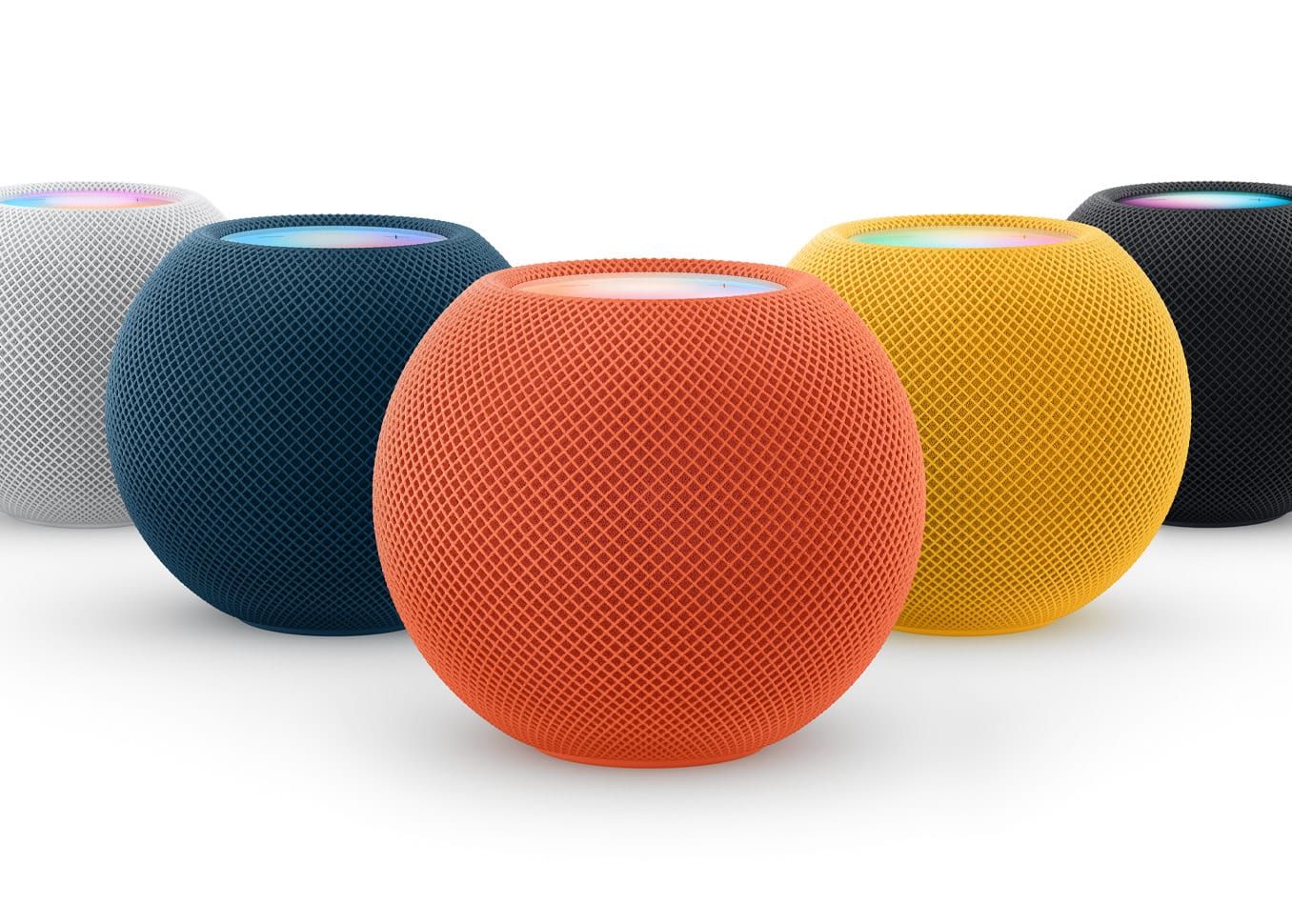
The HomePod mini is more demanding on power than it looks. Inside that compact sphere is an Apple S5 chip, a high-excursion woofer, and a passive radiator working in concert to produce room-filling audio. Running all of that reliably requires 9V at 2.22A — a 20W spec that Apple built around for good reason.
The problem starts when the original adapter goes missing. Most people reach for the nearest USB-C charger, which is usually a 5W iPhone brick, a 12W iPad adapter, or a generic 18W fast-charge block. None of those are sufficient. A 5W adapter delivers barely a quarter of the required wattage. Even an 18W adapter may not output the 9V profile the HomePod mini expects, depending on the charger’s USB Power Delivery configuration.
Checking whether your current adapter is rated correctly is simple. Look for the small print on the adapter body — the label should show an output of 9V at 2.22A or simply “20W.” If you see only 5V output at any amperage, or 9V at less than 2A, that adapter is not right for the HomePod mini. Apple’s 20W USB-C Power Adapter is sold separately for under $20 if the original has gone missing.
What makes this confusing is that the HomePod mini does not simply refuse to work when underpowered — it powers on, plays audio, and responds to Siri. The orange light is the only sign that something is wrong. Keep in mind that the light will not clear on its own. It will blink for days or weeks until you connect the correct adapter.
Here is how to fix it. Unplug the USB-C cable from the HomePod mini. Disconnect the old adapter from the wall and set it aside. Find a USB-C charger rated at 20W — most modern Mac chargers at 30W, 67W, or 140W can negotiate 9V output and work correctly with the HomePod mini. Connect the cable to the new adapter, plug directly into a wall outlet rather than a power strip, and reconnect the HomePod mini. The light should return to its normal white within a few seconds. If you still have the original Apple adapter included with the device, that is the simplest and safest choice.
 Ad
AdWhen the Orange Light Means Leave It Alone
There is one case where the orange light is completely expected: a firmware restore via Mac. If your HomePod mini gets stuck in a bad state or stops responding entirely, the Home app may direct you to restore it using a Mac and a USB-C cable. During that restore, the HomePod mini shows an orange light while it communicates with your computer.
Do not disconnect during a restore. Interrupting the process mid-way can corrupt the device software, turning a fixable problem into a much bigger one. Let the restore run to completion — the HomePod mini will switch to a pulsing white light when it is finished, which means it is ready to be set up again. If you have never been through a HomePod reset before, Zone of Mac walks through every step at reset any HomePod to factory settings.
Every HomePod Light Color, Explained
The HomePod and HomePod mini use six distinct light states to communicate what they are doing. Most are self-explanatory once you have seen them, but the difference between a spinning white and a pulsing white is easy to miss in a quick glance.
A solid white light means audio is playing. Pulsing white means the device is ready for setup and waiting for you to hold an iPhone or iPad close. Spinning white means the HomePod is powering on or installing a software update — during an update, the most important thing is to leave the power cable alone. The multicolored swirling light is Siri. A pulsing green light means a phone call or FaceTime Audio session has been transferred to the HomePod. And spinning red means a factory reset is in progress, which is supposed to look alarming — do not unplug.
The table below describes every light state across both models, the pattern to look for, and what action — if any — is needed.
Every HomePod and HomePod mini light state, what it means, and what you should do.
| Color | Pattern | Meaning | Action |
|---|---|---|---|
| White | Solid | Playing audio | None — this is normal |
| White | Pulsing | Ready for setup | Hold iPhone or iPad nearby to configure |
| White | Spinning | Powering on or updating software | Do not unplug |
| White | Flashing rapidly | Hardware or software error | Unplug 15 sec, replug; reset if it persists |
| Multicolor | Spinning/swirling | Siri is active | Speak your request |
| Orange (mini only) | Blinking | Wrong charger or Mac restore running | Swap to 20W USB-C adapter or wait for restore |
| Green | Pulsing | Phone or FaceTime call active | None — call is running on HomePod |
| Red | Spinning | Factory reset in progress | Do not unplug |
What to Do When the Charger Swap Does Not Clear It
If you confirm the correct 20W adapter and the orange light still blinks, a few extra steps are worth trying. Start by moving from a power strip to a direct wall outlet — some surge-protected strips reduce voltage slightly under load. Confirm you are using the USB-C cable that came with the HomePod mini, not a generic third-party cable. Some cables cannot properly communicate the power delivery request from the device to the charger, and the HomePod mini cannot distinguish between a cable problem and an adapter problem. Try unplugging everything completely, waiting thirty seconds, and reconnecting.
If none of that clears the orange light, the device may need a firmware restore. Zone of Mac covers every troubleshooting scenario for HomePods that stop responding at every fix for HomePods that stopped connecting.
While I appreciate that Apple built a visible indicator into the HomePod mini’s design, I find it hard to understand why the Home app offers no companion alert. The light is only useful if you happen to look at the device, and the HomePod mini often lives on a shelf, a counter corner, or somewhere without a clear sightline from the places you use your iPhone. A single notification — “HomePod mini may be underpowered, check charger” — would solve the problem before most users ever noticed the light. The light is better than nothing, which is a thoughtful compromise for what it is. But for a product positioned as the quiet backbone of a smart home, it could do more.
Would you consider labeling the original HomePod mini charger and keeping it near the device? Given how easily one USB-C adapter substitutes for another, that small habit eliminates the most common cause of the orange light before it ever starts.

Related Posts
How to Set Up HomePod mini and Change Its WiFi Network
Apr 17, 2026
Ring Won’t Support Apple HomeKit — These Workarounds Work
Apr 16, 2026
Your Apple TV 4K Is a Real Game Console — Here's How to Set It Up Right
Apr 15, 2026