

🎧 Listen to this article
Prefer to listen? An audio version of this article is available for accessibility and convenience.
Most Apple TV owners have never opened the App Store on their device. I don't mean they've skipped it this week — I mean they might not know it exists. The Apple TV App Store is there, it works, it has hundreds of games including things like NBA 2K26 Arcade Edition and Sonic Dream Team, and it sits untouched on millions of living room screens. How many of those games have you actually tried? If your answer is none, you're in the majority.
Your Apple TV 4K is running an A15 Bionic chip. That’s the same chip Apple put in the iPhone 13 Pro — a processor genuinely capable of running smooth, detailed, console-style games on a big screen. Pair a wireless game controller to it, subscribe to Apple Arcade, and you have something most people don’t know they own: a capable gaming console in a box that costs less than a PlayStation 5 controller.
The setup takes about three minutes. Most people never do it because nobody told them it was worth doing.
 Ad
AdWhich Controller to Get
Your Apple TV 4K supports Bluetooth game controllers from several product families. Xbox Series X and S wireless controllers pair natively with no adapters or workarounds. PlayStation DualShock 4 and DualSense controllers work. Nintendo Switch Pro Controllers connect without issues. MFi controllers from brands like SteelSeries and GameSir also work, though they’re less common in stores these days.
If you’re buying specifically for Apple TV, the Xbox Series X or S Wireless Controller is the one to get. Not because of any particular affection for the Xbox brand — it’s more that the pairing experience on tvOS is smoother than with any other controller, it runs on AA batteries with genuinely good battery life, and you can find it for under forty dollars. It gets out of the way.
The DualSense is a legitimate choice if you already own one. But a lot of what makes it special on PlayStation 5 — the adaptive trigger resistance, the sophisticated haptic feedback — doesn’t translate to tvOS. You’re holding a heavier, more expensive controller and getting basic rumble. That’s it. The DualShock 4 and Xbox controller are limited to basic rumble on tvOS as well, so all four options are closer to equal here than they are on dedicated consoles.
The Siri Remote that came with your Apple TV handles basic navigation in some simpler games. Swipe to move, tap to interact. For casual puzzle games or card games, it’s fine. For anything requiring dual thumbsticks — action games, racing, sports titles — you need a dedicated controller, and the game will usually tell you when you try to launch it without one.
Here’s a quick comparison before you decide:
Each controller works with Apple TV 4K over Bluetooth, but they differ in price, battery, and feel. Here is how the main options compare:
| Controller | Approx. Price | Battery Life | Haptics on tvOS | Best Fit |
|---|---|---|---|---|
| Xbox Series X/S Wireless | $40-$60 | ~40 hours | Basic rumble | Best all-around pick |
| PlayStation DualSense | $55-$70 | ~12 hours | Basic rumble | If you already own one |
| Nintendo Switch Pro | $60-$70 | ~40 hours | Basic rumble | Multi-platform households |
| MFi (SteelSeries Nimbus+) | $40-$50 | ~50 hours | Basic rumble | Dedicated Apple TV gaming |
 Ad
AdHow to Pair Your Controller
Start by putting your controller into Bluetooth pairing mode — the method varies by manufacturer. On Xbox controllers, hold the Xbox button until it lights up, then hold the small pairing button on the top face until the Xbox button begins flashing quickly. On PlayStation DualSense, hold the PlayStation button and Create button simultaneously until the light bar pulses white. The Nintendo Switch Pro Controller has a small sync button on the top edge.
On your Apple TV, go to Settings and select Remotes and Devices, then choose Bluetooth. Your Apple TV starts scanning automatically. Your controller should appear in the list within a few seconds. Select it. Pairing finishes in under fifteen seconds.
After the first pairing, pressing the Xbox or PlayStation button wakes both your controller and your Apple TV at the same time. You’ll find yourself reaching for the controller before you even think about the Siri Remote.
Worth knowing once everything is set up: Apple TV ties each controller to a specific Apple account under Family Sharing. When someone in your household picks up a controller, the TV recognizes which family member is holding it and loads that person’s game progress automatically. It’s a quietly impressive feature that avoids the classic overwritten-save problem, and it works without any additional configuration once you have Family Sharing set up on your Apple account.
Two controllers can be active simultaneously for local multiplayer. Most Arcade Originals that support co-op will show those options in the game’s main menu. It’s not a deep local multiplayer library, but for family gaming sessions — especially with sports titles or something like Sonic Dream Team — the option is there. Once you have gaming set up, the tvOS 26.4 settings worth changing before you miss them is a natural companion piece that helps you get more out of everything else your Apple TV does.
What to Actually Play
Apple Arcade is the right place to start. At $6.99 a month — or bundled into Apple One — it gives you unlimited access to a library of games with no ads, no in-app purchases, and no upsells. For Apple TV specifically, focus on Arcade Originals, which is the category fully compatible with Apple TV 4K. The second Arcade tier, called App Store Greats, is only available on iPhone, iPad, and Apple Vision Pro. Search for App Store Greats on your Apple TV and it won’t appear. That’s not a bug.
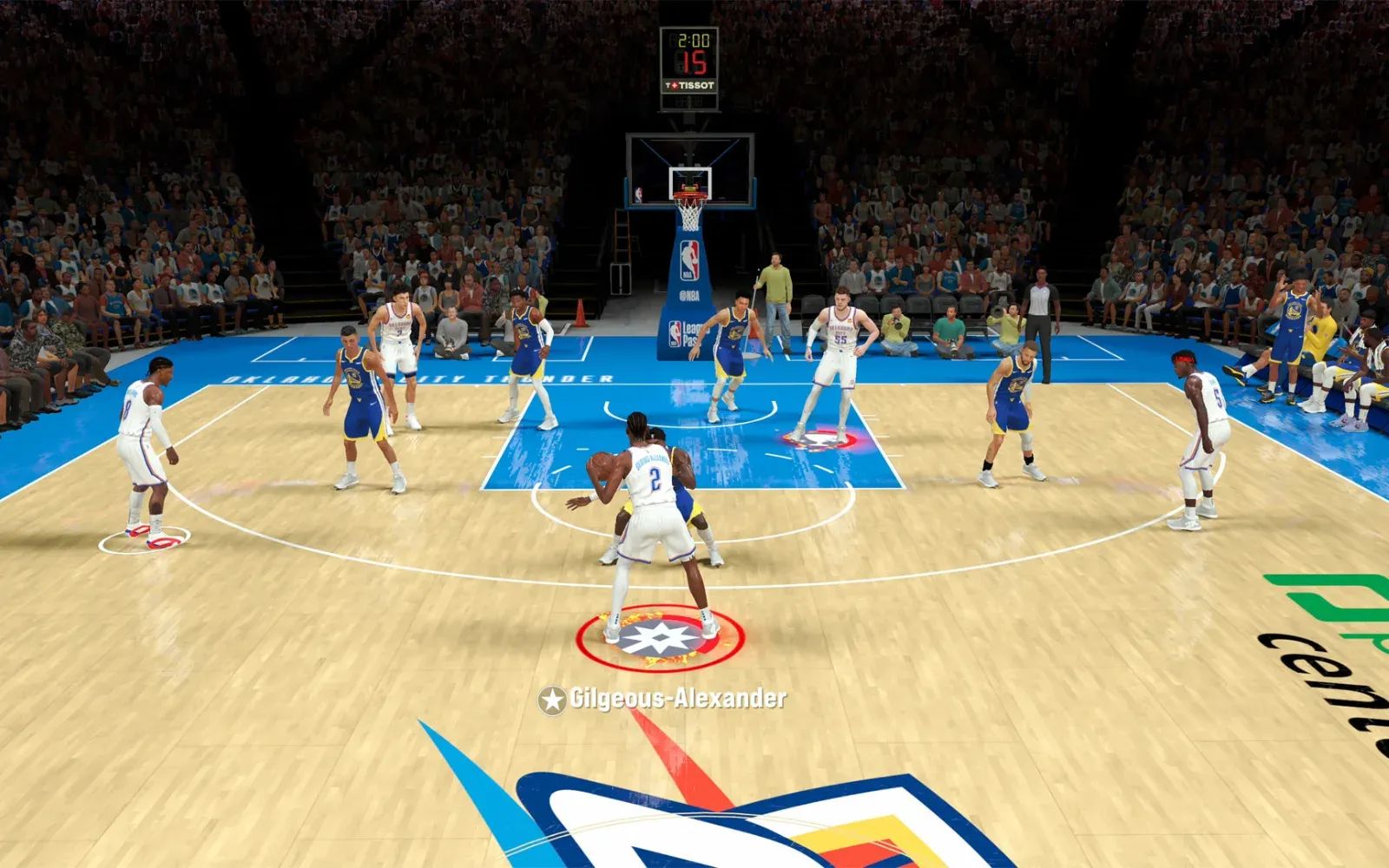
Among the Arcade Originals, Sonic Dream Team is the strongest pure platformer on the service — fast, polished, built for a controller, and genuinely better on a sixty-inch screen than on a phone. Sneaky Sasquatch is the opposite: slow, warm, and sprawling. If you have kids or anyone in your house who wants something relaxed and genuinely charming, it’s worth the subscription price by itself. NBA 2K26 Arcade Edition handles basketball without the microtransaction pressure of the full NBA 2K series. Football Manager 2026 Touch is there if you want to lose a weekend to club management. And if you want something more visual, Manifold Garden is one of the more remarkable things on the platform — an impossible-architecture puzzle game that looks stunning on a large display.
Beyond Arcade, regular App Store games can be installed on Apple TV too — just not every App Store title has a tvOS version. If something you’re looking for isn’t showing up in search on your Apple TV, that’s almost certainly the reason. What is available on tvOS tends to be polished and well-maintained.
One Setup Detail Worth Getting Right
Before downloading games, check what frame rate your Apple TV is outputting. This matters more for gaming than it does for streaming. Go to Settings, then Video and Audio, then Format, and confirm it’s set to match your television’s best capabilities. If your TV handles 4K at 120Hz, enable it. Games that run at 120 frames per second look noticeably smoother, especially in action and racing titles — it’s a visible difference, not just a benchmark number. If you’ve already gone through the display settings that affect everything on your Apple TV, you’re ahead of the curve.
Storage planning is worth a moment upfront. The Wi-Fi model of Apple TV 4K ships with 64GB, and the Wi-Fi + Ethernet model comes with 128GB. Neither has external expansion. Games take up more space than streaming apps, so if you’re planning to download heavily, the 128GB model is the one to have. If you’re already on 64GB, manage what’s installed — Apple Arcade games stay tied to your account even when deleted, so redownloading later is painless.
The Honest Part
Apple TV 4K isn’t competing with a PlayStation 5 or Xbox Series X. The gaming library is smaller, the App Store on tvOS carries fewer titles than the full iOS App Store, and the storage ceiling is real. If you’re a dedicated gamer looking for the deepest library possible and day-one access to major releases, Apple TV isn’t that device.
But it is something worth using. The A15 Bionic handles Apple Arcade titles without any visible strain. The experience on a large screen with a controller is legitimately different from the same games on an iPhone — not just bigger, but better. And the whole setup runs on hardware most Apple TV owners already have sitting under their televisions, connected to a display they’ve had for years. No new box. No additional subscription for hardware you’re unsure about. Just a controller, a few minutes, and a library of games your household has probably never tried.
That’s worth fifteen minutes on a Tuesday night to find out.

Related Posts
How to Set Up HomePod mini and Change Its WiFi Network
Apr 17, 2026
Ring Won’t Support Apple HomeKit — These Workarounds Work
Apr 16, 2026
Your HomePod Mini Is Blinking Orange — Here Is the Fix
Apr 13, 2026