
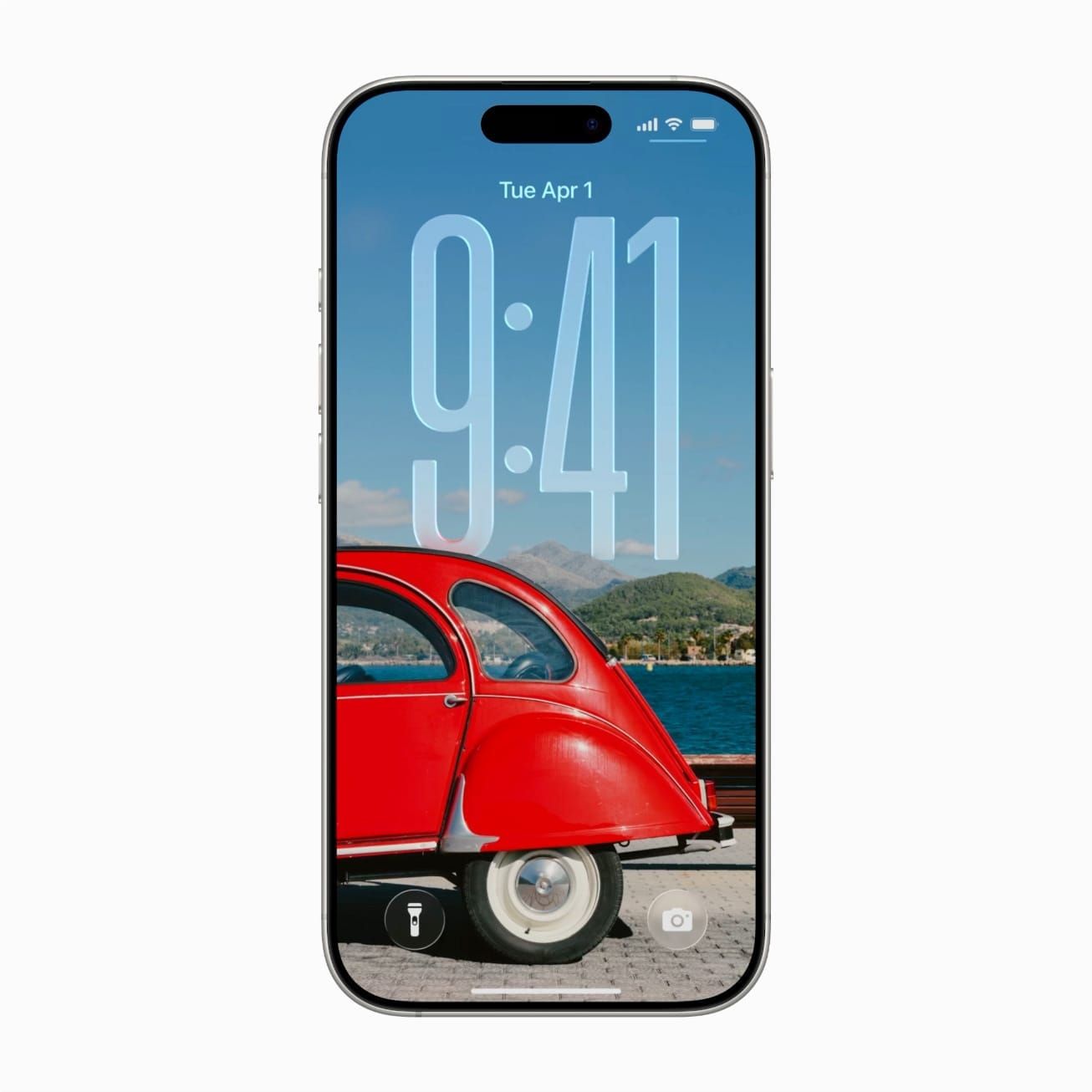

The iOS 26 lock screen looks good right out of the box. Apple made sure of that — the Liquid Glass clock treatment is genuinely striking, and the default wallpapers do it justice. But if you set up your iPhone and moved on without digging into the lock screen settings, you left most of what it can actually do sitting unused.
The lock screen in iOS 26 is not just a wallpaper with a clock. It’s a configurable display panel that connects to your Focus modes, surfaces live widgets, controls how notifications stack up, and on Pro models, stays on continuously. Most of that requires a few deliberate choices you probably haven’t made yet.
 Ad
AdStarting from Scratch: What a Custom Lock Screen Is
Apple lets you create multiple lock screens, not just swap backgrounds. Each one is a saved configuration that includes a wallpaper, a color theme, the clock style, and which widgets appear. You can have as many as you want and switch between them manually — or tie each one to a Focus mode so it activates automatically.
To create a new one, press and hold your current lock screen until the edit interface appears. Tap the plus icon at the bottom center to open the gallery. Choose a photo from your library, select a wallpaper Apple provides, or start from a solid color or gradient. The clock style and widget placement are separate steps layered on top of whatever background you choose.
Widgets That Actually Earn Their Space
Two widget areas sit on the iOS 26 lock screen: the date row above the clock, which can be swapped for an alternate widget, and a row directly below the clock that holds up to four small widgets.
The widget row is where things get interesting. Options include the next calendar event, current temperature, Fitness activity ring summary, and a battery indicator that shows both your iPhone’s charge and nearby connected accessories — including AirPods, if they’re in the case. Third-party apps add more options, so the selection expands as you install more software.
One thing Apple does not make obvious: some widgets only show useful data once their underlying permissions are sorted. The Home widget appears in the list but does nothing until HomeKit is configured. Some calendar widgets won’t surface the right events until you specify which calendar to pull from inside their options. Worth a few extra minutes to set up correctly.
For a broader look at the Liquid Glass design changes in iOS 26, including what changed in the Control Center and the app icon system, this overview of the iOS 26 Liquid Glass settings covers which options are toggleable and which are fixed.
Linking Your Lock Screen to a Focus Mode
This is the feature most people skip, and it’s the one that makes the lock screen genuinely useful rather than just decorative.
Each Focus mode — Work, Personal, Sleep, or any custom ones you’ve created — can have a dedicated lock screen that activates when that Focus turns on. When the Focus ends, your default lock screen comes back. No manual switching needed.
Set it up by going to Settings, then Focus, then selecting a mode. Look for Customize Screens. Tap it and you’ll see a lock screen picker on the left. Choose an existing configured lock screen or create a new one specifically for that Focus.
 Ad
AdThe practical result: a Work lock screen with a calendar widget and weather at a glance, a Sleep lock screen with a dark photo and no widgets at all, a Personal lock screen with whatever image you actually want to see. Apple notes on its support site that any combination of schedule, location, and app-based triggers can run simultaneously, which is worth knowing when multiple Focus modes share conditions.
If you are not already using Focus modes for notification filtering, this guide on silencing the right things on iPhone covers the full setup — because the lock screen linking only becomes powerful once the Focus itself is doing real work.
How Your Notification Display Looks
iOS 26 offers three styles for how notifications appear on the lock screen: Count, Stack, and List. Count replaces individual notifications with a single number. Stack groups them by app into expandable cards. List shows everything individually, the older way.
The default is Stack. It looks clean, but there is a friction detail Apple does not mention: tapping a stacked group opens a second layer where you then scroll to individual items. That is one more tap than List requires for every notification. If you find yourself going through notifications frequently, switching to List is genuinely faster, even if it looks busier.
Change this in Settings, then Notifications, then scroll to the bottom for the Display As option.
Depth Effect and What It Does to Your Wallpaper
Set a portrait photo as your lock screen and iOS 26 can split it into foreground and background layers. The clock positions itself between them — behind the subject, in front of the background — which creates a layered look that holds up surprisingly well.
This works with iPhone-shot Portrait mode photos and a wide range of standard photos that have a clear subject. Apple identifies the subject automatically. The depth effect is on by default for qualifying images and can be toggled with the icon in the lower corner of the wallpaper preview inside the lock screen editor. It does not work on landscapes, flat graphics, or screenshots.
Always-On Display on iPhone Pro Models
On the iPhone 16 Pro, iPhone 16 Pro Max, iPhone 17 Pro, and iPhone 17 Pro Max, the lock screen stays dimmed but visible when the phone is not in active use. This is Always-On Display, and it is on by default on all four models.
You can turn it off in Settings, then Display and Brightness, then Always On. There is also a setting to hide notification content in the always-on state — worth turning on in any situation where your screen is visible to people nearby.
What most people miss: Always-On Display continues to show Live Activities. An active timer, a music player, a flight status update — all of these stay on screen and updating without any interaction. That makes the phone useful as a glanceable display when it’s sitting on a desk, which is most of what people actually want from a bedside or desktop mode.

Related Posts
iPhone Offline Maps in iOS 26 Do More Than You Think
May 11, 2026
iOS 26.4 Hid a New Apple Account Design Inside Every App
Apr 30, 2026
Your iPhone Wallet Tracks Packages — Enable It in iOS 26
Apr 27, 2026