

🎧 Listen to this article
Prefer to listen? An audio version of this article is available for accessibility and convenience.
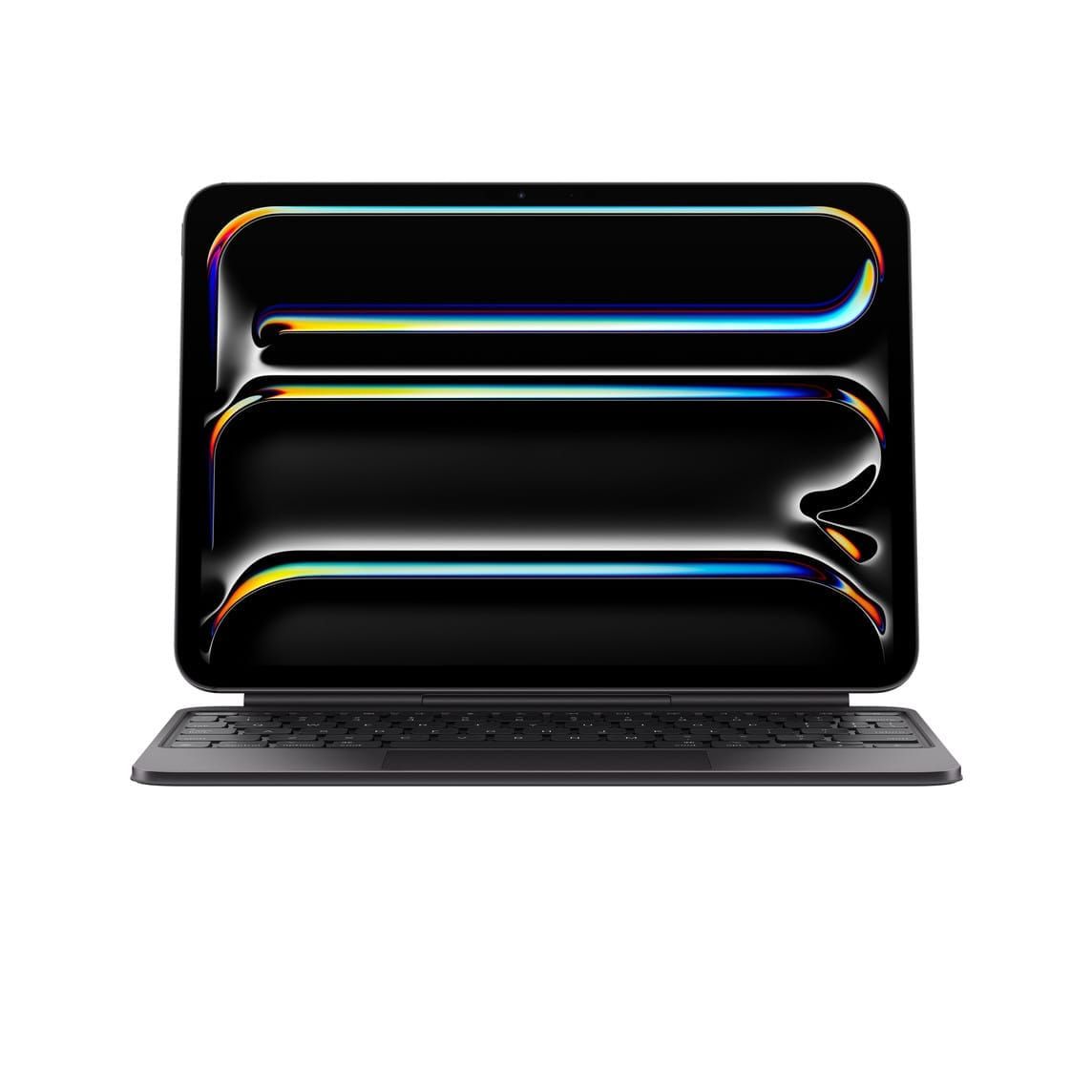
The Magic Keyboard for iPad Air M4 is a genuinely solid keyboard. It connects through the Smart Connector, pairs in less than a second, and brings a large glass trackpad to the iPad Air that makes real work actually possible on a tablet. At $269 for the 11-inch model and $319 for the 13-inch, it’s Apple’s only official keyboard choice for the iPad Air. For most people, it’s the first and last keyboard they’ll ever buy for this thing.
Here’s the catch, though: Apple left out the backlit keys. Completely. There’s no backlight setting buried in a menu somewhere — the keys are unlit by design, in every configuration, on both sizes. If you type in a dark room, on a late flight, or anywhere that ambient light isn’t doing you a favor, you’ll feel that absence almost immediately. That’s the one thing most keyboard reviews mention in a footnote and then move past.
Before you pull out a credit card, you should also know there’s a legitimate alternative in the Logitech Combo Touch — available from Apple, a different form factor entirely, and $70 cheaper for the 11-inch. Which one makes sense depends almost completely on how you actually use a tablet.
 Ad
AdWhat the Magic Keyboard for iPad Air M4 Actually Does
The Smart Connector on the side of the iPad Air is the Magic Keyboard’s secret advantage over everything else. Attach the iPad to the magnetic connector and the keyboard is active — no pairing setup, no Bluetooth toggle, no separate battery to charge. Pull the iPad off the keyboard and the iPad just goes back to being a tablet. That transition is seamless in a way that Bluetooth keyboards simply are not, and after spending any time with it, you’ll notice immediately when a keyboard requires a separate connection step.
The key travel is 1mm. Shallow, yes, but the keystroke feel is consistent and clean — not mushy, not clicky, just there. The cantilever hinge adjusts up to 130 degrees and holds its angle without drifting. Apple also built a USB-C pass-through port into the hinge, so you can charge the iPad while it’s in the keyboard without occupying the tablet’s own port. That’s a thoughtful design choice, and one that earns its keep on a long work session.
The 14-key function row covers brightness, volume, and a handful of system controls. The glass trackpad is large enough to use comfortably with multi-finger gestures. These are not complaints — they’re genuinely good components.
But the surface is silicone, not aluminum. The Magic Keyboard for iPad Pro uses an aluminum top case. The iPad Air version does not. You notice it when you rest your wrists for any extended typing session, and the silicone surface shows wear patterns over time in a way aluminum does not. Apple notes this in the product specs, but reviewers tend to gloss over it.
The biggest catch — and I keep coming back to this because it genuinely matters — remains the backlighting. When I say “no backlit keys,” I don’t mean dim or inconsistent. I mean completely dark. In a well-lit office this barely registers. In a dark room or on a late flight, it registers immediately and often.
Magic Keyboard for iPad Air vs. Magic Keyboard for iPad Pro
It’s worth being direct here: the two keyboards are not interchangeable. The iPad Air Magic Keyboard does not physically fit the iPad Pro, and the iPad Pro Magic Keyboard does not fit the iPad Air. They use different connectors and different case geometry. Buying the Pro keyboard to get backlit keys is not an option.
The two keyboards share the same key travel, Smart Connector design, USB-C pass-through, and cantilever hinge. What separates them: the Air version uses a silicone top case and has no backlighting. The Pro version uses aluminum and has backlit keys. The price difference is $30 on both 11-inch and 13-inch models.
The at-a-glance comparison below covers the differences that matter most for a purchase decision between the two main iPad Air M4 keyboard options.
The table below compares the two most common keyboard options for the iPad Air M4 across key purchase decision criteria.
| Feature | Magic Keyboard (Air M4) | Logitech Combo Touch |
|---|---|---|
| Price (11-inch) | $269 | $199.95 |
| Price (13-inch) | $319 | $229.95 |
| Backlit Keys | No | No |
| Connection | Smart Connector (instant, no pairing) | Bluetooth + USB-C charging |
| Keyboard Detachable | No | Yes |
| Viewing Angle | Up to 130 degrees (cantilever hinge) | Multi-angle kickstand |
| Trackpad | Large glass, physical click | Multi-touch trackpad |
| Top Case Material | Silicone | Hard plastic and fabric |
That $30 gap looks small on paper, but the two products feel different in daily use. If you’re an iPad Pro user deciding whether to move to an iPad Air for cost reasons, factor in that you’re also leaving behind the keyboard backlight — and the aluminum top case doesn’t come with the Air version.
 Ad
AdThe Logitech Combo Touch: A Different Kind of Keyboard
Logitech’s Combo Touch for iPad Air M4 costs $199.95 for the 11-inch model and $229.95 for the 13-inch. It doesn’t try to replicate the Magic Keyboard’s design. It goes in a different direction entirely.
Instead of a cantilever hinge, the Combo Touch uses a kickstand built into the iPad’s back case — adjustable to multiple angles, including shallower ones that the Magic Keyboard can’t reach. That makes it more useful in lap-typing situations and on uneven surfaces where a cantilever won’t sit stably. The keyboard section is also detachable. Remove it and you have a protected iPad with a kickstand, which is genuinely useful if you’re switching between reading mode and typing mode multiple times a day.
The trade-off is the connection method. The Combo Touch connects via Bluetooth and has its own USB-C rechargeable battery. You’re adding another device to charge, and while Logitech’s Bluetooth pairing is reliable in practice, it adds a step that the Smart Connector removes entirely. Bluetooth also introduces a brief wake-up latency when the keyboard has been idle — something the Magic Keyboard never does.
Worth mentioning clearly: the Logitech Combo Touch standard model also has no backlit keys. If the lack of backlighting is your main concern with the Magic Keyboard, switching to the Combo Touch won’t fix it.
Which Keyboard Fits How You Actually Work
Think about where you use the iPad Air M4 with a keyboard the most. That question tends to answer everything else.
If your iPad lives on a desk or at a table for most of its keyboard use, with reasonable lighting, the Magic Keyboard is the cleaner solution. The Smart Connector is seamless. The build quality is consistent. You never think about keyboard battery. The keyboard is also compatible back to the iPad Air 4th generation, so it stays useful across model upgrades.
If you move the iPad more — between sitting and standing, between bag and table, between full typing mode and hand-held reading mode — the Logitech Combo Touch’s detachable keyboard and more flexible kickstand are worth the Bluetooth trade-off. The $70 price difference on the 11-inch models is also not nothing.
There’s a third path worth acknowledging: skip the integrated keyboard case entirely and use a standalone Bluetooth keyboard. Logitech’s Keys-To-Go 2, available from Apple for $79.95, trades the protective case integration for extreme portability and a lighter carry. For iPad Air users who want to travel as light as possible, that setup deserves a look.
Before You Buy
Once you’ve made your keyboard choice, the iPad Air M4 becomes a surprisingly capable working machine. The Magic Keyboard’s shortcut layer, which lets you trigger system actions and app-specific commands without ever touching the screen, deserves its own attention. Zone of Mac covered the full shortcut layer here, and it changes how you navigate the whole device.
If you’re still weighing the 11-inch against the 13-inch iPad Air M4 before committing, that size decision has real daily consequences that go far beyond which keyboard you’ll eventually attach to it.

Related Posts
Your Apple Pencil Won’t Really Work on Nintendo Switch 2
Apr 21, 2026
Every Apple Pencil and the iPad It Actually Works With
Apr 15, 2026
The iPad Note-Taking App That Fits How You Actually Think
Apr 14, 2026