

🎧 Listen to this article
Prefer to listen? An audio version of this article is available for accessibility and convenience.
Apple sells four Apple Pencils. Not one, not two — four. And they are not interchangeable. Each model is designed to pair with a specific range of iPads, connects in a different way, and offers different capabilities. That last part matters more than most buyers realize.
The direct answer: if you own a recent iPad Pro (Apple Silicon M4 or M5) or iPad Air (M2 or M3), the Apple Pencil Pro is your option. If you have an older iPad with a flat magnetic side, the Apple Pencil 2nd generation is your match. Budget iPads and USB-C models without the magnetic flat side get the Apple Pencil USB-C. And if you are on an older Lightning-era iPad, the Apple Pencil 1st generation is the only option that fits. The complication is that identifying which category your iPad falls into requires knowing a model number most people never memorized.
 Ad
AdThe Four Models, and Why They Are Not Interchangeable
The naming is confusing on purpose — or at least it feels that way. Four Apple Pencil models, with names like ‘2nd generation’ and ‘USB-C’ and ‘Pro,’ do not tell you much about what they actually do differently.
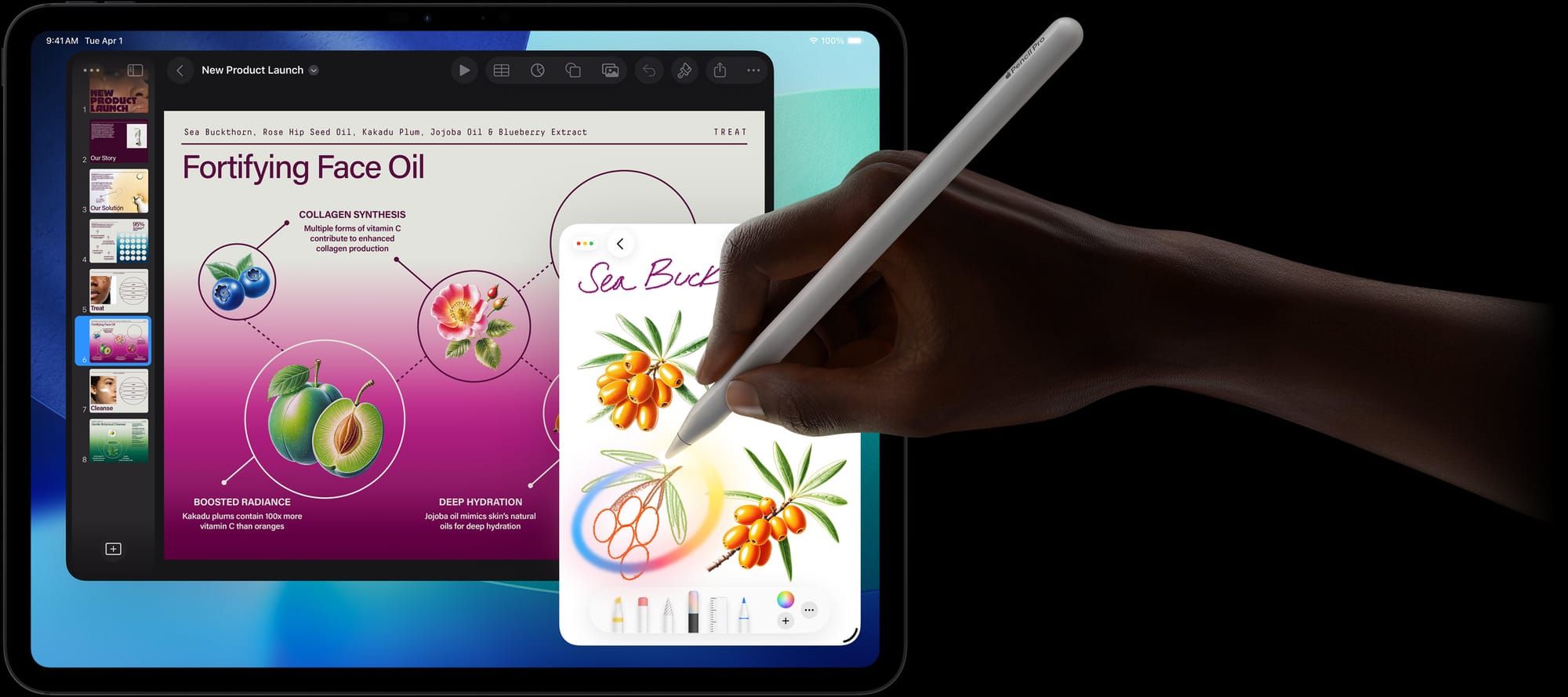
Apple Pencil Pro is the flagship. Released in 2024 and updated for the Apple Silicon M5 iPad Pro in 2025, it supports a squeeze gesture that brings up a tool palette in compatible apps, has a built-in gyroscope so apps can detect barrel-roll rotation, and is findable via Find My. It works exclusively with iPad Pro M4 and M5, and iPad Air M2 and M3. That is the short list.
Apple Pencil (2nd generation) is the older magnetic model. It attaches to the flat side of compatible iPad Pros and iPad Airs, charges wirelessly through that connection, and supports double-tap to switch tools. Compatible iPads include iPad Pro 11-inch (1st through 4th generation), iPad Pro 12.9-inch (3rd through 6th generation), iPad Air (4th and 5th generation), and iPad mini (6th generation).
Apple Pencil (USB-C) is the budget option at $79. No double-tap, no squeeze, no hover detection — but full pressure sensitivity and tilt are there, covering the essentials for drawing and handwriting. Compatible with iPad (10th generation), iPad mini (6th generation), iPad Air (M1 and later), and all USB-C iPad Pro models.
Apple Pencil (1st generation) is the Lightning model from 2015. Still sold, still works, and the only option for older iPads with Lightning connectors. Compatible with iPad (6th through 9th generation), iPad mini (5th generation), iPad Air (3rd generation), and iPad Pro models up through 2018. If your iPad has a round Home button, this is almost certainly your Pencil.
Which Apple Pencil Works With Which iPad
One row to pay attention to: the iPad 10th generation has USB-C, but only accepts the Apple Pencil USB-C — not the 2nd generation or Pro. That trips up buyers who assume all USB-C iPads support the newer Pencil models. They do not.
For details on keeping each model charged once you have connected it, ZOM’s guide to charging every Apple Pencil model covers what to expect from each, including the awkward charging posture of the 1st generation.
Apple Pencil compatibility varies by iPad model and connection method. Use this table to match your iPad to the correct Apple Pencil before purchasing.
| Your iPad | Compatible Apple Pencil |
|---|---|
| iPad Pro M4, M5 | Apple Pencil Pro or USB-C |
| iPad Air M2, M3 | Apple Pencil Pro or USB-C |
| iPad Air M1 (5th gen) | Apple Pencil 2nd gen or USB-C |
| iPad Pro 11-inch (1st–4th gen), 12.9-inch (3rd–6th gen) | Apple Pencil 2nd generation |
| iPad mini 6th gen | Apple Pencil 2nd gen or USB-C |
| iPad 10th gen | Apple Pencil USB-C only |
| iPad 6th–9th gen, iPad mini 5th gen, iPad Air 3rd gen | Apple Pencil 1st generation only |
 Ad
AdHow Each One Actually Connects
Connection method is where the four models feel most different. Magnetic models pair almost invisibly. The USB-C and Lightning models require a brief physical connection to initiate pairing, then stay connected wirelessly afterward.
Apple Pencil Pro and 2nd generation: hold the Pencil flat against the thin edge of your iPad — the side near the power button — and let the magnet snap it into place. Your iPad shows a Pair confirmation on screen. Tap it. The Pencil charges and maintains its pairing through that same magnetic connection every time you attach it.
Apple Pencil (USB-C): plug the short USB-C connector on the end of the Pencil directly into your iPad’s USB-C port. No cable required — the connector is built into the body. A Connect notification appears on screen. Tap it, unplug, and the Pencil stays paired until you reset your iPad or pair it to a different device.
Apple Pencil (1st generation): pull off the magnetic cap from the round end to expose the Lightning connector. Plug it directly into your iPad’s Lightning port. A Pair notification appears. Tap it, unplug, and you are set. That same connector is also how you charge this model, which means it sticks out at a right angle from the port while charging. It works, but it is not elegant.
The Friction Nobody Warns You About
A few things worth knowing before you buy, or before you wonder why something feels off.
The Apple Pencil (USB-C) does not support hover detection, even on iPad Pro M4 and M5 where hover is a feature. On those iPads, the Apple Pencil Pro shows a cursor above the screen before contact — drawing apps use this to preview brushstrokes. The USB-C Pencil works fine, but loses that capability entirely. If hover matters to your workflow, the USB-C Pencil is the wrong choice regardless of price.
I think the 1st generation Pencil has slightly more friction against the glass than the later flat-tipped models. It is subtle in a ten-minute session and noticeable after an hour of sustained note-taking. Apple Pencil tips also wear down over time in ways that change the feel of every stroke — the ZOM guide on Apple Pencil tip wear covers what worn versus fresh tips actually feel like.
One thing I find genuinely useful about the Apple Pencil Pro: Find My support. You can open Find My on your iPhone or iPad and see the Pencil’s last-known location on a map. Apple Pencils have a habit of sliding behind furniture, and confirming it is still in the building saves real time.
If your Pencil connects but immediately drops, or refuses to pair after the steps above, the ZOM troubleshooting guide for every Apple Pencil model walks through every known cause.
Quick-Action Checklist Before You Buy or Connect
- Find your iPad model: Settings → General → About → Model Name.
- Check your port: USB-C is a flat oval; Lightning is a small rounded rectangle.
- Confirm whether your iPad has a flat magnetic side — present on iPad Pro and iPad Air M1 and later, absent on iPad 10th generation.
- Determine if you need hover, squeeze, or Find My — these are exclusive to the Apple Pencil Pro, and only on iPad Pro M4 and M5 or iPad Air M2 and M3.
- After connecting: open Settings → Bluetooth and confirm the Pencil appears as connected.
- Draw a test line in Notes to verify pressure sensitivity.
- On iPad Pro M4 or M5 with the Apple Pencil Pro: hover the stylus above the screen and confirm a cursor appears before contact.

Related Posts
The iPad Note-Taking App That Fits How You Actually Think
Apr 14, 2026
Every Way to Take a Screenshot on Your iPad in iPadOS 26
Apr 14, 2026
Your iPad Moves Files Six Ways and You're Probably Using One
Apr 08, 2026