

🎧 Listen to this article
Prefer to listen? An audio version of this article is available for accessibility and convenience.
While I appreciate that Apple Pencil is one of the most intuitive styluses ever made, the moment it refuses to pair, charge, or respond to pressure, the experience goes from seamless to infuriating in about two seconds flat. Most Apple Pencil failures trace back to one of three causes: a dead Bluetooth connection, a depleted battery that sat too long at zero percent, or a worn-out tip you forgot to replace. The good news is that nearly every issue is fixable at home, without a Genius Bar appointment, in under five minutes.
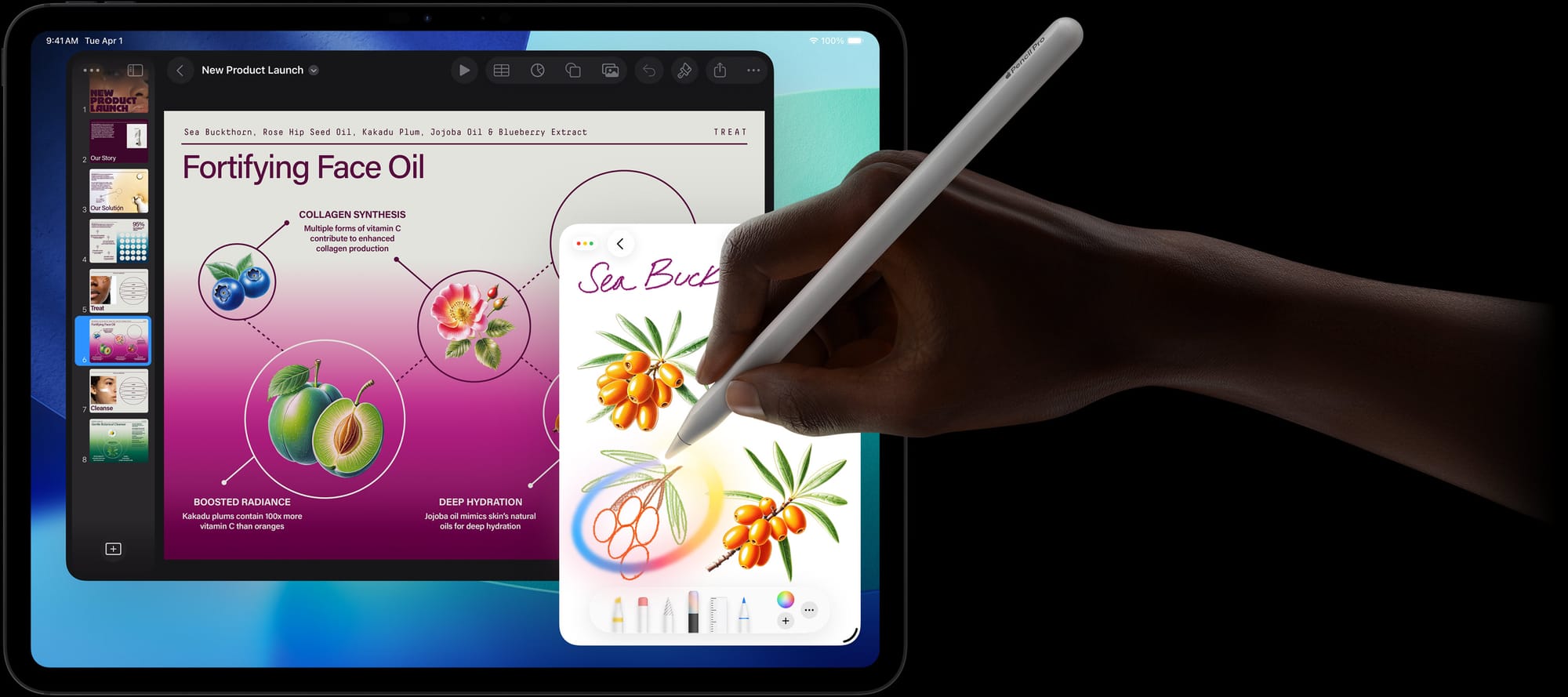
The catch is that “fix your Apple Pencil” means something different depending on which of the four models you own. Apple Pencil (1st generation) charges through a Lightning connector. Apple Pencil (2nd generation) and Apple Pencil Pro pair and charge magnetically. Apple Pencil (USB-C) plugs in with a cable but lacks pressure sensitivity entirely. Each model has its own failure patterns, and the wrong troubleshooting step for the wrong model wastes your time. I think Apple could do a better job labeling these differences, but here we are.
 Ad
AdBefore anything else, you need to identify which model is in your hand. Apple Pencil (1st generation) has a removable cap that reveals a Lightning connector. Apple Pencil (2nd generation) has a flat edge and attaches magnetically to the side of your iPad. Apple Pencil (USB-C) looks similar to the 2nd generation but has a sliding USB-C port near the tip end. Apple Pencil Pro also attaches magnetically and includes haptic feedback when you squeeze it. If you have already paired your Apple Pencil to the right iPad, you can check which model you own in Settings, then Apple Pencil. If you need help matching models to iPads, the pairing guide on Zone of Mac walks through every combination.
When Your Apple Pencil Refuses to Pair
This is the most common failure. You attach the Pencil to your iPad and nothing happens. No pairing prompt, no response, no indication that the iPad even knows the Pencil exists.
Start with the obvious: open Settings, tap Bluetooth, and confirm that Bluetooth is toggled on. I find this embarrassing to suggest, but it catches people more often than you would expect.
Next, charge your Apple Pencil for at least ten minutes. A completely dead battery cannot initiate a Bluetooth handshake, and ten minutes is the minimum Apple recommends before testing again. For the 1st generation, plug the Lightning connector directly into your iPad. For the 2nd generation or Apple Pencil Pro, press the flat edge against the magnetic strip on the side of your iPad. For the USB-C model, connect a USB-C cable between the Pencil and your iPad or a power adapter.
If the Pencil still will not pair after charging, go to Settings, then Bluetooth, find Apple Pencil in the device list, tap the info icon beside it, and tap Forget This Device. Then reconnect. Apple’s own support page confirms this step resolves most persistent pairing failures.
One edge case worth mentioning: thick iPad cases and certain magnetic folio covers can block the charging connection on the 2nd generation and Apple Pencil Pro models. The magnetic alignment needs direct contact between the Pencil and the iPad. Remove the case entirely, re-attach the Pencil, and try again. I have seen multiple forum threads where this single step resolved weeks of frustration.
 Ad
AdWhen Your Apple Pencil Will Not Charge
If the battery indicator stays stuck or the Pencil never appears in your Batteries widget, the problem is almost always physical rather than software.
For the 1st generation, inspect the Lightning connector on the Pencil and the Lightning port on your iPad. Compressed air and a wooden toothpick can dislodge lint without damaging the contacts. On USB-C iPads, you will need Apple’s USB-C to Apple Pencil Adapter, a separate accessory that ships with new 1st-generation Pencils but may be missing from older retail boxes.
For the 2nd generation and Apple Pencil Pro, clean the magnetic charging strip on both the Pencil and the iPad edge with a slightly damp microfiber cloth. Even a thin film of oil from your fingers can disrupt the magnetic charging connection. Place your iPad on a flat, stable surface before docking the Pencil. Charging on a couch cushion or blanket introduces enough wobble to break the magnetic seal intermittently.
Here is the scenario that catches people off guard: lithium-ion batteries suffer permanent damage when they sit fully discharged for weeks. If your Apple Pencil has been sitting in a drawer at zero percent for a month or more, the battery may be beyond recovery. Apple covers this under the one-year limited warranty, but outside that window, replacement is the only fix. Keep your Pencil charged regularly, even when you are not using it.
When Your Apple Pencil Draws but Ignores Pressure
Before troubleshooting, check your model. Apple Pencil (USB-C) does not support pressure sensitivity at all. That is a hardware limitation, not a bug. If you need pressure-sensitive input for drawing or calligraphy, you need the 2nd generation, the Apple Pencil Pro, or the 1st generation.
For models that do support pressure: unscrew the tip, inspect it for visible wear, and screw it back in finger-tight. The correct installation leaves a gap about the thickness of a sheet of paper between the tip and the Pencil body. If the tip is flush against the body, it is over-tightened. If it wobbles, it is too loose.
Try a fresh tip. Apple sells a four-pack of replacement tips for nineteen dollars, and the same tips work across all four Apple Pencil models. A worn tip is the most common cause of pressure sensitivity failure that people overlook because the Pencil still technically works.
If a new tip does not help, unpair the Pencil in Settings, then Bluetooth, then Forget This Device, and re-pair it. Restart your iPad after re-pairing. Update to the latest version of iPadOS. In rare cases, pressure calibration data can become corrupted, and a fresh pairing resets it.
One thing I find worth noting: if pressure works in the Notes app but fails in a third-party app like Procreate, the issue is app-specific, not hardware. Check the app’s pressure curve settings. In Procreate, navigate to Actions (the wrench icon), then Prefs, then Pressure and Smoothing to recalibrate.
When Your Apple Pencil Keeps Disconnecting
Intermittent disconnections are maddening because the Pencil works fine for a few minutes and then vanishes. The most frequent culprit is Bluetooth interference. Both Wi-Fi and Bluetooth share the 2.4 GHz band, and in a room full of wireless devices, your Pencil’s signal can get drowned out.
Switch your iPad’s Wi-Fi to a 5 GHz network if your router supports it. Move away from Bluetooth speakers, wireless keyboards, and other devices. If that is not practical, temporarily disable Wi-Fi entirely and test whether the disconnections stop. This isolates the problem to interference versus a hardware defect.
Low battery also triggers disconnections. Apple Pencil starts behaving erratically below roughly twenty percent battery. Charge it back to full and test again. Check and tighten the tip while you are at it. A loose tip can cause intermittent contact loss with the internal transducer.
If nothing else works, reset your iPad’s network settings entirely: Settings, then General, then Transfer or Reset iPad, then Reset, then Reset Network Settings. This clears all saved Bluetooth pairings and Wi-Fi networks. Reconnect the Pencil afterward.
When to Replace Your Apple Pencil Tip
Tip wear is gradual, and most people do not notice until performance has degraded significantly. Under normal use, Apple Pencil tips last about two years. Heavy daily use, especially drawing or handwriting, shortens that timeline.
Run your fingertip along the Pencil tip. A new tip feels perfectly smooth. A worn tip feels rough, textured, or slightly scratchy. Look at the tip under good lighting. If the surface appears jagged or uneven, or if you can see the metal transducer beneath the plastic, replace the tip immediately. A metal-exposed tip can scratch your iPad screen.
To remove the old tip, squeeze it between two fingers and twist counterclockwise. It unscrews in a few turns. Avoid pulling sideways, which risks damaging the internal connector. To install the new tip, place it on the metal prong and twist clockwise until it stops turning easily.
The Edge Cases Nobody Mentions
Screen protectors change how your Apple Pencil feels and performs. Tempered glass protectors add distance between the tip and the digitizer, which can reduce accuracy and responsiveness. Matte film protectors designed to mimic paper feel better for writing but can accelerate tip wear. If your Pencil suddenly feels off, temporarily remove the protector and test. If performance returns to normal, the protector is the variable. Thinner protectors generally cause fewer issues.
Temperature matters more than you would think. Apple Pencil batteries struggle in cold weather. Below zero degrees Celsius, the Pencil may disconnect repeatedly or refuse to charge. This is a lithium-ion characteristic, not a defect. Bring the Pencil indoors, let it warm to room temperature, and try again.
If your Pencil was previously paired to a different iPad, it automatically unpairs from the old device when you pair it to the new one. You do not need to manually forget the device on the old iPad first. Just connect the Pencil to the new iPad using the standard pairing method for your model.
For anyone who has explored the Apple Pencil Pro features in depth, the squeeze gesture and barrel roll that make it so capable also mean more electronics drawing power. Battery drain on the Pro is slightly higher than on the 2nd generation during extended sessions. Docking it between breaks is the simplest countermeasure.
Accessibility and Clarity
Apple Pencil troubleshooting benefits from iPadOS accessibility settings that most guides overlook. If you have difficulty with the double-tap gesture on the 2nd generation or the squeeze gesture on the Apple Pencil Pro, iPadOS lets you adjust sensitivity. Navigate to Settings, then Accessibility, then Apple Pencil. Here you can increase the squeeze firmness threshold, enable Extended Range for additional firmness options, slow down the double-tap recognition window, or disable either gesture entirely. These settings exist because Apple recognized that default gesture thresholds do not accommodate every hand size, grip strength, or motor ability. The fact that they are buried three screens deep in Settings instead of surfacing during initial Pencil setup is a missed opportunity.
Quick-Action Checklist
- Confirm your Apple Pencil model and check iPad compatibility
- Toggle Bluetooth off and back on in Settings
- Charge the Pencil for at least ten minutes using the correct method for your model
- Remove your iPad case and re-attach the Pencil (2nd gen and Pro)
- Forget the Pencil in Bluetooth settings and re-pair
- Replace the tip if the surface feels rough or uneven
- Restart your iPad after re-pairing
- Switch Wi-Fi to a 5 GHz network to reduce Bluetooth interference
- Reset Network Settings as a last resort before contacting Apple Support

Related Posts
How to Charge Every Apple Pencil, From the Original to the Pro
Mar 24, 2026
iPadOS 26.4 Arrives With Playlist Playground, Stolen Device Protection, and a Redesigned Wallpaper Gallery
Mar 16, 2026
Your iPad Can’t Go Back to iPadOS 18 and Here Is What You Can Actually Do About It
Mar 14, 2026