

🎧 Listen to this article
Prefer to listen? An audio version of this article is available for accessibility and convenience.
Your Mac can take a full-screen screenshot with three keys: Shift, Command, and 3. That file lands on your desktop, and you move on with your life. But macOS Tahoe buried an entire screenshot control center behind Shift-Command-5, and inside that toolbar sits an Options menu that changes where your captures go, what format they use, and whether that floating thumbnail keeps blocking the corner of your screen for four seconds after every shot.
Most Mac users learn one keyboard shortcut and never look further. That’s fine for the occasional screen grab. But if you take screenshots regularly — for work, for troubleshooting, for showing someone exactly what you see on your display — the difference between the basic shortcut and the full toolkit is the difference between a hammer and a workshop.
 Ad
AdThe Three Keyboard Shortcuts That Handle Most Jobs
Shift-Command-3 captures your entire screen and saves it as a PNG file on your desktop. Every connected display gets its own file. On a Retina MacBook Pro, that single screenshot can weigh in at 5–10 MB because macOS captures at native resolution — not the scaled resolution you see on screen. That file size catches people off guard when they try to email a screenshot and it bounces back.
Shift-Command-4 turns your cursor into a crosshair. Click, drag, and release to capture just the portion you selected. This one gets the most use, and it has two tricks most people miss: hold the Space bar mid-drag to reposition your entire selection without resizing it, and hold Shift to lock the selection to either horizontal or vertical movement.
Shift-Command-4, then Space swaps the crosshair for a camera icon. Hover over any window and click to capture just that window, complete with its drop shadow. If you want the window without the shadow — useful when you’re placing screenshots into documents or slides — hold Option while you click. That shadow adds roughly 20 pixels of transparent padding to every edge, which sounds trivial until you notice your screenshots have inconsistent dimensions across a presentation.
All three shortcuts save PNG files to your desktop by default. And all three have a hidden modifier: add Control to any of them, and the screenshot goes to your clipboard instead of creating a file. Shift-Control-Command-3 gives you a full-screen clipboard capture. No desktop clutter, no extra file to delete later. Just paste it where you need it.
 Ad
AdThe Toolbar That Changes the Game
Press Shift-Command-5 and a floating toolbar appears at the bottom of your screen. This is the Screenshot app — Apple’s full screenshot and screen recording interface, and it does considerably more than the keyboard shortcuts alone.
The toolbar shows six buttons: three for screenshots (full screen, window, selected portion) and three for screen recording (full screen, window, selected portion). Below them sits a small “Options” button.
That Options button is where Apple put the real controls. And it baffles me that Apple never surfaces this menu in any prominent way during macOS setup or onboarding. It just sits there, waiting.
What’s Inside the Options Menu
Save to: By default, screenshots land on your desktop. This dropdown lets you redirect them to Documents, Clipboard, Mail, Messages, Preview, or any custom folder you choose. Set it once to a dedicated Screenshots folder inside Documents and your desktop stays clean permanently. If you share a lot of screenshots through Messages or email, pointing it at one of those apps skips the save-to-desktop-then-attach workflow entirely.
Timer: Set a 5-second or 10-second delay before the capture fires. This is essential for capturing dropdown menus, tooltips, or hover states that vanish the moment you take your hands off the mouse. Without the timer, you physically cannot screenshot a menu that requires a click to stay open while simultaneously pressing a three-key shortcut. The timer solves this, and it’s the only native solution Apple offers.
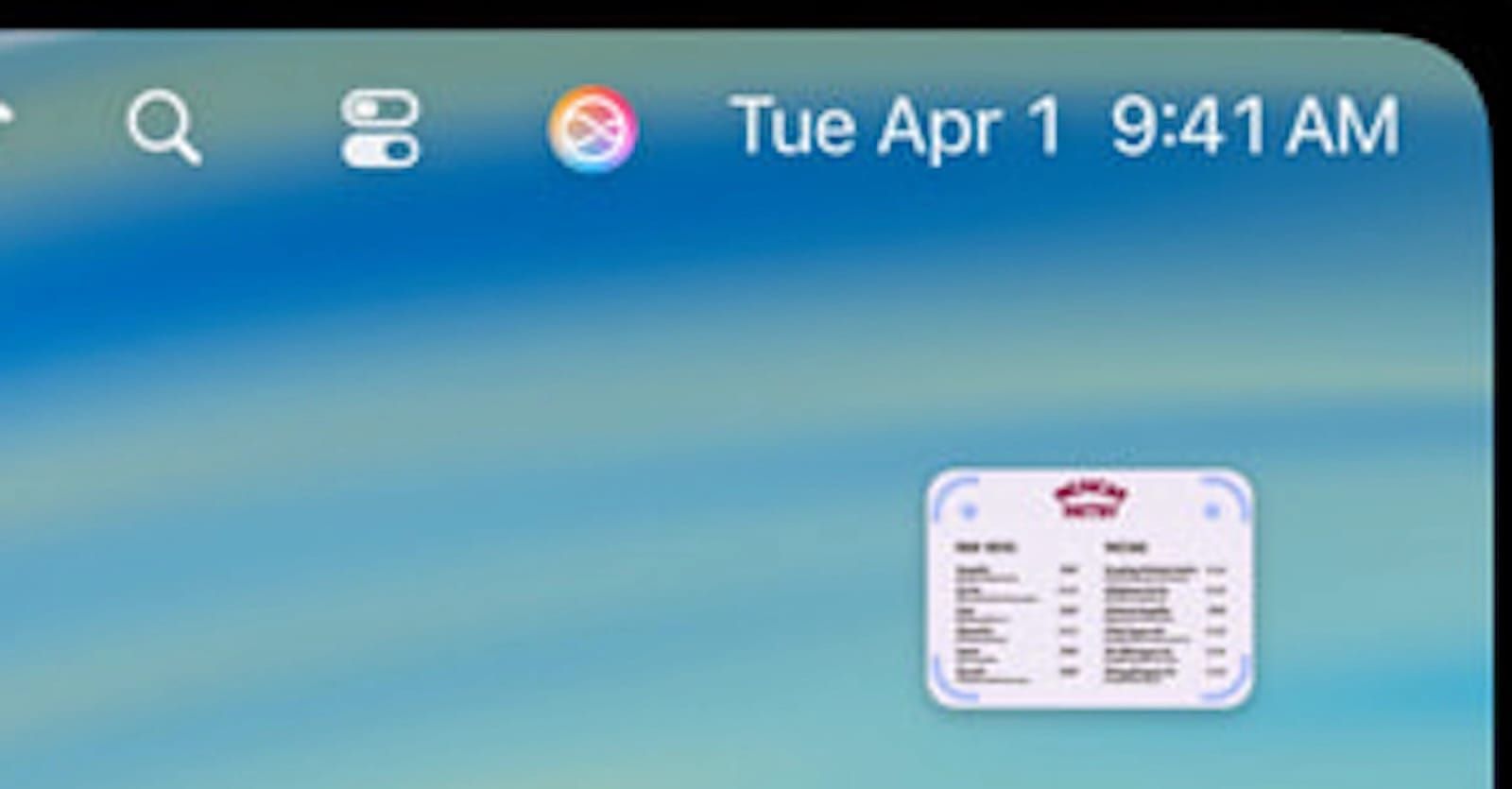
Show Floating Thumbnail: When this is on, every screenshot appears as a small thumbnail in the bottom-right corner of your screen for about four seconds. You can click it to annotate, drag it into a document, or swipe it away. When it’s off, the screenshot saves silently. Turn this off and your screenshots save without the four-second interruption. The thumbnail blocks the exact corner where most apps place their scroll-to-top buttons, and it lingers just long enough to get in the way but not long enough to be genuinely useful.
Capture Format (new in macOS Tahoe): This is a macOS Tahoe 26 addition that most guides still have not caught up with. You get two choices — SDR (Most Compatible), which saves as PNG in standard dynamic range, and HDR, which saves as HEIF in high dynamic range. If you have a MacBook Pro or Apple Studio Display with HDR capability, the HDR option preserves the full brightness and color range of what you see on screen. The catch: HEIF files are not universally compatible. If you share screenshots with Windows users or paste them into web-based tools, stick with SDR. If you are documenting color-critical work on your own HDR display, the HDR format is the better capture. Apple documents this and every other screenshot option on their official support page, which stays current with each macOS release.
Show Mouse Pointer: Toggles whether your cursor appears in the screenshot. Off by default for still captures, but useful when creating tutorials or documentation where the pointer position matters.
Remember Last Selection: When enabled, opening Shift-Command-5 again restores your previous selection area. Useful when taking multiple screenshots of the same region — updating a progress bar, capturing a sequence of dialog boxes, or documenting steps in an app. A small thing that saves real time.
Shortcuts You Might Not Know Exist
If you have (or had) a MacBook Pro with a Touch Bar, Shift-Command-6 captures the Touch Bar as a separate image. Apple discontinued the Touch Bar with the M1 Pro MacBook Pro redesign in 2021, but if you are still using a 2016–2020 model, this shortcut saves you from trying to capture a display element that the other shortcuts cannot reach.
macOS Tahoe also supports the Terminal command screencapture for automation and scripting. Running screencapture -c in Terminal captures the full screen to your clipboard without any keyboard shortcut — handy when you are already in Terminal and want a quick grab. If you have been exploring what Terminal can do in macOS Tahoe, there is a deeper set of commands worth knowing about in our Terminal guide.
You can also customize which keyboard shortcuts trigger each capture type. Open System Settings, navigate to Keyboard, then Keyboard Shortcuts, then Screenshots. Every shortcut listed in this article can be remapped to whatever key combination feels natural. And if you are curious about other macOS Tahoe features that fly under the radar, our guide to hidden files in Finder and Terminal covers another built-in tool that most people never open.
Quick-Action Cheat Sheet
Quick reference for every Mac screenshot shortcut in macOS Tahoe.
| Action | Shortcut |
|---|---|
| Full screen → file | Shift-Command-3 |
| Full screen → clipboard | Shift-Control-Command-3 |
| Selected area → file | Shift-Command-4 |
| Selected area → clipboard | Shift-Control-Command-4 |
| Single window → file | Shift-Command-4, then Space, click |
| Window without shadow | Shift-Command-4, then Space, Option-click |
| Screenshot toolbar | Shift-Command-5 |
| Touch Bar (legacy models) | Shift-Command-6 |
| Reposition selection mid-drag | Hold Space bar |
| Lock drag direction | Hold Shift |

Related Posts
Google Gemini for Mac Just Launched — Here's What It Does
Apr 17, 2026
Your Mac Can Receive AirPlay from Any iPhone or iPad — Here’s How
Apr 16, 2026
The Nintendo Switch 2 Setup That Turns Your iMac Into the Perfect Gaming Screen
Apr 14, 2026