

🎧 Listen to this article
Prefer to listen? An audio version of this article is available for accessibility and convenience.
Apple Passwords in macOS Tahoe is a full password manager that stores credentials, generates strong passwords, holds passkeys and verification codes, and syncs everything across every Apple device you own. The catch is that Apple buried it so quietly that most Mac owners still reach for Safari’s autofill prompt or a third-party subscription without realizing the standalone app even exists.
That changes right now. I am going to walk you through what the Passwords app actually does, where it falls short, and how to get it working as your daily password manager — because the gap between this free tool and the $36-a-year alternative is smaller than the password industry wants you to believe.
 Ad
AdWhat Apple Passwords Replaced and Why It Matters
Before macOS Sequoia introduced the standalone Passwords app in 2024, your Mac stored credentials in Keychain Access. Keychain Access worked. Technically. It also looked like a developer tool from 2005, with a search bar that returned results you did not ask for, certificate chains you should never touch, and a general vibe that said “this was not built for you.”
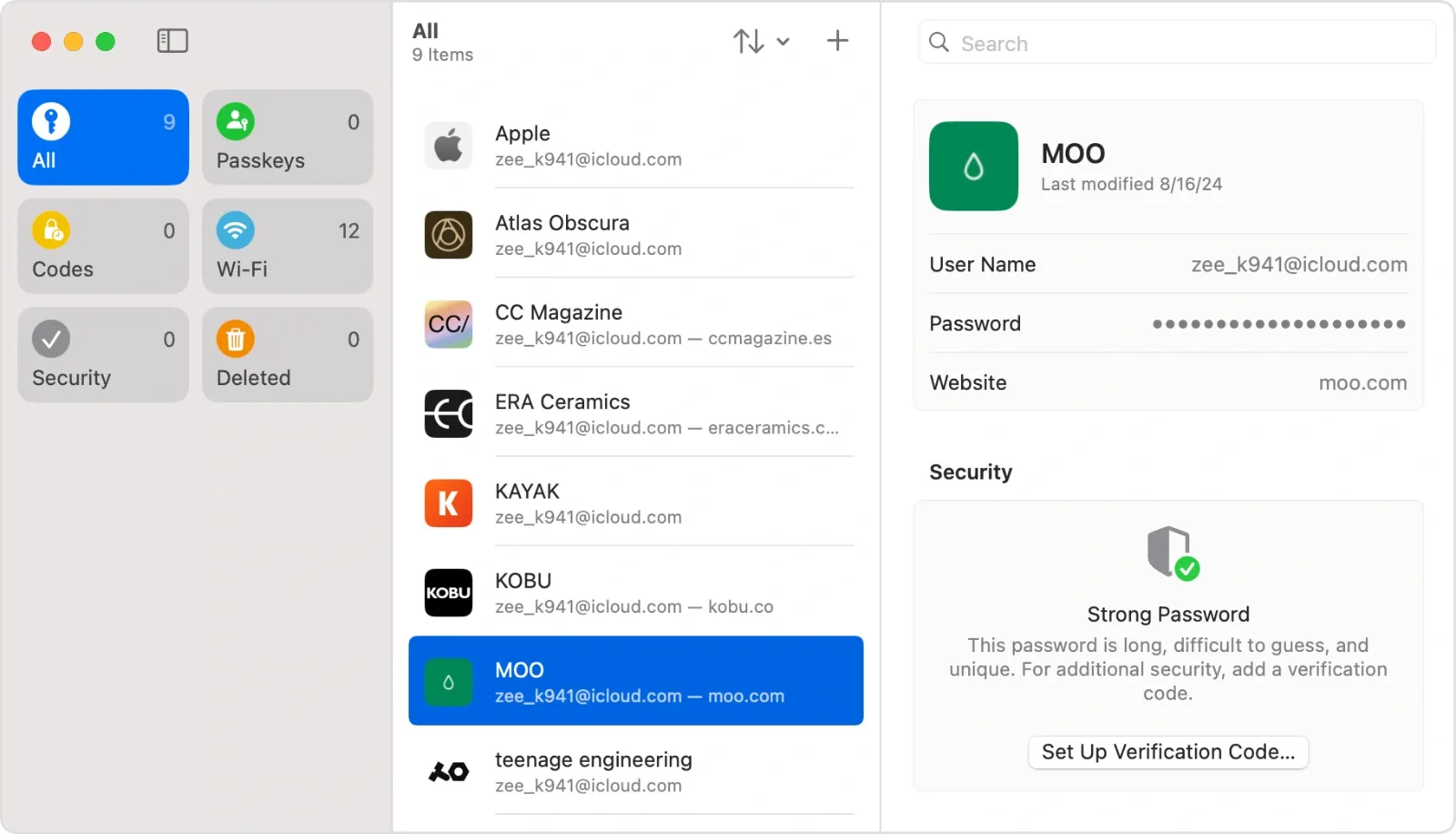
Apple Passwords fixed that problem completely. The app pulls your saved logins, passkeys, Wi-Fi passwords, and verification codes into a single clean interface that actually looks like it belongs on a Mac. No certificate chains. No system keychains cluttering the sidebar. Just the credentials you actually need when you forget a password at 11pm on a Tuesday.
The app landed in macOS Sequoia and carried forward into macOS Tahoe with refinements — including a sync fix that Apple shipped in iOS 26.4.1 just days ago. If you updated your Mac and never launched it, every password your Mac has ever saved is already sitting inside an app you have never opened. Hit Command-Space, type “Passwords,” and prepare to be surprised by how much your Mac already knows about you.
Passkeys Change How You Sign In
Passkeys are Apple’s replacement for traditional passwords, built on the FIDO Alliance’s WebAuthn standard. Instead of a text string that can be phished, leaked, or brute-forced, a passkey is a cryptographic key pair stored in your device’s Secure Enclave. You authenticate with Touch ID or your Mac’s login password. The private key never leaves your hardware.
In practice, signing into a passkey-enabled site feels like unlocking your Mac. Click the login field, Touch ID flashes, press your finger, done. No typing. No “forgot password” link. No two-factor code to chase down in a separate app.
The Passwords app stores and syncs passkeys through iCloud Keychain using end-to-end encryption — meaning Apple cannot read these keys even if served with a court order, according to Apple’s Platform Security documentation. The encryption happens on your device before anything touches Apple’s servers.
The honest friction point is adoption. Most websites still default to traditional passwords. Passkey support is growing — Google, Microsoft, Amazon, and a growing list of banks have added it — but traditional passwords are not going anywhere for years. The Passwords app handles both, which is exactly the bridge most people need right now.
Verification Codes That Replace Your Authenticator App
Here is the feature that catches people off guard. The Passwords app stores time-based one-time passwords — the same six-digit codes you get from Google Authenticator or Authy. When a site asks you to set up two-factor authentication, you can scan the QR code directly into Apple Passwords instead of opening a separate authenticator app.
The payoff is autofill. When you sign into a site that requires a verification code, macOS Tahoe fills both the password and the verification code automatically. Two fields, one Touch ID press, zero app-switching. If you have ever fumbled between Safari and an authenticator while a 30-second timer counted down, you already know why this matters.
Setup takes about ten seconds. Open the Passwords app, find the account, click “Set Up Verification Code,” and point your camera at the QR code your site provides. The rotating code appears right alongside your password entry from that point forward.
Password Sharing Groups Fix the Family Problem
Sharing passwords with family used to mean texting a password in plain text or writing it on a sticky note attached to the router. Apple Passwords lets you create shared groups, and every member of that group sees the same set of shared credentials synced across all their Apple devices.
I want to be clear about what this is and what it is not. This is not a shared vault like 1Password’s family plan with granular permission tiers and role-based access. It is a shared list. Everyone in the group sees every password in that group, and anyone can add or remove entries. For a household sharing streaming logins and the Wi-Fi password, it works perfectly. For a 15-person team with compliance requirements, look elsewhere.
Creation takes less than a minute. Open Passwords, click the plus icon in the sidebar, name the group, and add people from your contacts. They receive an invitation through iCloud. Once accepted, shared passwords sync automatically.
 Ad
AdThe Menu Bar Shortcut Worth Enabling Right Now
The Passwords app includes a menu bar icon that puts credential access one click away — even outside Safari. Enable it in Passwords, then Settings, then “Show Passwords in Menu Bar.” A small key icon appears in your menu bar. Click it, search for an account, and copy the password without opening the full app.
This is particularly useful in browsers other than Safari. Chrome and Firefox have their own credential stores, but if you want Apple Passwords as your single source of truth, the menu bar shortcut bridges that gap. It also works in Electron apps, remote desktop sessions, and anywhere else macOS autofill cannot reach natively.
One annoyance: the menu bar icon disappears into the crowd if you already have a dozen icons up there, and there is no global keyboard shortcut to invoke it as of macOS Tahoe 26.4. Apple, if you are reading this — Command-Shift-P, please.
Where Apple Passwords Falls Short
Apple Passwords is free. It is private. It syncs flawlessly across Apple devices. But it has real gaps that third-party managers fill.
Cross-platform support is the biggest limitation. If you use a Windows PC at work, Apple Passwords lives inside the iCloud for Windows app, which technically works but feels like an afterthought. There is no native Android app. If your entire life runs on Apple hardware, this limitation does not exist. If you carry an Android phone for work, it is a dealbreaker.
Organizational tools are minimal. No custom tags, no nested folders, no secure notes beyond what fits in the notes field of a password entry. 1Password stores credit cards, software licenses, SSH keys, and documents. Apple Passwords stores passwords, passkeys, verification codes, and Wi-Fi passwords. That is the complete list.
For most people — and I mean the vast majority of Mac owners who currently reuse the same three passwords across every site they visit — Apple Passwords is a massive upgrade over doing nothing. It is already installed. It already has your saved passwords. You just need to open it.
If macOS Tahoe features interest you, this breakdown of seven changes in macOS Tahoe 26.4 covers updates worth your attention. And if security across all your Apple devices is a priority, iOS 26.4 quietly activated Stolen Device Protection on your iPhone — a feature that pairs naturally with a locked-down password manager on your Mac.
Importing Passwords Takes Two Minutes
If you are migrating from another manager, the Passwords app supports CSV import. Export your passwords from 1Password, LastPass, Bitwarden, or Chrome as a CSV file, then go to File, then Import Passwords in the Passwords app and select the file. Credentials appear in the app immediately and sync across every device within seconds.
One edge case worth mentioning: CSV files with multiple entries sharing the same site URL but different usernames import correctly as separate entries. Three different Google logins come through intact with the right usernames attached. No merging, no confusion.
After importing, delete that CSV file. It contains every password you own in plain text, and leaving it sitting in your Downloads folder is the kind of oversight that makes owning a password manager completely pointless.

Related Posts
Google Gemini for Mac Just Launched — Here's What It Does
Apr 17, 2026
Your Mac Can Receive AirPlay from Any iPhone or iPad — Here’s How
Apr 16, 2026
The Nintendo Switch 2 Setup That Turns Your iMac Into the Perfect Gaming Screen
Apr 14, 2026