

🎧 Listen to this article
Prefer to listen? An audio version of this article is available for accessibility and convenience.
Every Apple Pencil — from the original to the Apple Pencil Pro — uses the same small, white plastic tip that screws onto the transducer inside the barrel. That tip is a consumable. It wears down with regular use, and when it wears far enough, the exposed metal underneath can physically scratch your iPad’s display. The tricky part is that tip wear is almost impossible to see until it’s already a problem, because the plastic erodes gradually and evenly across the surface.
Most iPad owners go months or even years without thinking about their Apple Pencil tip. I get it — it looks fine, the Pencil still works, and Apple doesn’t exactly plaster “replace your tip regularly” warnings across the iPad screen. But the difference between a fresh tip and a worn one shows up in how the Pencil feels against the glass, how accurately it tracks your strokes, and ultimately whether your screen stays pristine.
 Ad
AdWhat the Tip Actually Does and Why It Doesn’t Last
The tip of an Apple Pencil is more than a cap. It’s the interface between the internal pressure-sensing transducer and your iPad’s digitizer. When you press down, the tip compresses slightly and transfers that force to the sensor inside the barrel. The tip material — a specific formulation of hard polycarbonate-like plastic — gives just enough resistance to feel natural against glass without scratching the oleophobic coating on your iPad’s display.
Over time, that plastic wears. How fast depends on three things: how hard you press, what surface you draw on, and how many hours a week the Pencil gets used. Matte screen protectors chew through tips dramatically faster than bare glass. Artists who draw daily might burn through a tip every few months. Casual note-takers might go a year or longer. Apple doesn’t publish an estimated lifespan, which makes it your job to keep an eye on things.
Here’s what catches people off guard. The tip doesn’t shrink noticeably. It smooths out, which actually makes it feel slicker on the screen rather than rougher. By the time you feel scratching — the texture that most people associate with “time to replace” — the plastic may already be thin enough that the metal transducer is dangerously close to the surface. That’s backwards from what you’d expect, and it’s exactly why so many people replace tips too late.
Five Warning Signs Your Tip Needs Replacing
You don’t need to wait for catastrophic failure. These are the signs that show up before real damage happens.
The tip feels slick instead of slightly textured. A fresh Apple Pencil tip has a faint drag against glass — not sticky, but present. If your Pencil suddenly glides with zero resistance, that’s wear, not smoothness.
Your lines have occasional gaps or stutters. This is the one most people blame on software bugs or Bluetooth hiccups, but worn tips reduce consistent contact with the digitizer. If restarting your Apple Pencil doesn’t fix the gaps, the tip is the culprit.
The tip surface looks flat or shiny where it contacts the screen. Hold the Pencil at eye level and look at the very end under good light. A new tip has a uniformly matte finish. A worn tip develops a polished contact patch — that shiny spot is ground-down plastic.
You feel a faint click or hardness when pressing down. The tip absorbs some of the impact when you write or draw. When the cushioning plastic thins out, the hard transducer underneath starts to transmit through what’s left. That click is a warning sign worth paying attention to.
Any visible metal at the tip means stop immediately. If you can see even a glint of the metal transducer through the worn plastic, pull the Apple Pencil off your iPad until you swap the tip. Metal on glass will scratch your display’s oleophobic coating, and that’s not a fix-it-later problem.
 Ad
AdHow to Swap an Apple Pencil Tip in About Ten Seconds
This is the easiest repair in the entire Apple ecosystem. Grip the white tip between your thumb and index finger, twist counterclockwise, and it unscrews. Thread the new tip on, twist clockwise until it’s snug. No tools, no calibration, no Bluetooth re-pairing. The whole process takes less time than reading this paragraph.
One thing trips people up: the tip should be finger-tight, not gorilla-tight. Over-tightening won’t improve accuracy, but it can make the next removal harder. A firm twist until you feel resistance is all you need.
If a tip gets stuck — and this happens after long use, especially in humid climates — wrap it with a small piece of rubber shelf liner or a thick rubber band for grip. Do not use pliers. The tip is small enough that pliers will crush it and leave fragments jammed inside the barrel, which creates a much bigger problem than a worn tip.
After swapping, there’s nothing to reconfigure. Your iPad doesn’t register the tip as a separate component. It picks up right where you left off.
Which Replacement Tips Fit Your Apple Pencil
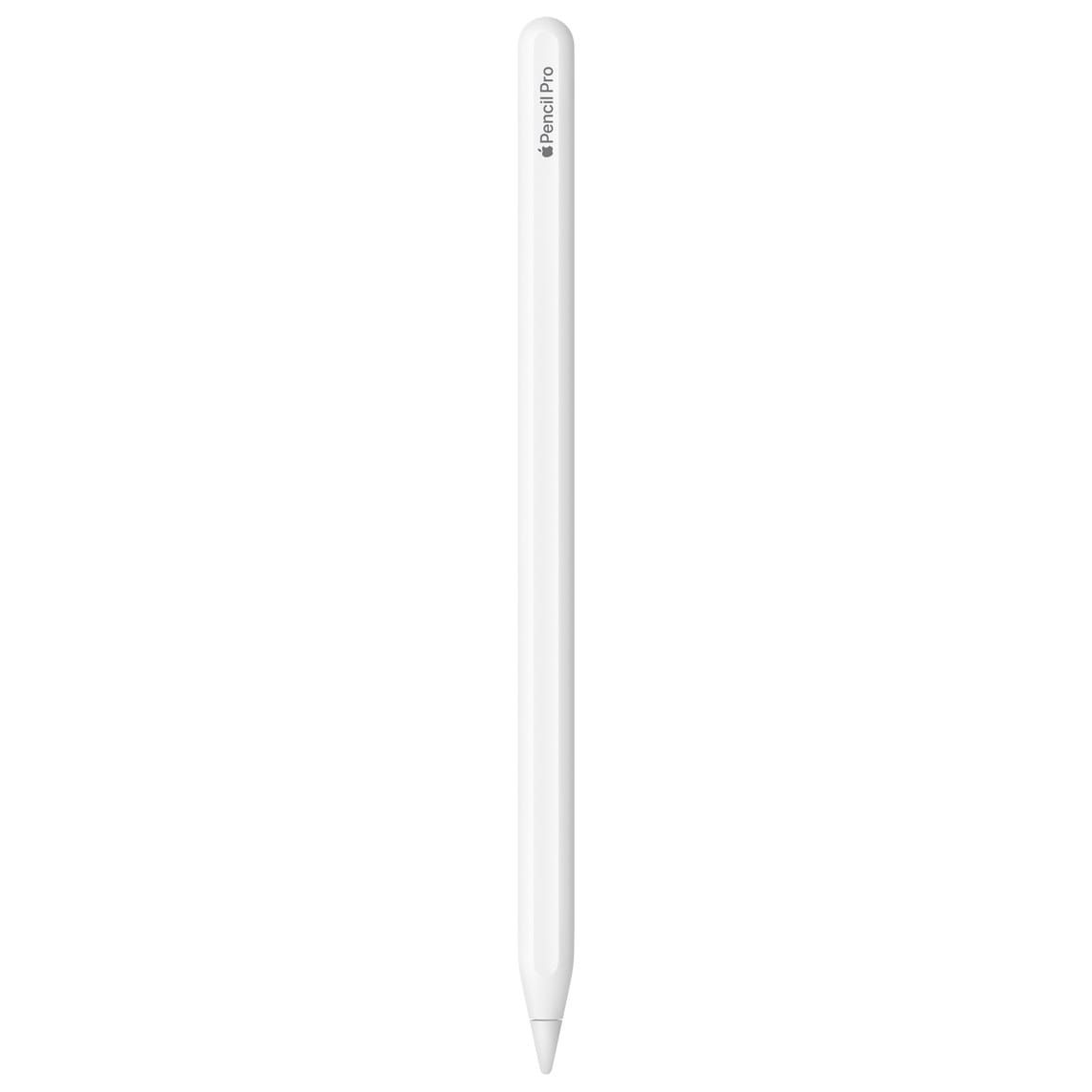
Here’s the part that confuses people. Apple uses the exact same tip design across every Apple Pencil model ever made. The Apple Pencil 1st generation, Apple Pencil 2nd generation, Apple Pencil USB-C, and Apple Pencil Pro all share the same threaded tip. One tip fits all four models.
Apple sells official replacement tips as a 4-pack for $19 (part number MX763AM/A). They’re available through the Apple Store, Amazon, Best Buy, and most authorized retailers. At $4.75 per tip, they’re not inexpensive for a small piece of plastic, but they’re the only option that guarantees the exact same material and fit as the factory original.
The original Apple Pencil 1st generation was the only model that shipped with a spare tip in the box. If you still have that spare sitting in a drawer somewhere, it works perfectly on your Apple Pencil Pro. Apple’s decision to use one universal tip design across a decade of products is genuinely smart engineering — it just would have been nice if they mentioned replacement more prominently.
For anyone who uses their Apple Pencil heavily for drawing and illustration, tip replacement is a running cost worth budgeting for. Roughly $19 every six to twelve months for daily users. That’s far cheaper than a screen protector replacement or a display repair from a scratched coating.
Third-Party Tips That Change the Feel
This table compares the three main Apple Pencil tip options by material, feel, durability, and cost to help you decide which fits your workflow.
| Feature | Apple Official | Paperlike | Rock Paper Pencil |
|---|---|---|---|
| Material | Polycarbonate plastic | Modified polymer | Stainless steel |
| Feel on glass | Smooth, low friction | Paper-like drag | Hard, precise |
| Lifespan | 3–12 months | Up to 10x longer | Near-permanent |
| Price per tip | ~$4.75 | Varies | ~$10 |
| Best for | General use | Drawing on glass | Durability-first users |
Apple’s official tips replicate the exact factory experience: smooth, low-friction, precise on glass. But a growing market of third-party manufacturers offers tips that deliberately change the writing or drawing feel.
Paperlike Pencil Tips add surface friction that mimics drawing on actual paper. They’re popular with digital artists who find bare glass too slick for detailed linework, and the manufacturer claims up to 10x the lifespan of Apple’s stock tips. The trade-off is real, though — the added friction makes handwriting heavier, which note-takers sometimes find fatiguing over long sessions.
Rock Paper Pencil makes a stainless steel tip designed to resist wear almost indefinitely. At roughly $20 for two tips, the per-tip cost is higher than Apple’s, but you almost never need to replace them. The feel is noticeably harder and more precise, with less cushioning. Artists either love the directness or find it unforgiving.
My honest take: start with Apple’s official tips unless you have a specific complaint about how the Pencil feels on your screen. The stock tips are what Apple optimized the entire pressure curve and palm rejection system around. Third-party options work and many of them work well, but every material change shifts the input feel slightly, and you might spend more time adjusting your technique than actually creating.
One Maintenance Habit That Extends Every Tip’s Life
Wipe your iPad screen before you start drawing or writing. I know — it sounds too simple. But dust and microscopic debris sit on the glass and act like fine-grit sandpaper between your tip and the display. A single pass with a microfiber cloth removes the particles that accelerate wear on both the tip and your screen’s oleophobic coating.
If you use a matte screen protector for that papery texture, your replacement cycle should be two to three times shorter than on bare glass. Matte films have a textured surface that grinds tips faster by design. That’s the trade-off for the improved drawing feel. If your Apple Pencil has stopped responding altogether, that’s a different issue — but a worn tip can mimic the symptoms. Keep a spare tip in your iPad case. It’s the kind of boring habit that saves you from discovering a worn tip in the middle of a deadline.

Related Posts
Your iPad Moves Files Six Ways and You're Probably Using One
Apr 08, 2026
Your iPad’s Magic Keyboard Has a Shortcut Layer Most Owners Never Open
Apr 07, 2026
iPad Air M4: Pick the Wrong Size and You’ll Feel It Every Day
Apr 05, 2026