

macOS Tahoe 26.5 arrived on May 11, 2026, and most tech coverage described it as “a fairly small update for Mac.” That’s technically accurate — the feature list is short. But “small” doesn’t mean “ignore it,” and if you close the notification and move on without checking two specific things, you’re leaving both a meaningful quality-of-life improvement and some serious security fixes unclaimed.
The update patches 98 security vulnerabilities — including 23 in WebKit alone. It also adds a genuinely useful new option for Mac mini and iMac owners that Apple buried in System Settings with almost no fanfare. So no, this is not a skip.
 Ad
AdThe Mac mini Setting Apple Should Have Shipped Two Years Ago
If you own an M4 Mac mini, you already know the power button situation. Apple moved the power button to the bottom of the device with the M4 redesign, which makes sense for the port layout — but not so much when your Mac mini is sitting under a desk, tucked in a media cabinet, or physically inaccessible during a reboot. Reaching under to tap the button gets old fast.
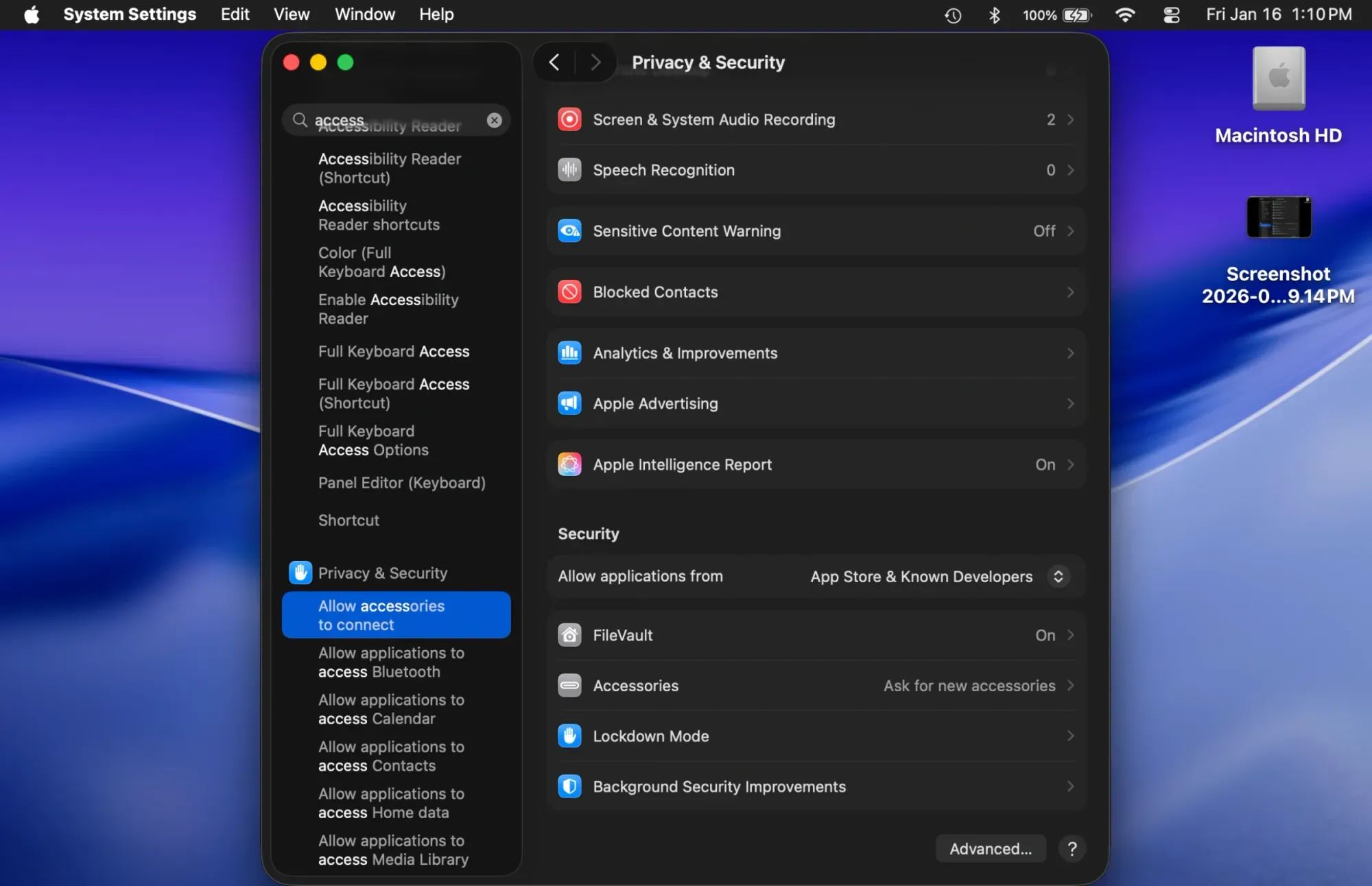
macOS 26.5 adds two new options in System Settings specifically for the M4 Mac mini, M4 iMac, and 2025 Mac Studio. The first is auto power-on when connected to power — exactly what it sounds like. Plug in your Mac and it turns on. No button press required. The second enables power control through assistive accessories, which Apple describes as useful “when you don’t have easy access to the computer’s power button.”
To find these options, open System Settings, then navigate to General and look for Startup Disk. The new power controls appear in that section for supported models.
I’ll say it plainly: this should have shipped with the M4 Mac mini in 2024. The bottom power button was a reasonable design tradeoff for the port layout, but it created real friction for anyone with a standard desk setup where the Mac sits flush against a surface. Apple fixed it a year and a half later via a software update. Better late than never — but it took longer than it should have.
If you want to see what other Mac mini settings are worth adjusting right out of the box, the Mac mini M4 settings worth changing on day one covers the full setup list.
 Ad
Ad98 Vulnerabilities Fixed — This Is Not a “Security Housekeeping” Update
Here is where the framing of macOS 26.5 as a “small update” gets genuinely misleading. The feature list is light. The security patch list is not.
Apple fixed 98 vulnerabilities across macOS Tahoe 26.5. Twenty-three of those are in WebKit — the rendering engine that powers Safari and underpins every web view in every Mac app. The fixes cover memory corruption, use-after-free issues, and out-of-bounds reads that could be triggered by malicious web content. If you use Safari — and on a Mac, even non-Safari apps often call WebKit — these patches matter.
Beyond WebKit, the update fixes 10 separate kernel vulnerabilities, including a file quarantine bypass and multiple buffer overflows. There is a CUPS root privilege escalation patch. A Spotlight fix that prevents unauthorized actions. A FileProvider race condition that could expose sensitive user data to apps with elevated permissions. And a Shortcuts change that now requires additional user consent before executing certain sensitive actions — worth knowing if you have ever downloaded an automation from a third-party source.
That last one is a detail Apple notes in the security release notes without much fanfare, but it has practical implications. Any Shortcut that interacts with files, contacts, or system resources may prompt you the next time it runs after this update. That is the update working correctly.
Your Mac has a whole separate system for handling automatic security patches alongside feature updates like this one. If you want to understand exactly how that works, how your Mac quietly patches itself is a clear explainer.
The honest advice is short: install macOS Tahoe 26.5. The feature set will not change your workflow, but 98 security patches is not optional maintenance.
Two Smaller Changes Worth Noting
Beyond the headline items, two quieter changes are worth knowing about.
Maps in macOS 26.5 gains a Suggested Places section in the search interface. When you open Maps and start a search, the app now surfaces trending or popular nearby locations alongside your typed results. Whether this turns into a useful discovery feature or a future advertising surface remains to be seen — Apple has indicated that Maps advertising is coming later in 2026. For now, it is a useful addition if you use Maps on Mac for planning trips or exploring a new city.
The MagSafe charging indicator behavior also changed, and it fixes something genuinely confusing. If you use the Battery Charge Limit feature — the setting from macOS Tahoe 26.4 that caps your MacBook charge at 80 percent to preserve long-term battery health — the MagSafe cable indicator now turns green when your Mac reaches that limit, instead of staying amber. Previously, that amber indicator looked identical whether your MacBook was actively charging or had finished charging at 80 percent. Green means done. If you have not set up the charge limit feature yet, the macOS Tahoe 26.4 battery charge limit explainer is worth a few minutes.
Accessibility and the Power Button, Properly Explained
The new auto power-on and accessibility accessory support in macOS 26.5 deserves more than the convenience framing it has gotten.
For Mac users with mobility or upper-body limitations, physically pressing a power button that sits flush on the underside of a device is not just inconvenient — it can be genuinely inaccessible. Reaching under a desk, flipping a device over, applying downward pressure: none of that is trivial for users with limited reach, grip strength, or arm mobility. Assistive switch accessories exist specifically to extend device control to people who cannot use standard physical inputs, and Apple’s new support for power state control via those accessories brings that accessibility to the most fundamental Mac operation: turning the machine on.
Apple’s VoiceOver and switch control ecosystem on Mac is broader than most users realize. The power accessory support added in macOS 26.5 is the kind of small extension that does not make headlines but matters enormously to the users who need it.
Quick-Action Checklist: After Installing macOS Tahoe 26.5
- Check new power settings if you own a supported desktop Mac. On M4 Mac mini, M4 iMac, or 2025 Mac Studio: open System Settings, go to General, then Startup Disk, and review the new auto power-on and accessibility accessory options.
- Confirm your MagSafe indicator behavior. If you use Battery Charge Limit, watch for the indicator to turn green at your set charge level rather than staying amber.
- Review any Shortcuts automations you have not checked recently. macOS 26.5 added an additional user consent step for certain Shortcut actions. Existing automations that interact with files or system resources may prompt you on the next run.
- Install the update. Ninety-eight security patches is not a round to skip.

Related Posts
iPhone Mirroring on Mac Does More Than You Think
May 06, 2026
How to Screen Record on Mac in macOS 26
Apr 29, 2026
Use Sidecar to Turn Your iPad Into a Second Mac Display
Apr 23, 2026