
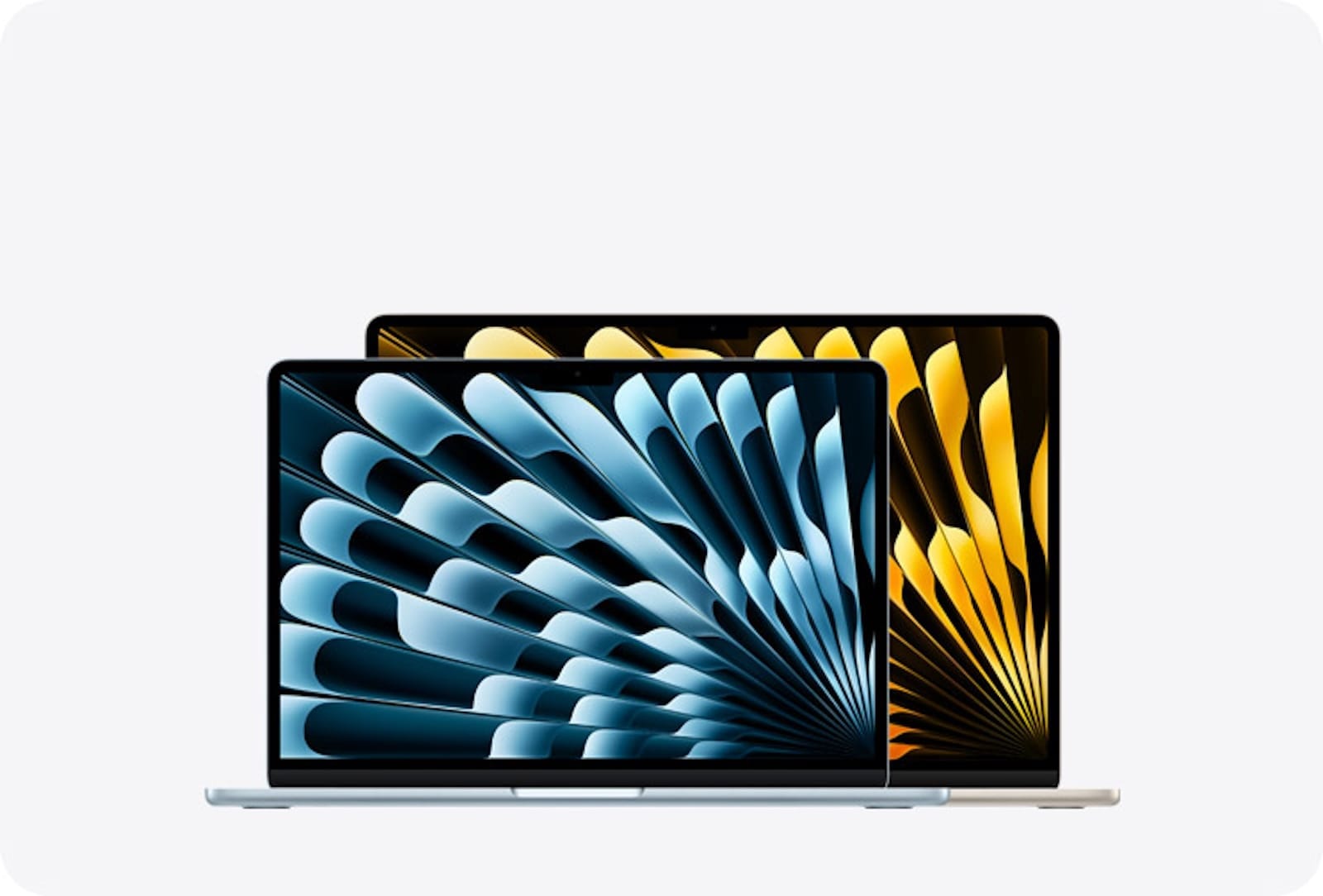

The MacBook Air with Apple Silicon M5 is the best general-purpose laptop Apple has ever made, and the default settings it ships with leave about a third of its capability sitting dormant. You can change that in about 20 minutes.
The catch is that Apple buries some of the most useful configurations two or three menus deep inside System Settings, and the setup assistant that greets you on first boot skips over nearly all of them. Wi-Fi 7 connectivity through the new Apple N1 wireless chip, a 10-core CPU with the fastest single-core performance Apple has ever shipped, 512 gigabytes of base storage with double the SSD read speeds of the M4 generation, and support for two external displays with the lid open — none of that matters much if your energy settings are throttling performance and your security defaults are still wide open.
I went through every panel in System Settings on the MacBook Air M5 running macOS Tahoe so you do not have to guess which ones actually matter. Here is where to start.
Touch ID and Your Lock Screen Deserve Five Minutes
The first thing the setup assistant asks you to do is add a fingerprint to Touch ID. Do it, obviously. But then add a second finger. I always register my index finger on both hands, because there is nothing more annoying than reaching over with the wrong hand and having your Mac stare at you blankly.
Open System Settings, then tap Touch ID & Password. You can store up to five fingerprints. After that, scroll down and make sure “Use Touch ID for Apple Pay,” “Use Touch ID for purchases in iTunes Store, App Store, and Apple Books,” and “Use Touch ID to autofill passwords” are all turned on. If you are migrating from another Mac, these sometimes reset.
While you are in this panel, take a look at the Lock Screen section one menu item up. The default is “Require password after 5 minutes,” and for a laptop you carry around, that is a long window. I set mine to “immediately” and rely on Touch ID speed to avoid friction. Five seconds with the right fingerprint registered is faster than typing a password anyway.
The Battery Slider Apple Finally Got Right
This one is new to macOS Tahoe, and it might be the most underrated setting on the entire machine. Open System Settings, then Battery. You will see a Charge Limit slider that lets you cap your maximum battery charge anywhere between 80 and 100 percent. Apple defaults it to 100, but lithium-ion cells degrade faster when they spend long stretches sitting at full charge. If your MacBook Air lives on a desk most of the day plugged into MagSafe, dragging that slider down to 80 percent can meaningfully extend the long-term health of the battery.
The MacBook Air M5 already gets up to 18 hours of battery life. Capping at 80 percent still gives you roughly 14 hours on a full cycle, which is more than enough for a day of real work. The tradeoff is worth it if you tend to leave your laptop connected to power for hours at a time, and I think most desk-based MacBook Air users fall into exactly that category.
One thing to note: the slider feels slightly stiff in the UI. You have to click precisely on the track and drag, not just tap the number you want. A minor annoyance that Apple will probably smooth out in a future macOS Tahoe update.
Wi-Fi 7 Is Here, but You Need to Check Your Router
The MacBook Air M5 ships with Apple’s new N1 wireless chip, which supports Wi-Fi 7 and Bluetooth 6. That is a genuine upgrade from the M4 generation. Wi-Fi 7 enables multi-link operation, meaning your Mac can bond multiple frequency bands simultaneously for faster throughput and lower latency. On a compatible router, file transfers and video calls feel noticeably snappier.
But here is the part Apple does not mention in the marketing: Wi-Fi 7 requires a Wi-Fi 7 router. If your home network is still running a Wi-Fi 6 or Wi-Fi 6E access point, the N1 chip will connect just fine, but you will not see any of the multi-link benefits. It falls back gracefully. Check your router model before you assume you are getting the full experience.
To verify what your MacBook Air is actually connecting at, hold Option and click the Wi-Fi icon in the menu bar. That reveals the detailed connection info, including PHY Mode, channel width, and transmit rate. If you see “Wi-Fi 7 (802.11be)” in the PHY Mode field, you are running on the new standard.
Two External Displays Without Closing the Lid
This is the feature that made me genuinely happy about the M5 generation. Previous MacBook Air models with the base Apple Silicon chip could only drive a single external display unless you closed the lid and ran in clamshell mode. The MacBook Air M5 supports two external displays natively while the built-in screen stays active. Three screens total, no workarounds, no third-party software.
Connect your displays using the two Thunderbolt 4 ports. Each port supports resolutions up to 6K at 60Hz or 4K at 144Hz. After connecting, open System Settings and click Displays to arrange them. The key detail: connect the higher-resolution display first. macOS Tahoe handles the handshake more reliably when the primary external goes into the first port.
If you are coming from a MacBook Air M3 or M4 that you used in clamshell mode with a single display, this changes the workflow entirely. Your laptop screen becomes a third workspace, and I have found it works best as a persistent reference display: Slack or Messages on the built-in screen, primary work on the center monitor, browser and research on the side display. That layout alone justifies the upgrade for anyone who works at a desk regularly. For a deeper look at how to manage Mac display configurations, check out the guide to building your dream Mac desk setup on Zone of Mac.
Turn On FileVault Before You Put Anything on the Drive
FileVault encrypts your entire startup disk. On the MacBook Air M5 with Apple Silicon, the performance hit is essentially zero because the encryption runs through the hardware security engine on the chip itself. There is no reason to leave it off, and every reason to turn it on before you start transferring files, photos, and credentials onto the machine.
Open System Settings, then Privacy & Security, then scroll down to FileVault. Click “Turn On.” It will ask you to set a recovery key or use your iCloud account for recovery. I recommend doing both. The recovery key goes somewhere safe — a password manager, a locked note, a physical piece of paper in a drawer. The iCloud option is your fallback if you lose the key.
The entire encryption process runs in the background and takes a few hours on a fresh install with minimal data. You will not notice it happening. But if you wait until you have 200 gigabytes of files on the drive, the initial encryption pass takes considerably longer. Do it on day one.
Apple Intelligence Needs a Manual Toggle
The MacBook Air M5 ships with macOS Tahoe and full Apple Intelligence support, but the AI features are not fully enabled out of the box. You need to opt in.
Open System Settings, then Apple Intelligence & Siri. Toggle Apple Intelligence on. The system will download language models in the background — this can take a few minutes on a fresh setup, and it will not interrupt anything you are doing. Once the models are local, features like Writing Tools, Smart Reply suggestions in Mail, and the enhanced Siri become available across the system.
Writing Tools alone makes the toggle worth it. Select any text in almost any app, right-click, and you get options to proofread, rewrite, summarize, or adjust the tone. It runs entirely on-device using the M5’s 16-core Neural Engine, so nothing leaves your Mac. That privacy guarantee matters, and it is the single biggest reason I prefer Apple’s implementation over cloud-dependent alternatives.
For anyone curious about what else Apple Intelligence can do on a Mac, Zone of Mac has a guide to building powerful AI shortcuts with Apple Intelligence in macOS Tahoe.
The Hot Corners Trick Nobody Uses Anymore
Hot Corners have been in macOS for over a decade, and most people either forgot about them or turned them off years ago because they kept triggering accidentally. Apple quietly added a modifier key requirement that fixes the accidental-activation problem entirely, and that makes Hot Corners genuinely useful again.
Open System Settings, then Desktop & Dock, then scroll all the way to the bottom and click “Hot Corners.” Assign Mission Control to one corner and Desktop to another. But here is the part that changes everything: hold the Command key while clicking the dropdown for each corner. A small dash appears next to the action name, meaning that corner only activates when you push your cursor into it while holding Command.
No more accidentally triggering Mission Control every time you reach for the menu bar. You get the speed of a corner gesture — faster than any keyboard shortcut for spatial navigation — without the frustration of random misfires.
Keyboard and Trackpad Adjustments That Save Hours
Two small changes in System Settings that pay compound dividends. First, go to Keyboard and bump the “Key Repeat Rate” slider all the way to the right (fastest) and “Delay Until Repeat” to the shortest setting. The defaults are slow enough that holding down the delete key to erase a sentence feels like watching paint dry. The fastest setting makes the MacBook Air’s keyboard feel responsive in a way that matches how quickly you actually think.
Second, open Trackpad settings and increase the tracking speed by at least two notches above the default. The MacBook Air M5 has a generous Force Touch trackpad with excellent palm rejection, but Apple ships it with a conservative tracking speed that forces you to make multiple swipes to cross the screen. Faster tracking means fewer physical movements, which means less wrist strain over a full workday.
One more trackpad setting worth toggling: under “Point & Click,” enable “Tap to Click” if it is not already on. Some people prefer the physical click, and that is fair — the Force Touch mechanism on the MacBook Air gives solid tactile feedback. But tap-to-click eliminates the faint click sound and requires slightly less force, which adds up across thousands of interactions per day.
These are the settings that separate a MacBook Air M5 that feels right from one that feels slightly off. None of them take more than a minute individually, and together they transform the out-of-box experience into something that matches how you actually work. The M5 has the hardware. These tweaks make sure macOS Tahoe keeps up with it.

Blaine Locklair
Founder of Zone of Mac with 25 years of web development experience. Every guide on the site is verified against Apple's current documentation, tested with real hardware, and written to be fully accessible to all readers.
follow me :
Related Posts
Your Mac Just Started Warning You About Apps That Will Stop Working
Mar 28, 2026
MacBook Pro M5 Pro vs M4 Pro: The Honest Buying Decision for 2026
Mar 26, 2026
Claude Can Work Your Mac While You Walk Away — Here’s What That Changes
Mar 26, 2026