

🎧 Listen to this article
Prefer to listen? An audio version of this article is available for accessibility and convenience.
macOS Tahoe 26.3.1 just installed a security patch on your Mac without asking permission, without showing a progress bar, and without requiring a restart. Background Security Improvements are Apple's renamed, rearchitected version of Rapid Security Responses, and this first release on March 17, 2026 fixed a WebKit vulnerability (CVE-2026-20643) that allowed malicious websites to bypass Safari's Same Origin Policy. If that sentence means nothing to you, here is the short version: a bad website could have read data from a different website you had open. That is the kind of flaw worth patching immediately.
The catch is that Apple buries the controls for this feature deep inside Privacy & Security settings, and the default behavior — silent, automatic, no notification — leaves most people unsure whether their Mac actually received the fix. I think the silent approach is the right call for security, but the lack of transparency creates a trust problem Apple has not solved yet.
Here is everything the feature does, where to find it, and why you should probably leave it alone.
 Ad
AdWhat Background Security Improvements Actually Do
Think of Background Security Improvements as surgical patches. Instead of bundling every fix into a full macOS Tahoe update that takes 30 minutes and a restart, Apple now ships tiny, targeted fixes for Safari, the WebKit framework, and specific system libraries. According to Apple's support documentation, these improvements "deliver lightweight security releases for components that benefit from smaller, ongoing security patches between software updates."
The first Background Security Improvement fixed exactly one vulnerability. One. A Same Origin Policy bypass in WebKit that could let a malicious site read cookies, session tokens, or form data from another tab. That kind of targeted response is exactly what this system was built for.
If you have used a Mac long enough, you might remember Rapid Security Responses from 2023. Apple pulled those back after compatibility issues with the initial rollout. Background Security Improvements are the relaunch, and the versioning scheme tells you how the system works: each improvement gets a sequential letter suffix (a, b, c) appended to your OS build number. The next one will fold the previous fix into it, so you never fall behind.
Where to Find the Toggle (and Why It Is Already On)
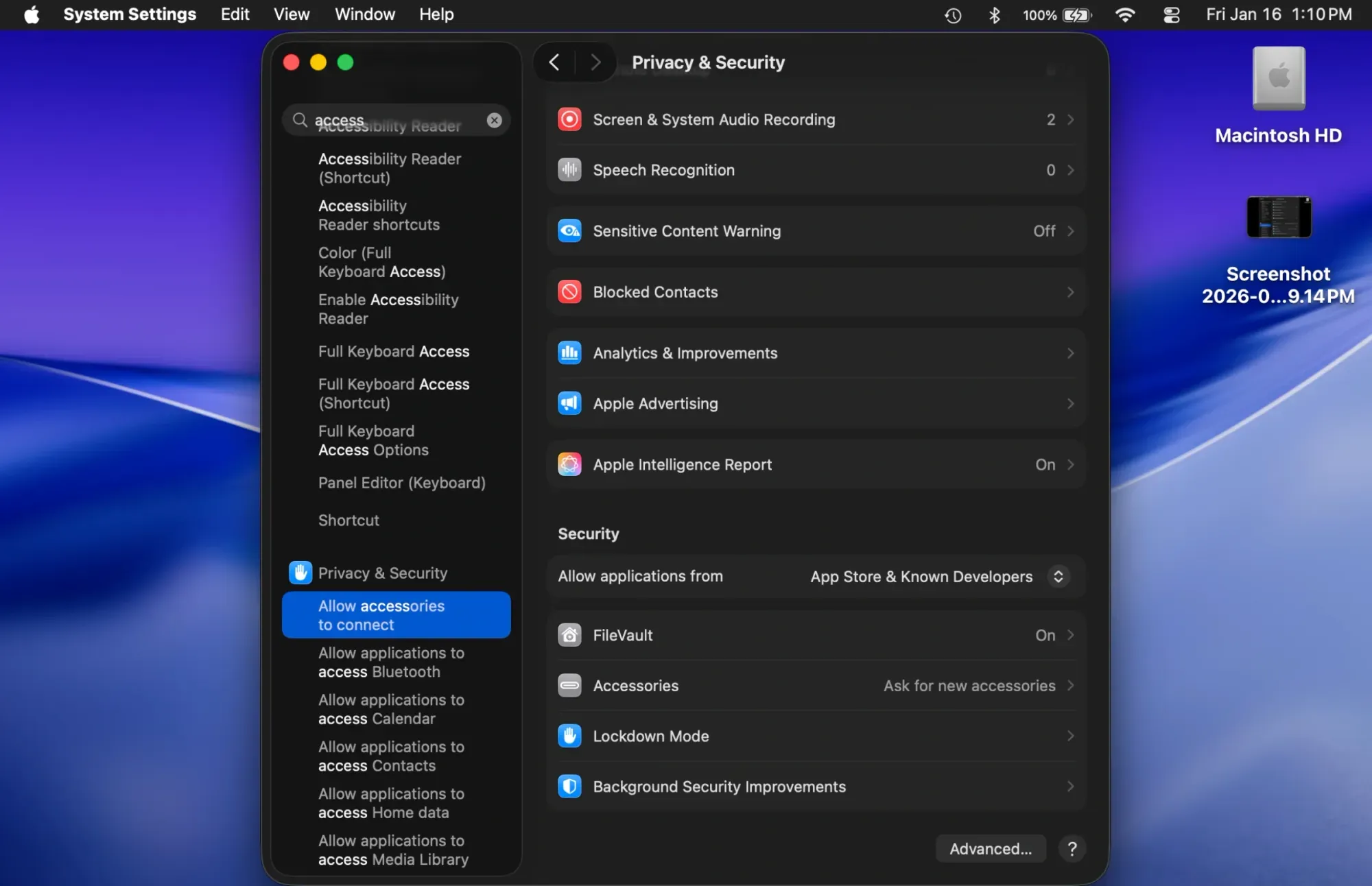
Open System Settings on your Mac, click Privacy & Security in the sidebar, then scroll down past App Privacy, Analytics, and Security. Near the bottom, you will find Background Security Improvements with an "Automatically Install" toggle. On a fresh macOS Tahoe installation, this toggle is on by default.
I had to scroll twice to find it. The placement is not intuitive — it sits below FileVault and above Lockdown Mode, which puts it in a section most people associate with "things I should not touch." Apple could surface this more prominently, maybe as a status indicator in Software Update, but for now it lives in the privacy basement.
There is a small but real usability friction here: the toggle does not tell you what was installed or when. You get a binary on/off switch and nothing else. No version number, no date stamp, no changelog link. Contrast that with Software Update, which at least shows you a "Your Mac is up to date" message with the current version. Background Security Improvements just sits there, silently green, offering no confirmation that the March 17 WebKit fix actually landed on your machine.
 Ad
AdShould You Disable It? Almost Certainly Not
No.
I know that was abrupt, but the answer really is that straightforward. Disabling Background Security Improvements means you wait for the next full macOS update to receive the same fix. During that gap — which could stretch days or weeks — your Mac runs a browser engine with a known, publicly documented vulnerability. Security researchers disclosed CVE-2026-20643 details within hours of the patch. The window between patch availability and active exploitation is shrinking every year.
There is exactly one scenario where disabling makes sense: if a Background Security Improvement breaks a specific app or workflow you depend on. Apple acknowledges this possibility in its deployment documentation and provides a removal option for that reason. But the first BSI has been live for a day with no widespread compatibility reports, so this is a theoretical concern for now.
How This Connects to Your Broader Mac Security
Background Security Improvements handle one layer of defense: patching known vulnerabilities in web-facing components fast. They do not replace full OS updates, which address kernel-level fixes, driver changes, and deeper system modifications. The 52 security flaws patched in macOS Tahoe 26.3 earlier this year required a traditional update because many of them touched components outside WebKit's scope.
I find it helpful to think of macOS security as two lanes. The fast lane — Background Security Improvements — handles time-sensitive web vulnerabilities that attackers can exploit through a browser tab. The standard lane handles everything else on its usual schedule. Both lanes need to be running.
If you want to understand the security gaps that macOS Tahoe cannot close on its own, the short answer is that no operating system patches can protect you from phishing, weak passwords, or malicious downloads you approve yourself. Background Security Improvements close the technical gaps. The human gaps are still on you.
Background Security Improvements vs. Standard Updates
This table compares Background Security Improvements with standard macOS software updates across four key attributes.
| Attribute | Background Security Improvement | Standard macOS Update |
|---|---|---|
| Install Speed | Seconds to minutes; restart only when needed | 20–45 minutes with mandatory restart |
| Scope | Single component (Safari, WebKit, system library) | Full OS with all bundled changes |
| User Action Required | None if automatic is enabled | Manual download and install confirmation |
| Rollback Option | Yes, removable from Privacy & Security | No rollback without full reinstall |
What IT Administrators Should Know
If you manage Macs in an enterprise environment, Background Security Improvements introduce a new MDM consideration. Apple's declarative device management lets administrators force the toggle to "always on" or "always off" using the InstallSecurityUpdate configuration. You can also block manual removal by setting EnableRollback to false.
One detail that caught my attention: Background Security Improvements do not respect managed software update delays. If your organization delays macOS updates by 14 days for testing, BSIs still arrive immediately. Apple clearly decided that security patches in this category are too urgent to wait. Depending on your change management process, that is either a relief or a headache.
Status reporting works through declarative status items. Your MDM can query StatusDeviceOperatingSystemSupplementalExtraVersion to confirm which improvement letter is installed. That is how you verify fleet-wide deployment without asking every user to check manually.
How to Verify the Fix Landed on Your Mac
Open System Settings, navigate to Privacy & Security, scroll to the Background Security Improvements section. If the toggle is on, your Mac either already has the fix or will receive it shortly. Apple does not expose a "last installed" timestamp in this view, which I think is a missed opportunity.
For a more definitive check, open Terminal and run:
sw_vers -buildVersion
If the output includes a letter suffix after the build number — like 26D68a — the improvement is installed. No letter suffix means your Mac is running the base OS build without any Background Security Improvements applied. Keep in mind that this check works for the current improvement only; Apple rolls previous fixes into subsequent ones, so the letter resets with each new BSI release.

Related Posts
Your Mac Just Started Warning You About Apps That Will Stop Working
Mar 28, 2026
MacBook Pro M5 Pro vs M4 Pro: The Honest Buying Decision for 2026
Mar 26, 2026
Claude Can Work Your Mac While You Walk Away — Here’s What That Changes
Mar 26, 2026