

🎧 Listen to this article
Prefer to listen? An audio version of this article is available for accessibility and convenience.
Your Mac runs games now. Real games. And macOS Tahoe quietly shipped the tools to prove it — a dedicated Game Mode that reallocates your entire system for performance, a Game Overlay you can summon mid-match without quitting, and a Games app that finally gives your library a proper home. The catch? Most of these features only work together, and one keystroke decides whether you get the full experience or miss it entirely.
Apple has been building toward this for three generations of Apple Silicon chips, but macOS Tahoe is where it actually clicked. Game Mode arrived back in macOS Sonoma, sure. But the macOS Tahoe version added Game Overlay — a heads-up dashboard that lets you tweak settings, chat with friends, and check achievements while your game keeps running in the background. That is a genuine quality-of-life upgrade that console players have had for years and Mac gamers have been waiting for.
 Ad
AdGame Mode Does More Than You Think
Game Mode on macOS Tahoe automatically activates the moment you take any game full-screen. You do not toggle it. You do not hunt through System Settings. You launch a game, hit full-screen, and macOS shifts priority.
What happens under the hood is straightforward but meaningful. Your Mac’s CPU and GPU resources get reallocated so the game gets first access to processing power. Background tasks — Spotlight indexing, Time Machine backups, software updates checking in — get pushed down the priority list. The result is more consistent frame rates, not necessarily higher ones. That distinction matters. Game Mode does not overclock anything. It just stops your Mac from trying to do twelve things at once while you are in the middle of a boss fight.
The part that surprised me most: Game Mode doubles the Bluetooth sampling rate for wireless accessories. That means if you are playing with a PlayStation DualSense, Xbox Wireless Controller, or AirPods, your inputs register faster and your audio latency drops. It is a subtle difference on a turn-based strategy game. On something like Crimson Desert or Lies of P, where reaction time matters, you will feel it. If you have been gaming with wired controllers because wireless felt laggy, Game Mode is worth retesting that assumption.
One thing to keep in mind — Game Mode only engages in macOS’s built-in full-screen mode. If your game uses its own windowed full-screen implementation, Game Mode might not kick in. You will know it is active because macOS shows a brief notification in the top-right corner when it turns on.
The Game Overlay Nobody Talks About
This is the feature Apple buried. While your game is running, press Command-Escape and a compact overlay slides into the corner of your screen. No alt-tabbing. No minimizing. Your game stays live in the background.
From the Game Overlay, you can adjust brightness and volume without leaving your match. You can toggle Game Mode on or off for that specific game — and that setting persists, so if you want Game Mode disabled for a particular title that runs better without it, you set it once and forget it. You can also check achievements, view leaderboards, and message friends through Game Center.
There is a Low Power Mode toggle inside the overlay as well. Plug in your MacBook and you probably do not need it. But if you are gaming on battery — at an airport, on a couch, wherever — Low Power Mode extends your play session by dialing back performance just enough to matter. I wish Apple surfaced this more prominently. It is a genuinely useful option that most people will never discover because they will never press Command-Escape.
Here is the friction point that caught me off guard. Game Overlay works most reliably when you launch games through Apple’s Games app. If you launch a Steam game directly from Steam, or open a game from your Applications folder, you might get Game Mode (the performance optimization) but not the full Game Overlay experience. Several users in Apple’s own support forums reported the same thing — the Command-Escape shortcut simply does not bring up the overlay for third-party launchers. Apple has not officially documented this limitation, but it is real enough that the workaround is straightforward: add your games to the Games app library, launch them from there, and the overlay works as expected. If you have been wondering why Command-Escape does nothing in your favorite Steam title, that is probably why.
 Ad
AdThe Games App Deserves Five Minutes of Your Time
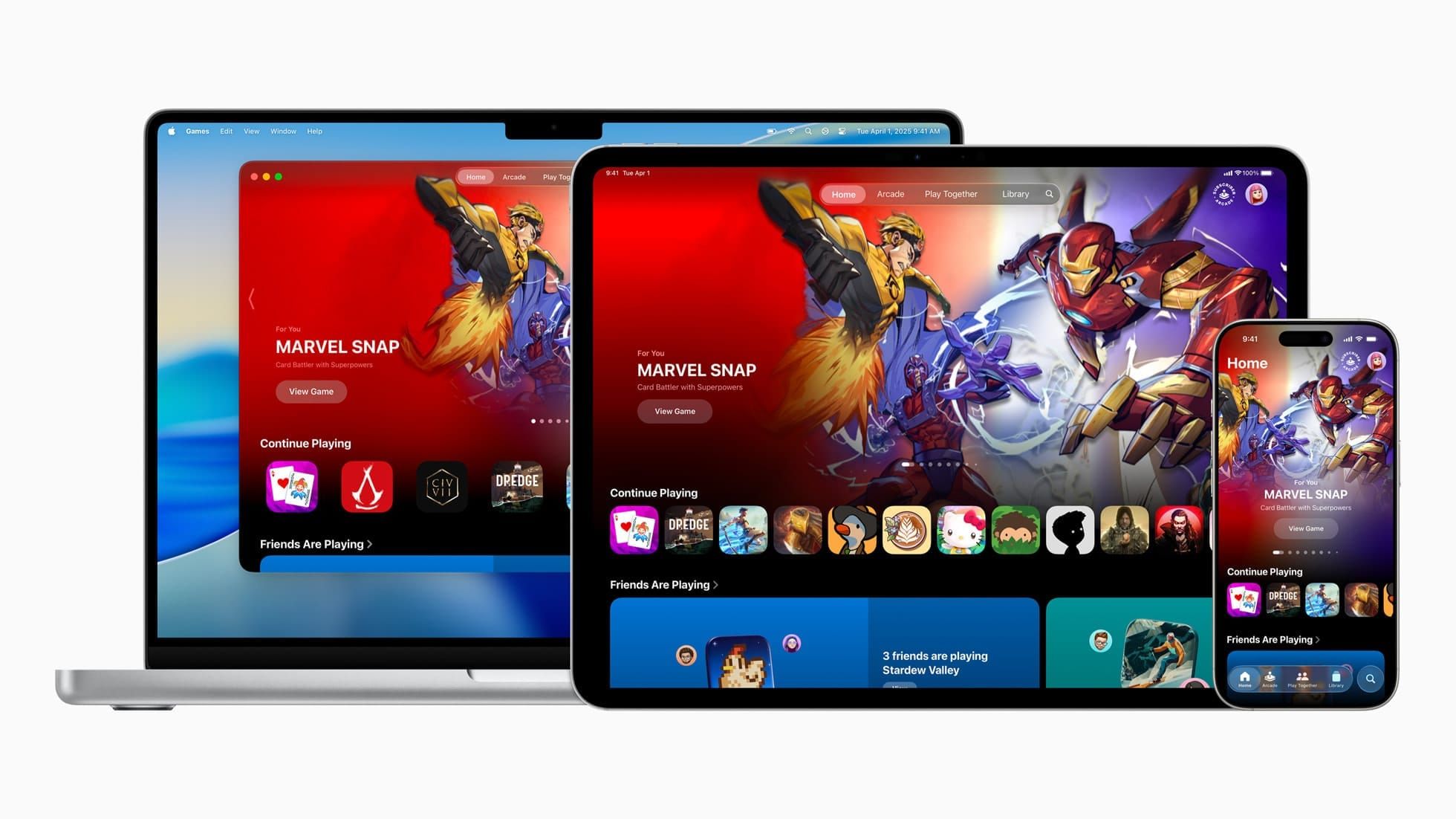
Apple shipped a Games app with macOS Tahoe and barely mentioned it. Open it. Your entire library — every game you have ever downloaded from the Mac App Store, every Apple Arcade title, and even games installed from other sources — shows up in one place.
The library view alone is worth the visit. You can sort by controller support, which is genuinely helpful if you own a Bluetooth gamepad and want to know which of your fifty downloaded-and-forgotten games actually support it. There is a Continue Playing section that tracks where you left off across devices, so if you started a game on your iPad and want to pick it up on your Mac, it is right there.
But the social layer is what surprised me. The Play Together tab pulls in your Game Center friends and shows what they are playing. There is a Challenges feature that turns single-player leaderboard games into informal competitions with your friend group — you set a score target, invite friends, and crown a winner at the end of the week. It is casual enough that it does not feel like a commitment, but competitive enough that it got genuinely heated over a Skate City challenge in my circle.
The app is also the best way to browse Apple Arcade. If you have been paying for that subscription and barely using it, the curated collections in the Games app make discovery significantly easier than digging through the App Store ever did.
What You Actually Need to Get Started
Game Mode requires an Apple Silicon Mac — any M1 or later chip. If you are running an Intel Mac, this entire feature set is unavailable to you. Game Overlay specifically requires macOS Tahoe (macOS 26). Earlier versions had Game Mode but not the overlay. And you need to run your game in full-screen mode for Game Mode to engage. Apple’s official Game Mode support page covers the basics, though it does not mention the overlay limitation with third-party launchers.
Controller-wise, macOS Tahoe supports PlayStation DualSense and DualShock 4 controllers, Xbox Wireless Controllers with Bluetooth, Nintendo Switch Pro Controllers and Joy-Cons, and MFi-certified controllers. Pair them through System Settings, then Bluetooth, and they show up just like AirPods do.
For developers, macOS Tahoe also ships with Metal 4 — Apple’s latest graphics framework. Metal 4 brings MetalFX Frame Interpolation, which generates intermediate frames for smoother motion, and MetalFX Denoising for cleaner ray-traced visuals on M3 and M4 chips. You do not need to configure any of this as a player. It just means the games that land on Mac in 2026 look and run better than anything Apple Silicon has delivered before.
My Honest Take on Where This Stands
Mac gaming in macOS Tahoe is genuinely good. Not “good for a Mac” — just good. The combination of Apple Silicon performance, Game Mode’s resource management, and the Game Overlay’s convenience puts the Mac closer to a console-like experience than it has ever been. Titles like Crimson Desert running natively on Apple Silicon would have been unthinkable three years ago, and the lineup of games landing on Mac this year is worth a look.
That said, the Game Overlay limitation with third-party launchers is frustrating. If you use Steam or CrossOver to run your existing game library on macOS, you lose access to the overlay’s convenience features. Game Mode still works — your performance optimization is intact. But the social features, the quick-settings panel, and the Low Power toggle stay locked behind the Games app launcher. Apple should fix this, and I suspect they will eventually. But right now, it is the biggest gap in an otherwise impressive gaming stack.
The old line that you cannot game on a Mac is dead. macOS Tahoe buried it. You just need to press Command-Escape to see the proof.

Related Posts
Seven Mac Accessories That Turn a Good Desk Into a Great One
Apr 10, 2026
Your Mac Has a Networking Time Bomb That Only a Reboot Defuses
Apr 09, 2026
Your Mac Feels Slow After macOS Tahoe — Here’s What Actually Fixes It
Apr 08, 2026