
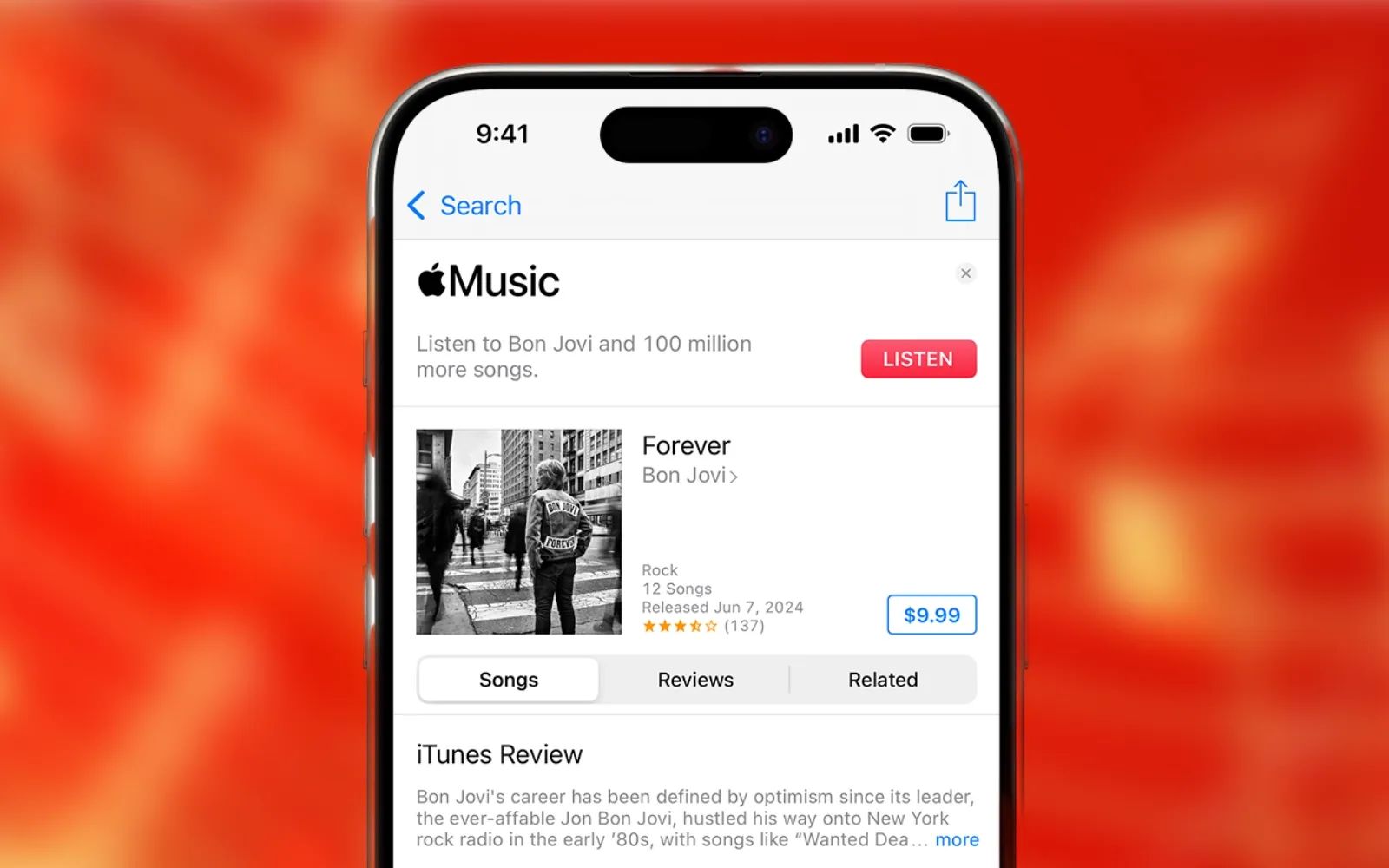

Searching for an iTunes download for your MacBook will lead you in circles because Apple removed iTunes from the Mac back in 2019 with macOS Catalina. Everything iTunes once handled now lives across four separate apps: Apple Music for your songs and albums, Apple TV for movies and TV shows, Apple Podcasts for podcasts, and Finder for syncing your iPhone or iPad. That direct answer covers about 90 percent of what most people need to know.
The other 10 percent is where things get messy. Since the split, syncing problems have followed each major macOS release, and macOS Tahoe is no exception. Users are reporting that the Sync Settings button in Apple Music sometimes does nothing at all after updating to macOS Tahoe and iOS 26. On top of that, Apple just pulled the iTunes Movies and iTunes TV Shows apps from Apple TV 4K hardware with tvOS 26.4, released this week. The iTunes brand is being scrubbed from every corner of the Apple ecosystem, and knowing where your content actually lives now matters more than it did even a month ago.
This guide walks through each replacement app, explains what changed and what still causes friction, and gives you a checklist to make sure nothing falls through the cracks during the transition.
Why You Cannot Download iTunes on a Modern Mac
Apple shipped the last version of iTunes for Mac alongside macOS Mojave in 2018. When macOS Catalina launched in October 2019, iTunes was gone. There was no toggle, no option to keep it, no classic mode. Apple made a clean cut.
The reasoning was straightforward. iTunes had grown from a simple music jukebox in 2001 into a bloated application that handled music, movies, TV shows, podcasts, audiobooks, ringtones, device backups, software updates, and app management. One app doing that many jobs meant none of them were done particularly well. Apple decided to break it apart.
On Windows, the situation is different. Microsoft Store still offers iTunes, and Apple continues to support it for PC users. So when you see download links floating around the internet, they are almost always pointing to the Windows version. Trying to install that on your Mac will not work.
If your Mac is running macOS Tahoe, macOS Sonoma, macOS Ventura, or anything back to Catalina, you already have every replacement app pre-installed. There is nothing to download.
Where Your Music Library Actually Lives Now
Apple Music is the direct successor to the music side of iTunes. When Apple made the switch, it migrated your existing iTunes music library automatically. Your purchased songs, imported CDs, and local MP3 files all carried over into Apple Music.
The app handles both your personal library and the Apple Music streaming service, but you do not need a subscription to use it. Purchased and imported music works without paying anything. The subscription only unlocks the streaming catalog.
One friction point worth calling out: the Sync Settings panel inside Apple Music on macOS Tahoe has a known issue. You connect your iPhone, open Apple Music, select your device in the sidebar, and the Sync Settings button appears. You press it. Nothing happens. No progress bar, no confirmation, no error message. The button simply absorbs your click without any visible feedback. The current workaround is to use the Finder sidebar directly for syncing (covered below) or to try switching to View and then Full Screen mode, which some users report forces the sync panel to refresh. Apple has not officially acknowledged the bug, but threads across support forums confirm it is widespread after the macOS Tahoe and iOS 26 updates.
For a better experience with the app overall, the Apple Music settings guide on Zone of Mac covers the first changes worth making after you open it.
Movies, TV Shows, and the tvOS 26.4 Shakeup
Apple TV is the app that replaced the video side of iTunes. All your purchased and rented movies and TV shows appear here. The app also serves as the home for Apple TV+ original content and channels like Paramount+ or Starz that you can subscribe to within the app.
Here is why this matters right now: on February 17, 2026, Apple released tvOS 26.4 and removed the standalone iTunes Movies and iTunes TV Shows apps from Apple TV 4K hardware. Those legacy apps had lingered on the set-top box long after they disappeared from the Mac. They are now gone. Everything funnels through the unified Apple TV app on every Apple device.
Your purchases are not lost. Anything you bought through iTunes is tied to your Apple Account and shows up in the Apple TV app automatically. But if you had custom playlists or organizational habits built around the old iTunes Movies app on your Apple TV 4K, you will need to rebuild that workflow inside the Apple TV app.
Podcasts Got Their Own Space
Apple Podcasts handles everything podcast-related that iTunes used to manage. Your subscriptions, downloaded episodes, and listening history all live here. The app syncs across your Mac, iPhone, iPad, and Apple Watch through your Apple Account.
There is not much friction on this one. The transition happened years ago, and the Podcasts app has been stable. The main thing to know is that any podcast you subscribed to in iTunes should have carried over automatically when you first launched macOS Catalina or later.
Here is a quick breakdown of what replaced each part of iTunes and where to find it on your Mac running macOS Tahoe.
| What You Used iTunes For | Replacement App | Where to Find It | Subscription Required? |
|---|---|---|---|
| Music library and purchases | Apple Music | Applications folder, Dock | No (streaming catalog requires subscription) |
| Movies and TV show purchases | Apple TV | Applications folder, Dock | No (Apple TV+ requires subscription) |
| Podcast subscriptions | Apple Podcasts | Applications folder, Dock | No |
| iPhone/iPad syncing and backups | Finder | Click device in Finder sidebar | No |
Syncing Your iPhone or iPad Through Finder
This is the change that catches people off guard the most. Plugging your iPhone into your Mac no longer opens a dedicated syncing application. Instead, your device shows up in the Finder sidebar, listed under Locations right alongside external drives and network volumes.
Click your device name in the Finder sidebar, and you get a management screen that looks remarkably similar to the old iTunes device page. From here you can sync music, back up your device, update iOS, and manage storage. Apple provides a detailed guide on syncing through Finder that covers each tab and option.
For music-specific syncing, Apple also maintains a separate support page for connecting your device through the Music app, though as noted above, the Sync Settings button in Apple Music on macOS Tahoe is unreliable right now. Finder is the more dependable route until Apple patches the issue.
Affiliate disclosure: some links in this article are Amazon Associate links. If you buy through them, Zone of Mac may earn a small commission at no extra cost to you, and we only recommend products that genuinely bring value to your Apple setup.
Back Up Before You Sync
Local backups through Finder can eat through your Mac's internal storage fast, especially if you have a 128GB or 256GB base model. A portable SSD gives you a dedicated place to store device backups and keep your Mac's main drive clear. The Samsung T7 Shield 2TB is built with a rugged rubber exterior and IP65 dust and water resistance, which makes it a solid option for anyone who moves between a desk and a bag regularly. Transfer speeds over USB 3.2 Gen 2 keep backup times reasonable even for large devices. Pick up the Samsung T7 Shield 2TB on Amazon
For a walkthrough on configuring Time Machine with an external drive on the current operating system, the Time Machine backup guide for macOS Tahoe covers the full process.
Port Situation on Newer MacBooks
Recent MacBook Air models ship with only two USB-C ports, which means plugging in an iPhone and an external SSD at the same time uses every port you have. The Anker 547 USB-C Hub is a 7-in-2 hub designed specifically for MacBook form factors. It slots directly into both USB-C ports and expands into HDMI, USB-A, USB-C data, and a Thunderbolt 4 passthrough for charging. The slim aluminum body sits flush against the side of the laptop without wobbling or blocking adjacent connections. You can grab the Anker 547 USB-C Hub on Amazon
While you are reorganizing your setup, it is also worth reclaiming wasted storage on your iPhone before syncing. The guide to recovering wasted iPhone storage walks through the steps.
Join The Inner Circle For Serious Apple Users
Exclusive Apple tips. Free to join.
Check your inbox for a confirmation link.
Something went wrong. Please try again.
Accessibility and Clarity
All instructions in this article use menu names, sidebar labels, and button text rather than relying on icon colors or visual position alone. When this article says click your device in the Finder sidebar under Locations, that label is readable by screen readers and does not depend on identifying a specific color or icon shape.
Apple Music, Apple TV, Apple Podcasts, and Finder all support VoiceOver on macOS Tahoe. Each replacement app inherited VoiceOver compatibility from the system-level accessibility framework. If you used VoiceOver with iTunes before the split, the same keyboard shortcuts and rotor navigation patterns work across all four apps.
For anyone using Switch Control or Voice Control, the Finder syncing interface responds to the same voice commands that work elsewhere in macOS: say Click followed by the button name, or say Show Numbers to assign number labels to every clickable element on the device management screen. The cognitive load stays predictable because the syncing layout mirrors the same tab structure iTunes used, so muscle memory from the old app still applies.
Quick-Action Checklist
- Open Apple Music and confirm your purchased and imported songs appear in your library
- Open Apple TV and verify your purchased movies and TV shows are visible under Library
- Open Apple Podcasts and check that your subscriptions carried over
- Connect your iPhone or iPad via USB-C or Lightning cable, then look for it in the Finder sidebar under Locations
- If the Sync Settings button in Apple Music does nothing, switch to Finder for syncing instead
- Run a local backup through Finder before making any large sync changes
- If you use an Apple TV 4K, open the Apple TV app to confirm your content is accessible after the tvOS 26.4 update
- Check that your Apple Account is signed in across all four apps (Apple Music, Apple TV, Apple Podcasts, and Finder will pull from System Settings sign-in)

Blaine Locklair
Founder of Zone of Mac with 25 years of web development experience. Every guide on the site is verified against Apple's current documentation, tested with real hardware, and written to be fully accessible to all readers.
follow me :
Related Posts
Seven Mac Accessories That Turn a Good Desk Into a Great One
Apr 10, 2026
Your Mac Has a Networking Time Bomb That Only a Reboot Defuses
Apr 09, 2026
Your Mac Feels Slow After macOS Tahoe — Here’s What Actually Fixes It
Apr 08, 2026