
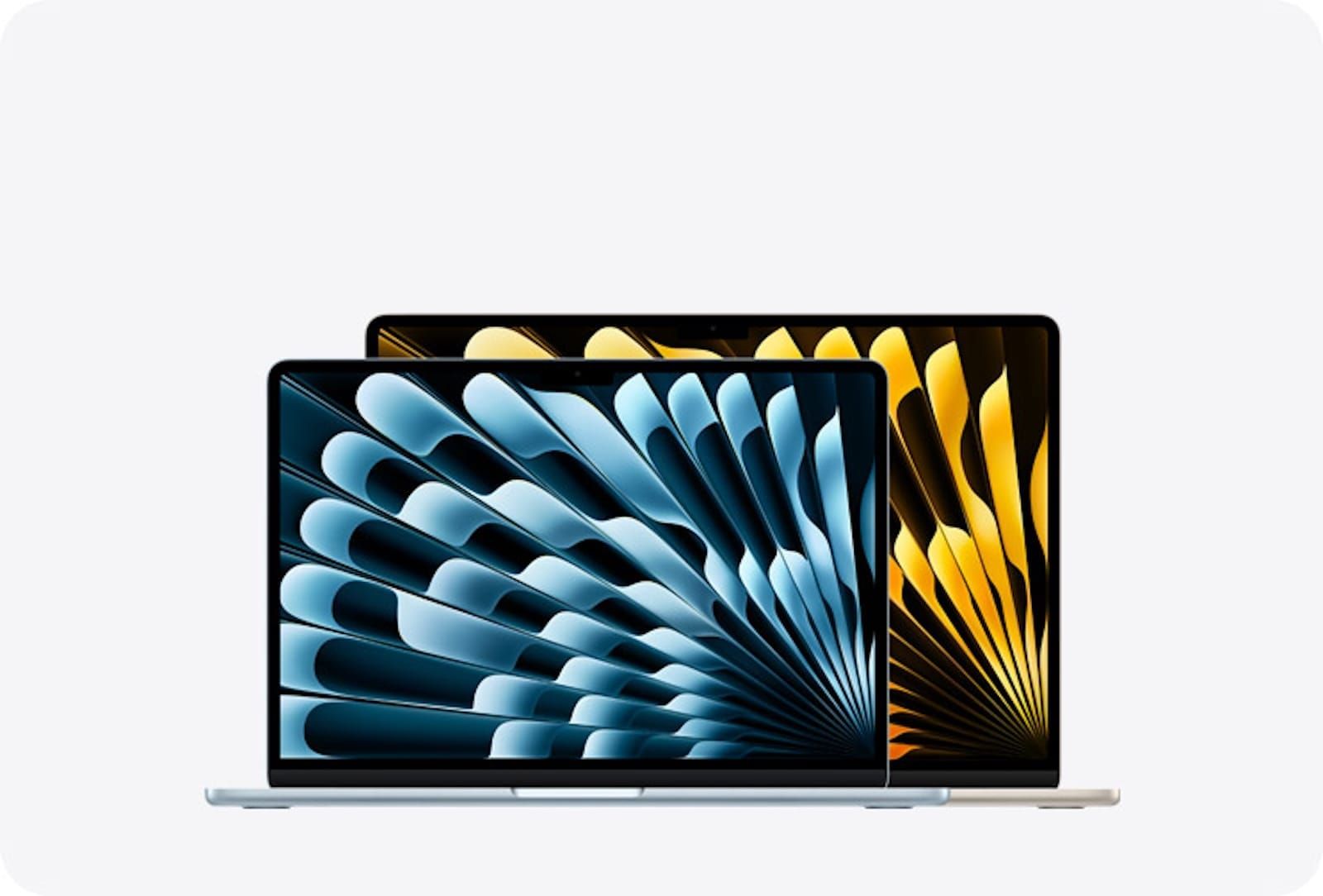

macOS Tahoe ships with wallpaper features that go well beyond picking a static image and forgetting it. Dynamic Wallpapers shift their color temperature from dawn to dusk based on your actual location, Aerial collections play 4K HDR flyover videos every time the Mac locks, and Shuffle modes rotate images on a timer you set. The catch is that most of these options sit behind a settings panel most people open once, choose a color, and never revisit. And since macOS Tahoe 26.2, a blurry wallpaper bug has made the whole experience worse for anyone using a scaled display resolution, which means the default desktop on thousands of Macs looks noticeably softer than it should.
Where macOS Tahoe Keeps Every Wallpaper Option
Open System Settings > Wallpaper and you land on a panel that scrolls horizontally through six categories. Each one controls a different type of desktop background, and they behave in fundamentally different ways. The panel itself feels like browsing album art: thumbnails load left to right, and tapping one triggers an immediate preview on your desktop behind the settings window. The friction here is real. The thumbnails are small, and on a 13-inch MacBook display, the difference between two similar Dynamic Wallpapers is almost impossible to judge without clicking each one individually.
Dynamic Wallpapers shift their appearance based on the time of day and your Mac's location. These are the wallpapers that look warm at sunrise and cool at midnight. Aerials are sorted into Landscape, Cityscape, Underwater, and Earth subcategories. Each aerial downloads as a 4K HDR video file, roughly 450 MB per clip, and plays a smooth flyover animation every time you lock or unlock the Mac. Shuffle Aerials rotate still frames from the aerial collection at intervals you choose. Pictures are creative stills Apple includes by default. Colors offer solid backgrounds for anyone who prefers a clean, distraction-free desktop. Your Photos pulls from your personal library, letting you set a custom photo, album, or folder as the rotating wallpaper source.
Beyond the settings panel, you have quick methods that skip it entirely. Right-click any image in Safari and choose Set Desktop Picture to apply a web image instantly. In Finder, right-click any image file and select the same option. In the Photos app, use Share > Set Wallpaper to push a photo straight to the desktop. These shortcuts save time, but they also bypass the wallpaper panel entirely, which means you miss the option to set shuffle timers or match the screen saver.
Dynamic Wallpapers Shift With the Clock (But Not the Way You Expect)
Dynamic Wallpapers use your Mac's Location Services to determine the real-world time of sunrise and sunset at your coordinates. The wallpaper then adjusts its lighting and color temperature to match. At dawn, the image warms up. By midday, it brightens. At dusk, it cools. At night, it darkens. The effect is subtle enough that you might not notice it changing, which is the entire point.
Here is the complication. macOS Tahoe's signature Tahoe lakeside wallpaper ships with dawn, day, dusk, and nighttime variants. But Apple did not package these into a single auto-cycling Dynamic Wallpaper the way it did with the Big Sur coastline and the Catalina island wallpapers in earlier releases. To get the time-shifting effect on the Tahoe wallpaper, you need to go to Screen Saver in System Settings and set it to match your wallpaper. Without that step, the Tahoe wallpaper stays static at whatever variant you picked when you selected it.
The transition between variants is not seamless on every display. Moving from the dusk to the night variant produces a visible snap rather than a smooth fade on some external monitors, particularly older USB-C displays that run at 60Hz. The wallpaper blinks from one state to the next rather than gradually shifting, and the effect is jarring enough to notice if you happen to be watching the screen at the right moment. On the MacBook's built-in display, the transition is smoother but still not perfectly fluid. If your Mac feels sluggish during transitions, the wallpaper rendering pipeline might be competing with background processes for GPU time.
Fix the macOS 26.2 Blurry Wallpaper Bug
The macOS Tahoe 26.2 update introduced a change to window tinting behavior that made some wallpapers appear softened, washed out, or outright blurry. The effect is most noticeable on scaled resolutions where the system is rendering at a non-native pixel count and then fitting the output to your panel. Three fixes address this.
First, open System Settings > Accessibility > Display and check the Reduce Transparency toggle. Turn it off if it is currently enabled. This toggle controls whether macOS applies a frosted-glass translucency effect to windows, and in 26.2, the transparency compositing layer can interact badly with certain wallpapers, adding a visible softness to the image underneath. Toggling it off removes that layer entirely.
Second, navigate to System Settings > Appearance and turn off Tint windows background with wallpaper color. This setting pulls color from your wallpaper and applies it as a subtle tint behind every window. After the 26.2 update, this tinting became more aggressive on certain wallpaper types, creating a haze effect that makes the wallpaper look less sharp when windows overlap it.
Third, go to System Settings > Displays and set your resolution to Default rather than any scaled option. Scaled resolutions render the desktop at a higher or lower resolution than your panel's native pixel count, then resize the output to fit. This resizing step can soften wallpaper details, especially fine textures like water ripples or foliage. A 4K display running at its native resolution avoids this entirely, as described in Apple's display resolution guidance. Clearing out unnecessary cached files can also help if the system is storing a downsampled version of your wallpaper.
Affiliate disclosure: some links in this article are Amazon Associate links. If you buy through them, Zone of Mac may earn a small commission at no extra cost to you, and we only recommend products that genuinely bring value to your Apple setup.
Why Wallpaper Quality Tanks on the Wrong Display
macOS Tahoe's 5K-resolution wallpapers and 4K HDR aerials are built for high-pixel-density screens. On a 1080p external monitor, those same images get downsampled by the system compositor before reaching the panel, and the result loses detail in a way that is immediately visible. The Tahoe lakeside wallpaper is a good test case: on a native 4K panel, the water ripples near the shore are individually distinct, each one catching light at a slightly different angle. On a 1080p panel, those same ripples blend into a flat blue gradient that looks like a stock photo from 2010.
The LG 27UP850K-W UltraFine handles this correctly because it runs at native 3840x2160 resolution over USB-C with 90W power delivery, so your MacBook charges and outputs at the sharpest resolution through a single cable. The DCI-P3 95% color gamut means the HDR wallpapers display the full color range Apple designed them for. Sunset gradients in the Aerial collection show distinct bands of orange, pink, and violet rather than collapsing into a muddy smear. The tilt, height, and pivot stand lets you position the screen at the exact angle where overhead reflections disappear, which matters when you are running dark wallpapers that turn the panel into a mirror under direct lighting. The physical adjustment has a firm, ratcheted feel at each joint, and the panel stays put once you set it.
Pick up the LG 27UP850K-W UltraFine 4K Monitor on Amazon.
The table below compares the four main wallpaper types available in macOS Tahoe, covering how each one behaves, who benefits most, and what it needs to work correctly.
| Type | Behavior | Best For | Requires |
|---|---|---|---|
| Dynamic | Shifts color temperature from dawn to dusk based on your location | Users who want a desktop that mirrors the time of day | Location Services enabled, Screen Saver set to match wallpaper |
| Aerial | Plays a 4K HDR flyover video on lock and unlock | Visual impact when stepping away and returning to the Mac | ~450 MB download per aerial, internet connection for first download |
| Shuffle | Rotates still images at a set interval you choose | Keeping the desktop fresh without manual changes | Multiple images in a folder or album |
| Custom Photo | Displays a single image you select from your library or Finder | Personal photos or downloaded wallpapers | An image file in JPEG, PNG, HEIF, or TIFF format |
The Lock Screen Clock Nobody Customizes
Buried inside the same Wallpaper settings panel is a section labeled Clock Appearance. Open it and you get six font styles for the Lock Screen clock, a weight slider that adjusts how thick or thin the numerals render, and a toggle to show the clock on the Lock Screen only or on both the Lock Screen and the Screen Saver. This is a surprisingly deep customization option that sits in a place most people never scroll to.
The friction with this feature sits in the weight slider. It does not slide smoothly. Instead, it jumps in discrete increments, and the visual difference between adjacent stops is nearly invisible for the first half of the range. Some font choices look identical to each other until you push the weight past the 60% mark, where the stroke thickness finally diverges enough to be visible. Testing each combination means selecting a font, dragging the slider, locking the Mac to see the result, unlocking, adjusting, and locking again. There is no live preview on the settings panel itself, which turns the process into a repetitive loop of lock-check-unlock-adjust.
Stop Glare From Washing Out Your New Wallpaper
A dark wallpaper on a gorgeous display still looks washed out if overhead lights hit the panel at the wrong angle. This is especially true for the Aerial wallpapers that feature deep ocean blues and nighttime cityscapes: any glare source above or behind you turns the bottom third of the screen into a reflective mess.
The BenQ ScreenBar Halo 2 solves this by mounting directly on top of the monitor and casting light downward onto the desk surface without any spill hitting the screen. The asymmetric optical design keeps the illumination zone below the panel edge, so your wallpaper stays true to its intended colors. A built-in motion sensor turns the light on automatically when you sit down and off when you leave, which means you never have to think about it. The wireless controller sits on the desk and lets you adjust brightness and color temperature with a dial rather than reaching up to the bar. The backlight behind the monitor reduces the contrast between a bright screen and a dark room, which is important for anyone running dark wallpapers at night. Without that ambient backlight, your eyes constantly adjust between the bright display and the dark wall behind it, leading to fatigue after extended sessions. The controller has a satisfying weighted feel, and the dial rotates with a slight detent that makes precise adjustments easy.
Here is the BenQ ScreenBar Halo 2 on Amazon.
Join The Inner Circle For Serious Apple Users
Exclusive Apple tips. Free to join.
Check your inbox for a confirmation link.
Something went wrong. Please try again.
Accessibility and Clarity
Wallpaper customization in macOS Tahoe presents specific considerations for users with visual or physical limitations. VoiceOver reads wallpaper category names aloud, announcing "Dynamic," "Aerial," "Pictures," and so on, but it does not describe the content of individual wallpaper thumbnails. A visually impaired user selecting a wallpaper relies entirely on the category label and the wallpaper's filename, which Apple does not always make descriptive. This means choosing between two Aerial wallpapers becomes a matter of trial and error rather than informed selection.
The Reduce Transparency toggle in Accessibility > Display serves a dual purpose here. For users with light sensitivity, turning it on removes the translucent window tinting that lets wallpaper colors bleed through behind app windows. This makes on-screen text significantly easier to read against busy or high-contrast wallpapers. High-contrast wallpapers themselves, particularly solid colors or the darkest Dynamic variants, provide the most legible backdrop for on-screen text because they minimize the visual noise behind translucent UI elements.
From a cognitive accessibility standpoint, the wallpaper panel's layout is predictable. Categories scroll left to right in a single horizontal row. Selecting a category reveals its options in a grid below. No nested menus, hidden subpanels, or expanding sections increase the cognitive load required to navigate. The pattern is consistent: scroll, tap, preview. That simplicity makes the panel one of the more accessible areas of System Settings, even compared to panels with fewer options.
Quick-Action Checklist
- Open System Settings > Wallpaper
- Pick a category: Dynamic, Aerial, Shuffle, Photo, or Color
- For Dynamic: enable Location Services and set your screen saver to match
- For Aerial: tap the play icon to preview before committing
- For Custom Photos: click Add Photo > Choose File or drag from Finder
- Fix blurry wallpaper: Appearance > turn off wallpaper tinting, Displays > set Default resolution
- Customize Lock Screen clock: Wallpaper > Clock Appearance > choose font and weight
- Use a 4K display for maximum wallpaper clarity

Tori Branch
Hardware reviewer at Zone of Mac with nearly two decades of hands-on Apple experience dating back to the original Mac OS X. Guides include exact settings paths, firmware versions, and friction observations from extended daily testing.
Related Posts
Seven Mac Accessories That Turn a Good Desk Into a Great One
Apr 10, 2026
Your Mac Has a Networking Time Bomb That Only a Reboot Defuses
Apr 09, 2026
Your Mac Feels Slow After macOS Tahoe — Here’s What Actually Fixes It
Apr 08, 2026