
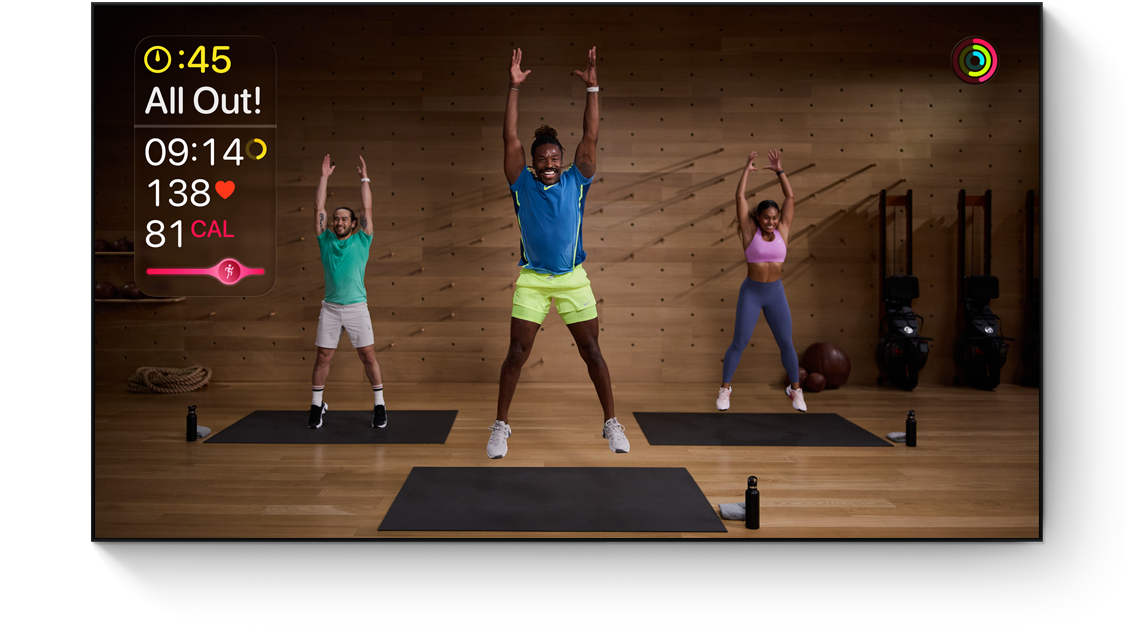

Apple Fitness+ is one of the more underrated corners of the Apple ecosystem, a full workout library with guided sessions, real-time Apple Watch metrics, and trainers who actually explain what you are doing and why. The catch is that Apple officially supports it on iPhone, iPad, and Apple TV only. Your Mac does not get a native app, which means most subscribers never even consider using their largest, most capable screen for a workout. That is a missed opportunity, because AirPlay can put a Fitness+ session on your Mac display in roughly two minutes, with a few meaningful trade-offs you should know about before you start.
I started streaming Fitness+ to my MacBook Pro because I wanted a bigger view for yoga sessions without dragging my iPad across the house. The experience surprised me. The video quality on the Mac display is noticeably sharper than on my iPhone 17 Pro, the built-in speakers handle instructor cues with more clarity, and I can position the laptop at eye level on a shelf without buying a separate stand. It does, though, mean accepting one significant limitation: on-screen workout metrics do not transfer to the Mac. Your heart rate, Activity rings, Burn Bar, and calorie count stay on your Apple Watch and the source iPhone or iPad. The Mac becomes a display-only device for the video stream itself.
Whether that trade-off works for you depends entirely on what you want from the workout screen. For strength training and yoga, where following the trainer's form matters more than watching a heart rate number, the Mac works beautifully. For high-intensity interval sessions where you are chasing Burn Bar targets, the missing metrics will frustrate you within the first five minutes.
 Ad
AdWhat You Need Before You Start
The requirements are minimal, but specific. You need an iPhone or iPad running the latest version of iOS or iPadOS, because Fitness+ lives on those devices and the Mac receives the stream. Your Mac needs to be running macOS Monterey 12.1 or later, though if you are on macOS Tahoe you are already well past that threshold. Both devices must be connected to the same Wi-Fi network.
Apple lists these Mac models as AirPlay-compatible for Fitness+ streaming:
- MacBook Pro (2018 and later)
- MacBook Air (2018 and later)
- iMac (2019 and later)
- iMac Pro
- Mac mini (2020 and later)
- Mac Pro
- Mac Studio (all models)
You also need an active Apple Fitness+ subscription ($9.99 per month or $79.99 per year) and an Apple Watch Series 3 or later paired to the iPhone you will be streaming from. The Apple Watch is not optional for full workout tracking, even when you are watching on the Mac. If you are new to Fitness+, Apple offers a one-month free trial, and purchasing a new Apple device extends that to three months. You can verify your Mac's compatibility on Apple's official Fitness+ device support page.
The Two-Minute AirPlay Setup
Open the Fitness app on your iPhone or iPad. Browse or search for the workout you want, whether that is a 30-minute HIIT session, a 20-minute Yoga flow, or one of the newer Mindful Cooldown routines. Tap the workout to open its detail screen, but do not press Play yet.
Swipe down from the top-right corner of your iPhone to open Control Center. Tap the Screen Mirroring tile (the two overlapping rectangles). Your Mac should appear in the list of available devices. Tap your Mac's name, and your iPhone screen mirrors to the Mac display. Now go back to the Fitness app and press Play. The workout video fills your Mac screen while your iPhone continues to show metrics and playback controls.
One small friction point: the first time you mirror to a specific Mac, it may ask you to enter a four-digit code displayed on the Mac screen. After that initial pairing, the Mac remembers your device and future connections happen with a single tap.
What You See and What You Lose on the Mac Screen
The workout video streams in full quality. You see the trainer, the modifications, the exercise timer, and any on-screen text cues that are baked into the video itself. The picture quality on a Retina MacBook display or a 24-inch iMac is genuinely excellent for following along with form-heavy workouts like Pilates, Strength, and Yoga. I noticed details in the trainer demonstrations that I had missed on my iPhone screen, like subtle hand positioning during a plank variation that actually changed how the exercise felt.
What you lose is the interactive overlay. The real-time heart rate reading, your three Activity rings, the Burn Bar that compares your effort against other subscribers, and the calorie counter all stay on the source iPhone or iPad and on your Apple Watch. Apple designed these metrics to render on the device running the Fitness app, not on the AirPlay receiver. This is a deliberate design choice, not a bug. AirPlay-compatible smart TVs from Samsung and LG can display these metrics, but Macs cannot. Apple has not explained why the distinction exists.
The workaround is simple: keep your iPhone propped up nearby so you can glance at the metrics when you need them. A small phone stand on a desk or shelf works well. Your Apple Watch also displays your heart rate and ring progress in real time, so for most workout types, a quick wrist check gives you everything you need.
Getting the Audio Right
Audio routing is where the Mac setup quietly outperforms most other Fitness+ viewing options. MacBook Pro speakers, especially on the Apple Silicon M4 Pro and M4 Max models, produce significantly better sound than any iPhone speaker. The trainer's voice comes through with more separation from the background music, which matters when you are mid-rep and need to hear a cue about switching sides.
You have two approaches for audio during a mirrored workout. The first is to let the Mac's built-in speakers handle everything. Open System Settings on your Mac, go to Sound, and make sure the Mac's speakers are selected as the output device. The mirrored audio routes through them automatically.
The second approach is pairing your AirPods or AirPods Max directly to the Mac instead of the iPhone. This gives you wireless audio without disturbing anyone else, and you get the benefit of Personalized Spatial Audio if you have already run the head-tracking calibration. If you have not done that calibration yet, I would recommend running it before your first workout session. Zone of Mac has a guide to calibrating your AirPods audio profile that walks through the process. The difference in audio clarity after calibration is worth the two minutes it takes.
Here is a quick comparison of how Apple Fitness+ performs across each device, so you can decide which screen suits your workout best.
| Device | On-Screen Metrics | SharePlay Support | Best For |
|---|---|---|---|
| iPhone | Full (heart rate, rings, Burn Bar) | Yes | Portability, travel workouts |
| iPad | Full (heart rate, rings, Burn Bar) | Yes | Balanced screen size with full features |
| Apple TV 4K | Full (heart rate, rings, Burn Bar) | Yes | Living room, largest display |
| Mac (via AirPlay) | None on screen | No | Desk workouts, superior speakers |
When the Mac Is the Right Choice and When It Is Not
The Mac excels for low-to-moderate intensity workouts where seeing the trainer's body position matters more than monitoring your heart rate second by second. Yoga is the clearest example. Following a Sun Salutation flow is dramatically easier on a 14-inch or 16-inch MacBook display than on a 6.1-inch iPhone. Pilates and Strength sessions benefit in the same way, because form corrections are subtle and a larger screen makes them visible.
Desk-based setups are another natural fit. If you already work at a standing desk, you can start a midday stretch or core workout without relocating to a different room. The Fitness app's Mindful Cooldown sessions, which are typically 5 to 10 minutes, work particularly well in this context. You finish the cooldown, close the mirror, and you are back to work on the same screen.
The Mac is the wrong choice for HIIT, Cycling, and Treadmill sessions where the Burn Bar and real-time heart rate drive your effort. Those workout types are designed around the metrics overlay, and losing it removes a core motivational element. For those sessions, stick with an iPad propped nearby, an Apple TV 4K connected to a living room display, or simply your iPhone. If you are weighing the broader question of whether Fitness+ is worth the subscription at all, Zone of Mac published a detailed breakdown of Apple Fitness+ on Apple Watch and iPhone that covers pricing, workout quality, and who benefits most.
Join The Inner Circle For Serious Apple Users
Exclusive Apple tips. Free to join.
Accessibility and Clarity
Apple Fitness+ includes audio descriptions and Audio Hints for users who are blind or have low vision. These spoken cues describe trainer movements without requiring you to watch the screen, which means the Mac's lack of on-screen metrics is less of a barrier for visually impaired users than it is for sighted users relying on the Burn Bar. Closed captions and subtitles for the deaf and hard of hearing are available across all workout types, and they render correctly during AirPlay mirroring to the Mac.
One cognitive accessibility note: the AirPlay mirroring setup adds a step of complexity compared to opening Fitness+ natively on an iPhone. Users who prefer predictable, minimal-step workflows should consider bookmarking their most-used workout category on the iPhone before mirroring, so the path from mirror to Play is as short as possible. The information architecture of the Fitness app itself is clean and linear, with workouts organized by type, duration, and trainer, which keeps cognitive load manageable once the stream is running.
For users with limited mobility, the Mac's positioning flexibility is a genuine advantage. A laptop on a shelf, a Mac mini connected to a wall-mounted monitor, or an iMac on an adjustable arm can all be positioned to reduce neck strain during floor exercises where looking up at a wall-mounted TV would be uncomfortable. This kind of physical ergonomic adjustment is something Apple TV setups struggle with, because most televisions are mounted at standing eye level rather than floor level.
Quick-Action Checklist: Apple Fitness+ on Mac via AirPlay
- Confirm your Mac model is 2018 or newer (MacBook Pro/Air) or 2019+ (iMac) and running macOS Monterey 12.1 or later.
- Make sure your iPhone or iPad and Mac are on the same Wi-Fi network.
- Open the Fitness app on your iPhone or iPad and find your workout.
- Swipe down for Control Center, tap Screen Mirroring, and select your Mac.
- Enter the pairing code on your Mac if prompted (first time only).
- Press Play on the workout in the Fitness app.
- Route audio to Mac speakers (System Settings, then Sound) or connect AirPods directly to the Mac.
- Prop your iPhone nearby for metrics, or glance at your Apple Watch for heart rate and ring progress.
- After the workout, swipe down for Control Center on your iPhone and tap Stop Mirroring.

Related Posts
Apple Studio Display XDR Has the HDR That Most Mac Monitors Cannot Touch
Mar 06, 2026
Apple's Two $599 Devices Go Head to Head — and One Makes More Sense Than You Think
Mar 05, 2026
Apple’s $599 MacBook Neo vs the MacBook Air M5
Mar 04, 2026