
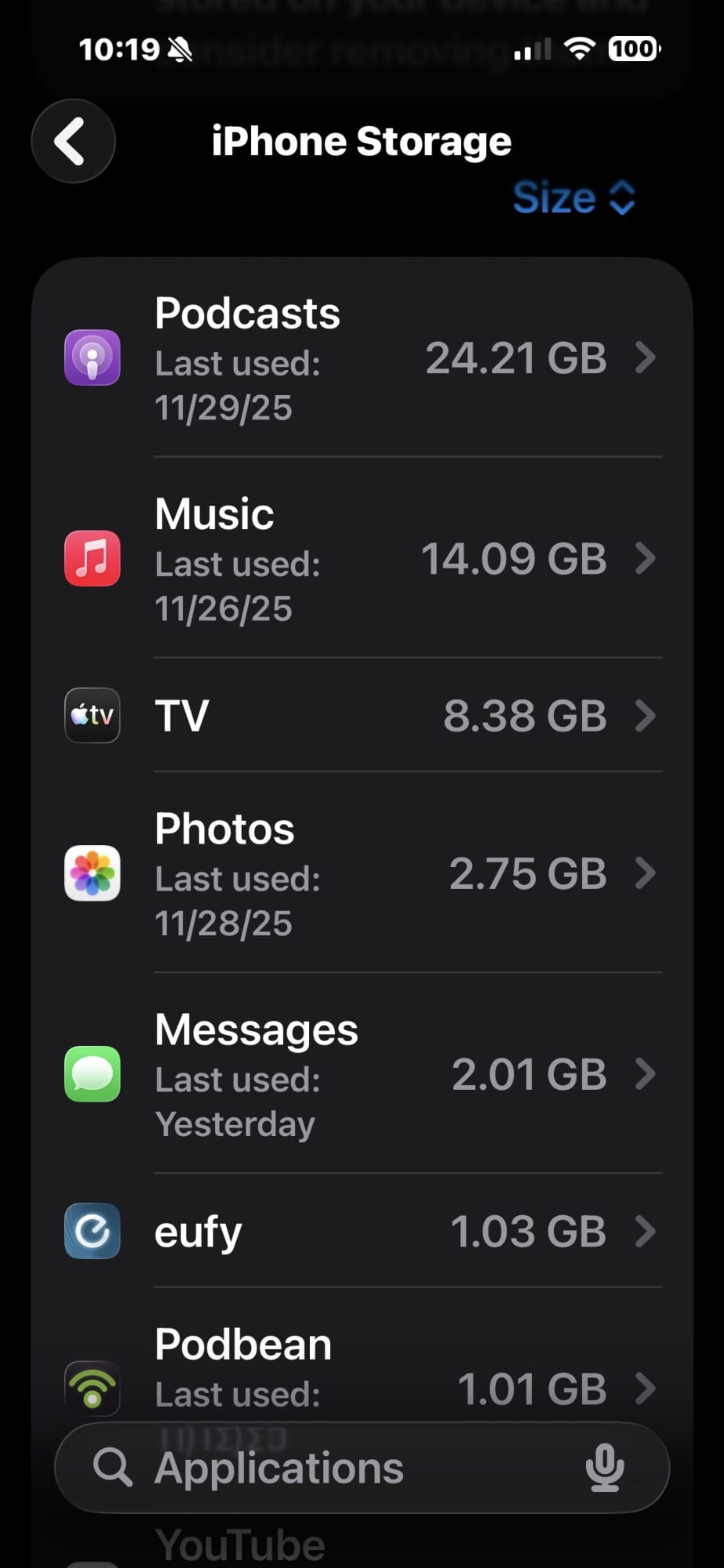

The colored bar at the top of your iPhone Storage screen in iOS 26 splits your device into nine distinct categories: Apps, Photos, Media, Mail, Messages, Apple Books, iCloud Drive, Other (also called System Data), and System. Each color represents a different type of content consuming space on your device, and Apple documents every category on its support site — though you would never know it from the screen itself, which offers zero labels until you scroll.
The problem is that knowing the names does not actually help. When your storage bar shows a massive gray block labeled "Other" eating 12 gigabytes, or your "Apps" category is twice the size you expected, the natural reaction is confusion. I have watched people stare at that screen for a solid minute trying to figure out whether they should be worried. And honestly, some of those categories should worry you — while others are completely fine left alone.
I am going to walk through every single category on that screen, explain what it actually contains in plain language, and tell you which ones you can shrink and which ones you should leave alone. Because Apple gave you a beautifully color-coded bar graph with almost no useful context, and that is a strange design choice for a company that prides itself on clarity.
 Ad
AdApps — the Biggest and Most Misunderstood Category
The "Apps" category is almost always the largest bar on your storage screen, and it is also the most deceptive. People assume it just counts the apps themselves — the download size you see in the App Store. It does not.
Apps includes three things: the application binary (the app itself), its Documents and Data (everything the app has saved locally), and anything stored in the "On My iPhone" directory inside the Files app, plus Safari downloads. That last part catches people off guard. If you have been downloading PDFs from Safari and they are sitting in your Downloads folder inside Files, Apple counts those under Apps, not under some separate "Downloads" category.
Tap any app in the list below the bar to see its individual breakdown. The app size is usually modest — Instagram might be 300 megabytes — but its Documents and Data can balloon to several gigabytes if you have been using it heavily. Cached photos, saved drafts, offline content, and conversation histories all pile up quietly. The fix is straightforward: offload apps you rarely use (Settings, then General, then iPhone Storage, then tap the app and choose Offload App) or delete and reinstall the worst offenders to wipe their cached data.
Photos — Probably Larger Than You Think
This one is exactly what it sounds like. Photos counts every image and video in your Photos app — your Camera Roll, screenshots, saved images from Messages and Safari, Live Photos, and video recordings. What trips people up is the sheer volume. A single 4K video filmed on an iPhone 16 Pro at 30 frames per second burns through roughly 200 megabytes per minute. Film a few birthday parties and a vacation, and suddenly Photos is consuming 40 gigabytes.
If you have iCloud Photos enabled with "Optimize iPhone Storage" turned on, your device stores smaller versions of older photos locally and keeps the full-resolution originals in iCloud. That dramatically reduces what Photos consumes on the device. But here is the friction: the Optimize setting does not kick in aggressively until you are actually running low on space. So you might have iCloud Photos enabled and still see a massive Photos category because iOS has not felt pressured enough to evict the originals yet.
Media — Not What Most People Guess
Media covers music, podcasts, ringtones, artwork, and Voice Memos. It does not include videos you recorded with the camera (that is Photos) or video files from streaming apps (that is Apps). The distinction matters because people often see a large Media bar and assume their Netflix downloads are responsible. They are not — Netflix downloads live inside the Netflix app's Documents and Data, which falls under Apps.
The biggest Media offender for most people is Apple Music or Spotify downloaded tracks. If you have a habit of downloading playlists for offline listening and never cleaning them out, Media can quietly reach 10 or 15 gigabytes. Voice Memos is the sneaky one. Each memo is small, but if you have been recording lectures or interviews for months, they add up without any visible warning.
 Ad
AdMail — Usually Tiny, Occasionally Alarming
Mail tracks the emails and attachments cached locally from your mail accounts. For most people this category barely registers — maybe a few hundred megabytes. But if you have a work email account with years of history and you have never adjusted the sync window, Mail can spike. Exchange and IMAP accounts that sync "All Mail" will download every attachment from every email in your inbox locally, and some of those attachments are enormous.
The quick fix is to change your mail sync window. Go to Settings, then Apps, then Mail, then tap the account, and reduce the sync period from "No Limit" to something like one month. Your phone will drop the cached data for older emails, and you can always pull them down again when you need them.
Messages — the Silent Storage Monster
Messages is one of those categories that looks innocent at a glance and then turns out to be consuming 8 gigabytes. It includes all your iMessage and SMS conversations plus every photo, video, GIF, link preview, and audio clip sent or received inside those threads. A year of active group chats with friends sending videos back and forth can easily cross 5 gigabytes.
iOS gives you some automated help here. Under Settings, then Apps, then Messages, there is a "Keep Messages" option that lets you set automatic deletion after 30 days or one year instead of forever. That is genuinely useful. You can also tap into Messages from the iPhone Storage screen, review large attachments, and delete the ones you no longer need. If you are running out of space and want a methodical approach to reclaiming storage, Messages is often the single highest-impact target after Photos.
Apple Books and iCloud Drive — Straightforward but Worth Checking
Apple Books counts downloaded books and PDFs stored in the Books app. If you are an avid reader who downloads entire audiobook libraries, this can grow. Otherwise, it is typically under a gigabyte.
iCloud Drive is a category that confuses people because they think iCloud storage and iPhone storage are separate things. They are — mostly. The iCloud Drive category on your iPhone Storage screen only counts files from iCloud Drive that your phone has downloaded locally. If you open a file from iCloud Drive in the Files app, your phone pulls it down and caches it. Those cached files count toward your local storage. iOS will eventually evict old files you have not accessed recently, but it does not do this proactively unless space is tight. If your iCloud storage setup is not something you have thought about recently, it is worth a look — the way Apple handles shared content and storage math is not always intuitive.
Other and System Data — the Category Apple Barely Explains
This is the one that generates the most frustration. Depending on your iOS version, you will see this labeled as "Other" or "System Data" — Apple renamed it but did not make it any less confusing. According to Apple, this category includes non-removable mobile assets like Siri voices, fonts, dictionaries, non-removable logs and caches, the Spotlight search index, system data such as Keychain, and the CloudKit database.
In practice, System Data is where iOS dumps everything that does not fit neatly into the other eight categories. Browser caches, streaming caches from apps that do not clean up after themselves, stale update files, and diagnostic logs all land here. I have seen System Data balloon to 15 gigabytes on iPhones that have not been restarted in months. A simple restart clears some of those temporary caches. If yours is stubbornly large and a restart does not help, a backup-and-restore cycle is the nuclear option that almost always works — but it is a commitment of time.
Here is the edge case that nobody talks about: System Data size is not consistent across identical phones. Two iPhone 16 devices with the same apps, same content, and same iOS version can show wildly different System Data numbers. iOS cache management is opportunistic, not deterministic. So if your System Data shows 4 gigabytes and your friend's shows 9, neither phone is broken. They just have different cache histories.
System — the One You Cannot Touch
System is the operating system itself — iOS and its core frameworks. On a 256-gigabyte iPhone 16 running iOS 26, the System partition typically occupies between 7 and 12 gigabytes. You cannot reduce this. You cannot move it. It is the floor that everything else sits on. The only time this number changes is after a major iOS update, and the change is usually small — a few hundred megabytes in either direction.
One thing worth knowing: the System size you see in Settings does not match the "used" space you see when you connect your iPhone to a Mac in Finder. Finder counts System differently, and the two numbers will almost never align. This is not a bug. It is two different tools measuring the same thing with different definitions, which is exactly as fun as it sounds.
At a Glance — Which Categories Can You Actually Shrink?
This table summarizes which iPhone storage categories you can reduce and which are managed by iOS automatically.
| Category | What It Contains | User Reducible? |
|---|---|---|
| Apps | Installed apps, their data, Files downloads | Yes — offload or delete |
| Photos | Camera Roll, screenshots, saved images | Yes — delete or enable iCloud Photos |
| Media | Music, podcasts, Voice Memos, ringtones | Yes — remove downloaded media |
| Emails and attachments cached locally | Yes — delete emails or remove account | |
| Messages | iMessage texts, SMS, photos/videos in threads | Yes — delete conversations or attachments |
| Apple Books | Downloaded books and PDFs | Yes — remove downloads |
| iCloud Drive | Files downloaded locally from iCloud | Yes — let iOS evict local copies |
| Other / System Data | Caches, Siri voices, fonts, Spotlight index, Keychain | Partially — restart or reinstall iOS |
| System | iOS itself and core frameworks | No |
The Storage Numbers Do Not Add Up — and That Is Normal
If you add up every category shown on the storage screen and compare it to the total used space reported at the top of the bar, the numbers will not match. They never do. The bar is an approximation, and some data gets counted in overlapping ways depending on how apps report their usage to iOS. Shared frameworks used by multiple apps, for instance, might appear in more than one category's calculation. Apple does not publish the exact accounting methodology, which is frustrating but unlikely to change.
The practical takeaway: use the category breakdown as a directional guide, not an accounting ledger. If your Photos bar is enormous, that is a real signal. If your total adds up to 3 gigabytes less than the reported used space, that is just iOS math being iOS math.

Related Posts
The iPhone 17e Gives You Apple’s A19 Chip for $200 Less Than You’d Expect
Mar 04, 2026
Your iCloud Runs Out of Space Because Apple Buries the Fix Three Menus Deep
Mar 04, 2026
Your iPhone Has a Privacy Display Mode You Have Never Turned On
Mar 03, 2026