

🎧 Listen to this article
Prefer to listen? An audio version of this article is available for accessibility and convenience.
Your iPhone ships with a security architecture that Android still cannot match in 2026. Apple controls the hardware, the operating system, and the app review pipeline as a single integrated stack, which means iOS 26 patches reach every supported device on the same day. Android fragments across dozens of manufacturers, each with its own update timeline, and that gap matters more than any single feature comparison.
But here is the part most people miss: owning an iPhone does not automatically mean you are protected. At least six settings in iOS 26 ship turned off or buried deep enough that the average person never touches them. I want to walk through what actually makes iOS different from Android at a structural level, and then show you exactly where to flip each switch.
 Ad
AdThe Architecture That Android Cannot Replicate
Apple builds every iPhone with a Secure Enclave, a dedicated hardware chip that stores biometric data, encryption keys, and payment credentials in a space the operating system itself cannot read. When you authenticate with Face ID, that scan never leaves the Secure Enclave. Android devices use a similar concept called StrongBox, but implementation varies wildly across manufacturers. A Pixel 9 handles it differently from a Samsung Galaxy S26, and a budget Android phone might skip hardware-backed security altogether.
iOS 26 extends this with what Apple calls a sealed system volume. The operating system partition is cryptographically signed and mounted as read-only, so even if malicious code somehow gets onto the device, it cannot modify the OS files. Android has verified boot, which checks integrity at startup, but it does not enforce the same runtime immutability.
It does, though, mean that Apple’s walled approach comes with trade-offs. You cannot install apps from outside the App Store without jumping through deliberate hoops, and certain automation tools that Android users take for granted simply do not exist on iOS. Whether that trade-off is worth it depends on how much you value control versus protection. For most people, the protection wins.
App Tracking Transparency Changed the Game
When Apple introduced App Tracking Transparency, it did something Google still has not matched: it made cross-app tracking opt-in rather than opt-out. Every app that wants to follow you across other apps and websites has to ask first, and you can say no with a single tap. In the worst case of a poorly designed app ignoring this rule, Apple will pull it from the App Store. If you want a deeper look at how this single toggle reshapes your privacy, Zone of Mac has a full walkthrough of the tracking kill switch and what it blocks.
Android’s Privacy Dashboard shows which apps accessed your camera, microphone, and location, which is genuinely useful. But it is a reporting tool, not a blocking tool. You can see that an app tracked you after the fact. iOS stops it from happening in the first place.
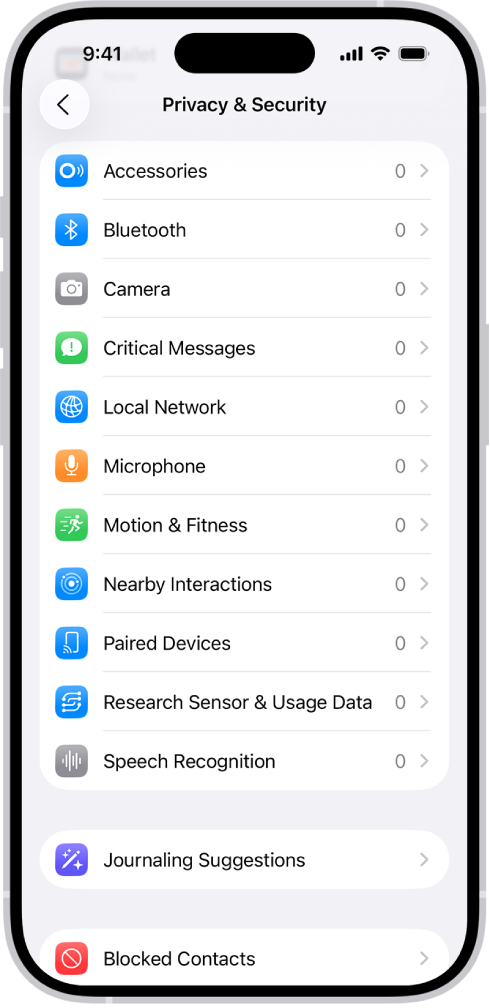
To check your settings, open Settings, then Privacy and Security, then Tracking. Make sure Allow Apps to Request to Track is turned on if you want the choice, or turned off if you want to block every request automatically. I also really like that iOS shows a complete list of every app that has asked for tracking permission, so you can revoke access one by one.
 Ad
AdThe Six Settings Worth Enabling Right Now
Here is where most iPhone owners leave security on the table. These settings exist in iOS 26 but are not enabled by default, or they are buried deeply enough that you might have skipped them entirely.
Stolen Device Protection went from optional to default in iOS 26.4, but check anyway. Open Settings, then Face ID and Passcode, and confirm Stolen Device Protection is toggled on. This feature adds a one-hour security delay before a thief can change your Apple Account password or disable Find My, even if they know your passcode. The delay only kicks in when your iPhone detects you are away from familiar locations like your home or office.
Lockdown Mode is the nuclear option for anyone who faces targeted digital threats. It blocks most message attachment types, disables link previews, refuses incoming FaceTime calls from unknown numbers, strips location data from shared photos, and avoids insecure Wi-Fi networks according to Apple’s support documentation. This is not for everyone, but journalists, activists, and anyone handling sensitive data should know it exists. Find it in Settings, then Privacy and Security, then Lockdown Mode. Zone of Mac has a detailed guide on setting up Lockdown Mode and what it actually blocks.
iCloud Private Relay encrypts your Safari traffic and routes it through two separate relays so that no single entity, including Apple, can see both who you are and what you are browsing. Open Settings, tap your name at the top, then iCloud, then Private Relay, and make sure it is turned on. The catch: it only covers Safari, not third-party browsers or apps. So if you use Chrome on your iPhone, Private Relay does nothing for that traffic.
Communication Safety scans images in Messages for nudity and blurs them before a child sees them, all processed entirely on-device. This is not the same as the controversial server-side scanning Apple abandoned years ago. Everything stays on the phone. Enable it in Settings, then Screen Time, then Communication Safety.
Advanced Data Protection encrypts almost everything in your iCloud account with end-to-end encryption, including backups, photos, and notes. Without this toggle, Apple holds the decryption keys and can technically comply with law enforcement requests for your cloud data. With it on, only your devices can decrypt the data. Find it in Settings, then your name, then iCloud, then Advanced Data Protection.
USB Accessories restriction prevents data transfer through the USB-C port when your iPhone has been locked for more than an hour. This blocks forensic tools that law enforcement and thieves use to extract data through a cable. Check it in Settings, then Face ID and Passcode, and scroll to Accessories. Make sure it is turned off, which counterintuitively means accessories are blocked by default when locked.
Where Android Actually Wins
I would be dishonest if I did not mention the areas where Android does better. Google Play Protect scans over 200 billion app installs daily and has improved dramatically. Android’s permission system now lets you grant one-time access to the camera or microphone, so the app loses access the moment you leave it. And Android’s open ecosystem means security researchers can audit more of the code, which has led to faster discovery and patching of certain vulnerability classes.
The fundamental difference is philosophical. Android gives you more control and assumes you will use it wisely. iOS gives you less control and assumes most people will not change their defaults. Given that most people never touch their security settings, as the six items above demonstrate, Apple’s approach protects more people in practice.
Quick-Action Checklist
- Verify Stolen Device Protection is on: Settings → Face ID and Passcode → Stolen Device Protection
- Review app tracking permissions: Settings → Privacy and Security → Tracking
- Enable iCloud Private Relay: Settings → [your name] → iCloud → Private Relay
- Turn on Advanced Data Protection: Settings → [your name] → iCloud → Advanced Data Protection
- Check USB Accessories restriction: Settings → Face ID and Passcode → Accessories (should show off)
- Evaluate Lockdown Mode for sensitive data: Settings → Privacy and Security → Lockdown Mode

Related Posts
iOS 26.4.1 Fixes the iCloud Bug That Broke Your Apps
Apr 09, 2026
iOS 26.4 Drains Your iPhone Battery. Here’s What Fixes It
Apr 09, 2026
Your iPhone Finally Lets You Create Custom Ringtones in iOS 26
Apr 08, 2026