

🎧 Listen to this article
Prefer to listen? An audio version of this article is available for accessibility and convenience.
Your iPhone Already Knows How to Be Quiet
Focus Modes on your iPhone can silence every notification on your phone, all of them, and then surgically let through only the people and apps you actually care about hearing from. They work on a schedule. They trigger automatically when you arrive at a location. They sync across your iPhone, iPad, Mac, and Apple Watch without you lifting a finger. And the whole system has been sitting in your Settings app since iOS 15, getting better every year, and most iPhone owners have never opened it once.
That is a shame, because the default iPhone notification experience is genuinely terrible. Every app you have ever downloaded is screaming at you. Shopping apps. News apps. That game you played twice in 2023. They are all fighting for your Lock Screen, and Apple’s answer is not to mute your phone with the Action Button and hope for the best. Apple’s answer is Focus.
 Ad
AdBut here is where it gets complicated. Focus Modes are powerful and also weirdly confusing to set up the first time, because Apple gives you about six pre-built options and a custom builder and very little guidance on which one you actually need. So I am going to walk you through every single one of them, explain what they really do under the hood, and tell you which ones are worth your time and which ones I think you can safely ignore.
What Focus Mode Actually Does (And What It Does Not)
A Focus Mode is a filter. That is it. When a Focus is active on your iPhone, it sits between every notification your phone receives and your Lock Screen, and it decides what gets through and what gets held silently in Notification Center. You are not deleting notifications. You are not disabling apps. You are just telling your iPhone: right now, I only want to hear from these people and these apps.
The rest still arrives. It just waits.
This matters because a lot of people think turning on Do Not Disturb means they are going to miss something critical. You will not. Everything is still there when you turn the Focus off. Nothing disappears. Nothing gets rejected. The notifications just queue up quietly until you are ready to look at them.
Focus also controls your Lock Screen and Home Screen. You can tie a specific wallpaper, a specific set of Home Screen pages, and even a specific Apple Watch face to each Focus Mode. So when Work Focus kicks in, your phone can automatically hide your social media apps, show your calendar and email widgets, and swap to a clean watch face. When Personal Focus activates in the evening, your phone becomes a different phone. Same hardware. Totally different experience.
That two-device-in-one trick is genuinely the best thing Apple has done for iPhone usability in years. And I will stand by that.
The Built-In Focus Modes at a Glance
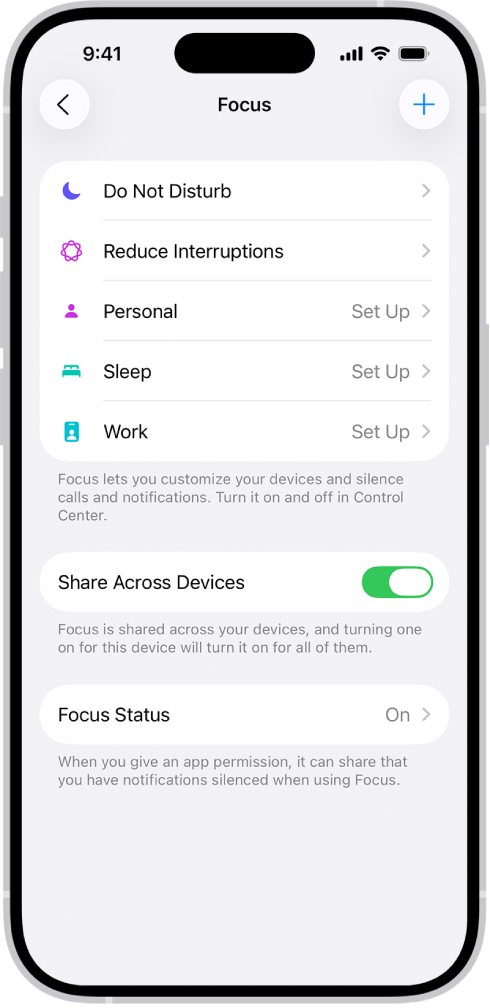
Apple ships six pre-configured Focus Modes. Here is what each one does and who it is actually for.
| Focus Mode | What It Filters | Auto-Trigger | Best For |
|---|---|---|---|
| Do Not Disturb | Everything except allowed contacts/apps | Schedule, location, app-based | General quiet time, meetings, movies |
| Sleep | Everything; dims Lock Screen | Tied to Sleep Schedule in Health app | Bedtime and overnight |
| Work | Personal notifications | Schedule, location, app-based | Office hours, deep work sessions |
| Personal | Work notifications | Schedule, location, app-based | Evenings, weekends, family time |
| Driving | Nearly everything; auto-replies | CarPlay or motion detection | Any time behind the wheel |
| Fitness | Most notifications | Workout start | Gym sessions, runs, yoga |
Do Not Disturb is the one everyone knows. Sleep is the one that runs automatically if you have set up a Sleep Schedule in the Health app. Work and Personal are mirrors of each other — one blocks personal stuff, the other blocks work stuff. Driving is the one that actually saves lives. And Fitness is honestly the one I think most people can skip, because the Apple Watch already manages workout interruptions pretty well on its own.
 Ad
AdMy strong opinion: start with Do Not Disturb and Work. Those two cover about 90 percent of what most people need. Do not try to set up all six at once. You will over-engineer it and then abandon the whole system.
Setting Up Your First Focus Mode
Open Settings, tap Focus, and pick the one you want to configure. I recommend starting with Do Not Disturb because it is the most flexible and the one you will use the most.
The first screen asks you to choose Allowed People. This is the list of contacts who can break through your Focus and still send you notifications. My advice: keep this brutally short. Your spouse or partner. Your kids. Maybe your boss if you are on call. Everyone else can wait.
Next, Allowed Apps. Same idea. Pick the apps that genuinely need to reach you in real time. For me, that is Messages, Phone, and my home security camera app. That is it. Not email. Not Slack. Not news. Those things can all sit in Notification Center until I am ready.
Then you get to the good stuff.
Time Sensitivity: iOS 26 has a toggle that lets Time Sensitive notifications break through even when they are not on your allowed list. I leave this on. Time Sensitive notifications are things like ride-share arrivals, timer alerts, and fraud warnings from your bank. These are genuinely urgent by design, and Apple is pretty strict about which apps qualify.
Silence or Notify: You can choose to have blocked notifications show up silently in Notification Center, or you can hide them entirely until the Focus turns off. I use the silent option because I still want to catch up on what I missed, just not in real time.
Share Focus Status: This one is sneaky useful. When enabled, anyone who messages you in iMessage will see a note that says your notifications are silenced. They can still choose to Notify Anyway if it is urgent, but it sets the social expectation that you might not reply instantly. I love this feature. It is polite boundary-setting built right into the OS.
Automation Is Where Focus Gets Good
Manually turning Focus Modes on and off is fine. But the real power comes from automating them so you never have to think about it.
 Ad
AdEach Focus Mode can trigger automatically based on three things: time, location, and app. You set these up under the Turn On Automatically section inside each Focus.
Schedule-based triggers are the most common. Set Work Focus to activate Monday through Friday from 9 AM to 5 PM and turn off after hours. Set Sleep Focus to match your Sleep Schedule. Set Do Not Disturb for Saturday mornings when you refuse to deal with the world before coffee.
Location-based triggers are surprisingly useful. You can set Work Focus to activate the moment you arrive at your office and deactivate when you leave. Personal Focus can trigger when you get home. If you go to a gym with a consistent address, Fitness Focus can kick in when you walk through the door, though I still think that one is overkill.
App-based triggers are the newest addition and also the weirdest. You can make a Focus activate when you open a specific app. The idea is that opening your meditation app triggers a quiet mode, or opening a game triggers Do Not Disturb. In practice, I have found this to be finicky. If you quickly open and close an app, the Focus turns on and then off again, and the notification gap in between can cause things to arrive out of order. This is a real edge case that Apple has not quite smoothed out yet, and it has caused issues more than once when accidentally opening the wrong app and suddenly the phone went silent for thirty seconds in the middle of a conversation.
Custom Focus Modes for People Who Want Full Control
Beyond the six built-in options, you can build your own Focus from scratch. Tap the plus button on the Focus settings screen and you get a blank canvas.
Why would you do this? Maybe you have a side project that needs a different set of apps than your main Work Focus. Maybe you want a Vacation Focus that blocks work email entirely but lets through travel apps and group chats with the people you are traveling with. Maybe you want a Content Creation Focus that silences absolutely everything except a timer app, because you know yourself well enough to know that any notification at all will derail your writing session for twenty minutes.
The customization here is real. You pick the name, the icon, the color, the allowed people, the allowed apps, the Home Screen pages, the Lock Screen, and even the Apple Watch face. It takes about five minutes to build one, and it is genuinely satisfying to have a phone that reshapes itself depending on what you are doing.
I will say this: do not make more than three or four total Focus Modes. Simple systems get used. Complicated ones get turned off.
The Settings Most People Miss
A couple of things that live adjacent to Focus Modes but make the whole system work better.
Focus Filters let you go beyond notification silencing and actually filter what shows up inside apps. You can set a Work Focus to only show your work email account in Mail, only show your work calendar in Calendar, only show work-related tab groups in Safari. This is deep integration and it is legitimately useful if you keep personal and professional Apple accounts separate. Most people do not know this exists. Go to your Focus, scroll down past the allowed lists, and look for Focus Filters at the bottom.
Lock Screen pairing is something I mentioned earlier but want to emphasize. Each Focus can have its own Lock Screen with its own widgets. This means your Sleep Focus can show just a clock and your alarm time, your Work Focus can show your calendar and Reminders, and your Personal Focus can show photos and weather. You pair a Lock Screen to a Focus by long-pressing your Lock Screen, swiping to the one you want, tapping it, and then tapping the Focus button at the bottom. Once linked, activating that Focus automatically swaps to that Lock Screen. This alone makes Focus Modes worth setting up.
If you are already tweaking how your iPhone handles calls, you should also look at iOS 26 call screening, which works alongside Focus to stop spam calls from interrupting you even when your phone is not in a Focus Mode.
And while you are in Settings, there are a handful of iOS 26.4 settings worth changing that complement Focus Modes nicely — especially the ones related to notification grouping and summary behavior.
Apple’s own Focus support documentation covers the full list of automation triggers and filter options if you want to go even deeper.
Quick-Action Checklist
- Open Settings > Focus > Do Not Disturb
- Add 3–5 Allowed People (your inner circle, no one else)
- Add 2–3 Allowed Apps (Messages, Phone, and one more if needed)
- Turn on Time Sensitive notifications
- Enable Share Focus Status
- Set a Schedule (start with bedtime hours or meeting blocks)
- Long-press your Lock Screen and link it to your Do Not Disturb Focus
- Repeat for Work Focus if you have regular office hours
- Stop there — use these two for a week before adding anything else
Why are you still getting pestered by every app on your phone when the off switch has been sitting right there this whole time?

Related Posts
iOS 26.4.1 Fixes the iCloud Bug That Broke Your Apps
Apr 09, 2026
iOS 26.4 Drains Your iPhone Battery. Here’s What Fixes It
Apr 09, 2026
Your iPhone Finally Lets You Create Custom Ringtones in iOS 26
Apr 08, 2026