
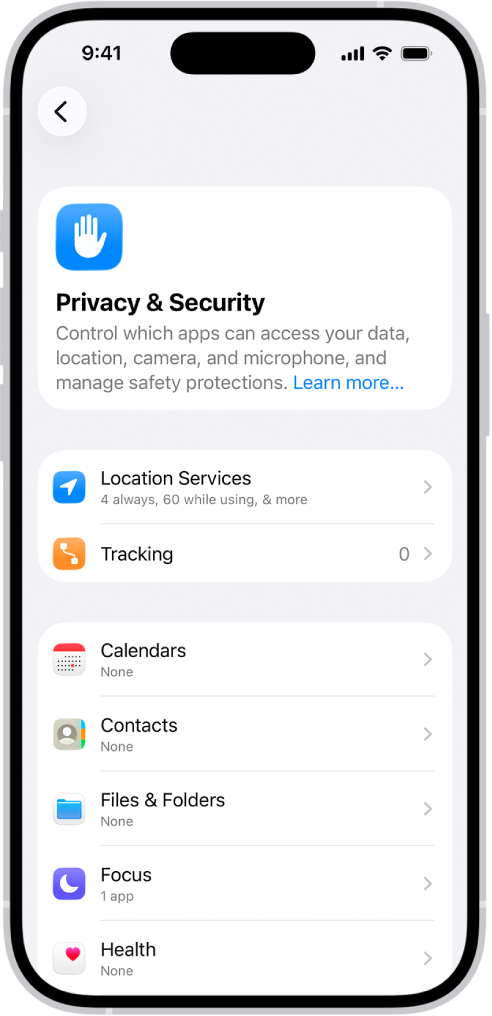

Your iPhone in iOS 26 already has five built-in privacy screen features that hide your display content from anyone standing next to you. Attention Aware dimming, notification preview controls, Reduce White Point, Always On Display blur, and aggressive Auto-Lock work together to keep your screen private in a crowded subway car, open office, or airport lounge. The problem? Apple scattered these settings across four different menus and turned most of them off by default. Samsung just shipped a hardware privacy display in the Galaxy S26 Ultra, and suddenly everyone wants to know what iPhone can do. Well, your iPhone can do more than you think. You just have to go find it. If you have already locked down your iPhone privacy settings in iOS 26.3, this is the next layer.
I want to be honest here: Apple does not have a pixel-level privacy display. Samsung's Flex Magic Pixel technology is genuinely impressive, and Apple has filed patents for adjustable viewing angles that have gone absolutely nowhere. So no, you are not getting that hardware solution on iPhone anytime soon. But software privacy? That is a different story, and most people have never touched any of it.
 Ad
AdAttention Aware Features: Your Face ID Camera Is Already Watching
This one has been around since the iPhone X, and I am still surprised how few people know about it. Every iPhone with Face ID uses the TrueDepth camera to detect whether you are actually looking at the screen. When Attention Aware Features is enabled, two things happen. The display stays bright while you are looking at it, which is nice. But more importantly, the moment you look away, the screen dims faster than normal. Hand your phone to someone across the table and look somewhere else? The screen starts fading.
Here is how to enable it: open Settings, tap Face ID & Passcode, enter your passcode, and toggle on Attention Aware Features. That is it. The TrueDepth camera handles everything else on the device's Neural Engine, and nothing gets sent to Apple's servers. According to
Apple's support documentation, Attention Aware Features also lowers the volume of incoming alerts when you are looking at the phone, because the system assumes you already noticed the notification visually. Two birds, one TrueDepth camera.
Why should you care? Think about it. You are on a train, reading a message from your bank. The person next to you is definitely not reading your screen. Definitely not. But the moment you glance out the window, your display dims. That is passive privacy without touching a single button. Not perfect, but better than leaving the screen blazing at full brightness while you stare out the window.
Hide Your Notifications From Every Pair of Eyes Except Yours
This is the single most effective privacy setting on your iPhone, and it takes about fifteen seconds to change. By default, iOS shows the full text of incoming messages, emails, and app notifications right on your Lock Screen. Anyone within reading distance sees everything.
Go to Settings then Notifications then Show Previews and switch it to When Unlocked. Now every notification shows only the app name and a generic banner until Face ID confirms you are the one looking. The preview pops in the moment your face is recognized. It feels seamless after the first hour, and you will wonder why you ever had it set to Always.
Here is the part most people miss: you can set this per-app too. Maybe you want weather notifications visible at a glance but banking alerts locked down. Go to Settings then Notifications, pick the specific app, and override the global setting. I keep Messages and Mail on When Unlocked, but I leave Calendar on Always because a meeting title is not exactly classified information.
 Ad
AdThe Reduce White Point Trick That Turns Your Screen Nearly Invisible
This is the closest thing to a software privacy display that iOS offers, and it is buried in Accessibility settings where almost nobody looks. Reduce White Point lowers the intensity of bright colors on your display below the normal minimum brightness. Crank it to 90 percent or higher and your screen becomes genuinely difficult to read from any angle that is not directly head-on.
Navigate to Settings then Accessibility then Display & Text Size then toggle on Reduce White Point and drag the slider up. At 80 percent, the screen looks noticeably dimmer. At 100 percent, it is like trying to read through sunglasses. The sweet spot for privacy without eye strain is somewhere around 85 to 90 percent, but you will need to experiment based on your ambient lighting.
Now here is where it gets practical. You do not want to live in permanent dim mode. If your iPhone has an Action Button (iPhone 15 Pro and later), you can assign Reduce White Point as a quick toggle: Settings then Action Button then Accessibility then Reduce White Point. One press to go dark, one press to go bright. On older iPhones, set it as your Accessibility Shortcut through triple-clicking the Side button. Either way, you get a one-tap privacy mode.
I have to be honest about the limitations. This is not Samsung's Flex Magic Pixel technology. It does not physically redirect light at the pixel level. Someone sitting directly beside you can still read your screen if they really try. But it raises the difficulty from "casual glance" to "deliberate effort," which is usually enough for a coffee shop or airplane seat.
The Always On Display Blur That iOS 26 Added Quietly
If you own an iPhone 14 Pro or later, iOS 26 made a subtle change to Always On Display that has privacy implications nobody talks about. Previously, the Always On Display dimmed your Lock Screen wallpaper but kept it recognizable. Now, iOS 26 blurs the wallpaper by default, replacing your personal photo with an abstract smear of color behind the clock and widgets.
Why does this matter? Because a lot of people use personal photos as wallpaper. Family shots, vacation pics, selfies. With the old behavior, that photo was dimly visible to anyone who glanced at your phone sitting on a desk or table. The new blur means strangers see a colorful blob and a clock. It is a small change, but it is one of those iOS 26 privacy improvements that works without you doing anything.
You can toggle this at Settings then Display & Brightness then Always On Display. The blur is on by default in iOS 26. If you prefer the old dimmed-photo look, you can turn it off, but for privacy I would leave it alone.
Thirty Seconds of Auto-Lock Changes Everything
I know this sounds obvious. But I also know that most people have Auto-Lock set to two minutes or longer because it is annoying when the screen turns off while you are reading. The problem is that two minutes of an unlocked, fully bright screen sitting on a restaurant table is an eternity for someone with wandering eyes.
Set Auto-Lock to 30 seconds at Settings then Display & Brightness then Auto-Lock. With Attention Aware Features on, the screen stays awake while you are actively looking at it anyway. The 30-second timer only kicks in when you look away or set the phone down. It is the best of both worlds: the screen stays on when you need it and vanishes fast when you do not.
Quick note: if Low Power Mode is on, Auto-Lock forces itself to 30 seconds and grays out the setting. So if you are already running Low Power Mode, you are getting this privacy benefit for free whether you wanted it or not.
Which Approach Actually Protects You
Not every method works in every situation. Here is a breakdown of what each setting handles and where it falls short, so you can decide which combination fits your daily routine.
| Method | What It Blocks | Effort | Drawback |
|---|---|---|---|
| Attention Aware Dimming | Screen stays bright only when you look | One toggle | Does not block direct side viewing |
| Notification Previews | Hides message text on Lock Screen | One toggle (global or per-app) | App names still visible |
| Reduce White Point | Dims screen below normal minimum | Toggle plus slider; assign to Action Button | Makes your own screen harder to read |
| Always On Display Blur | Hides personal wallpaper photos | On by default in iOS 26 | Only affects Lock Screen |
| 30-Second Auto-Lock | Kills the screen fast when unattended | One dropdown change | Screen goes dark while reading if Attention Aware is off |
I run all five simultaneously. It is not overkill. Attention Aware handles active use, notification previews handle the Lock Screen, Reduce White Point handles the subway, the AOD blur handles the desk, and 30-second Auto-Lock catches everything I forget. Each setting covers a gap the others leave open.
What About Physical Privacy Screen Protectors
If software is not enough, a physical privacy screen protector uses micro-louver technology to physically block light at side angles. Think of thousands of tiny venetian blinds embedded in tempered glass. Head-on, the screen looks normal. From 30 degrees to either side, the screen goes black. They work, and they work well.
The tradeoff is real though. Every privacy protector I have seen reduces brightness by at least 10 to 15 percent, which means you end up cranking the display brighter to compensate, which eats battery. Colors shift slightly warmer. And there is a faint graininess that you do not notice until you take the protector off and see how clean the bare display looks. For some people that is a worthwhile trade. For others, the software settings above are enough.
The real question Apple needs to answer is why Samsung can build privacy into the display panel itself while Apple cannot. Samsung's Galaxy S26 Ultra uses what they call Flex Magic Pixel technology, where two types of pixels switch between wide-angle and narrow-angle light output on demand. No brightness penalty. No color shift. No protector to buy. Apple has patents for adjustable viewing angles dating back years, but nothing has shipped. I mean think about it: Apple charges a premium for privacy as a brand value, and they are behind on one of the most visible privacy features a phone can have.
Your Five-Minute iPhone Privacy Screen Setup
- Step 1: Open Settings, tap Face ID & Passcode, toggle on Attention Aware Features
- Step 2: Go to Settings, then Notifications, then Show Previews, and select When Unlocked
- Step 3: Navigate to Settings, then Accessibility, then Display & Text Size, toggle on Reduce White Point, set slider to 85-90 percent
- Step 4: If you have an Action Button, assign Reduce White Point as a quick toggle at Settings, then Action Button, then Accessibility
- Step 5: Set Auto-Lock to 30 seconds at Settings, then Display & Brightness, then Auto-Lock
Five settings, five minutes, and your iPhone becomes significantly harder to snoop on. Samsung owners can brag about their hardware privacy display. You have got five software layers working in parallel. Not the same thing, but a lot closer than doing nothing.

Related Posts
The iPhone 17e Gives You Apple’s A19 Chip for $200 Less Than You’d Expect
Mar 04, 2026
Your iCloud Runs Out of Space Because Apple Buries the Fix Three Menus Deep
Mar 04, 2026
Your iPhone Can Photograph Tonight’s Blood Moon Eclipse (Here’s How)
Mar 03, 2026