

🎧 Listen to this article
Prefer to listen? An audio version of this article is available for accessibility and convenience.
Resetting network settings on your iPhone in iOS 26 erases every saved Wi-Fi password, Bluetooth pairing, and VPN configuration on the device, then rebuilds the entire network stack from scratch. It takes about thirty seconds and your personal data stays untouched. The catch is that most people either hit this button too early, before trying simpler fixes, or wait too long, wasting hours toggling Airplane Mode on and off when a clean reset would solve the problem in under a minute.
I think of Reset Network Settings as the middle option that nobody remembers exists. Restarting your iPhone clears temporary glitches. Erasing all content and settings wipes the phone clean. But resetting just the network layer sits between those two extremes, and it fixes a specific category of problems that neither a reboot nor a factory reset handles well.
If your Wi-Fi keeps dropping after updating to iOS 26.3.1, if Bluetooth refuses to find your AirPods, or if cellular data shows full bars but loads nothing, this is the tool Apple built for exactly that situation. Here is what happens when you use it, what you lose, and when you should skip it entirely.
 Ad
AdHow to Reset Network Settings in iOS 26
The process has not changed since iOS 15, though Apple’s Liquid Glass redesign in iOS 26 gave the Settings app a visual overhaul. The menu structure is identical.
Open Settings, then tap General. Scroll to the bottom and tap Transfer or Reset iPhone. Tap Reset, then tap Reset Network Settings. Enter your passcode when prompted. Your iPhone restarts automatically.
The whole sequence takes four taps and a passcode. After the restart, you land on the Lock Screen with no Wi-Fi connection and no Bluetooth pairings. That blank slate is the point.
One thing worth noting for anyone in a corporate or school environment: if your network was configured through a Mobile Device Management profile, those settings survive the reset. Only configurations you set up manually get wiped. Apple says on its support page that settings installed via configuration profiles or MDM are preserved, so check with your IT administrator before proceeding if your iPhone is managed.
What Actually Gets Erased
This is where people get nervous, and honestly, I understand why. The word “reset” sounds destructive. But Reset Network Settings is surgically targeted. Here is the complete list of what disappears.
Every saved Wi-Fi network and its stored password gets removed. Every Bluetooth pairing, including your AirPods, Apple Watch connection preferences, car stereo, and wireless speakers, gets cleared. VPN configurations that you added manually are deleted. Custom APN settings for cellular data revert to carrier defaults. Your device name resets to “iPhone.” Any certificates you manually trusted, such as for specific websites, become untrusted again. HTTP proxy settings for Wi-Fi networks are cleared.
That is the full damage report.
What does not get erased: your photos, messages, apps, contacts, call history, Apple Pay cards, email accounts, health data, home screen layout, and every other piece of personal data on the device. Apple confirms this directly: “No data or media are deleted.”
Your eSIM is safe too. eSIM profiles live on a dedicated hardware chip called the eUICC, which is physically separate from the network configuration storage. A network settings reset does not touch it. After the restart, your eSIM reconnects to your carrier automatically.
When Resetting Network Settings Actually Helps
Not every connectivity problem needs this fix. But certain symptoms respond to it better than anything else.
Wi-Fi connects but has no internet. This is the classic post-update problem. After installing iOS 26.3.1, multiple users reported that their iPhones would show the Wi-Fi icon and full signal but load nothing. The network stack configuration had become corrupted during the update process. A network reset clears that corruption.
Bluetooth pairing fails repeatedly. You tap Connect, the spinner spins, and nothing happens. Or your AirPods pair to your iPhone but audio routes to the phone speaker anyway. These symptoms often point to a corrupted Bluetooth cache that a simple restart will not flush.
 Ad
AdCellular data shows bars but will not load. Several Apple Community threads from January and February 2026 document this exact issue after the iOS 26.2.1 update, with users reporting “No Service” or “SIM Unavailable” errors on devices ranging from iPhone 13 through iPhone 16 Pro Max.
Personal Hotspot has stopped sharing your connection. This relies on both cellular and Wi-Fi working correctly, so when either stack has a configuration problem, the Hotspot feature breaks silently.
iMessage or FaceTime will not activate. Apple specifically recommends resetting network settings as a troubleshooting step when activation fails, because both services depend on a clean network handshake during setup.
When You Should Skip It
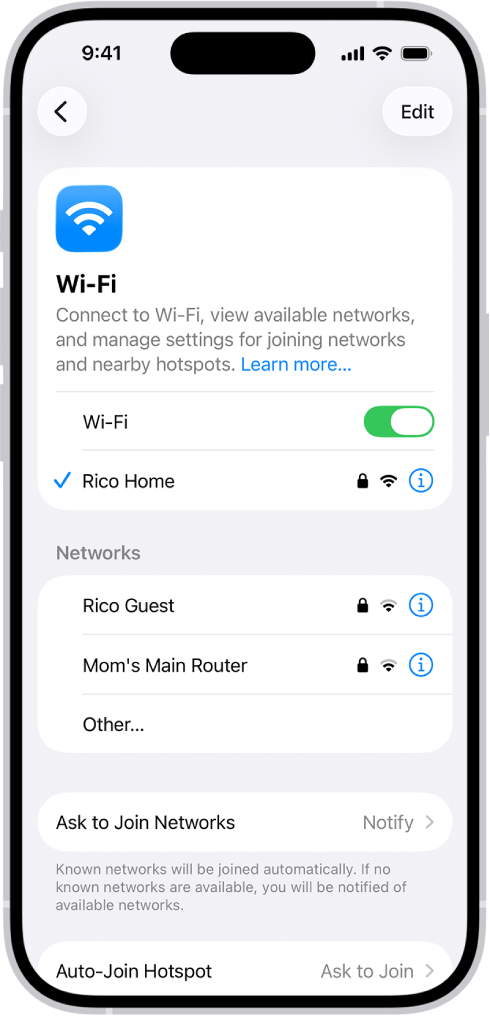
If your problem is a single Wi-Fi network that will not connect, try forgetting that one network first. Open Settings, tap Wi-Fi, tap the info button next to the network name, tap Forget This Network, then rejoin. This preserves every other saved network on your device.
If you only need to fix a Bluetooth connection with one specific device, go to Settings, then Bluetooth, tap the info button next to the device, and tap Forget This Device. No reason to nuke every pairing when only one is misbehaving.
And if your problem appeared immediately after an iOS update, restart your iPhone first. A surprising number of post-update glitches resolve with a simple restart because background processes had not finished running. Give it a try before reaching for the bigger hammer. While you are checking things, your iPhone battery health number is worth reviewing too, because degraded batteries can cause unexpected network drops under load.
The Reset Ladder Most People Skip
Apple has three reset options buried under Transfer or Reset iPhone, and understanding the differences saves you from overcorrecting.
Reset Network Settings erases only network-related data. Wi-Fi, Bluetooth, VPN, cellular configurations. Nothing else. Use this for connectivity problems.
Reset All Settings wipes every setting on the device back to factory defaults, which includes everything a network reset does plus your home screen layout, display brightness, notification preferences, privacy settings, keyboard dictionary, and Apple Pay cards. Your apps and personal data remain. Use this when multiple system behaviors have gone wrong and you cannot pinpoint the cause.
Erase All Content and Settings deletes everything. Apps, photos, messages, settings, all of it. This is a factory reset. When you reach this screen, iOS 26 gives you two choices: “Keep eSIMs and Erase Data” or “Delete eSIMs and Erase Data.” Use this only when selling or trading in the device, or when nothing else has worked.
Most people jump straight from a restart to a factory reset because they do not know the middle options exist. That is like replacing the engine because the air filter is dirty.
This table compares the three iPhone reset options, what each one erases, and when to use it.
| Reset Option | What Gets Erased | Personal Data | Best For |
|---|---|---|---|
| Reset Network Settings | Wi-Fi, Bluetooth, VPN, cellular configs | Preserved | Connectivity problems |
| Reset All Settings | All settings including network, display, notifications, Apple Pay | Preserved | Multiple broken behaviors |
| Erase All Content and Settings | Everything on the device | Deleted | Selling, trading in, or last resort |
After the Reset: What to Reconnect
Your iPhone will restart with Wi-Fi turned off. Turn it back on in Settings and rejoin your home network. You will need to type the password again, so have it ready.
Bluetooth devices need to be re-paired one at a time. AirPods are the easiest: open the case near your iPhone, and the pairing prompt appears automatically. Your Apple Watch should reconnect on its own, though if it loses connection after the reset, restart the watch by holding the Side Button. Car stereos and third-party speakers typically need manual pairing from their own Bluetooth settings.
If you had VPN apps configured, open each one and sign in again. The app itself is still installed, but the VPN tunnel configuration that it registered with iOS is gone.
One thing that catches people off guard: your device name resets to “iPhone.” If you had renamed it to something recognizable on your home network, go to Settings, then General, then About, and tap Name to change it back.
Quick-Action Checklist
- Before you reset, write down or screenshot your Wi-Fi passwords. Open Settings, then Wi-Fi, tap the info button next to each saved network, then tap Password. iOS 26 shows saved passwords here.
- Note any custom VPN settings. Open Settings, then General, then VPN and Device Management to check.
- Open Settings, then General, then Transfer or Reset iPhone, then Reset, then Reset Network Settings.
- Enter your passcode and wait for the restart.
- Rejoin your primary Wi-Fi network.
- Re-pair your Bluetooth devices, starting with AirPods and Apple Watch.
- Re-sign into any VPN apps.
- Rename your device in Settings, then General, then About, then Name.

Related Posts
Your iPhone Just Got an iOS 26.5 Beta With Hidden Upgrades
Apr 02, 2026
iOS 26.5 Closes the Biggest Privacy Gap on Your iPhone
Mar 31, 2026
Your iPhone Battery Replacement Has a Catch Most Owners Miss
Mar 31, 2026