

🎧 Listen to this article
Prefer to listen? An audio version of this article is available for accessibility and convenience.
Your iPhone can block every app on it from tracking you across the internet. One toggle in Settings, and the entire advertising identifier that apps use to follow you from Instagram to your weather app to that random puzzle game goes silent. The catch is that Apple buries this toggle two menus deep, and the default behavior still lets apps ask you for permission — which means every new app install becomes another pop-up you have to deal with.
I want to walk you through every tracking control iOS 26 gives you, because there are more of them than most people realize. If you have already started to lock down your iPhone privacy, you are ahead of the curve. And one of them, tucked inside the carrier settings that arrived in iOS 26.3, stops a kind of tracking that App Tracking Transparency was never designed to address.
 Ad
AdWhat App Tracking Transparency Actually Controls
Every iPhone ships with something called an Identifier for Advertisers, or IDFA. Think of it as a license plate for your phone that advertising networks read every time you open an app. Facebook sees the plate. That free flashlight app sees the plate. Your kid’s math game sees the plate. They all compare notes through ad networks, and suddenly your browsing habits from one app show up as targeted ads in another.
App Tracking Transparency, which Apple introduced back in iOS 14.5 and maintains through iOS 26, forces apps to ask your permission before reading that plate. As Apple states on its support page, apps must request consent to “track your activity across other companies’ apps and websites.” The operative phrase is “other companies.” An app can still track everything you do inside its own ecosystem without asking. Meta tracks you across Facebook, Instagram, Threads, and WhatsApp freely, because those are all Meta properties. ATT only kicks in when they want to follow you outside their walls.
That distinction matters. If you think tapping “Ask App Not to Track” makes you invisible to Facebook, it does not. It makes you invisible to Facebook’s advertising partners.
How to Shut Down Tracking Globally in iOS 26
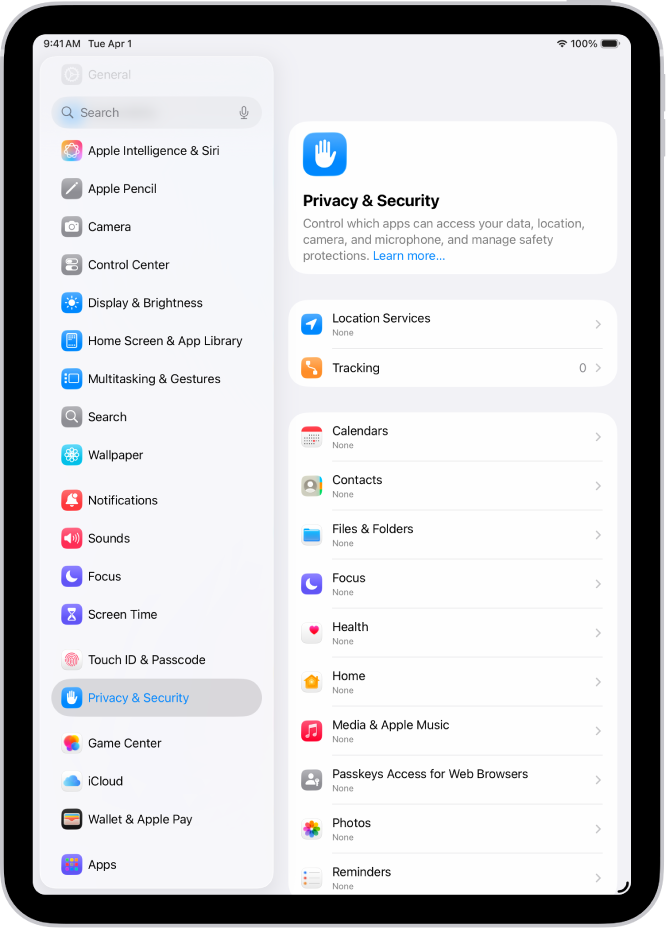
Open Settings on your iPhone. Tap Privacy & Security. Tap Tracking. Right at the top, you will see a toggle labeled “Allow Apps to Request to Track.”
Turn it off.
That single action does two things simultaneously. First, it tells every app already on your phone that your answer is no — retroactively revoking any tracking permission you previously granted. Second, it prevents future apps from even asking. No more pop-ups. No more “Allow” buttons to accidentally tap while you are trying to get past the prompt to actually use the app. While you are adjusting settings, there are several other iOS 26.4 settings worth changing that pair well with this privacy sweep.
Below that toggle, you will see a list of every app that has previously requested tracking permission. Each one has its own individual switch. If you prefer a surgical approach — blocking most apps but allowing one or two that you trust or that offer better features with tracking enabled — you can leave the global toggle on and manage permissions app by app. But I would challenge anyone to name a single app that gives you something genuinely worthwhile in exchange for cross-app tracking. I have never found one.
 Ad
AdThe Privacy Report Safari Hides Behind a Tap
Safari in iOS 26 has its own tracking defense layer, and it works independently of App Tracking Transparency. Open Safari, load any webpage, and tap the “Aa” icon in the address bar. Scroll down and tap “Privacy Report.” Safari will show you exactly how many trackers it blocked on that site and across the last 30 days.
This report is quietly powerful. The numbers are often staggering. I checked a major news site recently and Safari had blocked 47 trackers on a single page. Forty-seven separate advertising and analytics scripts, all trying to fingerprint your browsing session, all silently neutralized by Intelligent Tracking Prevention. If you want to go further, you can also confirm that “Prevent Cross-Site Tracking” is enabled under Settings, then Apps, then Safari — though it ships enabled by default in iOS 26 and has for several iOS generations now.
The Carrier Tracking Control Most People Missed
iOS 26.3 introduced a privacy setting that flew under the radar. Open Settings, tap Privacy & Security, and look for a section related to your cellular carrier. Apple added a “Limit Precise Location” toggle that restricts the location data your mobile network can access.
This is different from the location permissions you grant to individual apps. Those are between you and the app developer. This setting sits between you and your carrier — the company providing your cellular connection. Without this toggle, your carrier can collect precise location data from cell tower triangulation and use it for its own advertising or sell it to data brokers. Apple cannot fully prevent that collection at the hardware level, but this setting limits the precision of the data your iPhone hands over.
The toggle exists because carriers have historically been among the most aggressive data collectors, and they operate in a regulatory gray area that app developers do not. Turning it on is one tap, and there is no functional downside. Your calls still work. Your data still flows. Your maps still locate you. The only thing that changes is how much your carrier knows about where you stand at any given moment.
Personalized Ads and Apple’s Own Tracking
Even Apple serves you ads — in the App Store, in Apple News, and in Stocks. Apple maintains that its ad platform does not track you across apps or websites and does not share your personal information with advertisers. But it does use your App Store search history and some behavioral signals to serve relevant ads within its own properties.
To turn that off, go to Settings, then Privacy & Security, then Apple Advertising. You will find a toggle for “Personalized Ads.” Switch it off, and Apple stops using your usage patterns to target ads. You will still see ads in the App Store and News, but they will be generic rather than tailored to your browsing.
I turned this off the day I found it and have noticed zero difference in my experience with the App Store. The ads I see are less relevant, which is exactly the point.
Quick-Action Checklist
- Open Settings, then Privacy & Security, then Tracking. Turn off “Allow Apps to Request to Track.”
- While still in Privacy & Security, find the carrier location option and enable “Limit Precise Location.”
- Open Settings, then Privacy & Security, then Apple Advertising. Turn off “Personalized Ads.”
- In Safari, confirm “Prevent Cross-Site Tracking” is enabled under Settings, then Apps, then Safari.
- Check Safari’s Privacy Report periodically by tapping the “Aa” icon on any webpage.
- Review individual app permissions under Settings, then Privacy & Security, then Tracking to revoke any previously granted access.
These six steps take about two minutes total and close every door iOS 26 currently leaves open.

Related Posts
iOS 26.4.1 Fixes the iCloud Bug That Broke Your Apps
Apr 09, 2026
iOS 26.4 Drains Your iPhone Battery. Here’s What Fixes It
Apr 09, 2026
Your iPhone Finally Lets You Create Custom Ringtones in iOS 26
Apr 08, 2026