

🎧 Listen to this article
Prefer to listen? An audio version of this article is available for accessibility and convenience.
Your iPhone has been playing the same default ringtone since 2017. Nine years. Reflection is fine — nobody hates it — but fine is not exactly exciting. iOS 26 changed that by adding seven new ringtones and building a native custom ringtone creator right into the operating system. You can now turn any audio file into your ringtone in under a minute, and GarageBand never needs to open.
The complication: Apple buried both upgrades. The new ringtones hide behind a tiny chevron arrow that blends into the Settings UI so well that most iPhone owners will scroll right past it. And the custom ringtone feature lives inside the Files app share sheet, which is the last place you’d look for a sound setting. These are genuinely useful additions that suffer from genuinely terrible discoverability.
 Ad
AdSeven New Tones Apple Hid Behind a Tiny Arrow
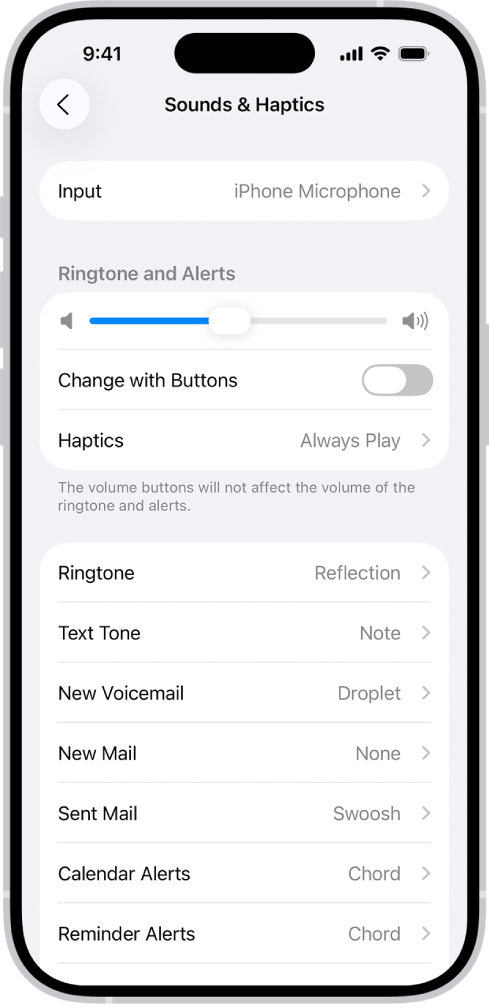
Go to Settings, tap Sounds & Haptics, then tap Ringtone. Reflection sits right where it’s always been. But look closely — there’s a small chevron arrow next to it now. Tap that, and six Reflection variants expand beneath it: Buoyant, Dreamer, Pond, Pop, Reflected, and Surge.
Each one reimagines the original melody in a different direction. Buoyant has a synth-driven lightness that works surprisingly well as a morning alarm. Dreamer goes ambient and ethereal — almost too soft for a ringtone unless your phone is on the nightstand right next to you. Pond uses woodwind-like notes that genuinely mimic water rippling, and it’s probably the most pleasant of the bunch. Pop swings hard with a synthwave punch that will absolutely turn heads in a quiet coffee shop. Surge is the one for people who want their iPhone to announce itself like it means it.
Then there’s Little Bird, listed separately in the main ringtone list rather than nested under Reflection. It’s a repeating whistle melody that sounds nothing like the Reflection family — quirky, fun, and a little bit weird. Think of it as Apple’s quiet admission that not everyone wants their phone to sound like a spa lobby.
Pond and Little Bird are the two worth trying. The rest feel like six variations on a theme that maybe needed three. But having options after nine years of the same default tone is long overdue. What’s frustrating is that Apple designed the chevron so subtly that it practically disappears into the interface — this is one of those invisible entry points that Apple loves and users never find without being told.
One more detail that got under my craw: the new tones don’t automatically appear in the alarm sound picker. You have to go set them separately in the Clock app. Why Apple didn’t sync ringtone and alarm sound options into one unified list is beyond me, but here we are.
Setting Any Audio File as Your Ringtone
This is the part that actually matters. For years, creating a custom iPhone ringtone meant opening GarageBand, importing audio into the Tracks view, trimming it, navigating to My Songs, tapping Share, choosing Ringtone, naming it, exporting it, and then assigning it through Settings. Seven steps minimum. Android has let you pick any MP3 as a ringtone since day one. iOS 26 finally caught up — and it did it well.
Save any audio file to the Files app on your iPhone. Apple supports MP3, M4A, WAV, FLAC, AAC, AIFF, AMR, and the ringtone-specific M4R format. One hard requirement: the file has to be 30 seconds or shorter. Anything longer and the ringtone option simply won’t appear in the share sheet — no error message, no warning, just a missing button. I found this out the hard way with a forty-second clip I wanted to use and spent five minutes looking for the option before realizing the file was too long.
Open Files, find your audio file, tap it to preview. Hit the Share button — the square with the upward arrow — and scroll until you see “Use as Ringtone.” Tap it. iOS drops you straight into the Ringtone settings with your new tone already active. The entire process takes under a minute if you have the audio file ready.
Voice Memos works the same way. Record something — your kid laughing, a guitar riff, a few seconds of whatever you want — tap the three-dot menu on the recording, hit Share, and “Use as Ringtone” is right there. Is the audio quality studio-grade? No. Does it work perfectly well as a ringtone? Absolutely.
 Ad
AdHere’s something that caught me off guard: you can also share audio files from third-party apps like Dropbox or Google Drive through the same share sheet. As long as the app supports iOS share extensions and the file is under 30 seconds, the “Use as Ringtone” option appears. It’s not just a Files app feature — it’s a system-wide capability that works from almost anywhere.
Custom tones aren’t limited to phone calls, either. Once you’ve imported a tone, go to Settings, Sounds & Haptics, and choose any alert category: Text Tone, New Voicemail, New Mail, Calendar Alerts, Reminder Alerts, or Default Alerts. Your imported audio shows up at the top of each list. You can even assign specific tones to individual contacts by opening a contact card and tapping Ringtone or Text Tone — a practical touch if you want to know who’s calling without pulling your phone out of your pocket.
To delete a custom ringtone later, go to Settings, Sounds & Haptics, Ringtone. Your imported tones sit in their own section. Swipe left, tap Delete.
When GarageBand Still Earns Its Place
GarageBand isn’t obsolete for this task — it just handles one specific situation the Files method can’t touch. If your source audio is an Apple Music track downloaded to your device, the Files app route won’t work because those files carry DRM protection. GarageBand can import DRM-protected tracks through its Loops Browser, trim them to 30 seconds, and export as a ringtone. Takes about two minutes and ten taps, but it works when nothing else will. Apple’s own support page on custom ringtones still emphasizes GarageBand, which tells you how recently the Files method landed.
For everything else — downloaded MP3s, voice recordings, podcast clips, sound effects — skip GarageBand entirely. The Files app method is faster and doesn’t make you navigate a music production interface to set a thirty-second tone.
Three Sounds & Haptics Changes Worth Finding
While you’re in the Sounds & Haptics menu, iOS 26 slipped in a few other changes that deserve a look.
Reduce Loud Sounds is a new toggle that caps the iPhone speaker’s output, keeping loud peaks in check while preserving quieter audio details. This is not the same as the headphone volume limiter that’s been around for a while — it specifically affects the built-in speaker. If a notification at full volume has ever jolted you awake at two in the morning, this toggle exists for you.
Haptic Feedback now offers three intensity levels — Light, Medium, and Strong — where previous iOS versions gave you a binary on-or-off toggle with no middle ground. The standout is a synchronized haptic mode that matches vibration patterns to your active ringtone, so your phone feels as distinct as it sounds when someone calls. It’s a small touch, but once you notice how iOS 26 handles these kinds of interaction details across the entire system, you start appreciating the craft Apple puts into the edges of the experience.
One thing that did not change: the iTunes Store still sells individual ringtones for $1.29 each. Given that you can now import any audio file for free through the Files app, that pricing feels like a relic from 2008. Save your money.

Related Posts
iOS 26.4.1 Fixes the iCloud Bug That Broke Your Apps
Apr 09, 2026
iOS 26.4 Drains Your iPhone Battery. Here’s What Fixes It
Apr 09, 2026
iOS 26 Quietly Rewrote How Your iPhone Handles Every Text
Apr 06, 2026