

🎧 Listen to this article
Prefer to listen? An audio version of this article is available for accessibility and convenience.
Your iPhone tells you its battery health as a single percentage in Settings, and that number drives more anxiety than it should. An iPhone 15 or later with 87 percent maximum capacity is not in trouble — it is performing well within Apple’s design spec of retaining 80 percent capacity after 1,000 complete charge cycles. But the percentage alone does not tell you whether your battery actually needs replacing, and Apple buries the rest of the story across three different screens.
I want to walk through every metric iOS 26 gives you, explain what each one means in plain terms, and then lay out every replacement method available in 2026 — from Apple’s own repair counter to the Self Service Repair kit that ships to your door with professional-grade tools.
 Ad
AdWhat iOS 26 Actually Shows You About Your Battery
Open Settings, tap Battery, then tap Battery Health. On iPhone 15 and later, you will see four pieces of information: Maximum Capacity, Cycle Count, the date the battery was manufactured, and the date it was first used. On iPhone 14 and earlier, you get Maximum Capacity and Peak Performance Capability, but no cycle count — Apple added that metric starting with the iPhone 15 lineup.
Maximum Capacity is the one everyone watches. It represents how much charge your battery can hold right now compared to when it was new. A brand-new iPhone reads 100 percent. After a year of daily use, most people land somewhere between 90 and 95 percent. That is normal chemical aging, not a defect.
Cycle Count tracks how many full charge-discharge cycles your battery has completed. One cycle does not mean one trip from 100 to zero. If you drain your battery to 50 percent and recharge, then drain to 50 percent again, that counts as one cycle. Apple designed iPhone 15 and later batteries to retain 80 percent capacity at 1,000 cycles, which for most people translates to roughly three years of daily use. iPhone 14 and earlier models were designed for 500 cycles to hit the same 80 percent threshold — a significant difference that Apple quietly doubled when the iPhone 15 launched.
The real friction here is that iOS does not interpret these numbers for you. It does not say “your battery is fine” or “you should probably schedule a replacement.” It shows raw data and expects you to know what the thresholds mean. I find this frustrating, because the Battery Health screen is the single place most people go when their phone feels sluggish, and leaving them to guess whether 84 percent is a problem or not is a strange choice for a company that prides itself on simplicity.
 Ad
AdPeak Performance and When Your iPhone Slows Itself Down
Below the capacity metrics, iOS shows a Peak Performance Capability message. Most people will see “Your battery is currently supporting normal peak performance,” and never think about it again. But there are three other messages that matter.
If your iPhone has experienced an unexpected shutdown because the battery could not deliver enough power, iOS enables performance management automatically. You will see a message explaining that performance has been throttled to prevent future shutdowns. This is the feature that caused Apple’s 2017 battery controversy, and it still operates the same way today — your iPhone dynamically reduces CPU and GPU performance to match what the aging battery can safely deliver.
You can disable performance management with a single tap. But the toggle only appears after a shutdown triggers it, and if another shutdown occurs, performance management re-enables itself. Thankfully, Apple at least gives you the choice, even if the UI makes it feel like a warning label rather than a setting.
The fourth message is the one that means business: “Your battery’s health is significantly degraded. An Apple Authorized Service Provider can replace the battery.” When you see this, your battery has dropped far enough below 80 percent maximum capacity that Apple itself is telling you it is time. If your battery seems to be draining faster than it should even before hitting that threshold, there are steps you can take to fix iPhone battery drain in iOS 26 before committing to a replacement.
 Ad
AdThe Charge Limit That Most People Ignore
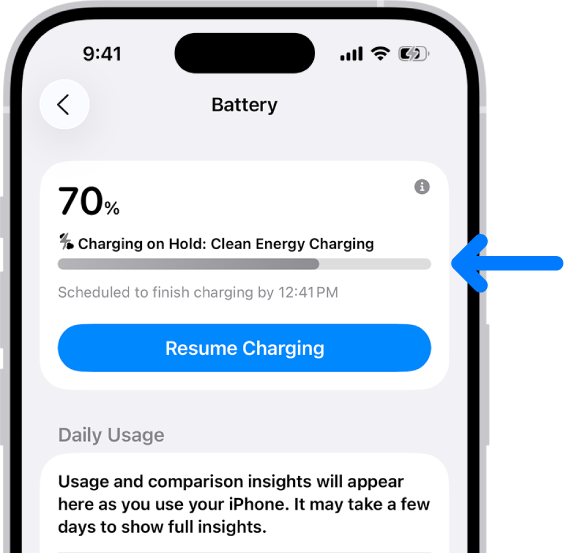
iOS 26 inherited a feature from iOS 18 that quietly extends your battery’s lifespan, and most people either do not know it exists or turned it off because they did not understand what it was doing. Go to Settings, then Battery, then Charging. On iPhone 15 and later, you can set a Charge Limit at 80, 85, 90, or 95 percent.
When a Charge Limit is active, your iPhone stops charging at your chosen threshold. Lithium-ion batteries degrade faster when they spend long periods sitting at 100 percent, so capping at 80 or 85 percent keeps the battery in a voltage range that extends its useful life — sometimes dramatically. Apple will occasionally override your limit and charge to 100 percent to keep the battery gauge calibrated, but this happens infrequently.
iOS 26.4, released on March 24, 2026, added something genuinely useful: a Set Charge Limit action in the Shortcuts app. You can now automate your charge limit based on context. Set it to 80 percent on weekdays when you are home near a charger all day, then bump it to 95 percent on travel days when you need maximum runtime. Before this update, changing the limit meant manually navigating to Settings every time.
If you also have Optimized Battery Charging enabled — and you should — iOS uses on-device machine learning to learn your daily charging routine and delays charging past 80 percent until shortly before you usually unplug. It needs roughly 14 days and at least nine extended charging sessions in one location to learn your pattern, so do not expect it to work immediately after a fresh restore.
When to Actually Replace Your Battery
The 80 percent threshold is the number Apple uses internally. Below 80 percent maximum capacity, your battery is considered “consumed,” and if you have AppleCare+, Apple will replace it at no extra charge. Without AppleCare+, the replacement costs real money, but it still may be the single best value upgrade you can make to an aging iPhone.
Here are the signs that matter more than the percentage alone. If your iPhone shuts down unexpectedly during normal use, especially in cold weather, the battery cannot deliver peak power anymore. If you consistently need to charge before the end of your workday when the same phone used to last until evening, degradation is catching up. And if iOS has enabled performance management and you can feel the sluggishness — apps taking longer to launch, animations stuttering — a new battery will restore the performance you lost.
Keep in mind that a battery at 82 percent with 800 cycles on an iPhone 15 Pro is not the same urgency as an iPhone 13 at 82 percent with 490 cycles. The newer phone has more headroom in its design spec. Context matters.
Every Way to Replace Your iPhone Battery in 2026
Apple gives you four paths, and each has trade-offs worth understanding.
Apple Store or Apple Authorized Service Provider: This is the path most people should take. Walk into an Apple Store or an authorized repair shop, and a technician handles everything. Current pricing breaks down by model tier: iPhone SE and iPhone 8 and earlier cost $69, iPhone X through iPhone 13 cost $89, iPhone 14 through iPhone 16 cost $99, and iPhone 17 Pro models cost $119. Most repairs take same-day, though Apple may need to ship your phone out if your local store is backed up. Your battery gets a 90-day service guarantee.
AppleCare+ Coverage: If you carry AppleCare+ and your maximum capacity has dropped below 80 percent, Apple replaces the battery for free. This alone can justify the cost of AppleCare+ if you plan to keep your iPhone for three years or more.
Apple Self Service Repair: Apple ships you genuine parts and rents you professional-grade tools for $49 for seven days. Battery parts run between $54 and $86 depending on the model, with a return credit of roughly $24 when you send back the old battery. The program covers iPhone 12 and later, including the iPhone 17 lineup and iPhone Air. You follow Apple’s step-by-step repair manual, and after installation, the Repair Assistant software tool validates the new battery so iOS can display accurate health data. I think this is a thoughtful compromise for people who are comfortable with hardware repairs, but the total cost — tool rental plus battery part minus return credit — can land close to what Apple charges for in-store service. The value proposition is control, not savings. For a deeper look at every replacement pathway, the complete guide to replacing your iPhone battery covers each method step by step.
Third-Party Repair Shops: Independent shops typically charge between $30 and $70. The risk is non-genuine batteries that iOS may flag with an “Unable to verify this iPhone has a genuine Apple battery” message, which disables Battery Health reporting entirely. Some shops use high-quality aftermarket cells that perform well, but you lose the software integration that Apple’s genuine parts provide.
A Quick Look at Every Replacement Option
Here is how the four methods compare across the factors that matter most.
At-A-Glance: iPhone battery replacement methods compared by cost, turnaround, and software compatibility.
| Method | Cost Range | Turnaround | Battery Health Reporting | Warranty |
|---|---|---|---|---|
| Apple Store / AASP | $69 – $119 | Same day to 3–5 days | Full support | 90-day guarantee |
| AppleCare+ | $0 (below 80%) | Same day to 3–5 days | Full support | Covered under plan |
| Self Service Repair | ~$80 – $110 total | 7-day tool rental | Full support | 90-day on parts |
| Third-Party Shop | $30 – $70 | Same day | May be disabled | Varies by shop |
The iOS 26.4 Shortcut That Automates Your Charging Strategy
The Set Charge Limit Shortcuts action deserves a closer look because it changes how proactive you can be about battery longevity. Open the Shortcuts app, create a new automation triggered by your morning alarm, and set the charge limit to 80 percent. Create a second automation triggered by a Travel focus mode that sets the limit to 95 percent. You can even tie it to Wi-Fi networks — home network triggers the conservative limit, any other network triggers a higher one.
This is the kind of feature that rewards a five-minute setup with years of better battery health, and it is exactly the sort of buried capability that iOS does well but never surfaces to the people who need it most.
Quick-Action Checklist
- Check your battery health right now: Settings, Battery, Battery Health. Note your Maximum Capacity and Cycle Count.
- Set a Charge Limit: Settings, Battery, Charging. Pick 80 or 85 percent if you charge daily.
- Automate with iOS 26.4 Shortcuts: Create a Set Charge Limit automation tied to your daily routine or Focus modes.
- Evaluate replacement if below 80 percent: Book an Apple Store appointment or order Self Service Repair parts at selfservicerepair.com.
- Verify AppleCare+ status: Settings, General, About. If covered and below 80 percent, your replacement is free.

Related Posts
iPhone Storage Full and iCloud Cannot Fix It — Here Is What Actually Works
Mar 29, 2026
iOS 26.4 Has Nine Reported Bugs and Every Fix That Actually Works
Mar 29, 2026
iOS 26.4 Gave Your CarPlay Dashboard Two Features Worth the Update
Mar 28, 2026