

🎧 Listen to this article
Prefer to listen? An audio version of this article is available for accessibility and convenience.
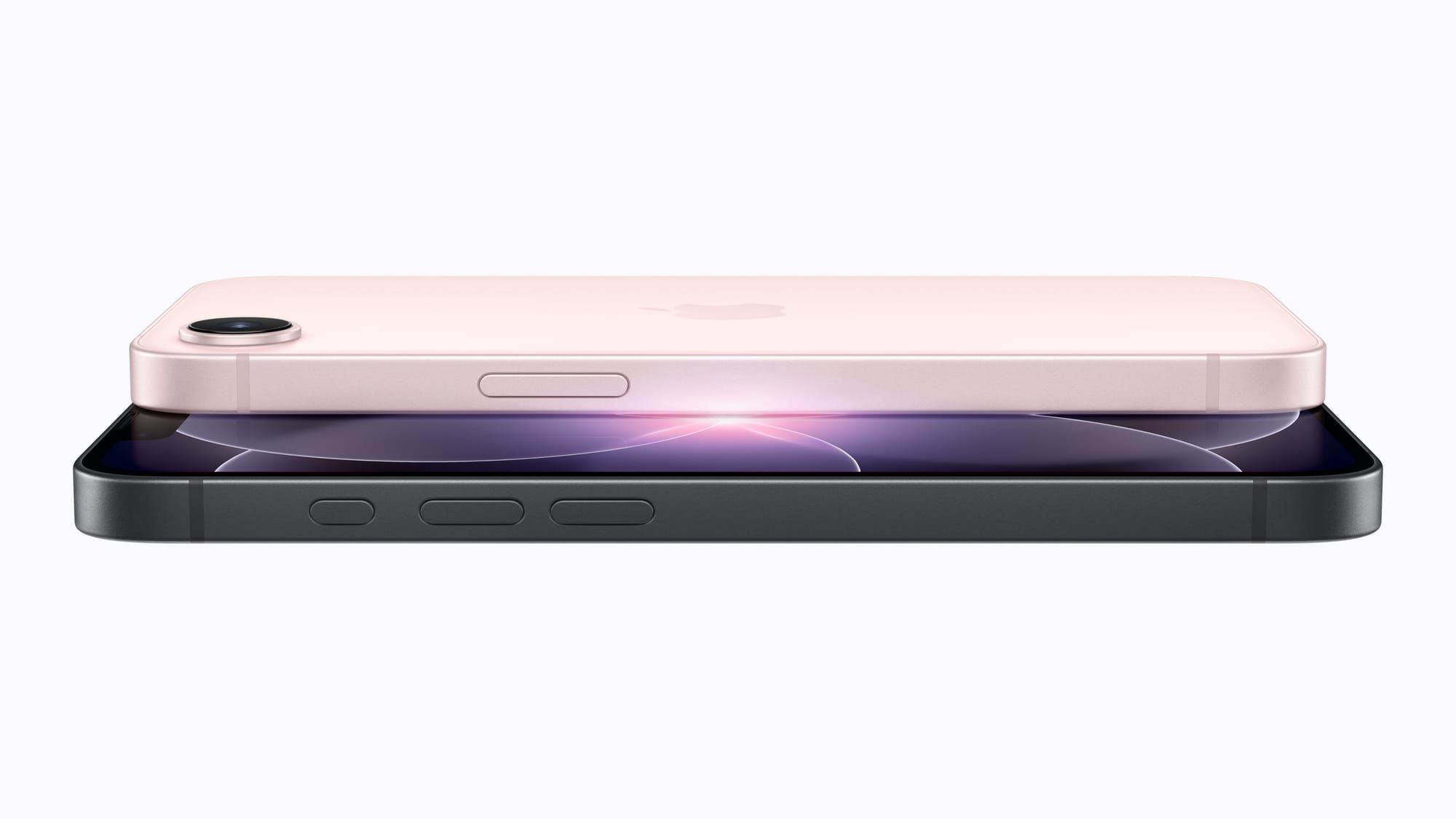
The iPhone 17e is the first budget iPhone that genuinely doesn’t feel like a compromise. Apple’s A19 chip, MagSafe wireless charging, and 256GB of base storage mean you’re getting flagship-adjacent hardware at $599. The catch — and this matters — is that the default settings Apple ships with this phone were designed for the widest possible audience, not for someone who wants to get the most from the hardware they just paid for.
I opened my 17e on launch day, tapped through the setup screens, and immediately noticed that Apple had left at least six settings in their conservative defaults. MagSafe was ready but the charging limit wasn’t configured. The camera was shooting at 24MP instead of the full 48MP the sensor supports. And the storage management tools that make 256GB feel like twice that were sitting untouched three menus deep. What follows is every setting worth adjusting before you load a single app.
 Ad
AdSet Your Charge Limit Before You Plug In
MagSafe on the iPhone 17e charges at 15W with a compatible 20W adapter — double the 7.5W Qi charging the iPhone 16e was stuck with. That speed bump matters, but so does protecting the lithium-ion cell inside. Navigate to Settings, then Battery, then Charging, and set the charge limit to 80%. Apple’s own battery documentation confirms that batteries retain their capacity longer when they aren’t pushed to 100% on every cycle.
Why 80% and not 90%? For most people, 80% on a 256GB iPhone 17e with the A19’s power efficiency translates to a full working day. I consistently hit 11 PM with 15-20% remaining during a typical day of email, messaging, web browsing, and an hour of podcast streaming. If your usage is heavier, 90% is the reasonable middle ground. But 100% as the daily default is the one setting that silently degrades your battery over 18 months.
One edge case worth flagging: when you place the 17e on a MagSafe charger, you’ll feel the magnetic snap and hear the chime confirming alignment. It does, though, mean that if you’re using a thicker case — anything over about 3mm — the magnets can feel weak enough that the phone slides off a stand-style charger when you get a notification buzz. A MagSafe-specific case solves this entirely. If you want more context on cases and the new aluminum frame, we covered the compatibility details in our guide to iPhone 17 case choices and the new aluminum frame.
Unlock the Full 48MP Sensor
The iPhone 17e ships with its camera defaulting to 24MP capture. That’s Apple playing it safe — 24MP files are roughly half the size of 48MP files, and Apple assumes most people care more about storage than resolution. But with 256GB of storage and the option to buy more through iCloud+, there’s no reason to leave half your sensor on the table.
Open Settings, tap Camera, then tap Formats. Toggle on Apple ProRAW if you want maximum editing flexibility, or at minimum switch the default resolution to 48MP HEIF. The difference is visible in landscape shots and anything you plan to crop later. A 24MP photo cropped to half its frame gives you a blurry 6MP image. A 48MP photo cropped the same way gives you a sharp 12MP image — the same resolution the iPhone shipped with for years.
 Ad
AdThe 48MP mode does have a quirk. In low light, the camera automatically bins pixels down to 12MP to gather more light per pixel. You can’t override this, and honestly you shouldn’t want to. The A19’s image pipeline handles that switch so quietly that the only way you’d notice is by checking the file info after the fact. For a phone at this price point, that kind of computational flexibility is genuinely impressive.
Tame Your Storage Before It Fills Itself
256GB sounds generous until you realize how aggressively iOS fills it with data you never asked for. Navigate to Settings, then General, then iPhone Storage. You’ll see a colored bar broken into categories: Apps, Photos, Media, Messages, System Data, and more. Two of those categories grow silently without you doing anything.
System Data is the quiet culprit. It includes caches, logs, Siri voices, and temporary files that iOS creates in the background. On a fresh 17e, System Data typically sits around 8-12GB. Left unchecked for six months, it can creep past 25GB. The most effective prevention is to enable “Offload Unused Apps” — find it in Settings, then General, then iPhone Storage, then tap “Enable” next to the recommendation at the top. This automatically removes apps you haven’t opened in weeks while preserving their data, so reinstalling them later picks up right where you left off.
The Applications category is the other one that confuses people. It doesn’t just mean the app itself — it includes every cached file, downloaded playlist, saved map region, and offline document stored inside each app. If you’ve ever wondered why an app you barely use takes up 2GB, the answer is almost always cached media. Tap any app in the storage list to see the breakdown, then decide whether that cached data is worth keeping. For a deeper breakdown of what each storage bar actually represents, our walkthrough of iPhone storage categories covers all nine.
Three Settings Apple Buries That Deserve Your Attention
Stolen Device Protection is off by default. Apple added this in iOS 17 and it’s still shipping disabled on the 17e. Navigate to Settings, then Face ID and Passcode, enter your passcode, scroll down and enable Stolen Device Protection. With this on, anyone who steals your phone and somehow knows your passcode still can’t change your Apple ID password, disable Find My iPhone, or turn off Lost Mode without a second biometric authentication and a one-hour security delay. There is no good reason to leave this off.
The Ceramic Shield 2 display on the 17e is genuinely tough — Apple claims 3x better scratch resistance than the previous generation — but that toughness doesn’t help when you accidentally pocket-dial your way into changing settings. Auto-Lock should be set to 30 seconds or one minute, not the five-minute default. Navigate to Settings, Display and Brightness, Auto-Lock.
Finally, the C1X cellular modem in the 17e supports more bands and faster 5G than the C1 in the iPhone 16e, but it also draws more power when searching for signal in weak coverage areas. If you’re regularly in a spot with poor reception — a basement office, a concrete parking structure — flip on Low Data Mode for cellular (Settings, Cellular, Cellular Data Options, Data Mode) rather than letting the modem constantly hunt for a stronger connection. Your battery will thank you by dinner.
The Camera Shortcut Nobody Mentions
Press and hold the Camera icon on your Lock Screen and the camera opens instantly. Everyone knows that. What most people don’t realize is that you can customize the Lock Screen to replace that camera shortcut with a different app entirely, or add a second shortcut on the opposite corner. Long-press the Lock Screen, tap Customize, and tap either bottom shortcut to change it.
On my 17e, I replaced the flashlight shortcut with the Magnifier app. Magnifier uses the 48MP sensor as a full-resolution magnifying glass with freeze-frame, brightness adjustment, and color filters for low-contrast text. For reading fine print on medication bottles or figuring out the serial number engraved on the back of a router, it’s far more useful than a flashlight I can also trigger from Control Center.
Quick-Action Checklist
- Set charge limit to 80% (Settings, Battery, Charging)
- Switch camera to 48MP HEIF (Settings, Camera, Formats)
- Enable Offload Unused Apps (Settings, General, iPhone Storage)
- Turn on Stolen Device Protection (Settings, Face ID and Passcode)
- Set Auto-Lock to 30 seconds (Settings, Display and Brightness)
- Enable Low Data Mode in weak signal areas (Settings, Cellular)
- Replace Lock Screen flashlight shortcut with Magnifier

Related Posts
iOS 26.4.1 Fixes the iCloud Bug That Broke Your Apps
Apr 09, 2026
iOS 26.4 Drains Your iPhone Battery. Here’s What Fixes It
Apr 09, 2026
Your iPhone Finally Lets You Create Custom Ringtones in iOS 26
Apr 08, 2026