
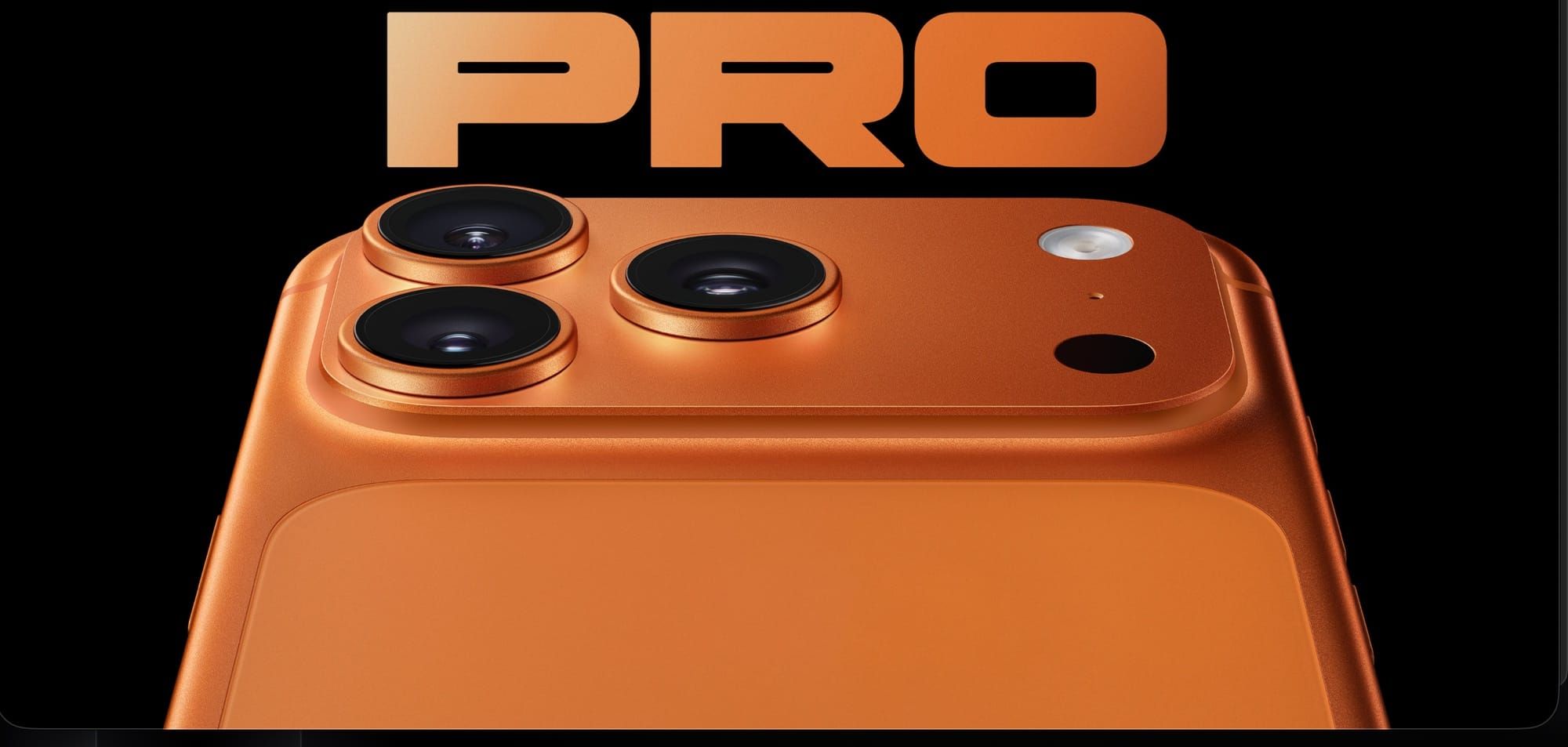

The iPhone 17 Pro shoots at 48 megapixels across every single lens — main, ultrawide, and telephoto. That means you can crop, zoom, and reframe without the resolution penalty that plagued every previous iPhone generation. But here is the catch: iOS 26 defaults to 12-megapixel output on all three cameras, and the settings that unlock the full 48MP capture are buried inside a submenu most people never open.
I want to walk you through every camera on this phone, explain what changed from the iPhone 16 Pro, and point you toward the specific settings worth adjusting before your next important shot. Some of these controls are genuinely hidden. Others are sitting right on the screen, doing the wrong thing until you tell them otherwise. If you want a broader look at what the standard iPhone 17 camera can do, we covered that separately.
The 48MP Fusion System, Explained
Apple calls it the “Pro Fusion Camera System,” and the name matters more than marketing usually does. Every camera on the iPhone 17 Pro — the 24mm f/1.78 main, the 13mm f/2.2 ultrawide, and the 100mm f/2.8 telephoto — now captures at 48 megapixels natively. The previous iPhone 16 Pro only offered 48MP on the main sensor. The ultrawide was stuck at 12MP, and the telephoto delivered 12MP through a 5x tetraprism lens.
That triple-48MP upgrade changes the math on every shot. The ultrawide now captures enough resolution for serious cropping, which turns casual wide-angle shots into usable compositions you can reframe after the fact. The telephoto’s jump from 12MP to 48MP is even more dramatic — Apple uses that extra resolution to offer an “optical-quality” 8x zoom at 200mm by cropping the center 12 megapixels from the 48MP sensor. Whether that crop truly matches a dedicated 200mm lens is debatable, but the results are genuinely sharp in good light.
According to Apple’s technical specifications, the iPhone 17 Pro delivers a 16x optical-quality zoom range from 0.5x to 8x, with digital zoom extending to 40x. The telephoto uses 3D sensor-shift optical image stabilization with a tetraprism design — the same stabilization approach from the 16 Pro, but now feeding a much larger sensor.
Unlock Full Resolution in Settings
This is where Apple makes a baffling design choice. The phone ships with 12MP output as the default across all three cameras. To shoot at the full 48 megapixels, you need to dig into Settings, then Camera, then Formats, and toggle on “Photo Resolution Control.” Once enabled, a new resolution selector appears in the Camera app — tap it to switch between 12MP and 48MP.
Why would you want 12MP? File size. A 48MP HEIF image runs roughly 5–8 MB compared to 2–3 MB at 12MP. If you shoot hundreds of photos on a trip and iCloud storage is already tight, the smaller files make a real difference. But for anything you plan to crop, print, or edit seriously, 48MP is the obvious choice. The fact that Apple defaults to the lower resolution feels like a battery-and-storage compromise dressed up as a feature.
ProRAW adds another layer. Enable Apple ProRAW in the same Formats menu, and you get 48MP RAW files with full computational photography data baked in — Deep Fusion, Smart HDR 5, and tone mapping all preserved in a format that gives editing apps like Lightroom far more latitude for pulling shadows and recovering highlights. The trade-off is file size: ProRAW files hit 50–75 MB each. That adds up fast.
The Telephoto Deserves Its Own Attention
The 4x telephoto at 100mm is the single biggest improvement over the iPhone 16 Pro for anyone who photographs people. Portrait photographers have used 85–135mm lenses for decades because that focal length compresses facial features in a flattering way — noses look proportional, ears stay where they belong, and backgrounds blur naturally. The iPhone 16 Pro’s 5x (120mm) telephoto was slightly too tight for comfortable portrait distances indoors. The 17 Pro’s 4x (100mm) sits right in the sweet spot.
Apple’s restraint in processing the telephoto is unusual. Where other phone makers sharpen telephoto images aggressively to compensate for small sensors, the 17 Pro lets its telephoto stay slightly soft, which produces more natural-looking skin and fabric textures. For portraits, that softness is a feature. For landscape detail, you might prefer a touch of sharpening in post. If you want to explore the camera settings most iPhone owners overlook, many of those controls apply directly to telephoto shooting.
One specific quirk worth knowing: the telephoto’s Night Mode processing smooths shadow detail heavily. In low light, the noise reduction trades fine texture for cleaner-looking shadows, which works well for social media but frustrates anyone who edits RAW files and wants to pull detail out of darker areas. Shooting in ProRAW at night gives you more shadow data to work with, even if the preview on screen looks noisier.
The 8x zoom at 200mm uses a center crop from the 48MP telephoto sensor, outputting a 12-megapixel image. Stabilization at this focal length is genuinely impressive — Apple combines hardware 3D sensor-shift stabilization with software stabilization borrowed from Action Mode. You can see it working: the viewfinder shows subtle warping and lag as the system compensates for hand movement. For static subjects in good light, the 8x produces sharp, usable images. For anything moving, expect to take several shots and pick the best one.
At a Glance: All Three Cameras Compared
The Ultrawide Finally Earns Its Spot
On every iPhone before the 17 Pro, I treated the ultrawide as a throwaway lens — good for fitting a whole building into frame, bad for anything requiring detail. The jump to 48MP changes that. The 13mm f/2.2 ultrawide now captures enough resolution that you can crop a wide shot down to a standard field of view and still have a sharp image.
The ultrawide also handles macro photography. When you bring the iPhone close to a subject — roughly 2 centimeters — the Camera app automatically switches to the ultrawide lens for macro mode. On the 17 Pro, those macro shots now resolve at 48MP, which is a massive improvement over the 12MP macro shots on the 16 Pro. Close-up texture shots of food, flowers, or product details look noticeably sharper.
One friction point: the automatic lens switching between main and ultrawide at close distances can be jarring. If you are photographing something at arm’s length — a receipt, a label, a small object — the camera sometimes oscillates between lenses as the autofocus hunts. You can lock the lens by pressing and holding on the viewfinder to engage AE/AF Lock, which prevents the automatic switch.
iOS 26 Camera App Changes Worth Finding
Apple reorganized the Camera app interface in iOS 26, and some of the changes are easy to miss. The mode switcher now lets you swipe from Photo all the way to Pano with a single quick gesture, making mode switching noticeably faster than the iPhone 16 Pro’s interface.
Night Mode got simpler. Instead of the old exposure-time slider, you now get three options: Off, Auto, or Max. Max locks the exposure at 10 seconds handheld and 30 seconds on a tripod. This removes granular control but makes the choice faster for most situations. I actually prefer this approach — the slider on the 16 Pro felt like guesswork, and Auto usually chose the right exposure time anyway.
There is a settings drawer tucked behind the mode selector that surfaces controls for aspect ratio, exposure compensation, and Photographic Styles right at the bottom of the screen. Single-handed operation is easier because you no longer need to reach up to the top controls.
Photographic Styles deserve a mention. The latest generation includes a “Bright” style that lifts shadows under hats and visors, boosts foliage saturation, and protects highlight detail in skies — all simultaneously. These are not filters. They are semantically aware adjustments that treat skin, sky, and vegetation differently within the same image. You can apply them after capture in the Photos app, which makes them risk-free to experiment with.
One more hidden gem: in Settings, then Camera, then Indicators, you can turn off the Flash and Live Photo status indicators from the main viewfinder. Those controls remain accessible through the settings drawer, but removing them from the main screen declutters the interface and gives you a cleaner composition view.
Video: The Specs That Actually Matter
I could list every video resolution and frame rate combination the iPhone 17 Pro supports, but here is what matters for most people: 4K Dolby Vision at 24, 30, or 60 fps covers every common use case. Cinematic Mode now shoots at 4K Dolby Vision at 30 fps with rack-focus effects that simulate a shallow depth of field.
For serious video work, the iPhone 17 Pro records ProRes at up to 4K at 120 fps. Grab a frame from 120fps ProRes footage in good light and it looks photograph-sharp — some creators use this as a burst mode alternative for capturing specific moments within continuous video. If you work with ProRes footage and need the flexibility of external storage, our guide to recording ProRes video with external SSDs walks through the complete setup.
Apple Log 2, the new cinema color science profile, gives colorists a wider dynamic range to work with in post-production. Genlock support means the iPhone can synchronize its frame timing with professional cameras on a multi-camera shoot. These are niche capabilities, but they signal how seriously Apple treats the iPhone 17 Pro as a filmmaking tool.
What the iPhone 17 Pro Camera Does Not Do
No camera is perfect, and the 17 Pro has specific limitations worth knowing before you buy.
The main camera’s minimum focus distance is farther than the iPhone Air’s. At arm’s length — shooting food, documents, small objects — the main camera occasionally struggles to focus, and the automatic switch to the ultrawide macro lens creates a noticeable quality shift. This is one area where I wish Apple would give the main sensor a closer focusing range.
The 8x zoom struggles with fast-moving subjects. The stabilization is excellent for static scenes, but tracking a running child, a bird in flight, or a fast sport requires burst shooting and some luck. Dedicated cameras with continuous autofocus still handle this scenario better.
DXOMark ranked the iPhone 17 Pro third globally in their camera testing, with a score of 168 overall and 172 for video — making it the highest-scoring video camera on any smartphone they have tested as of March 2026. The main photo score of 175 trails the top-scoring Huawei Pura 80 Ultra at 184, primarily in noise control and macro edge sharpness. But in real-world shooting, the differences between a 175 and 184 score are genuinely hard to see without pixel-peeping.

Blaine Locklair
Founder of Zone of Mac with 25 years of web development experience. Every guide on the site is verified against Apple's current documentation, tested with real hardware, and written to be fully accessible to all readers.
follow me :
Related Posts
iOS 26.4.1 Fixes the iCloud Bug That Broke Your Apps
Apr 09, 2026
iOS 26.4 Drains Your iPhone Battery. Here’s What Fixes It
Apr 09, 2026
Your iPhone Finally Lets You Create Custom Ringtones in iOS 26
Apr 08, 2026