

🎧 Listen to this article
Prefer to listen? An audio version of this article is available for accessibility and convenience.
Your iPad running iPadOS 26 can receive files through at least six different methods: AirDrop, USB-C direct transfer, iCloud Drive, Finder sync, Universal Clipboard, and third-party cloud apps. Most people default to AirDrop for everything and then wonder why moving a 4 GB video folder feels like a chore.
The real question isn’t how to get files onto your iPad. It’s which method fits the file you’re actually moving, because picking the wrong one turns a ten-second job into a five-minute wait.
 Ad
AdAirDrop Still Works, But It Has Limits
AirDrop is the default answer for a reason. Open the share sheet, tap the nearby device, done. For photos, a PDF, or a quick document, AirDrop handles it without any setup beyond having Bluetooth and Wi-Fi turned on. Well, that and making sure both devices are within about 30 feet of each other.
Here’s the thing though — AirDrop gets slow with large files. Trying to push a multi-gigabyte video project or a folder packed with hundreds of photos gets painful fast. I’ve watched that progress circle crawl on a 2 GB transfer while the iPad and Mac sat inches apart on the same desk. AirDrop uses a peer-to-peer Wi-Fi connection, not your home network, and the throughput caps out well below what a cable can do. For quick shares under a few hundred megabytes, AirDrop is still the move. For anything bigger, keep reading.
USB-C and External Drives: The Speed Nobody Expects
This is the one most iPad owners overlook entirely. If your iPad has a USB-C port — and every current model does — you can plug in a USB drive, an SD card reader, or an external SSD and drag files directly through the Files app.
The iPadOS 26 Files app transfers a 4 GB file to an external USB-C drive in roughly 6.4 seconds. That same transfer took over 10 seconds on the previous iPadOS version. Apple quietly made the Files app significantly faster without mentioning it in any keynote, which tracks with how Apple treats the iPad’s file management — like a feature they’re slightly embarrassed exists.
To use this method, plug your storage device into the USB-C port, open the Files app, and navigate to the drive under Locations in the sidebar. Drag files in or out. The Files app supports APFS, ExFAT, and FAT32 formats, so most drives work without reformatting. If you need to reformat a drive, long-press the drive name in Files and tap Erase.
One friction point worth knowing: if you’re importing from a camera’s SD card, the Photos app will try to hijack the import. You might need to dismiss that prompt and go through Files instead if you want raw files rather than a Photos library import.
iCloud Drive Does the Heavy Lifting You Never See
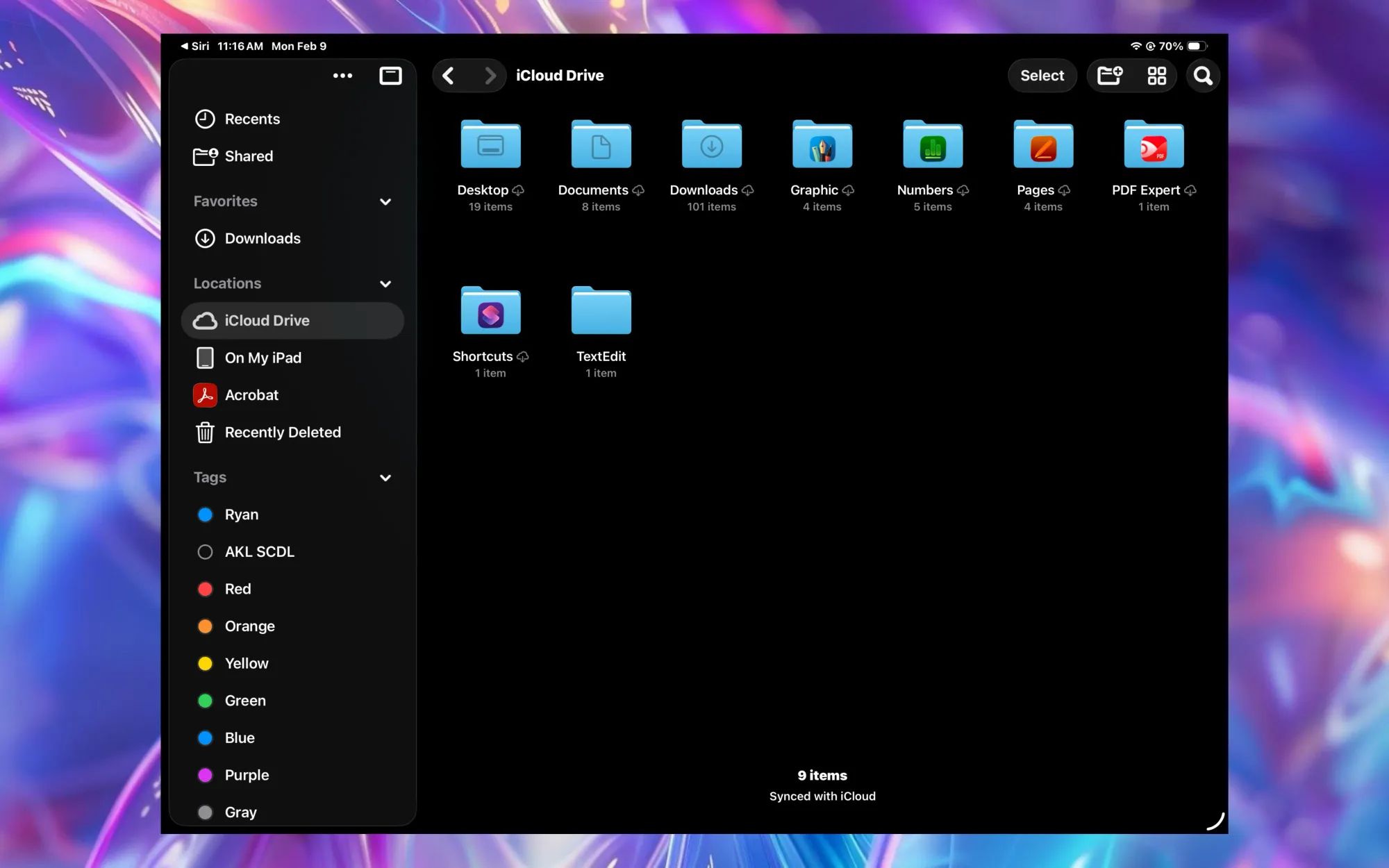
Think about it. If you already use iCloud Drive on your Mac or iPhone, your iPad pulls those files down automatically. Save a document to iCloud Drive on one device and it shows up in the Files app on your iPad without you touching anything.
 Ad
AdThe catch is storage. Apple gives you 5 GB free, which fills up before you’ve even had time to think about it. If you’ve upgraded to an iCloud Plus plan — 50 GB starts at a dollar a month, 200 GB at three — iCloud Drive becomes genuinely useful for keeping project folders and working documents available across every Apple device you own.
For large transfers, iCloud Drive depends on your upload and download speeds, so it won’t beat a cable. But for the day-to-day reality of always having files available on your iPad without manually transferring anything, nothing else comes close. The whole setup lives at Settings, then your name, then iCloud, then iCloud Drive. Make sure the toggle is on. That’s it.
Finder on Mac or Apple Devices on Windows
This method has been around since the iTunes era, and Apple has buried it under so many interface changes that most people forgot it exists. On a Mac running macOS Tahoe, connect your iPad via USB-C cable, open Finder, and click your iPad in the sidebar. The Files tab lets you drag documents directly into app-specific storage.
On Windows, Apple’s “Apple Devices” app handles the same job. Connect, open the app, navigate to Files, and drop your stuff in.
Why use this over a USB drive? Because Finder sync pushes files directly into specific app sandboxes. Some apps — VLC, Documents by Readdle, GoodNotes — have their own file storage areas that only appear through this Finder connection. If you’ve ever wondered how to get a video file into VLC on your iPad without uploading it to a cloud service first, this is your answer.
Universal Clipboard: The Transfer Nobody Talks About
Here’s the one that genuinely surprises people. If your iPad and Mac are signed into the same Apple Account with Bluetooth and Wi-Fi enabled, you can copy something on one device and paste it on the other. Text, images, screenshots. Apple calls it Universal Clipboard, and it runs through Handoff.
Copy a paragraph on your Mac. Tap and hold on your iPad. Paste. The content arrives in seconds. For moving a screenshot, a snippet of text, or a copied image between devices, Universal Clipboard is faster than any other method because there is no app to open and no share sheet to navigate. You copy and paste like both devices share the same clipboard. Because they literally do.
The limitation is size. A photo or a few paragraphs transfer smoothly. A 500 MB file is not going to work this way. Think of Universal Clipboard as a quick handoff tool, not a bulk mover.
If you work with your iPad propped up next to your Mac and you’ve explored the shortcut layer built into your Magic Keyboard, Universal Clipboard makes the two devices feel like one workspace. Pair that with Split View on iPadOS 26 and you can drag content from your Mac clipboard into a side-by-side layout on iPad.
Third-Party Cloud Apps Fill the Cross-Platform Gap
Google Drive, Dropbox, OneDrive — they all have iPad apps, and every one of them integrates with the Files app in iPadOS 26. Once installed, these services show up as locations in the Files app sidebar alongside iCloud Drive and local storage.
Why bother when iCloud Drive exists? Because iCloud Drive lives inside the Apple ecosystem. The moment you need to receive a folder from someone on a Windows laptop or an Android phone, a shared Google Drive or Dropbox link becomes the fastest path. The Files app integration means you browse, rename, and move cloud files directly in Files without ever opening the Dropbox or Google Drive app separately. Apple added this integration back in iPadOS 13, and it’s gotten smoother with every release since.
Choosing the Right Method for the Job
This table summarizes each transfer method's best use case, speed tier, and setup requirement so you can pick the right tool for the file you're moving.
| Method | Best For | Speed | Setup |
|---|---|---|---|
| AirDrop | Quick shares under 500 MB | Moderate | Bluetooth + Wi-Fi on |
| USB-C External Drive | Large files, bulk transfers | Fastest | USB-C drive or adapter |
| iCloud Drive | Always-available sync | Internet-dependent | iCloud+ plan recommended |
| Finder / Apple Devices | App-specific file placement | Fast (wired) | Cable + Mac or PC |
| Universal Clipboard | Text, images, quick copies | Near-instant | Same Apple Account, Handoff |
| Third-Party Cloud | Cross-platform sharing | Internet-dependent | App installed + account |
The best transfer method depends entirely on what you’re moving and where it’s coming from. AirDrop for quick nearby shares under 500 MB. USB-C external drive for anything large or bulk. iCloud Drive for automatic sync across your own devices. Finder or Apple Devices for app-specific file placement over a cable. Universal Clipboard for text and images you need right now. Third-party cloud apps for anything crossing the Apple-to-non-Apple divide. Apple’s iPad User Guide walks through the wired and wireless options, but it doesn’t tell you which method to pick for which situation. Now you know.

Related Posts
Your iPad’s Magic Keyboard Has a Shortcut Layer Most Owners Never Open
Apr 07, 2026
Your Apple Pencil Tip Is Wearing Out and You Can’t Even Tell
Apr 06, 2026
iPad Air M4: Pick the Wrong Size and You’ll Feel It Every Day
Apr 05, 2026