

🎧 Listen to this article
Prefer to listen? An audio version of this article is available for accessibility and convenience.
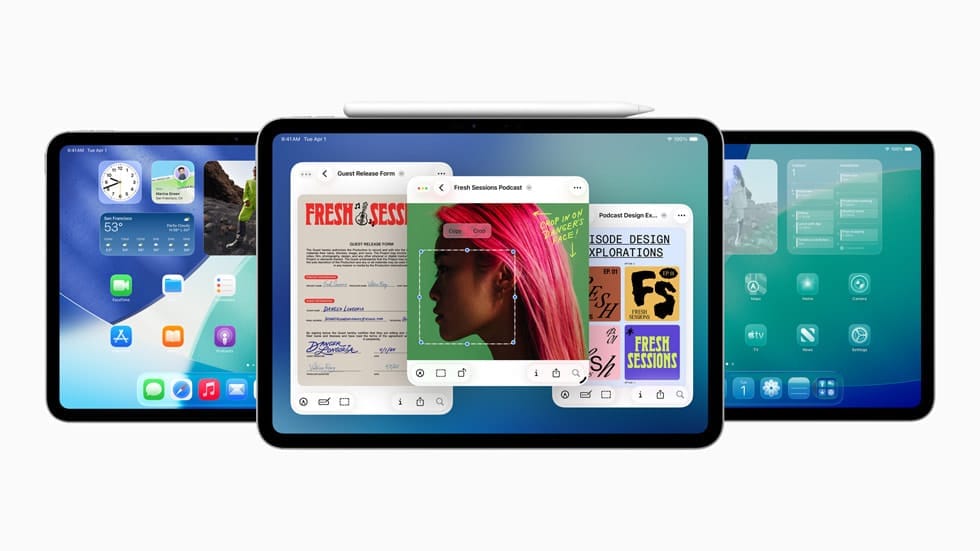
Split screen on iPad in iPadOS 26 works through freely resizable windows, drag-and-drop tiling, and a set of traffic-light controls borrowed from the Mac — and every iPad that runs iPadOS 26 supports all of it. The catch is that Apple ripped out the familiar three-dot multitasking button and replaced it with seven distinct methods for putting two or more apps on screen at once, scattered across gestures, menus, and keyboard shortcuts that nobody explains in one place.
I counted them. Seven separate ways to split, tile, or float apps on your iPad, and most guides only mention one or two. What follows is every method, how each one works in iPadOS 26.2, and the specific situations where each one makes sense.
 Ad
AdFirst, Check Your Multitasking Mode
Before anything else, open Settings, tap Multitasking & Gestures, and look at which mode is selected. iPadOS 26 offers three: Full Screen Apps, Windowed Apps, and Stage Manager. If you’re in Full Screen Apps mode, split screen is completely disabled — every app opens full screen, one at a time, and none of the methods below will work. Switch to Windowed Apps or Stage Manager and you unlock everything.
A faster toggle lives in Control Center. Swipe down from the top-right corner, tap the Windowed Apps button, and you’re set. Tap and hold that same button to switch between Windowed Apps and Stage Manager without opening Settings at all.
Method 1 — Drag an App from the Dock
This is the method most people already know, and it’s the one Apple restored in iPadOS 26.2 after removing it in the original iPadOS 26.0 release. Open your first app. Swipe up gently from the bottom edge to reveal the Dock. Tap and hold an app icon in the Dock, then drag it toward the left or right edge of the screen. The first app slides over to make room, and the second app snaps into place beside it.
The center divider handle lets you adjust the split ratio by dragging it left or right. It does, though, require a reasonably precise drag — on my iPad Air with M3, the handle is small enough that I occasionally grab the wrong edge and accidentally close one of the windows instead. A trackpad makes this much cleaner if you have one connected.
Method 2 — Flick a Window to the Edge
Open any app in Windowed Apps mode. Grab the top edge of the window — the title bar area — and flick it toward the left or right side of the screen. The app tiles to that half automatically. Flick it toward the top and it goes full screen. This is faster than dragging from the Dock when you already have the app open and just want to reposition it.
The snap zones are generous. You don’t need pixel-perfect aim. But here’s an edge case most tutorials skip: if you flick too gently, the window repositions without snapping, and you end up with a floating window sitting slightly off-center. Commit to the flick. A quick, decisive gesture snaps cleanly every time.
Method 3 — The Traffic-Light Window Controls
This is the method that replaced the old three-dot button, and it’s the one that trips up the most people upgrading from iPadOS 18. In any open app, look for three small colored dots in the upper-left corner of the window: red, yellow, and green, exactly like the ones on a Mac. Tap and hold the green button (or just tap it on some iPad models) and a drop-down menu appears with tiling options: tile to the left half, right half, thirds, quarters, enter Slide Over, or go full screen.
The menu is genuinely useful once you know it exists. Tiling to thirds or quarters — options that never existed in the old Split View system — means you can run three apps side by side on a 13-inch iPad Pro with enough room in each window to actually get work done. I like this method best for deliberate, precise layouts where I want specific proportions rather than a rough half-and-half split. If you’ve been looking for where Apple hid the old three-dot button, this is the answer: it became the green traffic-light dot.
 Ad
AdMethod 4 — Drag from Spotlight or the App Library
Open Spotlight by swiping down on the Home Screen, or navigate to the App Library. Search for the app you want, then drag its icon from the search results toward the left or right edge of the screen. The app opens directly in a tiled split position. This method is underrated because it doesn’t require the target app to be in your Dock, which matters if you keep a minimal Dock and rely on search to launch things.
The same drag-to-tile gesture works from the Home Screen itself — tap and hold an app icon until it enters jiggle mode, then drag it to the screen edge. You can even drag it from one Home Screen page while swiping with another finger to navigate. In addition to the obvious convenience, this is a meaningful accessibility improvement over the old system, where reaching the Dock required a specific bottom-edge swipe that could be awkward for users with limited hand mobility.
Method 5 — Keyboard Shortcuts
If you use an external keyboard with your iPad — a Magic Keyboard, Smart Keyboard Folio, or any Bluetooth board — keyboard shortcuts are the fastest split screen method by a wide margin. Control plus Globe plus an arrow key tiles the current window to whatever half the arrow points toward. Control plus Shift plus Globe plus an arrow key automatically arranges the current and most recent apps in a side-by-side split. Globe plus F toggles full screen.
These shortcuts work instantly, with no menu navigation and no drag gestures. For anyone who has already explored how keyboard shortcuts replace a trackpad in iPadOS 26, adding the multitasking shortcuts is the natural next step. The one catch is that if you’re using a third-party keyboard without a Globe key, you may need to remap the function key in Settings, then Bluetooth, then the keyboard name, under Modifier Keys.
Method 6 — Slide Over
Slide Over creates a narrow floating window that hovers on top of your main app — useful for quick-reference apps like Notes, Messages, or a calculator that you need to glance at without committing to a full split. Drag an app from the Dock past the tiling snap zone, toward the small arrow that appears at the screen edge, and release. Or use the green traffic-light button and select Enter Slide Over from the menu.
Apple removed Slide Over entirely in iPadOS 26.0, restored it in iPadOS 26.1, and refined it in 26.2. The current version works well, but the Slide Over window persists across all Stage Manager stages, which means you can’t have a different floating app per stage. Swipe the Slide Over window off the screen edge to dismiss it temporarily, and swipe back from that same edge to bring it back.
Method 7 — Stage Manager Stages
Stage Manager groups windows into stages shown in a vertical strip on the left side of the screen. Each stage is an independent workspace — you can have Safari and Notes tiled in one stage, and Procreate and Files in another, and switch between them by tapping the strip. The real power here is combining Stage Manager with any of the six methods above: within each stage, you can tile, split, and arrange windows exactly as you would in Windowed Apps mode.
In iPadOS 26, Stage Manager runs on every iPad that supports the OS, not just M-series models. That said, non-M-series iPads are limited to four active windows at once (the rest get suspended), while M-series iPads support up to twelve. The difference matters if you’re the kind of person who runs six apps simultaneously. If you want to go deeper on how windowed multitasking works alongside Stage Manager, our guide to iPadOS 26 app windows covers the overlapping behavior in detail.
Which Method for Which Situation
How each split screen method compares for speed, precision, and when to use it.
| Method | Speed | Precision | Best For |
|---|---|---|---|
| Dock Drag | Medium | Low | Quick side-by-side when the second app is in your Dock |
| Edge Flick | Fast | Medium | Repositioning an already-open window |
| Traffic-Light Menu | Medium | High | Precise layouts — thirds, quarters, or Slide Over |
| Spotlight/App Library Drag | Slow | Medium | Apps not in your Dock |
| Keyboard Shortcuts | Fastest | High | External keyboard users who want zero touch interaction |
| Slide Over | Medium | Low | Quick-glance apps you don’t want taking half the screen |
| Stage Manager | Slow (setup) | High | Multiple persistent workspaces you switch between regularly |
My recommendation for most people: start with the traffic-light controls. They give you the most options in one menu, they work with touch or pointer input equally well, and once the muscle memory clicks, everything else is just a faster shortcut to layouts you’ve already learned.
The Touch Problem Nobody Mentions
All of this works noticeably better with a keyboard and trackpad than with touch alone. The windowed system Apple built for iPadOS 26 is clearly designed with pointer input in mind — the resize handles sit in the bottom-right corner of each window, which is physically difficult to reach in landscape orientation without shifting your grip on the iPad. Precise tiling gestures require a level of finger accuracy that a trackpad delivers effortlessly and bare fingers deliver inconsistently.
This isn’t a dealbreaker, but it’s a real tradeoff that Apple’s own marketing glosses over. If you plan to use split screen regularly, pairing your iPad with a Magic Keyboard or even a basic Bluetooth keyboard with a trackpad will transform the experience. Without one, the traffic-light menu and Dock drag are your most reliable touch-first methods. The edge flick and keyboard shortcuts assume pointer precision or physical keys that your fingertips can only approximate. Check our guide to turning your iPad and external keyboard into a legitimate workstation for a deeper look at why the right keyboard changes everything about iPad multitasking.
Accessibility and Clarity
iPadOS 26’s multitasking overhaul has real accessibility consequences. VoiceOver users can navigate between open windows using a four-finger swipe, and the resize handle is reachable as the last element in VoiceOver’s navigation order within each window. That said, the AppleVis community has reported that managing multiple overlapping windows with VoiceOver is somewhat usable — functional enough for basic split layouts, but genuinely cumbersome when more than two windows are open.
For users with motor accessibility needs, the sheer number of precise drag, hold, and resize gestures in the new system adds friction. AssistiveTouch can remap multi-finger gestures to simpler alternatives, but the multi-step nature of window management means more taps and more cognitive load than the old three-dot button. I’d argue that Apple’s best accessibility decision here was including Full Screen Apps mode as a discrete option — for anyone who finds windowed multitasking overwhelming, that mode provides a clean, single-app experience with zero complexity. Switch Control works with iPadOS 26 in both item scanning and point scanning modes, though navigating overlapping windows adds scanning steps. The keyboard shortcuts (Control plus Globe plus arrow key) remain the most accessible path to split screen for anyone with an external keyboard.

Related Posts
iPad Air M3 vs M4: The Real Upgrade Worth Paying For
Mar 03, 2026
The iPad Air M4 Landed With Four Upgrades That Actually Matter
Mar 02, 2026
Your iPad Lock Screen Has a Whole Customization Layer You Probably Skipped
Mar 02, 2026