
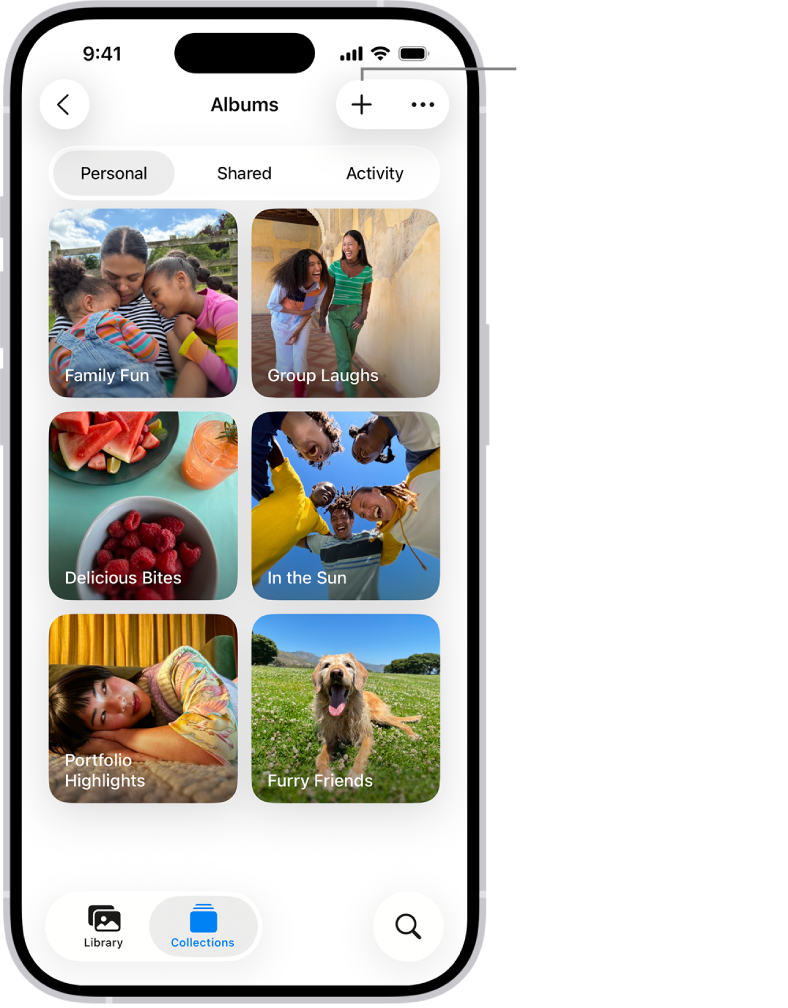

Shared Albums in Apple Photos do not count against your iCloud storage quota. That part is straightforward, and it is the answer most people find when they search this question. But it is only half the story, because Apple actually has two completely different photo sharing systems built into iOS 26 and iCloud, and they handle storage in opposite ways. If you are using the wrong one, or worse, using both without understanding the difference, you could be burning through your iCloud plan without realizing where the gigabytes are going.
The two systems are Shared Albums, which Apple introduced years ago as iCloud Photo Sharing, and iCloud Shared Photo Library, which arrived with iOS 16.1. They sound alike. They live inside the same Photos app. But they work on entirely different storage models, and picking the right one for your situation can mean the difference between staying on a free iCloud plan and suddenly needing to upgrade.
I want to break down exactly how each system works, what counts against your storage, what does not, and the specific gotchas that trip people up.
 Ad
AdShared Albums Give You Free Storage With a Catch You Might Not Notice
Shared Albums are Apple's original collaborative photo feature. You create an album, invite up to 100 people, and everyone can add photos and videos to that album. The storage model is the simplest part: shared album content lives on Apple's servers in a separate bucket that does not count against anyone's iCloud storage. Not yours, not your subscribers'. It is genuinely free storage for shared content, with some important limits.
Each shared album holds up to 5,000 photos and videos. You can create or subscribe to a maximum of 200 shared albums. Videos are capped at 15 minutes and delivered at 720p resolution. Photos are downsampled to 2,048 pixels on the long edge, which means if you shot a 48-megapixel image on your iPhone 16 Pro, the version your friend sees in the shared album is dramatically smaller than the original.
That downsampling is the trade-off most people overlook. Shared Albums are free because Apple is compressing and reducing everything you put into them. For casual sharing, vacation photos you want family to see, birthday pictures, school events, the quality reduction is imperceptible on a phone screen. For professional photographers or anyone who wants full-resolution sharing, it is a dealbreaker.
The Hidden iPhone Storage Trap
Here is where it gets confusing for iPhone storage specifically. Shared album content does not count against your iCloud quota, but it does take up a small amount of local storage on your iPhone. When you browse a shared album, your device caches compressed thumbnails and preview images. This is usually measured in megabytes, not gigabytes, and iOS manages it automatically through its Optimize iPhone Storage feature. But if you tap the share button on a photo from a shared album and save it to your personal library, that photo now exists as a full-resolution copy in your camera roll, and it absolutely counts against both your device storage and your iCloud Photos storage.
That save-to-library action is the hidden storage trap. I have seen family members with thousands of photos saved from shared albums sitting in their personal library, duplicating content that was already accessible for free through the shared album itself. If you are wondering why your iPhone says you are running low on storage, open the Duplicates album in Photos and check whether shared album content has been copied into your personal library. For a broader walkthrough of reclaiming wasted iPhone storage, that guide covers the full cleanup process.
iCloud Shared Photo Library Costs Real Storage and One Person Pays for All of It
 Ad
AdiCloud Shared Photo Library is the newer system, and it works on a fundamentally different model. Instead of creating separate albums with compressed copies, a Shared Photo Library is a single unified photo collection that up to six people share access to. Everyone can add, edit, favorite, and delete photos from the shared library. It feels like having one combined camera roll across multiple people.
The storage difference is critical. All content in a Shared Photo Library counts against the iCloud storage plan of the person who created the library. Not split across members. Not shared equally. One person's iCloud plan absorbs everything. If you created the library and your five family members collectively add 200 gigabytes of photos over a year, that entire 200 gigabytes sits on your iCloud account.
Apple designed this around Family Sharing, where one person typically manages the iCloud storage plan for everyone. But the math can get surprising fast. If each member shoots in 48-megapixel HEIF or ProRes video, a family of six can burn through a 2TB iCloud plan in a way that feels much faster than expected. There is no separate free bucket here like there is with Shared Albums. Every photo, every video, every Live Photo counts at full resolution.
How to Check Which System You Are Using Right Now
You set up iCloud Shared Photo Library by going to Settings, tapping your name at the top, selecting iCloud, then Photos, and choosing Shared Library. From there, you pick participants, decide which existing photos to move into the shared library, and configure automatic sharing rules. Those rules are genuinely clever: you can have the Camera app automatically send photos to the shared library when participants are nearby using Bluetooth proximity, when you are at a specific location like home, or only when you manually choose to share.
The automatic sharing toggle in the Camera app is the detail that catches people off guard. When it is enabled, every photo you take while near a shared library participant goes directly into the shared library, which means directly onto the library creator's iCloud storage. If you forget this is on, you can inadvertently fill someone else's iCloud plan with screenshots, work photos, and random snaps you never intended to share. Look for the small person icon in the upper-left corner of the Camera app. If it is highlighted, your photos are going to the shared library.
Which One Should You Actually Use
A side-by-side breakdown of Apple's two photo sharing systems and their storage impact on your iPhone and iCloud account.
| Feature | Shared Albums | iCloud Shared Photo Library |
|---|---|---|
| iCloud Storage Cost | Free (does not count) | Counts against creator's plan |
| Photo Quality | Compressed to 2,048 px | Full original resolution |
| Max Participants | 100 per album | 6 total |
| Content Limit | 5,000 items per album | Limited only by iCloud plan size |
Here is the honest comparison between the two systems. Shared Albums give you free storage with quality trade-offs and a cap of 5,000 items per album. iCloud Shared Photo Library gives you full-resolution sharing with no item caps beyond your iCloud plan size, but every byte counts against one person's storage. Neither system is better in absolute terms. The right choice depends on what you are sharing and with whom.
For sharing vacation photos with extended family or event photos with a large group, Shared Albums remain the better choice. The quality reduction does not matter when someone is scrolling on their phone, and the zero-storage-cost model means you never have to think about it. For sharing everyday life with a partner or small family group who wants a unified photo library with full-quality images, iCloud Shared Photo Library makes more sense, provided someone is willing to pay for the iCloud storage it consumes.
One gotcha that Apple's own documentation does not emphasize: you can only join one Shared Photo Library at a time. If your spouse creates a shared library for your household and your parent creates one for your extended family, you have to pick one. Shared Albums have no such restriction, and that flexibility matters for people with overlapping social circles.
Two Storage Checks That Take Less Than a Minute
If you are on a 5GB or 50GB iCloud plan and wondering why storage keeps filling up, the first thing to check is whether you accidentally joined a Shared Photo Library. Go to Settings, tap your name, select iCloud, then Photos. If Shared Library appears as an option and shows it is active, any photos routed there are counting against someone's paid storage. If you intended to use the free Shared Albums model instead, you will need to leave the shared library and switch to creating Shared Albums for your collaborative photo needs.
The second thing to check is that save-to-library habit I mentioned earlier. Open the Photos app, go to Albums, and look for the Duplicates album. If you see matched pairs where one version came from a shared album and one is in your personal library, you can merge or delete the personal copy to reclaim that storage immediately. iOS makes this easy now, and it is one of the fastest ways to free up space without losing access to any photos. For more iPhone Photos tricks that save time and storage, that collection covers several more hidden features worth knowing.
For the technical details Apple publishes on shared album limits, the definitive reference is Apple's support page covering shared album capacity, contributor limits, and supported file formats. That page confirms the 5,000-item cap, 720p video ceiling, and 2,048-pixel photo limit that define the Shared Albums experience.
Whether you landed here because your iCloud storage bar turned red or because you genuinely wanted to understand the difference before setting up photo sharing for your family, the core takeaway is this: Shared Albums are free but compressed, and Shared Photo Library is full-quality but paid. Know which one you are using, and you will never be surprised by a storage notification again.

Related Posts
The iPhone 17e Gives You Apple’s A19 Chip for $200 Less Than You’d Expect
Mar 04, 2026
Your iCloud Runs Out of Space Because Apple Buries the Fix Three Menus Deep
Mar 04, 2026
Your iPhone Has a Privacy Display Mode You Have Never Turned On
Mar 03, 2026