

🎧 Listen to this article
Prefer to listen? An audio version of this article is available for accessibility and convenience.
iCloud gives every Apple account 5 GB of free storage, and that number has not changed since 2011. Your iPhone backup alone can swallow that in a single overnight sync. The real problem is not the 5 GB ceiling, though. It is the fact that Apple scatters the tools for reclaiming wasted iCloud space across at least three different settings menus, and most of the biggest storage hogs never show up in the bar chart on your main iCloud screen.
I checked my own iCloud account last week expecting a straightforward cleanup. What I found instead were two backups from devices I sold years ago, a Messages attachment folder quietly hoarding 4.7 GB of memes and screenshots, and a Recently Deleted album in Photos that had been sitting at 2.3 GB for almost a month. None of that appeared on the summary bar. Clearing it took about ten minutes and freed almost 9 GB without deleting a single photo I actually wanted.
 Ad
AdWhere to actually find your iCloud storage breakdown
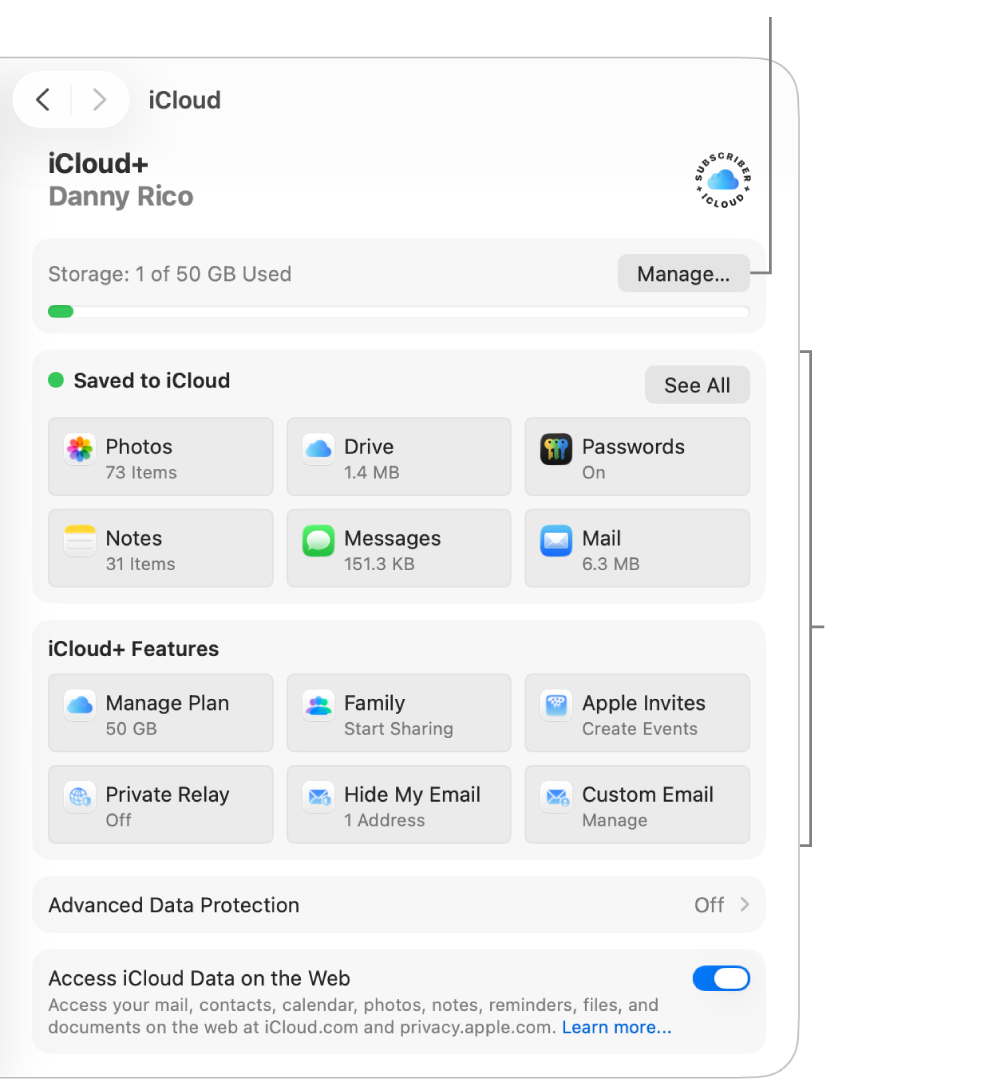
The starting point on iPhone is Settings, then tap your name at the top, then iCloud. You will see a colored bar graph showing how your storage breaks down by category. Tap Manage Account Storage to see the full list of apps and services consuming space. On iPad, the path is identical. On Mac, open System Settings, click your name, click iCloud, then click Manage.
That colored bar is misleading. It groups broad categories like Other and Documents without telling you what each category actually contains. The real diagnostic tool is the per-app breakdown underneath, which shows you exactly how many gigabytes each app and service is storing in your iCloud account. This is where the surprises live.
One detail that catches people off guard: iCloud storage and iPhone storage are two different pools. Clearing local files on your iPhone does not free iCloud space unless those files were also synced to iCloud. The reverse is true as well. Deleting an old iCloud backup gives you zero extra room on your physical device.
The storage hogs Apple does not warn you about
Device backups from old hardware are the single biggest waste of iCloud space for most people. Every time you trade in or sell an iPhone, the backup from that device stays in your iCloud account indefinitely. I have talked to people carrying three or four old backups from devices they no longer own, each one eating 2 to 5 GB.
To find them: Settings, your name, iCloud, Manage Account Storage, Backups. You will see a list of every device with an active backup. If a device name does not match anything you currently use, tap it and tap Delete Backup. The storage frees up within minutes.
Messages is the second offender, and it is sneakier. When Messages in iCloud is turned on, every photo, video, GIF, and voice message you have ever sent or received lives in your iCloud account. A two-year-old group chat with fifteen people can easily reach several gigabytes. The friction here is that Apple gives you no way to delete attachments in bulk from the Messages iCloud settings. You have to open individual conversations, tap the contact name, scroll to Photos, and manually select and delete.
Photos deserves its own mention. When you delete a photo from the Photos app, it does not actually leave iCloud for 30 days. It sits in a Recently Deleted album, still counting against your storage quota. Open Photos, go to Albums, scroll to Recently Deleted, and tap Delete All. That alone can recover a surprising amount of space if you have been deleting photos without emptying the bin.
 Ad
AdThe cleanup shortcut Apple buried in iOS 26
Starting with iOS 17 and continuing through iOS 26, Apple added a Recommended for You section inside iCloud settings that most people scroll right past. Navigate to Settings, your name, iCloud, and look for the Recommended for You row. It surfaces specific items Apple thinks you can safely delete: duplicate photos, old backups, large files you have not opened in months.
It is not perfect. The recommendations tend to be conservative, and they never surface Messages attachments, which are often the biggest win. But as a starting point, it does the thinking for you. I also really like that it shows the exact storage each recommendation would reclaim, so you can prioritize the big wins first.
New in iOS 26: contact photos and posters now count toward your iCloud storage. If you saved custom contact images for dozens of people, those add up. You can check this under Settings, your name, iCloud, Manage Account Storage, Contact Images.
For a deeper look at how iCloud handles shared storage differently depending on whether you use Shared Albums or Shared Library, this breakdown explains the distinction and why it matters for your storage math.
At-a-Glance: iCloud Cleanup Methods Compared
This table compares the five most effective iCloud storage reclamation methods by effort, space recovered, and data risk.
| Method | Typical Space | Effort | Data Risk |
|---|---|---|---|
| Delete old device backups | 2–10 GB | Low | Low |
| Purge Messages attachments | 1–8 GB | Medium | Loses media |
| Empty Recently Deleted | 500 MB–5 GB | Low | Permanent |
| Remove unused app backups | 200 MB–3 GB | Low | None |
| Clean iCloud Mail trash | 100 MB–2 GB | Low | None |
When paying for iCloud+ actually makes sense
Apple currently offers five iCloud+ tiers: 50 GB for $0.99 a month, 200 GB for $2.99, 2 TB for $9.99, 6 TB for $29.99, and 12 TB for $59.99. Every paid tier includes iCloud Private Relay, Hide My Email, Custom Email Domain, and HomeKit Secure Video support. The full breakdown lives on Apple’s iCloud+ support page.
The 50 GB plan is barely enough for a single device backup plus a modest photo library. If you own more than one Apple device and use iCloud Photos, the 200 GB tier is where the math starts working. It does, though, mean you are paying $36 a year for a service that primarily stores files Apple’s own apps generate automatically.
Here is my honest take: before you upgrade, spend ten minutes running through the cleanup steps above. Most people I have walked through this process recovered between 3 and 10 GB, which is often enough to drop down a tier or avoid upgrading entirely. The 200 GB plan is genuinely useful for families using Family Sharing, because all six members share the pool. But a single user on the 50 GB plan who cleans up old backups and Messages attachments might find that the free 5 GB actually holds up.
The Mac side of iCloud storage nobody checks
Optimize Mac Storage is a toggle in System Settings, your name, iCloud, that automatically offloads older files to iCloud when your local drive fills up. It works well enough, but it has a quirk: those offloaded files count against your iCloud quota even though you never manually uploaded them. If you have a 256 GB MacBook and turned on Optimize Mac Storage, your Desktop and Documents folders might be consuming 20 or 30 GB of iCloud space without you realizing it.
To check, open System Settings, click your name, click iCloud, and look at the storage bar. If iCloud Drive is the dominant category, click it to see the breakdown. You can selectively remove large folders from iCloud Drive by moving them out of Desktop or Documents, which stops them from syncing.
The other Mac-specific gotcha is Mail. If you use an iCloud email address, every message and attachment lives in your iCloud storage. macOS Tahoe’s Mail app has a built-in Cleanup tool: click More in the sidebar, then Cleanup Recommendations. It surfaces newsletters, marketing emails, and old attachments you can delete in bulk. This is one of the few places where Apple actually built a decent bulk-delete interface.
Quick-Action Checklist: Reclaim iCloud Storage in Ten Minutes
- Open Settings, tap your name, tap iCloud, tap Manage Account Storage
- Tap Backups and delete any backups from devices you no longer own
- Open Photos, go to Albums, open Recently Deleted, tap Delete All
- Check Messages in Manage Account Storage; if it exceeds 1 GB, open your largest conversations and delete old photo and video attachments
- Look for Recommended for You in iCloud settings and follow any suggestions for files you no longer need
- On Mac: open System Settings, your name, iCloud, and check whether iCloud Drive is consuming space from Desktop and Documents syncing
- On Mac: open Mail, click More in the sidebar, then Cleanup Recommendations to purge old email attachments

Related Posts
The iPhone 17e Gives You Apple’s A19 Chip for $200 Less Than You’d Expect
Mar 04, 2026
Your iPhone Has a Privacy Display Mode You Have Never Turned On
Mar 03, 2026
Your iPhone Can Photograph Tonight’s Blood Moon Eclipse (Here’s How)
Mar 03, 2026