
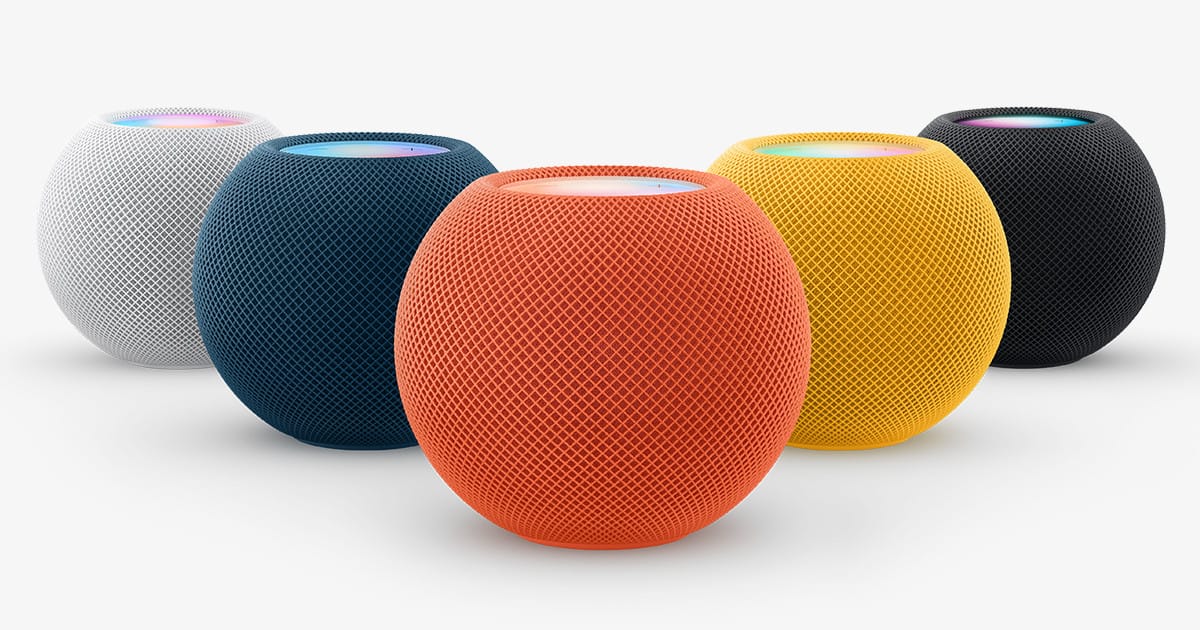

Your Apple HomePod or HomePod mini should connect to your iPhone, respond to Siri, and play music the moment you plug it in. That is the promise. The reality is messier. A blinking orange light during setup, a "Network Issue" badge in the Apple Home app, or a HomePod that simply refuses to appear on your Wi-Fi after an iOS 26 update are all common problems, and Apple’s own support pages split the fixes across four separate articles. I am putting every fix in one place so you can stop opening tabs and start hearing music.
Here is the short version: most HomePod connectivity failures come down to a Wi-Fi network mismatch between your iPhone and the speaker, a weak signal, or a router configuration that blocks peer-to-peer device communication. The good news? iOS 26 added a direct Wi-Fi network selector for HomePod, which eliminates the single most frustrating step in the old troubleshooting process. But if that does not fix your issue, the problem is probably deeper in your network stack, and that is where this guide earns its keep.
If you are still deciding between a HomePod and a competing speaker, I wrote a full comparison of HomePod versus Alexa that covers the ecosystem differences worth knowing before you buy.
 Ad
AdWhat to Check Before You Touch Any Settings
Before you start toggling things, ask yourself three questions. Is your iPhone running the latest version of iOS 26? Is your Wi-Fi router powered on with solid indicator lights? And is the HomePod plugged in and showing any light on top at all?
I know that sounds basic. But I cannot tell you how many connectivity issues come down to a router that silently rebooted overnight or an iPhone that paused a software update mid-download. Apple requires your iPhone to run iOS 16.3 or later to set up a HomePod (2nd generation), and honestly, if you are not on the latest iOS 26.3 or newer, you are asking for weird handoff bugs between your phone and the speaker.
One more thing. HomePod mini uses a 20W USB-C power adapter (9V at 2.22A specifically). If you plugged it into a random USB-C charger from your junk drawer, that orange flashing light you are seeing is not a network error. It is a power problem. Use the adapter that came in the box.
The iOS 26 Wi-Fi Selector That Changes Everything
For years, changing your HomePod’s Wi-Fi network meant changing the Wi-Fi on your iPhone first, then waiting for the HomePod to follow along. Sometimes it worked. Sometimes it did not, and you ended up factory resetting the speaker because there was no other way to force a network switch.
Apple fixed this in HomePod Software 26. Open the Home app on your iPhone or iPad, tap the HomePod tile, then tap the Settings gear icon. Scroll to the bottom and you will see a Wi-Fi Network field showing the current connection. Tap it, and for the first time, you get an actual list of nearby networks to choose from. Pick one, enter the password, done. The HomePod switches independently without touching your iPhone’s connection.
This is the single biggest quality-of-life improvement Apple has made to HomePod since launch, and they barely mentioned it. If your HomePod is stuck on an old network or connected to the wrong band, this is your first stop.
When Your HomePod Will Not Set Up at All
You unbox the speaker, plug it in, hear the chime, hold your iPhone close, and… nothing. The setup screen never appears. Well, first try the obvious: lock your iPhone, unlock it, go back to the home screen, and hold it near the HomePod again. Apple’s proximity detection is Bluetooth-based, and sometimes it just needs a second attempt.
If the screen still does not appear, open the Home app, tap the plus icon in the upper right, select Add Accessory, then tap More Options. Your HomePod should show up there for manual setup. If it does not appear in that list either, you need to reset the HomePod to factory settings and try again from scratch.
A frustrating but common blocker: the "Wi-Fi Incompatible" alert. This usually means your router broadcasts a 6 GHz band with a different network name than the 2.4 GHz or 5 GHz bands. HomePod uses 802.11n, which operates on 2.4 GHz and 5 GHz only. If your router has separate SSIDs for each band, make sure your iPhone is connected to the 2.4 GHz or 5 GHz network before setup, not the 6 GHz one.
 Ad
AdThe Network Mismatch Problem That Breaks Siri and AirPlay
This is the big one. Open the Home app and look at your HomePod tile. If you see a yellow exclamation point or a banner that says your iPhone and HomePod are on different networks, that is why Siri is not responding and AirPlay is not working.
Tap View Details under the alert. Scroll down and you will see Move HomePod to [your network name]. Tap it. That is literally it. If you are running HomePod Software 26, you can also use the new Wi-Fi selector I described above to manually pick the correct network.
Why does this happen in the first place? Think about it. Mesh routers, range extenders, and dual-band setups create multiple network names or bands. Your iPhone might auto-connect to the 5 GHz band for speed, while the HomePod latches onto 2.4 GHz for range. They are technically on the same router but cannot see each other. Some routers let you force a single SSID across all bands, which is the cleanest fix.
HomePod (2nd Generation) vs. HomePod mini Connectivity Specs
This table compares the two current Apple HomePod models across key connectivity specs that affect troubleshooting.
| Feature | HomePod (2nd Generation) | HomePod mini |
|---|---|---|
| Wi-Fi Standard | 802.11n | 802.11n |
| Bluetooth | 5.0 | 5.0 |
| Thread Networking | Yes (border router) | Yes (border router) |
| Ultra Wideband | Yes (Handoff) | Yes (Handoff) |
| HomeKit Hub | Yes | Yes |
| Weight | 5.16 lbs (2.3 kg) | 0.76 lbs (345 g) |
When the Home App Shows "Network Issue" or "No Internet"
This error has about six different causes, and Apple’s support document lists them all without making it clear which one you probably have. I will rank them by how likely they are to be your actual problem.
Most likely: your internet is down. Check the lights on your modem and router. If they are not solid, restart both by unplugging them for thirty seconds. Wait for them to fully reconnect before checking HomePod again. Your HomePod needs an active internet connection for Siri, Apple Music streaming, and Apple HomeKit cloud sync.
Second most likely: weak Wi-Fi signal. Open HomePod settings in the Home app and look at the signal strength indicator next to the network name. Two bars or fewer means the speaker is too far from the router. Apple says to leave at least six inches of clearance around the HomePod, but nobody mentions that plaster walls, aquariums, and microwave ovens absolutely destroy 2.4 GHz signals. Move the speaker or add a mesh node.
Third: DHCP conflict. If you have both a modem and a router assigning IP addresses, devices fight over who gets what. Your router should be the only DHCP server on the network. Log into your modem’s admin panel and disable its DHCP if you have a separate router handling that job.
Fourth: double NAT. Same culprit as DHCP conflicts, different symptom. If both your modem and router perform NAT (Network Address Translation), some devices cannot find each other. Put your modem into bridge mode or disable NAT on one of the two devices.
Fifth: guest network isolation. If your HomePod is on a guest network, peer-to-peer communication is probably blocked by design. Guest networks exist to keep visitors off your main network. Move the HomePod to your primary network.
The Nuclear Option: Factory Reset and Start Fresh
If nothing above worked, it is time for a clean slate. I have a complete guide to resetting any HomePod to factory settings that walks through the Home app method and the manual method (for when the Home app itself cannot find the speaker). After the reset, the HomePod forgets its Wi-Fi credentials, its Apple HomeKit pairing, and its room assignment. You set it up from scratch like it just came out of the box.
One thing worth knowing: if you are resetting because your HomePod acts as a HomeKit hub and your entire smart home depends on it, you will temporarily lose automations and remote access until the speaker reconnects. If you have a second HomePod or an Apple TV 4K acting as a hub, those will take over automatically. But if this is your only hub, plan accordingly. For anyone building a HomeKit smart home from scratch, having a backup hub is something I would sort out before anything else.
iOS 26 Quirks That Catch People Off Guard
The new Wi-Fi selector is great, but iOS 26 also introduced a few behavioral changes that create confusion. HomePod Software 26 now supports the updated Apple Home architecture (the same migration Apple pushed in late 2022 and re-emphasized in early 2026). If you have not upgraded your Home to the new architecture, some advanced features like Thread-based accessories and improved HomeKit Secure Video routing will not work, and that can look like a connectivity failure when it is actually a compatibility issue.
Also, if your HomePod is part of a stereo pair and only one speaker drops off the network, the Home app sometimes shows the pair as "not responding" rather than identifying which speaker is the problem. Tap the pair, then tap the individual speaker names to check their status separately. I genuinely do not understand why the Home app does not surface this information more clearly. It is a baffling design choice.
When You Should Actually Call Apple Support
If your HomePod shows a solid white light but will not respond to any command, produces no sound, or repeatedly fails to connect after a factory reset on a network where other Apple devices work fine, you might have a hardware failure. The HomePod (2nd generation) weighs 5.16 pounds and packs a 4-inch high-excursion woofer, five horn-loaded tweeters, and an array of four microphones into a mesh-wrapped enclosure. There are no user-serviceable parts. Apple offers specific guidance for unresponsive speakers, and if your device is within its warranty period or covered by AppleCare+, a replacement is usually the fastest path forward.
For speakers that work fine for audio but drop their HomeKit hub connection constantly, the problem is almost always your router rather than the HomePod itself. I would exhaust every network fix in this guide before assuming the hardware is faulty.
And if you are thinking about expanding your setup once everything is stable, I put together a guide to building a whole-home audio system with HomePod that covers stereo pairing, multi-room grouping, and the one placement mistake that kills bass response in every room.

Related Posts
Apple TV+ Has Five Premieres This Month and Your Watchlist Needs All of Them
Mar 04, 2026
Every Apple HomeKit Device That Earns a Spot in Your Smart Home
Mar 03, 2026
Your HomePod Joins the Wrong Wi-Fi Network Until You Fix This One Setting
Mar 03, 2026