
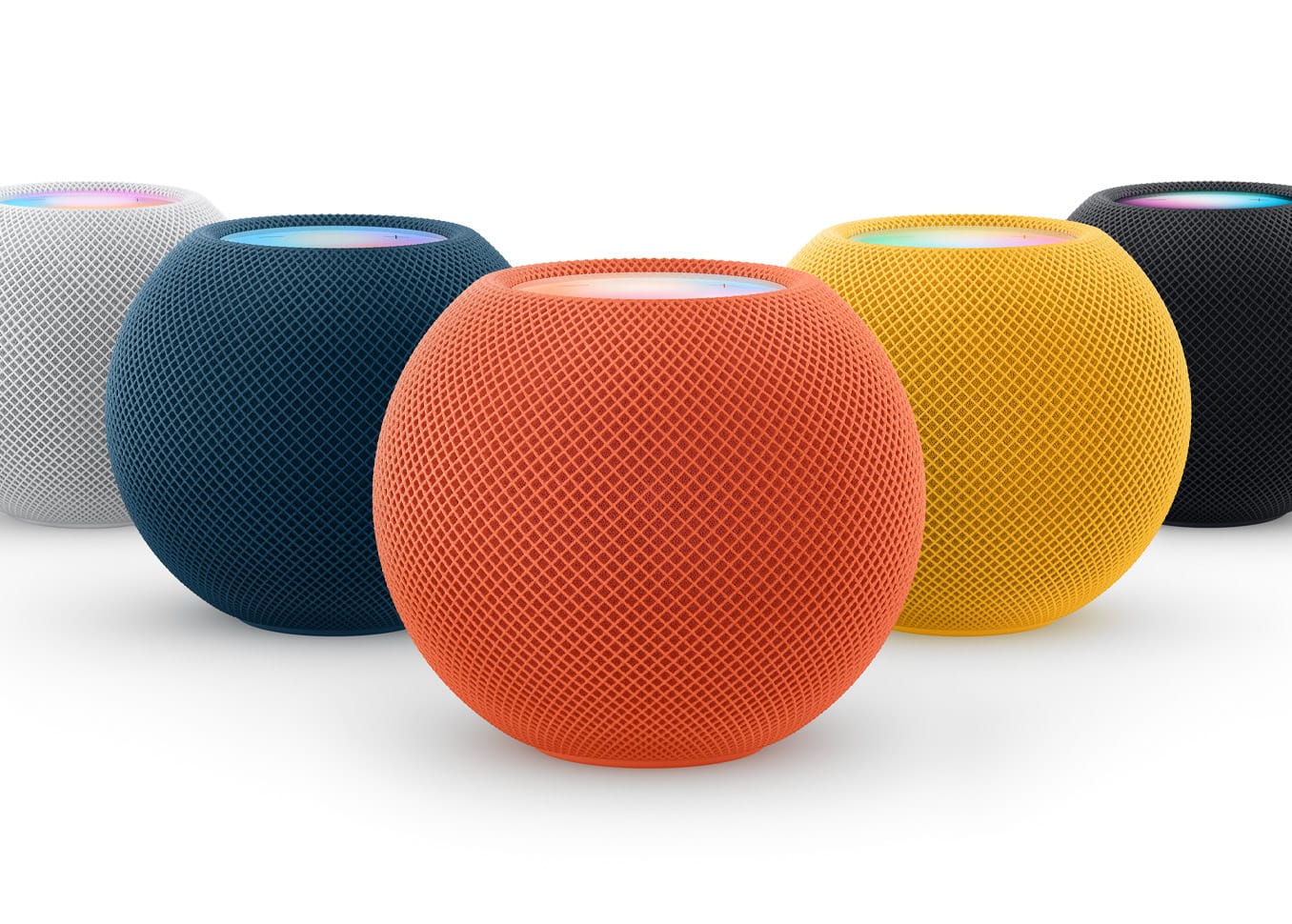

Spotify works on HomePod right now, and you do not need any third-party apps, hacks, or workarounds to make it happen. Apple’s AirPlay protocol handles the entire connection, and with a few settings adjusted on your iPhone, you can ask Siri on your HomePod to start playing Spotify without ever touching your phone. The catch? Spotify still has not adopted AirPlay 2 — the updated protocol Apple launched back in 2018 — which means you are dealing with a two-second buffer delay, no native lossless streaming, and a few multiroom quirks that Apple Music users never have to think about.
I want to be upfront about that limitation because it shapes every recommendation in this article. The experience is genuinely good for casual listening, background music during dinner, and filling a room while you work. But if you are expecting the seamless, zero-latency handoff that Apple Music delivers natively on HomePod, you will notice the gaps. Knowing where those gaps are, and how to work around them, is the difference between a frustrating setup and one that honestly just works for most people.
If you are weighing whether HomePod is even the right speaker for your Apple home, our HomePod vs. Alexa comparison breaks down the full picture. But if you have already committed to HomePod and Spotify is your music service, this guide is for you.
 Ad
AdHow AirPlay Connects Spotify to Your HomePod
The simplest method takes about ten seconds. Open Spotify on your iPhone, start playing a song, and tap the speaker icon in the bottom-left corner of the Now Playing screen. Scroll past the Bluetooth options to the AirPlay section and select your HomePod. Done.
What is actually happening under the hood: your iPhone is streaming audio to the HomePod over your Wi-Fi network using AirPlay. The HomePod itself is not running Spotify — it is receiving an audio stream from your phone. Both devices need to be on the same Wi-Fi network, and your iPhone needs to stay powered on. If your phone dies or you leave the house with it, the music stops. That dependency is the single biggest difference between Spotify on HomePod and Apple Music on HomePod. Apple Music runs natively on the speaker. Spotify cannot.
One thing worth knowing: the Spotify app still uses AirPlay 1, not AirPlay 2. Apple says on its official HomePod support page that AirPlay 2 enables multiroom audio, reduced latency, and better buffering. Spotify has been promising to adopt AirPlay 2 since at least 2021 and still has not delivered. The practical impact is a roughly two-second delay when you hit play, pause, or skip — and a brief audio dropout if your Wi-Fi hiccups. For background listening, honestly not a big deal. For trying to sync audio across three HomePods during a party, it gets frustrating fast.
Teaching Siri to Play Spotify Without Being Asked Twice
Here is where the setup gets genuinely clever. Since the HomePod software update that shipped with version 17.4, Siri learns your preferred music service automatically. You do not set a default manually anymore — Apple removed that toggle. Instead, you train Siri by using it.
The first time you say “Hey Siri, play my Discover Weekly” on your HomePod, Siri will ask which music service you want to use. Say “Spotify.” From that point forward, Siri remembers your preference and routes music requests through Spotify without you having to name it every time. Behind the scenes, Siri is telling your iPhone to start a Spotify AirPlay session to the HomePod. The whole handoff takes about three seconds.
There is one gotcha that tripped me up the first time. If you say “Play my Discover Weekly on Spotify” — including the app name — Siri sometimes treats that as a one-off request and does not learn your preference. Drop the app name from the command. Just say what you want to hear. Siri does the rest.
A second gotcha: your iPhone has to be on the same Wi-Fi network as your HomePod, and it has to be unlocked at least once since the last reboot. If your phone is in a locked-and-rebooted state (like after an iOS update), Siri cannot initiate the AirPlay connection until you unlock it.
 Ad
AdMultiroom Spotify Playback Got Better — With a Caveat
The software update Apple shipped in September 2025 quietly improved something that used to be a dealbreaker. If you are streaming Spotify to your living room HomePod and you say “Hey Siri, play this in the kitchen too,” Siri now extends the AirPlay session to include additional HomePod speakers. That used to fail completely with third-party AirPlay streams. It works now.
The caveat is latency. Because Spotify is still on AirPlay 1, the audio sync between multiple HomePods is not perfect. There is a faint echo if you stand between two rooms — maybe a quarter-second offset. It is the kind of thing you would never notice with a single speaker, but it becomes obvious in a doorway between two HomePods playing the same stream. Apple Music, using AirPlay 2 natively, keeps multiple speakers in perfect sync. Spotify gets close but not all the way there.
If you are planning to build a whole-home audio system with HomePod, this is worth keeping in mind. The multiroom experience is functional but not flawless with Spotify. For most rooms, one HomePod playing Spotify sounds great. Across a whole house simultaneously, Apple Music still wins on sync quality.
The At-A-Glance Verdict
Here is how Spotify stacks up against Apple Music on HomePod across the things that actually matter day to day.
| Feature | Spotify on HomePod | Apple Music on HomePod |
|---|---|---|
| Siri Voice Control | Yes (via AirPlay from iPhone) | Yes (native) |
| Playback Latency | ~2-second delay | Instant |
| Multiroom Audio | Works with minor sync offset | Perfect sync via AirPlay 2 |
| Requires iPhone | Yes, must be on same Wi-Fi | No |
| Lossless Audio | Not supported over AirPlay 1 | Supported |
Troubleshooting the Three Things That Actually Go Wrong
HomePod Does Not Appear in Spotify’s Device List
Nine times out of ten, this is a Wi-Fi issue. Your iPhone and HomePod must be on the exact same network — not just the same router, but the same band. Some mesh routers split 2.4 GHz and 5 GHz into separate network names. If your HomePod is on one and your iPhone is on the other, they cannot see each other. Check both devices. The fix is usually toggling Wi-Fi off and back on or forgetting and rejoining the network on your iPhone.
Audio Cuts Out or Stutters During Playback
This one is almost always Wi-Fi congestion, not a Spotify problem. AirPlay 1 is more sensitive to network jitter than AirPlay 2. If you have a lot of devices competing for bandwidth — kids streaming video, someone on a video call — the HomePod audio stream gets deprioritized. Moving your router closer, switching to 5 GHz, or setting up QoS (Quality of Service) rules on your router to prioritize streaming traffic usually fixes it. If your router does not support QoS, a Wi-Fi 6 or Wi-Fi 7 mesh system handles this automatically.
Siri Says “I Cannot Do That” When You Ask for Spotify
This happens when Siri has not learned your preference yet or when your iPhone is not reachable. First, make sure your iPhone is on the same Wi-Fi, unlocked at least once since its last reboot, and running iOS 26 or later. Then try the training sequence again: ask Siri for music without naming an app, and when prompted, say “Spotify.” If Siri still refuses, open the Home app on your iPhone, go to Home Settings, tap your name under People, and check that Spotify appears under Connected Media. If it does not, open the Spotify app, make sure you are signed in, and try again.
What Spotify Owes HomePod Users
I have to say this plainly: Spotify’s failure to adopt AirPlay 2 after five years of promises is not acceptable for a company with over 220 million paying subscribers. Every other major streaming service that supports AirPlay has moved to AirPlay 2. Apple Music, Pandora, Tidal, Deezer — all of them. Spotify is the holdout, and their users on HomePod are the ones paying the price with buffering delays and imperfect multiroom sync.
That said, the current AirPlay 1 setup works well enough that I would not tell anyone to switch music services over it. The two-second delay is annoying the first day. By the third day, you stop noticing. The multiroom offset matters only if you are standing in a doorway between two speakers. And Siri’s learned-preference system genuinely makes voice control feel natural once you train it.
Spotify on HomePod is not perfect. But it is a lot closer to perfect than most people realize, and the gap keeps shrinking with every HomePod software update Apple ships.

Related Posts
Apple TV+ Has Five Premieres This Month and Your Watchlist Needs All of Them
Mar 04, 2026
Every Apple HomeKit Device That Earns a Spot in Your Smart Home
Mar 03, 2026
Your HomePod Joins the Wrong Wi-Fi Network Until You Fix This One Setting
Mar 03, 2026