
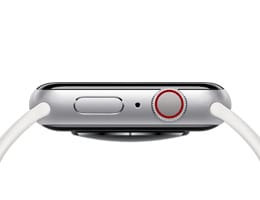

Your Apple Watch Series 11 running watchOS 26 recognizes seven distinct gesture controls that let you answer calls, silence alarms, dismiss notifications, and summon Siri without ever tapping the display. The catch is that Apple buries most of them behind settings toggles and never surfaces them during setup, so the majority of owners go months using only the screen and the Digital Crown.
I genuinely did not know about the wrist flick gesture until I accidentally triggered it while shaking water off my hand after washing dishes. The notification I had been ignoring just vanished. That moment sent me down a rabbit hole of Apple Watch gesture settings that I want to walk you through, because every single one of them is useful.
 Ad
AdThe Double Tap That Changes Everything
Double tap is the flagship gesture Apple introduced with the S9 chip, and it works on Apple Watch Series 11, Series 10, Series 9, Ultra 3, and Ultra 2. Pinch your index finger and thumb together twice, quickly, and the watch performs the most likely action for whatever is on screen.
During an incoming call, double tap answers it. A timer going off? Double tap stops it. Scrolling through the Smart Stack on your watch face? Double tap selects the top widget or advances to the next one. Playing music through Apple Music or Spotify? Double tap pauses playback. And the gesture works even when your other hand is holding a grocery bag, a dog leash, or a steering wheel.
Here is the part most people miss: you can customize what double tap does in two specific contexts. Open the Settings app on your Apple Watch, tap Gestures, then tap Double Tap. Under Playback, choose whether double tap triggers Play/Pause or Skip. Under Smart Stack, choose whether it Advance or Select. I keep mine on Play/Pause and Select, because skipping tracks with a wrist gesture felt too imprecise for my taste.
One real limitation worth knowing. Double tap goes completely dead when Low Power Mode is active, when Sleep Focus is engaged, when the display is inactive because your wrist is down, or when the watch is locked. That last one caught me off guard during a run. I had a passcode set, my watch locked after I removed it briefly to adjust my sleeve, and double tap stopped working until I punched in the code. Apple documents these limitations on its support site but does not warn you about them during setup.
Wrist Flick Dismisses Everything Instantly
This gesture arrived with watchOS 26, and it might be the one I use most. Quickly rotate your wrist away from you and then snap it back, and the watch dismisses whatever is on screen. Incoming call ringing at an awkward moment? Wrist flick silences it. Timer going off in the kitchen? Wrist flick. A notification banner you do not want to deal with right now? Wrist flick.
The motion feels a bit like you are flicking water off your wrist. It takes some practice to get the speed right. Too slow and the watch thinks you are just moving your arm. Too fast and you might overshoot. After about a day of trying it, muscle memory kicked in and now I do it without thinking.
Wrist flick works on Apple Watch Series 11, Series 10, Series 9, Ultra 3, Ultra 2, and the SE 3. If you are on an older model, this gesture is not available to you. To enable or disable it, go to Settings, then Gestures, then Wrist Flick. It ships turned on by default, but a fair number of people accidentally turn it off while exploring settings and then forget it exists.
 Ad
AdCover to Mute Your Watch with Your Palm
This one has been around for years, and it is still the fastest way to shut your Apple Watch up. When a notification comes in and makes a sound, place your entire palm flat over the display and hold it there for three seconds. The watch immediately goes silent.
I reach for this gesture in meetings more than anything else. Someone texts me, the watch buzzes and chimes, and I just casually rest my hand over it for a couple seconds. Done. No fumbling with buttons, no awkward screen tapping while people are watching.
The setting lives in Settings, then Gestures, then Cover to Mute. Make sure the toggle is on. If you have ever wondered why covering your watch does not work, this toggle being off is almost certainly the reason.
One quirk I have noticed: the gesture can be finicky if you are wearing gloves or if your palm does not make full contact with the display. Apple’s optical sensors need to detect that something large and opaque is covering the screen, not just a finger brushing across it.
Raise to Speak Brings Siri Without a Word
This is the Siri shortcut that most Apple Watch owners either love or find completely maddening. Raise your wrist close to your face and start talking. Siri activates automatically without you saying “Hey Siri” or pressing anything.
The key distinction is that raising your wrist to check the time does not trigger Siri. Apple uses the accelerometer and gyroscope together to detect the specific motion of raising the watch close to your mouth, which is a tighter, more deliberate arc than just checking a notification. It works surprisingly well once you learn the right angle, which is roughly six to eight inches from your face with the display pointed at you.
To configure this, go to Settings, then Siri, then toggle Raise to Speak on or off. You can also choose whether Siri responds with voice, silently, or only when Silent Mode is off. I keep Siri set to respond silently on my watch because having a voice reply out loud in public feels like announcing to everyone that I am talking to my wrist.
If you have already set up your Apple Watch faces the way you want them, you know that complications and Smart Stack widgets give you quick information at a glance. But Raise to Speak adds another layer. You can customize every Apple Watch face in watchOS 26 to show the exact data you need, and then use Raise to Speak to act on it without touching anything.
The Digital Crown Does More Than Scroll
People treat the Digital Crown like a scroll wheel and ignore everything else it does. Here is the full list.
Press it once to go to the watch face from anywhere, or to open the Home Screen if you are already on the face. Press it twice quickly to open the App Switcher, which shows your recently used apps as a carousel. Press and hold it to activate Siri manually, which is my preferred method when Raise to Speak misfires. And turn it to scroll through lists, adjust volume during music playback, zoom into photos, or navigate the Smart Stack on your watch face.
There is also a hidden trick for swimmers. After a water-based workout, the watch locks the screen to prevent accidental taps from water drops. To unlock it, press and hold the Digital Crown. The watch plays a series of tones and vibrations that physically eject water from the speaker grille. You can actually see the water droplets come out. It is one of those Apple engineering details that feels like overkill until you realize your speaker sounds muffled after a swim and this actually fixes it.
The Side Button Is Your Emergency Lifeline
The side button sits below the Digital Crown, and its primary job is opening Control Center with a single press. But it has two critical secondary functions.
Double-click the side button to activate Apple Pay. Your default card appears, ready to hold near a payment terminal. If you have ever fumbled with your iPhone at a checkout counter, this gesture alone justifies wearing an Apple Watch.
Press and hold the side button to trigger Emergency SOS. The watch starts a countdown, and if you do not cancel, it calls emergency services and sends your location to your emergency contacts. This is the feature I hope you never need, but I am genuinely glad it is one deliberate hold away. If you ever need to reset your Apple Watch in watchOS 26, the side button combined with the Digital Crown is also how you force restart the device.
The Shake Gesture Apple Barely Mentions
Here is one that is not in any gesture settings menu but works anyway. When you are typing a message using Scribble or the tiny keyboard on Apple Watch, give your wrist a quick shake to undo the last character or word you typed. It works exactly like shaking an iPhone to undo, but on your wrist.
The motion needs to be short and sharp, almost like you are shaking a thermometer. A lazy wave does nothing. I stumbled onto this one entirely by accident while responding to a text during a walk, and I use it constantly now because the delete key on that tiny keyboard is comically easy to miss.
Setting Up Every Gesture in One Pass
All the configurable gestures live in the same place. Open the Settings app on your Apple Watch, scroll down to Gestures, and you will find toggles for Double Tap, Wrist Flick, and Cover to Mute. Siri’s Raise to Speak toggle is one menu up under Settings then Siri.
Here is what I recommend you set right now. Turn on Double Tap with Playback set to Play/Pause and Smart Stack set to Select. Turn on Wrist Flick. Turn on Cover to Mute. Turn on Raise to Speak and set Siri’s spoken responses to Silent. That combination covers the most common scenarios where you want your watch to respond without you touching the screen.
If you find that Raise to Speak fires too often when you are just scratching your chin, try lowering your wrist angle slightly. The sweet spot is narrow enough that once you find it, false triggers drop to nearly zero. And if Double Tap feels unreliable, make sure you are using your index finger and thumb specifically, pinching firmly rather than tapping lightly. Apple’s sensor is looking for a specific tendon movement in your wrist, and other finger combinations do not register as cleanly.

Related Posts
Apple Watch Cellular vs GPS: The Honest Buying Guide for Every Model in 2026
Mar 01, 2026
The Apple Watch Workout Settings That Quietly Change How You Train
Feb 28, 2026
Every Apple Watch That Runs watchOS 26 and the Features Each One Gets
Feb 24, 2026