
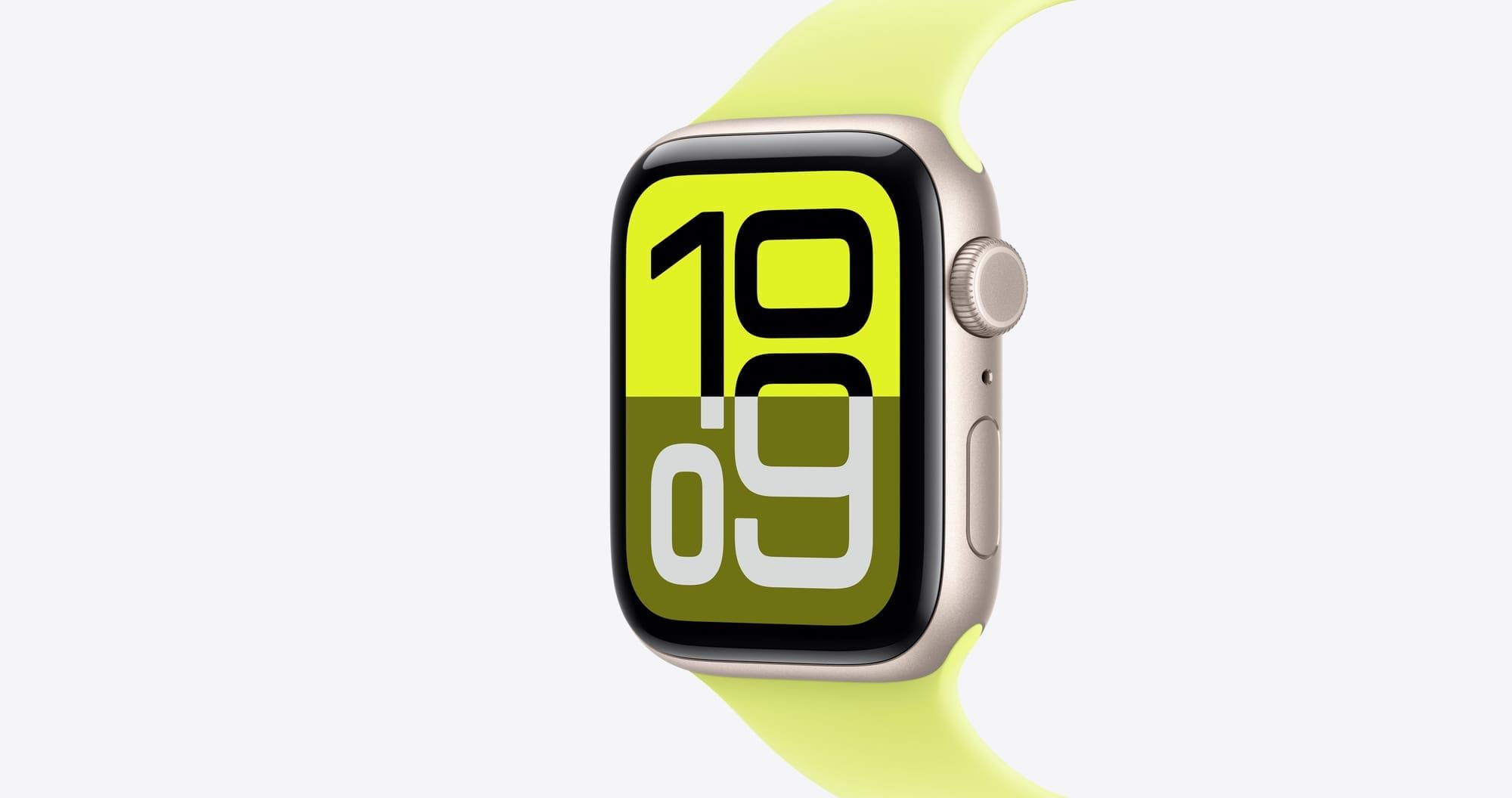

Apple Watch ships with dozens of built-in faces, and most owners stick with whichever one caught their eye on day one. That single choice leaves thousands of alternatives untouched, because the real customization power on Apple Watch in watchOS 26 lives outside Apple’s own gallery.
Two free apps, Facer and Clockology, open a library of custom watch faces that range from photorealistic analog clocks to animated sci-fi dashboards and licensed brand designs from Disney to Gucci. The catch: each app handles customization differently, and the one you pick determines whether you keep full complication access, how often your face updates, and whether pressing the Digital Crown kicks you back to the default watchOS home screen.
Why Apple Locks Down Watch Faces
Apple’s Human Interface Guidelines for watch faces spell out the reasoning: the watch face is the single most-viewed screen on any Apple device, and Apple treats it as a curated experience where performance, battery life, and readability cannot be compromised by third-party code. That philosophy means no developer can create a true native watch face the way they can build a widget or complication.
Third-party apps work around this through two strategies. Facer syncs a design through the official Watch app prompt, overwriting the wallpaper and complication layout on a supported native face. Clockology takes a bolder approach: it runs as a full-screen app that sits on top of the watch face entirely, displaying its own clock interface until you press the Digital Crown.
Both strategies work. Both have trade-offs that matter more than most app reviews acknowledge.
How Facer Puts 500,000 Faces on Your Wrist
Facer (4.6 stars, 54,000 App Store reviews) works by piggybacking on Apple’s native face infrastructure. When you tap Sync on a design, the app sends a prompt through the Watch app that adds the face to your collection like any built-in option. You browse the library on your iPhone, pick a face, and your Apple Watch displays it within seconds.
The library is staggering. Over 500,000 designs span analog, digital, minimal, retro, futuristic, and branded categories. Official collaborations with Disney, Marvel, Paramount, and fashion houses like Ted Baker sit alongside community-created designs ranging from hyper-detailed mechanical chronographs to simple weather dashboards.
Facer’s real advantage is complication support. Because Facer faces sync through Apple’s native framework, you retain access to complications from any app on your watch. Activity rings, weather, calendar events, and third-party app data all appear exactly as they would on a built-in design.
The friction point is refresh timing. Apple limits third-party complication data refreshes to once every 15 minutes. On a Facer face, the seconds hand may freeze between refreshes, real-time data like heart rate can lag, and animated elements that look smooth in the preview stutter on your actual wrist. Hour and minute hands stay accurate because they pull from the system clock, but everything layered on top runs on Apple’s background schedule.
Facer offers a generous free tier with thousands of faces. Premium unlocks the full library, removes ads, and adds design tools for $4.99 per month or $39.99 per year.
Clockology Takes a Different Path
Clockology (4.8 stars, 49,000 reviews) produces visually stunning results that Facer cannot match, because it does not play by Apple’s rules. Instead of syncing a face through the Watch app, Clockology runs as a foreground application that replaces your entire screen with its own clock interface.
The visual difference is immediate. Clockology faces include smooth animations, layered depth effects, and pixel-perfect reproductions of luxury watch dials that look indistinguishable from a photograph of a Rolex Submariner or an Omega Speedmaster. Designers build faces using a layered composition tool on the iPhone app, stacking backgrounds, hour markers, hands, and overlays into designs that are not possible within Apple’s native face constraints.
Setting up Clockology requires one extra step. Open the Watch app on your iPhone, navigate to General, then Return to Clock, and set Clockology to Custom with a timeout of After 1 hour. This keeps the Clockology app visible on your wrist as long as it detects wrist movement, rather than bouncing you back to the default watch face.
The trade-off is real. Because Clockology runs as an app rather than a face, pressing the Digital Crown exits to the watchOS home screen. You lose access to native complications, and you cannot swipe down for notifications or up for Control Center while Clockology is displayed. Returning to your Clockology face means reopening the app each time you navigate away.
Clockology’s design community lives primarily in Facebook groups where creators share face files. The discovery experience is less polished than Facer’s in-app gallery, but the quality ceiling for individual designs is noticeably higher.
Affiliate disclosure: some links in this article are Amazon Associate links. If you buy through them, Zone of Mac may earn a small commission at no extra cost to you, and we only recommend products that genuinely bring value to your Apple setup.
Protecting the Display That Shows Off Your Work
A custom watch face turns your Apple Watch into a personal statement, which makes a scratched display sting more than it would on a stock face you never bothered to change. The Spigen Rugged Armor Pro wraps the entire watch body in flexible TPU with carbon fiber accents. The raised lip around the display keeps the glass from touching flat surfaces when you rest your wrist on a table, and the integrated band means you are not stacking a separate case on top of a separate strap.
The crown cutout leaves enough room to scroll without dragging your fingertip against the case edge. The one edge case worth noting: the TPU around the Digital Crown area is thinner than the rest of the case, so aggressive crown spinning can wear that section faster than the body panels.
You can grab the Spigen Rugged Armor Pro for Apple Watch here on Amazon
Here is a quick comparison of the two leading custom watch face apps to help you decide which fits your workflow.
| Feature | Facer | Clockology |
|---|---|---|
| Complication Support | Yes (refreshes every 15 minutes) | No native complications |
| Runs as Native Face | Syncs via Watch app prompt | Runs as foreground app overlay |
| Design Library | 500,000+ faces with brand collabs | Community-driven, Facebook groups |
| Cost | Free tier + $4.99/month premium | Free with optional subscription |
| Ease of Use | Tap, sync, done | Requires watchOS settings adjustment |
| VoiceOver Accessible | Partial (complications read aloud) | Limited (app overlay not fully tagged) |
How I Would Set This Up from Scratch
Start with Facer if complications matter to you. Install the app on your iPhone, open it, select Apple Watch as your device, and browse the free collection. When a face catches your eye, tap Sync and follow the prompt that appears in the Watch app. Your new face shows up in your face collection alongside the built-in options.
If you want to customize the built-in faces that ship with watchOS 26 before exploring third-party options, this guide walks through every native customization option from complications to color themes.
Switch to Clockology when you want designs that Facer cannot deliver. Luxury watch reproductions, layered animations, and artistic compositions that treat the watch as a canvas are where Clockology shines. Keep Facer as your daily driver and save Clockology for occasions where you want your watch to look like jewelry rather than a smartwatch.
One underrated combination: pair a custom face with a band that matches the aesthetic. A Clockology design mimicking a dive watch chronograph looks dramatically better on a rugged sport band than on a pastel braided solo loop.
For a breakdown of how band materials change the feel of your Apple Watch, check out this guide to bands that transform your daily experience.
Join The Inner Circle For Serious Apple Users
Exclusive Apple tips. Free to join.
Check your inbox for a confirmation link.
Something went wrong. Please try again.
Your Custom Face Deserves a Proper Charging Spot
Custom watch faces look their best when the watch charges on a nightstand in Nightstand Mode. Apple Watch automatically switches to a simplified clock display when it detects a charging connection and a horizontal orientation.
The Lamicall Apple Watch Charging Stand is machined from a single block of aluminum alloy at 4mm thickness, roughly three times heavier than most generic stands. That weight matters: the stand does not slide when you tap the screen to check the time at 2 a.m. A rubber cradle at the top holds the watch at the exact angle for Nightstand Mode, and a silicone base pad grips whatever surface you place it on. The cable management channel on the back keeps your charging puck cord from dangling off the nightstand edge.
The one thing you notice after a week: the aluminum conducts cold from the room, so picking up your watch on a winter morning means touching a cold stand briefly. Minor quirk, not a flaw.
Pick up the Lamicall Apple Watch Charging Stand on Amazon here
Accessibility and Clarity
VoiceOver compatibility is the biggest differentiator between these apps for visually impaired users. Facer faces sync through Apple’s native framework, so VoiceOver reads complications aloud exactly as it would on a built-in face. Clockology, because it runs as a foreground app overlay, does not expose its visual elements to VoiceOver in the same structured way. Users relying on screen readers will find Facer significantly more accessible.
For users with light sensitivity, both apps offer dark-background face designs that reduce brightness without relying on the system’s Reduce White Point setting. Facer’s search filters include a Dark category that surfaces low-luminance designs quickly.
Cognitive accessibility matters here too. Facer’s in-app browsing presents faces in a scrollable grid with large previews, keeping the decision architecture flat and predictable. Clockology’s reliance on Facebook groups for design discovery introduces navigation layers, notification interruptions, and social media distractions that increase cognitive load for users with ADHD or attention differences.
Quick-Action Checklist
- Open the App Store on your iPhone and install Facer (free) or Clockology (free)
- For Facer: open the app, select Apple Watch, browse faces, and tap Sync on any design
- For Clockology: open the Watch app on iPhone, go to General then Return to Clock, set Clockology to Custom with a 1-hour timeout
- Browse Clockology designs via Facebook groups, then long-press a face and choose Watch Sync
- Enable Nightstand Mode by placing your watch sideways on a charging stand
- Protect your display with a case that has a raised bezel lip

Blaine Locklair
Founder of Zone of Mac with 25 years of web development experience. Every guide on the site is verified against Apple's current documentation, tested with real hardware, and written to be fully accessible to all readers.
follow me :
Related Posts
Build the Custom Apple Watch Face You Actually Want
Apr 06, 2026
Your Apple Watch Band Has a Cleaning Method Most Owners Skip
Apr 02, 2026
Your Apple Watch Has a Sleep System Most Owners Never Touch
Apr 02, 2026