

🎧 Listen to this article
Prefer to listen? An audio version of this article is available for accessibility and convenience.
Your Apple Watch in watchOS 26 has five distinct methods for controlling when it makes noise, and most people only ever toggle Silent Mode. That one switch handles 80 percent of the situations where you need your wrist to stop chiming during a meeting or a movie. But Silent Mode leaves your screen lighting up, your haptics buzzing, and your raise-to-wake gesture active, all of which can still draw attention in the wrong moment.
The real power is in knowing which mode to reach for when Silent Mode is not enough. Theater Mode kills the screen. Do Not Disturb suppresses haptics. Focus modes filter who gets through. Cover to Mute works in a pinch when your hand is faster than your brain. And watchOS 26 added a wrist flick gesture that lets you dismiss a notification without touching the screen at all.
Here is every option, what it actually controls, and when to use each one.
 Ad
AdSilent Mode Stops Sound but Nothing Else
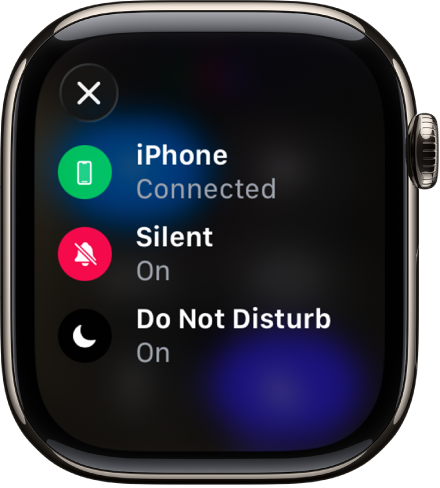
Silent Mode is the one everyone finds first. You press the side button, open Control Center, and tap the bell icon. Done. Every alert, notification tone, and system sound goes quiet. You can also get there through Settings, then Sounds and Haptics, then the Silent Mode toggle. Or open the Watch app on your iPhone, tap My Watch, then Sounds and Haptics.
What catches people off guard: your screen still lights up on raise-to-wake, and haptic taps still fire for every notification. In a dark theater, that wrist glow is noticeable. In a library, the buzz against a wooden desk is audible from a seat away.
One detail worth knowing. Since watchOS 11.4, individual alarms have a Break Through Silent Mode toggle. Open the Alarms app, tap any alarm, scroll down, and you will find it. Turn it on and that alarm plays sound even when Silent Mode is active. This is genuinely useful if you wear your Apple Watch to bed and depend on an audible wake-up call. Leave it off, and alarms only vibrate silently on your wrist.
If you have checked out our guide to tracking sleep on Apple Watch, you already know the watch works well as a bedside alarm. Break Through Silent Mode is the setting that makes it reliable even when you forget to toggle silent off before sleeping.
Theater Mode Is Silent Mode With the Lights Off
Theater Mode does everything Silent Mode does, then goes further. It disables raise-to-wake entirely, so the screen stays black until you deliberately tap the display, press a button, or turn the Digital Crown. It also sets your Walkie-Talkie status to unavailable.
Activate it the same way: press the side button for Control Center, then tap the theater masks icon. When active, a small masks icon sits at the top of your watch face.
 Ad
AdI consider this the correct default for any situation where ambient light matters. Movie theaters, concerts, plays, bedtime, dark conference rooms. Silent Mode handles sound. Theater Mode handles sound and light. If I am somewhere the glow of a screen would bother someone next to me, Theater Mode is the one I reach for.
Haptics still come through in Theater Mode. That is deliberate. Apple wants you to feel incoming calls or urgent messages without the watch shouting about them visually or audibly. But if even the buzz is too much, you need the next option.
Do Not Disturb Suppresses Almost Everything
Do Not Disturb is the nuclear option for notifications. It mutes sounds, kills haptic taps, and prevents the screen from lighting up for incoming alerts. If someone calls you while Do Not Disturb is active, they go straight to voicemail.
Press the side button, tap the Focus control in Control Center (the crescent moon icon), and select Do Not Disturb. You can set it for one hour, until evening, or until you leave your current location.
The exceptions are important. Alarms still fire regardless. Contacts with Emergency Bypass enabled in the Contacts app on your iPhone always ring through, no matter what. If someone calls you twice within three minutes, the second call gets through by default, though you can turn that off. And if you have Time Sensitive Notifications enabled for a particular Focus, those can still break through.
The real configuration power lives on your iPhone. Open Settings, then Focus, then Do Not Disturb. Inside, you will find People (choose which contacts can reach you), Apps (choose which apps can send notifications), and scheduling options for automatic activation. Everything you configure on your iPhone syncs to your Apple Watch automatically. To break that sync and run independent Focus modes per device, open the Watch app on iPhone and disable Mirror my iPhone under Focus settings. If you are someone who juggles work and personal Apple Watch setups, our guide to Apple Watch workout settings in watchOS 26 covers how Focus modes interact with fitness tracking.
 Ad
AdFocus Modes Give You Surgical Control
Do Not Disturb is actually just one of several Focus modes. You also get Personal, Sleep, Work, and any custom Focus you create on your iPhone.
Sleep Focus dims the display and shows a simplified watch face. Work Focus can allow your Slack notifications through while blocking social media. A custom Focus for Date Night could silence everything except calls from your babysitter.
Every Focus you configure on iPhone automatically appears on your Apple Watch, thanks to the Share Across Devices toggle in Settings on your iPhone under Focus. Activate any Focus on your watch and it kicks in on your phone, too.
Where this gets interesting is combining Focus modes with the other silence tools. You can have Work Focus active (filtering notifications to only work apps) while also having Silent Mode on (killing the sound of those work notifications). That means your watch only buzzes for work messages, never chimes. Layering modes like this is where Apple Watch notification control goes from basic to genuinely useful.
Here is how the five main silence controls compare at a glance.
| Mode | Mutes Sound | Mutes Haptics | Darkens Screen | Best For |
|---|---|---|---|---|
| Silent Mode | Yes | No | No | Meetings, libraries |
| Theater Mode | Yes | No | Yes | Movies, concerts, bedtime |
| Do Not Disturb | Yes | Yes | Yes | Deep focus, sleep |
| Cover to Mute | Yes (single alert) | No | No | Quick in-the-moment silence |
| Wrist Flick | Dismisses alert | Dismisses alert | Returns to face | Hands-free dismissal |
The Two Gestures That Handle the Unexpected
Sometimes a notification arrives before you can reach Control Center. watchOS 26 gives you two physical gestures to deal with it.
Cover to Mute is the older one. When a call comes in or a timer goes off, rest your palm flat on the watch display for at least three seconds. You will feel a confirming tap and the alert goes silent. This has been around for years and it still works in watchOS 26. One limitation: it does not silence wake-up alarms, which prevents you from accidentally palm-muting yourself through your morning alarm.
Wrist Flick is new in watchOS 26. Rotate your watch-worn wrist away from your body and then quickly back toward you. The notification dismisses and the screen returns to your watch face. No touching required. It uses the accelerometer, gyroscope, and a machine learning model to read the motion, which is why it only works on Apple Watch Series 9 and later, Apple Watch Ultra 2 and later, and Apple Watch SE 3.
To enable Wrist Flick, open Settings on your Apple Watch, tap Gestures, scroll past Double Tap, and toggle Wrist Flick on. It is off by default, so most people have no idea it exists.
Fine-Tuning Haptics So Silence Feels Right
Even when you have sound muted, haptic intensity matters. Open Settings, then Sounds and Haptics, then scroll to the Haptics section. You get three choices: Off, Default, and Prominent.
Off kills all vibration feedback entirely. Default gives you the standard notification tap. Prominent adds an extra preliminary tap before common alerts, essentially a heads-up buzz before the real buzz. I leave mine on Default for daily use and switch to Prominent when wearing the watch during a workout where I might not feel a lighter tap.
Crown Haptics (the tactile click you feel when scrolling the Digital Crown) and System Haptics (the feedback from pressing buttons and navigating menus) are separate toggles in the same Sounds and Haptics menu. You can disable one without affecting the other.
watchOS 26 also introduced Automatically Adjust Volume, which changes speaker volume based on ambient noise. Apple documents this feature in their audio and notification settings support page. It is found in Settings, then Sounds and Haptics, then Automatically Adjust Volume. If you find your watch suddenly getting louder in quiet rooms or quieter in noisy ones, this toggle is why. Some users on Apple Community forums have reported unexpected volume shifts with it enabled. It only works on Apple Watch Series 9 and later and Ultra 2 and later.
Which Mode Belongs in Which Situation
Silent Mode handles everyday quiet: meetings, libraries, phone calls you need to ignore briefly. Theater Mode is the right pick for any dark environment. Do Not Disturb shuts down everything except the contacts and apps you whitelist. Focus modes let you tailor silence to your schedule. And the two gestures, Cover to Mute and Wrist Flick, handle the alerts that catch you off guard.
The mistake most people make is treating Silent Mode as the only tool. Once you layer two or three of these together, your Apple Watch becomes something that respects your attention instead of constantly demanding it.

Related Posts
Build the Custom Apple Watch Face You Actually Want
Apr 06, 2026
Your Apple Watch Band Has a Cleaning Method Most Owners Skip
Apr 02, 2026
Your Apple Watch Has a Sleep System Most Owners Never Touch
Apr 02, 2026