
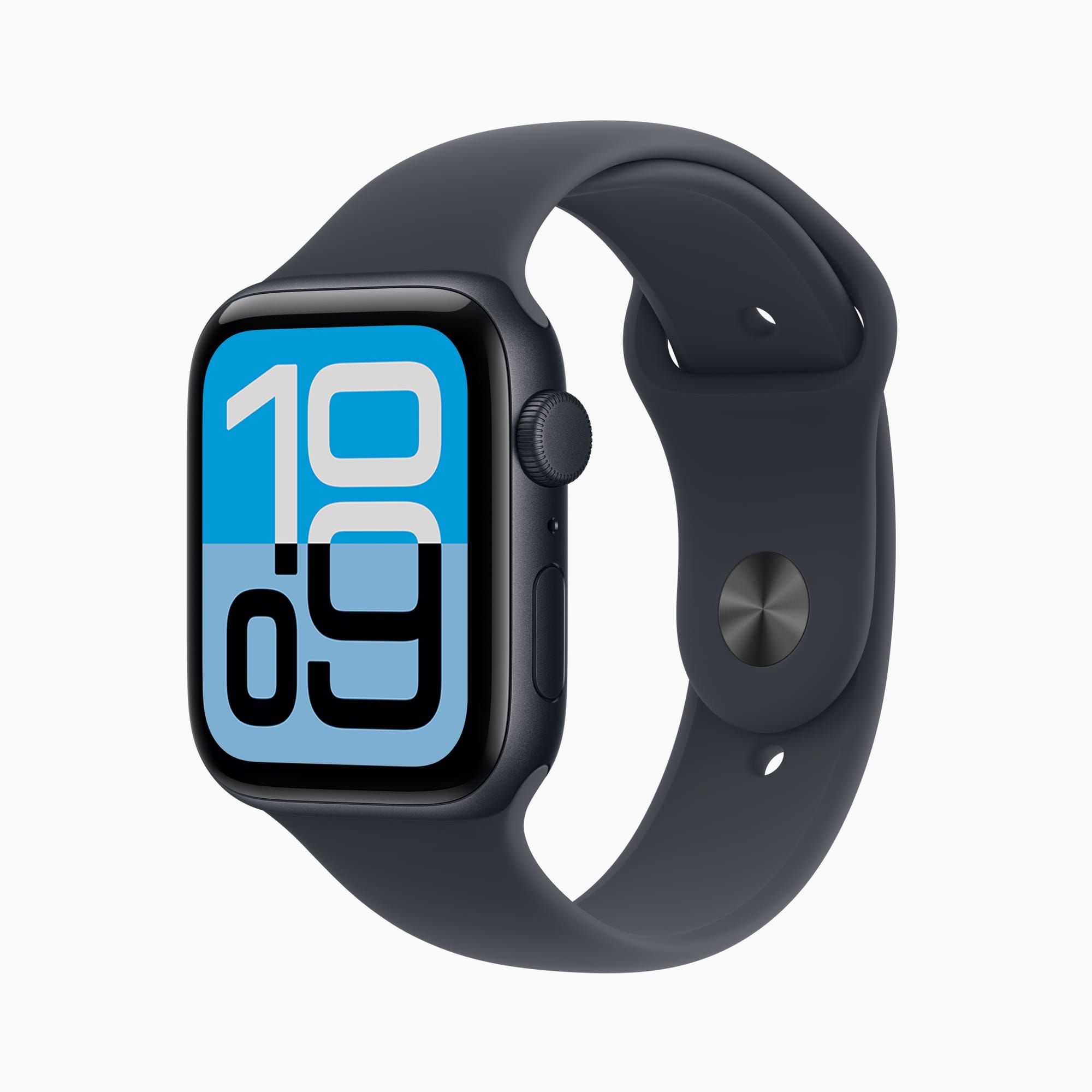

Stock Apple Watch faces cover the basics: date, time, a few complications. They look fine. But "fine" is a strange ceiling for a device strapped to your wrist sixteen hours a day. Third-party apps like Clockology and Facer blow the doors open, offering thousands of faces you have probably never seen, from analog designs inspired by luxury watchmakers to wild animated overlays. There is also a native trick buried in the Photos face that most owners skip entirely. The catch, and there is always a catch with Apple, is that third-party faces run as apps rather than true watch faces. That means complications behave differently, Always-On Display reverts to stock when your wrist drops, and battery life takes a hit on older models. None of that erases the fact that custom faces make the Apple Watch feel like a completely different product.
Why Apple Keeps the Watch Face Garden Walled
Apple does not allow third-party developers to create true watch faces. According to Apple’s Human Interface Guidelines, watch faces are a system-level feature tightly integrated with complications, health sensors, and power management. Opening that layer up would mean handing developers access to always-on rendering pipelines and real-time sensor data, two things Apple guards closely for privacy and battery reasons.
The practical result: any "custom face" from a third-party app is technically a full-screen app running in the foreground. Raise your wrist and you see the custom design. Lower it and your Apple Watch reverts to whatever native face sits underneath. This is the single biggest friction point for newcomers to Clockology or Facer. People expect a seamless experience, install a gorgeous face, and then feel deflated when the Always-On Display shows a completely different look.
Understanding this limitation upfront saves frustration. Once you accept the trade-off, customization becomes genuinely fun.
Clockology Gives You Full Creative Control (With a Steeper Learning Curve)
Clockology is the power-user pick. The app lets you build watch faces from scratch using layered elements: backgrounds, tick marks, hands, text overlays, complications, even animated GIFs. Think of it as Photoshop for your wrist. A massive community on Reddit and Facebook shares downloadable .clock files, so you do not have to design anything yourself unless you want to.
Here is how to get started with Clockology:
- Download Clockology from the App Store on your iPhone. The companion app installs automatically on your paired Apple Watch.
- Open the iPhone app and browse the built-in face gallery, or import a .clock file from a community download.
- Tap a face you like, then tap "Send to Watch." The app transfers the design to your Apple Watch over Bluetooth.
- On your Apple Watch, open the Clockology app. The transferred face appears full-screen.
- To keep the face visible, set Clockology as your active app. When you raise your wrist, the custom face appears instead of the default.
One edge case that trips people up: if you receive a notification and tap it, watchOS pulls you out of Clockology and into the notification’s parent app. Getting back to your custom face requires reopening Clockology manually or pressing the side button to return to your last app. During a busy day with frequent alerts, this back-and-forth gets noticeable.
For anyone who wants to customize every Apple Watch face in watchOS 26 alongside Clockology designs, the two approaches complement each other well. Use a polished native face for workdays and switch to a Clockology creation on weekends.
Facer Takes the Opposite Approach: Browse, Tap, Wear
Where Clockology rewards tinkering, Facer rewards browsing. The app hosts a marketplace of over 500,000 watch face designs created by independent designers and brands. You scroll, find something you like, tap "Use Face," and the design pushes to your watch. The entire process takes about thirty seconds.
Facer offers a free tier with ads and limited selections. The premium subscription removes ads, unlocks the full catalog, and adds features like weather-reactive faces that change their background based on real-time conditions. Whether the subscription is worth it depends on how often you swap faces. Casual users who pick one design and stick with it for months will do fine on the free tier.
Setting up Facer step by step:
- Install Facer from the App Store on your iPhone. Allow the companion app to install on your Apple Watch.
- Create a free account or sign in.
- Browse the catalog by category: minimal, sport, luxury, animated, branded.
- Tap a design, then tap "Use Face." Facer sets a placeholder native watch face and overlays the custom design through its watch app.
- Raise your wrist to see the result. As with Clockology, the custom face runs as an app overlay.
Facer faces occasionally lag by a fraction of a second when you raise your wrist quickly, especially on Apple Watch SE models. The delay is tiny but perceptible. On Series 9 or Ultra 2 hardware, the face loads instantly.
The watchOS 26 Photos Face Trick Nobody Talks About
Apple’s built-in Photos face has been around for years, but watchOS 26 added a refinement that changes how useful it is. You can now select a specific album as the photo source and enable "Time Style" overlays that tint the time display to match the dominant color in each photo. The result looks intentional, almost like a designed face, rather than a snapshot with digits dropped on top.
How to set it up:
- On your iPhone, create a dedicated album in Photos. Add 10 to 20 images that share a color palette or mood.
- Open the Watch app on your iPhone and tap Face Gallery.
- Select Photos, then choose your curated album as the source.
- Enable "Time Style" to let watchOS color-match the time overlay to each image.
- Add complications around the photo (weather, activity rings, calendar) to keep the face functional.
The Photos face works with Always-On Display, supports full native complications, and draws zero extra battery. For people who want a personal touch without installing anything new, this is the fastest win. Crop your photos to a square aspect ratio before syncing. Images that are not square get auto-cropped by watchOS, and the framing is not always flattering. A portrait shot of a person, for example, might lose the top of their head.
Pairing the Photos face with a distinctive band turns the watch into something that feels uniquely yours. If you have not explored how much the right band transforms how your watch feels on your wrist, that combination is worth trying before you commit to third-party apps.
Clockology vs. Facer vs. Photos Face at a Glance
| Feature | Clockology | Facer | Photos Face |
|---|---|---|---|
| Cost | Free (in-app purchases) | Free tier + Premium sub | Free (built-in) |
| Complications | Visual only (overlays) | Limited interactive | Full native support |
| Design Freedom | Highest (full custom layers) | High (thousands of templates) | Low (photo + time overlay) |
| Battery Impact | Moderate (runs as app) | Moderate (runs as app) | Minimal |
| Always-On Display | No (returns to stock on wrist-down) | No (returns to stock on wrist-down) | Yes |
| Best For | Hobbyists who want total control | Browse-and-install simplicity | Quick personal touch, no fuss |
Gear That Makes Customization Sessions Less Annoying
Affiliate disclosure: some links in this article are Amazon Associate links. If you buy through them, Zone of Mac may earn a small commission at no extra cost to you, and we only recommend products that genuinely bring value to your Apple setup.
Browsing Clockology galleries and syncing faces to your watch eats time. You will sit there for twenty minutes, swapping designs, comparing them in different lighting, adjusting complications. Doing all of this while your watch slowly drains is counterproductive. A dedicated charging stand lets you keep the watch powered and upright at eye level while you tweak. The screen stays on, the battery stays full, and you can evaluate faces without holding the watch in your hand. The Lamicall Apple Watch Charging Stand keeps the watch stable at a comfortable viewing angle and works with every Apple Watch model from Series 1 through Ultra 2
Spending this much effort on your display makes protecting it feel more urgent. Scratching the glass on the corner of a desk after painstakingly choosing the perfect face is the kind of small tragedy that ruins a morning. A slim case that covers the bezel without adding bulk keeps the screen safe while preserving the look you spent time choosing. The Spigen Rugged Armor Apple Watch Case wraps the body in a matte finish that absorbs bumps, and the raised lip around the display catches impacts before the glass does
Join The Inner Circle For Serious Apple Users
Exclusive Apple tips. Free to join.
Check your inbox for a confirmation link.
Something went wrong. Please try again.
Making Custom Faces Work with VoiceOver and Accessibility
Accessibility matters when you change how information appears on a screen you glance at dozens of times a day. The native Photos face works seamlessly with VoiceOver because Apple controls the rendering: time, date, and complications all announce correctly. That is not always the case with third-party apps.
Clockology faces are visual overlays, which means VoiceOver reads the underlying app interface rather than the face itself. If you rely on screen reading, you will hear "Clockology" and the app controls rather than the time. Facer handles this slightly better because it integrates with the watch’s accessibility stack, though results vary by face design. Some community-created faces use tiny fonts or low-contrast color combinations that are difficult to read even without a visual impairment.
For cognitive accessibility, simpler faces with fewer moving parts reduce distraction and make the time easier to locate at a glance. If you are setting up a watch for a family member who benefits from clarity, stick with the Photos face or a minimal Facer design with large, high-contrast numerals.
Quick-Action Checklist
- Decide your priority: full design control (Clockology), easy browsing (Facer), or zero installs (Photos face)
- Download your chosen app and its Apple Watch companion
- For Photos face: create a dedicated album with 10 to 20 color-coordinated images cropped to square
- Set your chosen app as the active watch app so custom faces appear on wrist raise
- Accept that Always-On Display will revert to a native face with third-party apps
- Place your watch on a charging stand during customization sessions to avoid draining the battery
- Test VoiceOver with your chosen face if accessibility matters to you or someone you are setting up for
- Swap between a polished native face for work and a custom face for personal time

Blaine Locklair
Founder of Zone of Mac with 25 years of web development experience. Every guide on the site is verified against Apple's current documentation, tested with real hardware, and written to be fully accessible to all readers.
follow me :
Related Posts
Build the Custom Apple Watch Face You Actually Want
Apr 06, 2026
Your Apple Watch Band Has a Cleaning Method Most Owners Skip
Apr 02, 2026
Your Apple Watch Has a Sleep System Most Owners Never Touch
Apr 02, 2026