

🎧 Listen to this article
Prefer to listen? An audio version of this article is available for accessibility and convenience.
Your Apple Watch can display faces that move, shift perspective, and render genuine three-dimensional models right on your wrist. The Portraits face layers your photos with real depth data so the time floats between foreground and background. The Astronomy face renders a live 3D globe of Earth that rotates in real time. And watchOS 26 introduced Flow, a face built entirely around Apple’s Liquid Glass design language, where translucent numerals refract a swirling orb of color that responds to the motion of your arm. The catch is that most of these faces sit buried in a gallery that Apple reorganized without much fanfare, and the depth effects only activate once you configure the right source photos or twist the Digital Crown in ways nobody tells you about on the setup screen.
I think the Face Gallery redesign in watchOS 26 was overdue. Apple now groups faces into collections like Health and Fitness, Data Rich, and Playful, which makes browsing less like scrolling through a phone book. But the reorganization also means faces you used to find quickly might have shifted categories, and several classic options — Fire and Water, Liquid Metal, Toy Story, Gradient, and Vapor — are gone entirely. If you had a favorite among those five, it vanished the moment you updated.
 Ad
AdThe three faces worth your attention for their visual depth are Portraits, Astronomy, and Flow. Each one handles the illusion of three dimensions differently, and each has a setup step that is easy to miss. If you want to go deeper into customization options beyond the 3D faces, the guide on customizing every Apple Watch face in watchOS 26 covers complications, color schemes, and layout adjustments for the full face lineup.
Portraits: Depth That Lives in Your Photos
The Portraits face is the closest Apple gets to a true 3D effect on your wrist. It pulls depth-map data from Portrait mode photos you took on your iPhone and uses that information to position the time display between the foreground subject and the blurred background. The result is a layered composition where a person’s face or a pet appears to sit in front of the clock hands.
Setting it up requires more than just picking a photo. Open the Watch app on your iPhone, tap Face Gallery, scroll to the Photos section, and choose Portraits. You can select up to 24 images that rotate every time you raise your wrist. The face works on Apple Watch SE and Series 4 or later, but the depth effect only engages with photos captured in Portrait mode on an iPhone running iOS 10.1 or later. Regular photos show up flat.
Here is the friction that caught me off guard: not every Portrait mode photo produces a convincing depth split. Group shots and images where the subject blends into a busy background tend to look awkward because the depth map struggles to isolate a clean foreground layer. Single subjects against a simple background — a face in front of a wall, a dog on a lawn — give the sharpest separation. You can also adjust whether the time appears in front of or behind the subject by tapping the style options, and the Digital Crown lets you scale and reposition the image once it is on the watch.
If you want to see the depth effect at its most dramatic, try a photo with strong bokeh and a clearly separated subject. The time digits will appear to hover between the blurred background and the sharp foreground, and tilting your wrist slightly shifts the perspective just enough to sell the illusion.
Astronomy: A Live 3D Globe on Your Wrist
Astronomy is the face that has been on Apple Watch since the beginning, and it is still the only one rendering a genuinely interactive 3D model. The default view shows Earth with accurate cloud cover and daylight positioning based on your current time and location. Tap the display and you switch between Earth, the Moon, and a full Solar System view.
The feature most people skip is the Digital Crown interaction. Turn it forward and you scrub through time — watching the Earth rotate, the Moon cycle through phases, and the planets shift position along their orbits. It is a surprisingly detailed simulation, and according to Apple’s support documentation on watch faces, the astronomical data updates continuously.
The table below compares three Apple Watch faces with genuine depth and 3D visual effects, summarizing what each one does and what you need to set it up.
| Face | 3D Effect Type | Setup Requirement | Interaction |
|---|---|---|---|
| Portraits | Depth-map photo layering | Portrait mode photos from iPhone | Digital Crown to scale and reposition |
| Astronomy | Live-rendered 3D globe | None — built in | Digital Crown scrubs through time |
| Flow | Liquid Glass animation | Toggle background animation on | Responds to wrist movement |
Astronomy supports a wide range of complications, so you can surround the globe with data like weather, heart rate, or calendar events without losing the 3D centerpiece. I find the Solar System view particularly striking because it renders the orbital paths as thin rings around the sun, and you can spin through months of planetary movement with a single Crown rotation. The one downside is that the always-on display shows a static version of the globe — the live rotation and interactive scrubbing only work when the screen is fully awake.
Flow: Liquid Glass in Motion
 Ad
AdFlow is new in watchOS 26 and represents Apple’s most aggressive visual design on a watch face. It displays time through Liquid Glass numerals — translucent, refractive digits that sit on top of a continuously moving orb of color. The animation is not random. It responds to your wrist movement, so the orb shifts and swirls as you rotate your arm.
You can customize Flow’s color palette and toggle the background animation on or off. With the background active, the entire face feels alive in a way that no previous Apple Watch face achieved. With it off, you get the Liquid Glass numerals against a dark background, which is calmer but still distinctive. There are two typeface options that change the shape and weight of the digits.
What surprised me about Flow is how different it looks from every other Apple Watch face. Most faces — even the animated ones — follow a structured layout with complications arranged in familiar positions. Flow strips all of that away and gives you pure visual expression with just the time. It is the face I would show someone who thinks Apple Watch displays all look the same.
Exactograph rounds out the new watchOS 26 additions with a regulator-style layout that separates hours, minutes, and seconds onto individual dials. Tap any dial and it expands to five times its normal size for precision reading. It is not a 3D face in the visual sense, but the layered dial design gives it a mechanical depth that analog watch fans will appreciate.
The Face Gallery Knows What You Want (Sort Of)
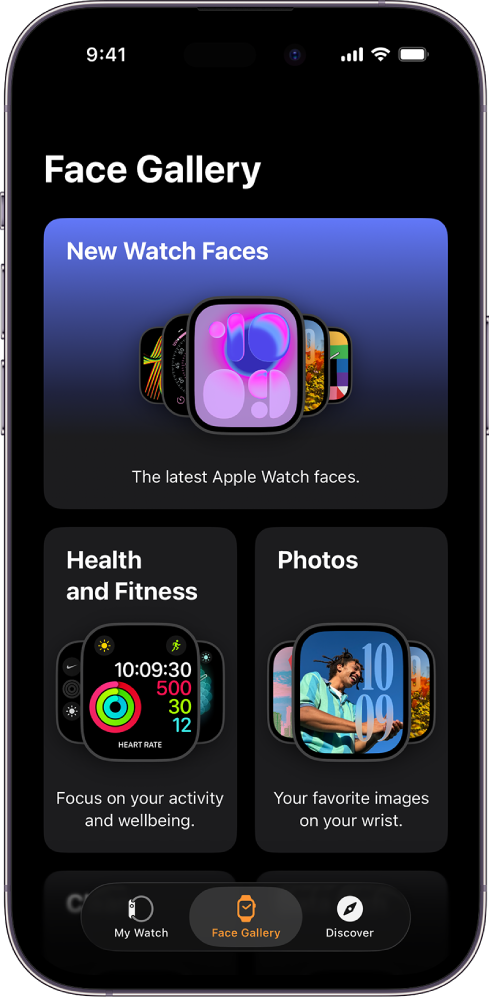
Apple redesigned the Face Gallery in watchOS 26 to organize faces into themed collections. Open the Watch app on your iPhone, tap Face Gallery at the bottom, and you will see groupings like Health and Fitness, Photos, Data Rich, and Playful. The Portraits face lives under Photos. Astronomy sits in a collection alongside other information-dense faces. Flow appears in its own featured section. For even more face options beyond Apple’s built-in collection, three apps unlock thousands of hidden Apple Watch faces that the stock gallery does not show.
The gallery also supports face sharing. Tap the share button on any face configuration and you can send it to another Apple Watch user complete with your complication choices. You have the option to share with or without your current complications, which is a thoughtful touch — not everyone wants to broadcast their preferred arrangement of widgets.
Keep in mind that over 20 watch faces in watchOS 26, including Exactograph, now support 1Hz always-on display with ticking seconds. This feature requires Apple Watch Series 10 or later. On older models, the always-on display shows a static version of the face without the second hand animation. That distinction matters if you are choosing between an animated face and an information-dense one — the animation only shines on newer hardware.
What the 3D Hype Actually Delivers
The “3D Apple Watch faces” search trend is real, but the experience is more subtle than the phrase suggests. You are not getting holographic projections or volumetric displays. What you are getting is layered depth from Portrait mode photos, a live-rendered 3D globe in Astronomy, and fluid Liquid Glass animation in Flow. Each one adds a visual dimension that flat watch faces cannot match, and each one requires a specific setup step to unlock its full effect.
The Portraits face needs Portrait mode photos with clean subject separation. The Astronomy face needs a twist of the Digital Crown to reveal its interactive timeline. Flow needs the background animation toggled on to show what Liquid Glass actually does. None of these are difficult to configure, but none of them announce themselves on first glance either. You have to dig in, and once you do, your Apple Watch stops looking like everyone else’s.

Related Posts
Build the Custom Apple Watch Face You Actually Want
Apr 06, 2026
Your Apple Watch Band Has a Cleaning Method Most Owners Skip
Apr 02, 2026
Your Apple Watch Has a Sleep System Most Owners Never Touch
Apr 02, 2026