
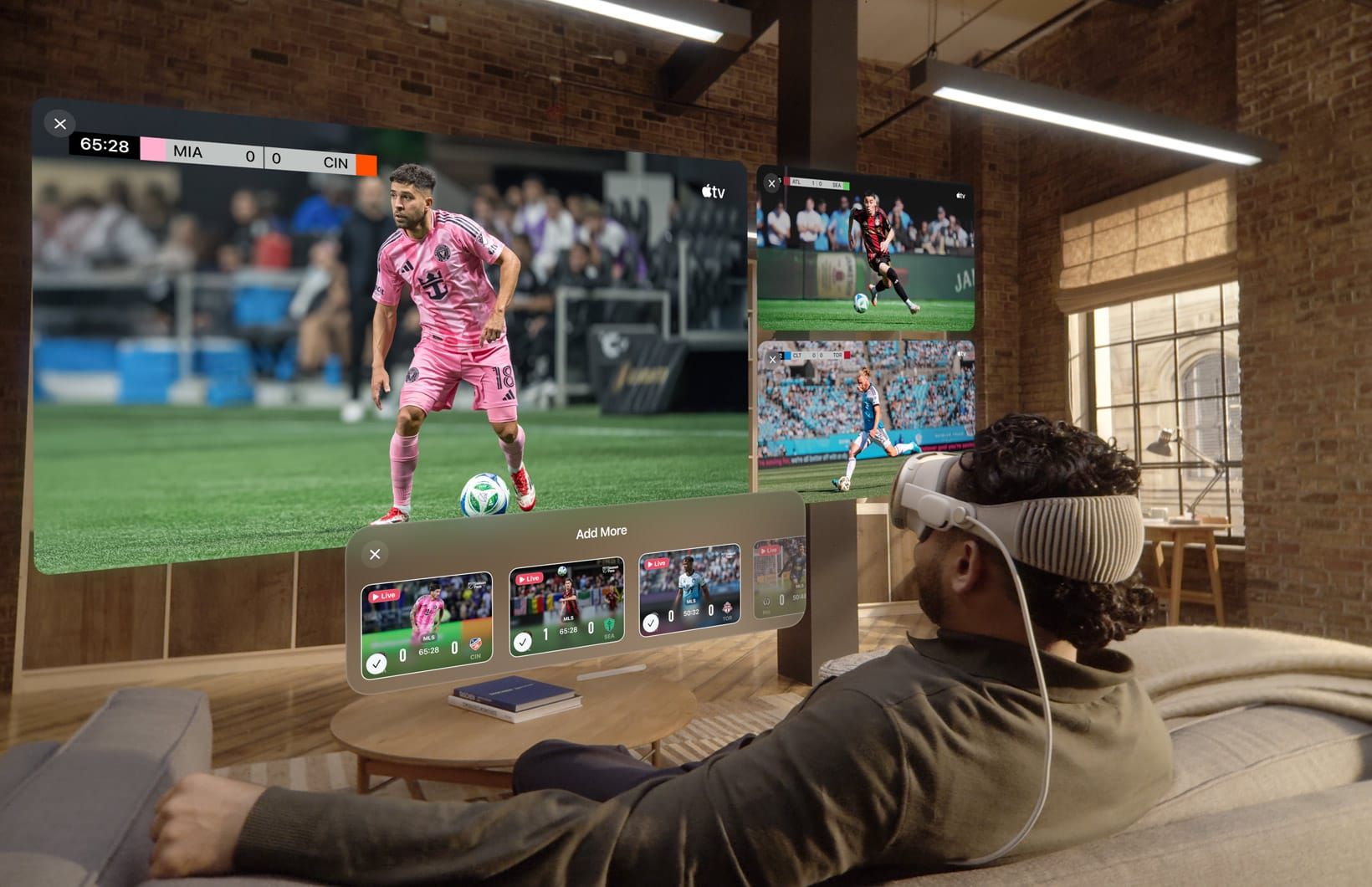

Apple Vision Pro supports five simultaneous Formula 1 camera feeds through the Apple TV app’s Multiview feature. Every other Apple device — Apple TV 4K, iPad, iPhone — caps out at four. That fifth slot sounds small until you realize it’s the difference between watching the race and actually understanding what’s happening across the entire grid.
But here’s the thing nobody tells you: the extra feed only matters if you set up Multiview correctly before the lights go out. Apple buries the configuration behind a few taps that are easy to miss during a live session, and if you haven’t updated to visionOS 26.3.1, the whole experience might flicker every time two cars go wheel-to-wheel. Why would you spend $3,499 on a headset and then watch the race through a stuttering window?
I mean think about it. Apple says on its newsroom page that F1 on Apple TV includes thirty additional live feeds across every session — all twenty-two driver onboard cameras, a real-time driver tracker, telemetry overlays, podium channels that follow first through third, and both the main broadcast feed and the Sky Sports commentary option. That’s an absurd amount of data for a two-hour race. The question isn’t whether Vision Pro can show it. The question is how you organize five windows so they actually help you follow the action.
What Vision Pro Gets That Other Devices Do Not
On Apple TV 4K and iPad, Multiview arranges up to four feeds in a fixed grid. You pick your feeds, they snap into position, done. Vision Pro adds a fifth feed and — more importantly — gives you spatial control over where each window sits in your physical space. You can pin the main broadcast directly ahead, slide driver cameras off to your peripheral vision, and tuck the driver tracker below your sightline like a dashboard instrument.
That spatial flexibility is the real advantage, not the number five itself. If you’ve ever tried watching four flat rectangles crammed onto an iPad screen during a safety car restart, you know the pain. On Vision Pro, each window floats independently. You glance left to check your driver’s onboard, glance right to see the gap to the car behind, and the main feed stays anchored in front of you the entire time.
One thing that surprised me: the feeds are all flat 2D. There is no immersive 180-degree camera angle, no spatial audio tied to car positions, nothing that takes advantage of Vision Pro’s depth capabilities during live races. Apple produced a pre-recorded “Hot Lap” immersive experience shot in 8K at 60fps for the F1 movie tie-in, and that was genuinely breathtaking. But the live broadcast? Standard 2D windows. It’s a missed opportunity, and I suspect Apple knows it.
How I’d Set Up Five Feeds for Race Day
Open the Apple TV app on your Vision Pro, navigate to the Formula 1 channel, and select the live session. Once the broadcast loads, look for the Multiview icon — it looks like a grid of small rectangles. Tap it, and Apple gives you two paths: preconfigured layouts or build-your-own.
The preconfigured layouts are genuinely useful. Apple built a one-tap Multiview for every constructor on the grid. Tap the Red Bull layout and you get the main broadcast feed alongside onboard cameras for both Red Bull cars. Tap McLaren, same idea. There’s also a P1-P3 layout that automatically follows whoever holds the top three positions, which is perfect for the closing laps when the podium is still in play.
For custom layouts, you can mix any combination of the thirty-plus available feeds. My recommended five-feed setup for race day:
- Main broadcast feed (center, largest window)
- Your driver’s onboard camera (left)
- Driver tracker with live position map (right)
- P1 podium channel (upper left)
- Telemetry and timing data (lower right)
That layout covers the narrative, your personal stake, the spatial context, the race leader, and the raw numbers. You can swap any of those for the Sky Sports commentary feed if you prefer Martin Brundle’s analysis over the default Apple broadcast team.
The Flickering Bug You Need to Fix First
Apple released visionOS 26.3.1 on February 26 specifically to fix a Multiview flickering issue in the Apple TV app. If you skipped that update, sports streams with multiple feeds can stutter and flash during high-motion sequences — exactly the moments you most need a clean picture. Go to Settings, then General, then Software Update, and install it before the next Grand Prix.
Simply put, this is not optional. The flickering was bad enough that Apple prioritized a point release just for this bug, two weeks before the F1 season opened. If your Vision Pro still runs visionOS 26.3 or earlier, Multiview is going to let you down at the worst possible moment.
What Your Apple TV Subscription Actually Covers
F1 on Apple TV costs $12.99 per month or $99 per year, with a seven-day free trial for new subscribers. If you recently bought a new Apple device, check whether you qualify for up to three months free through Apple’s promotional offers. The subscription covers every race, every practice session, every qualifying round, every sprint, and pre-race programming like the F1 Weekend Warm-Up.
Here’s the part that genuinely surprised me: F1 TV Premium is included at no extra cost. That means access to Formula 2, Formula 3, F1 Academy, and Porsche Supercup on top of the main F1 broadcasts. On every other platform, F1 TV Premium is a separate purchase. Apple rolled it into the base subscription and barely mentioned it. For starters, that’s a solid deal for anyone who follows the feeder series.
The broadcast quality is 4K with Dolby Vision and 5.1 surround sound, with both English and Spanish commentary available for every session. No Dolby Atmos yet, which feels like an odd gap for a platform that pushes spatial audio everywhere else. But the picture quality is noticeably sharper than what F1 fans were getting on previous broadcast partners. If you’ve already set up your Apple TV for F1 viewing, the Vision Pro experience builds on the same foundation with that extra feed layer.
The Two-Hour Headset Problem
A Formula 1 race runs roughly ninety minutes to two hours. A Sprint is shorter, maybe thirty minutes. Practice sessions can stretch to an hour. That’s a lot of continuous headset time, and Vision Pro’s 300-350 gram front weight starts to press on your cheekbones after the first hour no matter how well your Light Seal fits. The Solo Knit Band distributes weight better than the Dual Loop for long viewing sessions, but there is no configuration that makes two hours feel effortless.
My honest recommendation? Use Vision Pro for qualifying and the race itself, then switch to Apple TV 4K or iPad for practice sessions where you don’t need all five feeds. The Multiview state does not carry over between devices, so you will need to reconfigure when you come back to the headset, but it only takes about thirty seconds once you know the layout you want.
If you’re the kind of person who already uses Vision Pro as a multi-monitor replacement, you know the weight trade-off. F1 on Vision Pro is the same calculation: the experience is better, but your face pays for it. Challenge yourself to find a reclining position that works. A good armchair with head support changes the equation entirely.
Where Apple Should Take This Next
Five flat 2D windows is a good start. It is not the finish line. Apple already shoots immersive content for Vision Pro — the Wild Life documentary, NBA Lakers games, and that F1 Hot Lap teaser prove the hardware can handle spatial video at broadcast quality. A 3D race tracker that places a miniature circuit in your physical space, with cars moving in real time, would be the kind of feature that justifies Vision Pro as the F1 viewing device rather than just another screen option.
Until that happens, Vision Pro’s F1 advantage is a single extra feed and the spatial freedom to place your windows wherever you want. That’s enough to make race day noticeably better than any other Apple device. Whether it’s enough to justify strapping on the headset for two hours depends on how seriously you follow the grid — and how good your armchair is.

Tori Branch
Hardware reviewer at Zone of Mac with nearly two decades of hands-on Apple experience dating back to the original Mac OS X. Guides include exact settings paths, firmware versions, and friction observations from extended daily testing.
Related Posts
Your Entire Steam Library Now Streams to Apple Vision Pro
Apr 08, 2026
The Best Apple Vision Pro Apps Worth Downloading in visionOS 26
Mar 29, 2026
Your Apple Vision Pro Light Seal Is the Reason It Feels Wrong on Your Face
Mar 06, 2026