
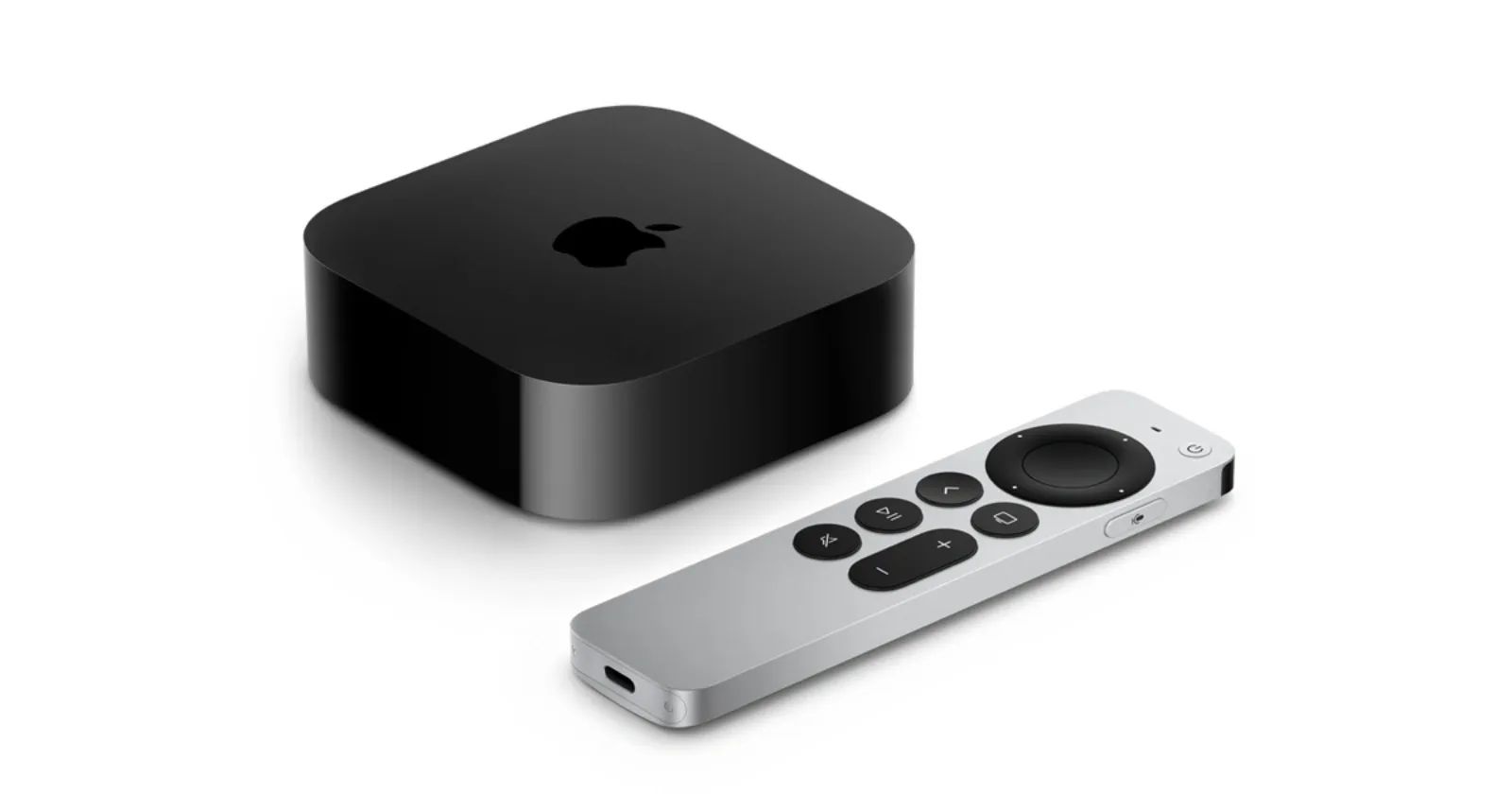

Your Apple TV Siri Remote uses Bluetooth to talk to the Apple TV 4K, and when that connection hiccups, pressing buttons feels like tapping on a dead screen. The fix is almost always a quick restart: hold the TV/Control Center button and Volume Down together for five seconds, wait for the status light on your Apple TV to blink off and back on, then release. That alone resolves most freezes.
It does, though, mean you need to know which remote you actually have, because the button layout changed between the first and second generation, the charging port switched from Lightning to USB-C on the third, and the restart shortcut only works on the 2nd and 3rd generation models. If you are holding the original black-and-glass Siri Remote from 2015, you have a different set of steps ahead of you.
I also really like that Apple added a Bluetooth signal strength indicator in tvOS 26, which means you can now diagnose whether the remote is actually failing or just sitting too far from the box. That one addition turns a guessing game into a two-second check, and I wish it had existed years ago.
Identify Your Siri Remote Before You Touch Anything
This sounds obvious, but the number of people who try the wrong restart shortcut because they are not sure which generation they own is staggering. Apple has shipped three distinct Siri Remotes since 2015, and they look similar enough to confuse anyone who did not pay close attention at the time of purchase. The Apple Support identification page walks through the physical differences, but here is the short version.
The first-generation Siri Remote has a black aluminum body with a glass Touch surface on the upper half. It charges over Lightning and connects via Bluetooth 4.0. If you flip it over, you will feel the transition from glass to matte aluminum about halfway down the back.
The second generation looks like a silver aluminum slab with a circular clickpad ring near the top. Still Lightning for charging, but Bluetooth 5.0.
The third generation is nearly identical to the second, except it charges over USB-C. That is the only external difference. If you cannot tell which one you have, check the charging port. USB-C is oval; Lightning is the narrower rectangular connector Apple used on iPhones for a decade.
The Five-Second Restart That Fixes Most Freezes
For the 2nd and 3rd generation Siri Remotes, which is what most people own at this point, the restart is straightforward. Press and hold the TV/Control Center button and the Volume Down button at the same time. Keep holding for roughly five seconds. You will see the status light on the front of your Apple TV blink off, then come back on. Release both buttons and wait about ten seconds.
A "Connection Lost" notification might flash in the corner of your screen before a "Remote Connected" notification replaces it. That is normal. The remote is resetting its Bluetooth stack, dropping the connection, and re-establishing it fresh.
I find this fixes about eighty percent of the "my remote is dead" complaints I hear from friends. The remote was not dead at all. Bluetooth just got confused, which happens more often than Apple probably wants to admit, especially in living rooms crowded with wireless devices.
If you have the 1st generation remote, there is no dedicated restart shortcut. Your options are to unplug the Apple TV from power, wait ten seconds, and plug it back in. The remote will reconnect automatically once the box boots.
Re-Pair a Remote That Refuses to Connect
Sometimes a restart is not enough. The remote powers on (the status light on the Apple TV still blinks when you press buttons from close range) but it will not actually control anything. In the worst case, you are staring at the home screen with no way to navigate it.
To force a new pairing, point the Siri Remote at your Apple TV from about three inches away. Press and hold the Back button (or Menu on the 1st generation) and the Volume Up button simultaneously for five seconds. If your Apple TV asks you to place the remote on top of the box to complete pairing, do it. That step uses proximity to verify the remote.
One thing that catches people off guard: if the pairing fails, unplug the Apple TV from power completely, wait six seconds, plug it back in, and then immediately try the pairing shortcut again while the box is still booting. Apple's own support documentation recommends this power-cycle-then-pair sequence, and I have seen it work when nothing else would.
Check the Bluetooth Signal Strength in tvOS 26
This is the feature that should have existed from the start. If your Apple TV runs tvOS 26 or later, go to Settings then Remotes and Devices then Remote. You will see a Bluetooth RSSI (Received Signal Strength Indicator) reading that tells you, in plain terms, whether the connection between your remote and your Apple TV is strong, adequate, or weak.
In my living room, the Apple TV sits inside a closed media cabinet with a glass front. The RSSI reading showed "weak" until I moved the box onto the shelf above the cabinet door, where there was no glass between the remote and the Bluetooth antenna. The remote went from intermittently unresponsive to perfectly reliable. No restart needed, no re-pairing, no factory reset. Just a signal path that was being physically blocked.
Twenty feet is the maximum recommended range. In practice, solid walls, metal shelving, and other Bluetooth devices in the room all shorten that.
When Charging Is the Real Problem
A dead battery looks exactly like a broken remote. The Siri Remote gives you almost no warning before it dies because there is no visible battery indicator unless you specifically check it in Settings. And the remote's battery lasts long enough that most people forget it needs charging at all, which means they do not think of the battery first when it stops working.
Plug it in for thirty minutes. Use USB-C for the 3rd generation or Lightning for the 1st and 2nd. Do not use a wireless charger; the Siri Remote does not support Qi charging. After half an hour, try the restart shortcut again.
One edge case I have noticed: the USB-C port on the 3rd generation remote sits in a very shallow recess at the bottom. Some thicker USB-C cables do not seat properly and the remote charges intermittently, or not at all. If you plug it in and it still will not respond after thirty minutes, try a different cable before assuming the remote is defective.
What the Siri Remote Cannot Tell You
Apple's decision to hide remote battery level inside a Settings menu instead of putting a low-battery notification on the home screen is, frankly, a strange one. The remote drains over months, not hours, which means the battery dies at the worst possible time and you have zero visual warning. Compare that to how the Apple Watch warns you at twenty percent, ten percent, and critical. The Siri Remote deserves at least one proactive alert before it goes dark.
While you are in the remote settings, it is worth exploring every hidden trick your Siri Remote already supports. The clickpad gestures, touch sensitivity adjustments, and the ability to control your television's power and volume through IR are all buried in the same menu. And if you have updated to tvOS 26.4, check three tvOS 26.4 settings worth changing that most people skip during the update.
When to Stop Troubleshooting and Replace
How do you know the remote is actually broken? If it fails to respond after a full charge, a restart, a re-pair, and a power cycle of the Apple TV itself, you are probably looking at a hardware failure. The Siri Remote has no user-serviceable parts inside. Apple does not offer a repair program for it. Your options are buying a replacement remote directly from Apple for about sixty dollars or using the free Apple TV Remote in the iPhone Control Center while you wait for the new one to arrive.
The iPhone remote works surprisingly well as a temporary stand-in. It mirrors the full clickpad layout and even supports Siri voice commands.
Most Siri Remote failures are software glitches masquerading as hardware problems. The restart-then-repair sequence takes under a minute and costs nothing. Start there, check the signal strength while you are at it, and save the replacement purchase for the rare case where the remote is genuinely finished.

Olivia Kelly
Staff writer at Zone of Mac with over a decade of Apple platform experience. Verifies technical details against Apple's official documentation and security release notes. Guides prioritize actionable settings over speculation.
Related Posts
HomeKit Ceiling Fans That Earn a Spot in Your Apple Home
Apr 07, 2026
The Apple TV 4K Settings You Skipped Are Ruining Your Movies
Apr 06, 2026
The HomeKit Weather Sensors That Belong in Every Apple Home
Apr 05, 2026