

🎧 Listen to this article
Prefer to listen? An audio version of this article is available for accessibility and convenience.
Your Apple TV 4K comes with four screensaver types built in — aerial flyover footage of cities and coastlines shot in 4K HDR, animated Snoopy scenes, portrait photos pulled from your iCloud Photo Library, and personal slideshows. Most owners leave the default aerial running and never open Settings, then Screen Saver, where Apple buried controls for picking which locations play, adjusting download frequency, and revealing the name of every place the camera flies over. That last trick is the one that turns idle screen time into something you actually want to watch.
The catch is that Apple never surfaces any of this during setup. You have to find a submenu yourself, and some of the best options — like toggling entire screensaver categories on or off, or telling your Apple TV to display screensavers while music plays — hide behind buttons that do not exactly advertise what they do. So most people are getting maybe ten percent of what their screensaver system actually offers. Well, that changes today.
 Ad
AdThose aerial videos are basically a free travel channel
The aerial screensavers on Apple TV 4K are stunning. That part is obvious. What is not obvious is that you can interact with them while they play, and almost nobody does.
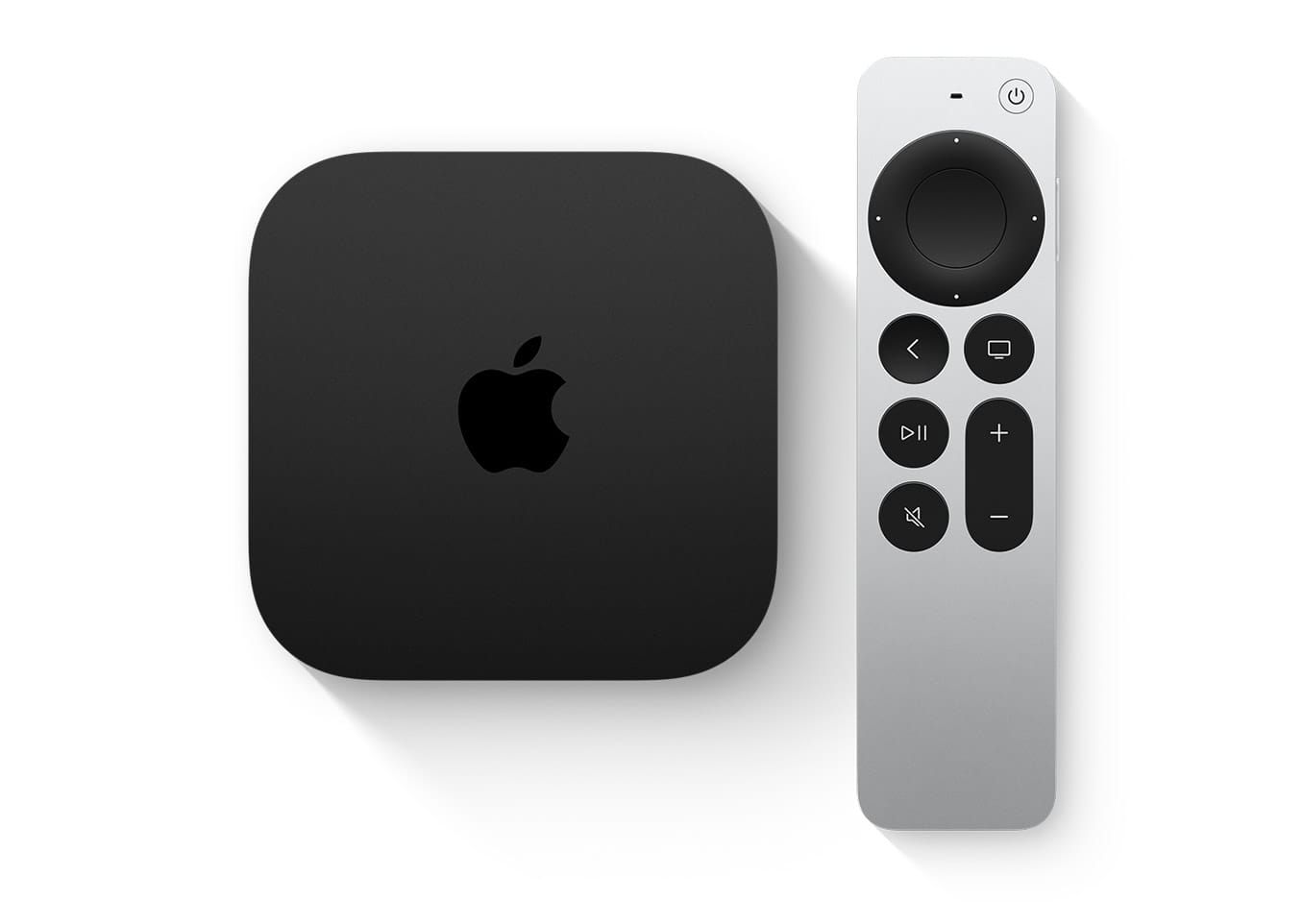
While an aerial screensaver is running, tap the clickpad on your Siri Remote lightly — not a full press, just a tap. The location name appears in the bottom-left corner of the screen with descriptions like “Over the Pacific Ocean heading toward the United States” or “Approaching Lower Manhattan from New York Harbor.” Swipe right to skip to the next clip. Swipe left to go back. Swipe up to jump between categories entirely. Your idle TV suddenly turns into a drone footage playlist with a built-in chapter system.
Think about it. Your Apple TV is quietly cycling through footage of London, Hong Kong, the Great Wall of China, and the California coastline in Dolby Vision and HDR10+ quality, and you can browse it like a music queue. Most people just press a button to dismiss the screensaver and get back to their show. But the navigation controls are sitting right there on the Siri Remote you already picked up. If you have not explored what else your Siri Remote can do, the screensaver controls are a solid reason to start.
The aerials break into four sub-categories, and each one has a different vibe. Cityscape gives you urban flyovers — skyscrapers, bridges, harbors lit up at night. Landscape covers natural vistas and coastlines. Underwater drops you into coral reefs and open ocean footage that looks like it belongs in a nature documentary. And Earth shows satellite views of the planet from space. Every single one of these plays at up to 4K at 60 frames per second with Dolby Vision support on the latest Apple TV 4K models, which means your screensaver is genuinely using your television panel’s full dynamic range capability. Apple mentions this in their support documentation and nowhere else.
How to pick exactly what plays on your screen
Open Settings, then Screen Saver on your Apple TV. That is the whole navigation path. But what lives inside that menu is more useful than the two-word label suggests.
Tap Current Selection and you get four options: Aerials, Portraits, Snoopy, and Memories and Slideshows. Select Aerials, and a second layer appears — a Choose Aerials submenu where you can show or hide entire categories or drill down to individual clips. Underwater footage not your thing? Toggle it off. Only want Cityscape and Earth views? Hide everything else. This is where the real customization lives, and the fact that you have to tap through two menus to reach it is classic Apple — powerful but invisible.
Below the category picker sits a Download Frequency setting that controls how often your Apple TV pulls new aerial clips from Apple’s servers. Your choices are Daily, Weekly, or Monthly. I would set this to Daily if you use your TV more than a few times a week. Fresh footage keeps the screensaver from becoming visual wallpaper you stop registering. Each individual clip ranges from about 250 to 950 megabytes, and your Apple TV caches them on local storage. When storage gets tight from apps or games, the system quietly deletes older cached clips to free up space. They re-download automatically when room opens up. You can check what is eating your storage at Settings, then General, then Manage Storage.
One small friction point worth flagging: the Choose Aerials submenu loads every clip as a toggle list without preview thumbnails. You are reading text labels like “San Francisco to Sausalito” or “Dubai Night” and guessing what the footage looks like before deciding to show or hide it. A preview option would solve this, but Apple has not added one. So the first time you go through this menu, expect to spend a few minutes toggling things on and off and then watching what plays.
 Ad
AdSnoopy, Portraits, and the screensavers nobody mentions
Apple added Snoopy screensavers in a tvOS 18.2 update, and they are exactly what you would expect — animated scenes of Snoopy and Woodstock in various seasonal settings. This option requires an Apple TV 4K second generation or later, so check your model if you do not see it listed. The Snoopy scenes are a nice change of pace from aerial footage, especially if your living room doubles as a family space where a cartoon beagle is going to get more enthusiasm than drone shots of Hong Kong.
Portraits pull curated photos from four categories: People, Pets, Nature, and Cities. Select People and you can filter to favorites only from your iCloud Photo Library, which keeps the rotation personal without showing every random photo you have ever taken. Update frequency is customizable, so your Apple TV cycles through fresh images on its own.
Memories and Slideshows go further. Pick a specific album from your iCloud Photo Library, or — here is the one nobody expects — set it to display Apple Music album artwork. If you play music through your Apple TV connected to a HomePod or soundbar, your television shows rotating album covers instead of a static Now Playing screen. It is a small detail that makes a surprisingly big difference in how the room feels during a playlist.
Why would you leave the default aerial running for two years straight when your Apple TV has four completely different screensaver modes? Switching takes about ten seconds.
The timing and playback settings that quietly change everything
Back in Settings, then Screen Saver, two additional settings sit below the screensaver type picker, and most people scroll right past them.
Start After controls how many idle minutes pass before the screensaver activates. Options range from 2 minutes to 30 minutes, plus a Never option to disable screensavers entirely. The default is usually around 5 minutes. If you routinely pause a show to deal with something for ten minutes and come back to a screensaver blocking your place, bump it to 15. While you are adjusting settings, you might also want to check the other tvOS settings worth changing on your Apple TV 4K.
Show During Music and Podcasts is the one that catches people off guard. When this toggle is on, your screensaver activates while audio content plays, so your television displays aerial footage or portrait photos instead of sitting on a static playback screen during a long playlist. I would turn it on if you use your Apple TV for music regularly. Turn it off if the moving visuals pull your attention away from whatever else you are doing.
Quick-Action Checklist
- Open Settings, then Screen Saver, then tap Current Selection to browse all four screensaver types.
- Select Aerials, then Choose Aerials to show or hide Cityscape, Landscape, Underwater, and Earth categories.
- Set Download Frequency to Daily for the freshest aerial rotation.
- While any screensaver plays, tap the Siri Remote clickpad to reveal the location name.
- Swipe right and left to browse clips. Swipe up to switch categories.
- Toggle Show During Music and Podcasts on if you play audio through your Apple TV.
- Adjust Start After to match how long you typically leave your TV idle.

Related Posts
HomeKit Ceiling Fans That Earn a Spot in Your Apple Home
Apr 07, 2026
The Apple TV 4K Settings You Skipped Are Ruining Your Movies
Apr 06, 2026
The HomeKit Weather Sensors That Belong in Every Apple Home
Apr 05, 2026