

🎧 Listen to this article
Prefer to listen? An audio version of this article is available for accessibility and convenience.
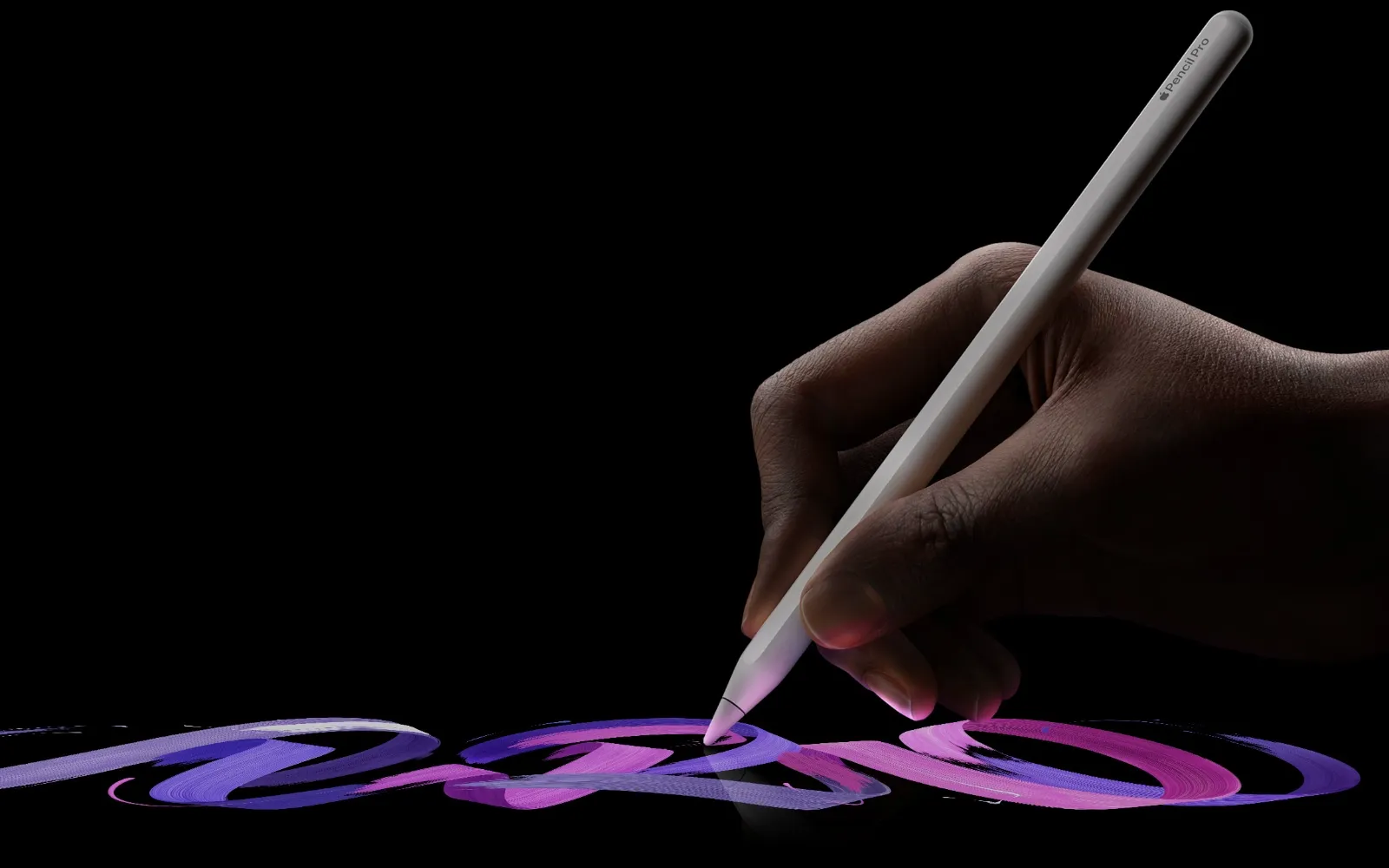
Apple Pencil Pro is a full-featured input device with Find My tracking, a squeeze gesture that opens a customizable tool palette, barrel roll for precise brush rotation, and haptic feedback that confirms every action through your fingertips. Most iPad owners magnetically snap it onto their tablet, use it to write or sketch, and never discover any of that.
The thing is, Apple barely explains these features during setup. You pair it, you get a brief animation, and then you are on your own. So the gap between “owning Apple Pencil Pro” and “actually using Apple Pencil Pro” is enormous, and closing it takes about ten minutes.
 Ad
AdWait, I Can Track My Apple Pencil?
Short answer: yes, but only if you have the Pro model. Apple Pencil Pro is the first and still the only Apple Pencil with built-in Find My network support. The second-generation model, the USB-C model, and the original do not have this feature at all.
Open the Find My app on your iPad, tap Devices at the bottom, and your Apple Pencil Pro shows up right alongside your iPhone, Mac, and AirPods. The app shows its last known location on a map, and when you are nearby, it gives you a directional indicator: “far,” “near,” and “within reach” as you walk closer.
Here is the catch, though. Apple Pencil Pro does not have a speaker. It cannot play a sound like an AirTag or AirPods case can. So you are relying entirely on the proximity indicator and the map pin. I find this baffling for a $129 accessory — Apple built an entire Find My chip into this thing but stopped short of adding the single feature that makes finding small objects actually fast. You will get there eventually, but expect to pace around your couch cushions staring at your iPad screen for a minute.
One more thing worth knowing: if the Pencil is out of Bluetooth range or completely dead, Find My only shows its last connected location. That helps if you left it at a coffee shop. It does not help if it rolled under your car seat three days ago and the battery drained.
If you are still trying to figure out which Pencil works with your iPad in the first place, I wrote a full breakdown of every Apple Pencil and iPad combination that clears up the compatibility confusion.
The Squeeze Gesture Changes How You Work
This one is genuinely useful once you build muscle memory for it. Squeeze the flat side of Apple Pencil Pro — not a hard grip, just a light press with your thumb and index finger — and a floating palette appears on screen. In Apple’s own apps like Notes and Freeform, this palette lets you switch between pen, pencil, highlighter, and eraser without lifting your hand to tap the toolbar.
Third-party apps get to define what the squeeze does, too. Procreate uses it to toggle between your current tool and the eraser. Some apps let you map it to undo, color picker, or layer switching. The customization happens on a per-app basis, which means the squeeze does different things depending on where you are. That sounds confusing, but in practice it works because your muscle memory adapts to each app separately. You do not consciously think about it after a week.
Go to Settings, then Apple Pencil, and you will find the squeeze configuration. You can choose between showing the tool palette, switching between your current tool and eraser, showing the color palette, or running a Shortcut. That last option is the hidden gem. Map squeeze to a Shortcut that toggles Do Not Disturb, opens a specific note, or kicks off a workflow, and suddenly your Pencil is doing things Apple never advertised on the box.
Barrel Roll Is Not Just for Artists
Apple markets barrel roll as a creative tool, and fair enough — if you use shaped brushes in Procreate or calligraphy pens in Notes, rotating the Pencil changes the angle of your stroke the way a physical pen would. A built-in gyroscope tracks the rotation and maps it to the brush shape on screen. It feels remarkably natural once you try it.
But here is why it matters even if you never draw. Barrel roll works with the highlighter tool in Notes and Markup. Rotate the Pencil slightly and the highlighter stroke widens or narrows. I mean think about it — you have been using a flat highlighter on paper your entire life, and you instinctively tilt it to get a broader or thinner line. Apple Pencil Pro does the same thing digitally, and almost nobody realizes it.
 Ad
AdThe sensitivity is worth noting. The gyroscope picks up very small rotations, so if you grip the Pencil tightly and twist your wrist even slightly, you will see the brush angle shift. For precise work, that responsiveness is ideal. For casual note-taking, it can occasionally produce unexpected line widths if you are gripping with any tension. Loosening your hold fixes it, but it takes a conscious effort to unlearn a tight grip.
Haptic Feedback Tells You Things Before You See Them
Every time you squeeze the Pencil, a tiny vibration pulses through the barrel. When you double-tap, same thing. These haptic taps are subtle — think Apple Watch Taptic Engine level, not phone vibration motor level — but they serve an important purpose: confirmation without looking.
Why does that matter? Because if you are deep into a sketch or annotation, your eyes are on the canvas, not on the toolbar. The haptic pulse tells you “yes, the tool switched” or “yes, the palette opened” without requiring you to glance away from what you are drawing. It sounds small. In a three-hour Procreate session, it is not small.
You can disable haptic feedback in Settings under Apple Pencil if you find it distracting. Most people leave it on once they notice it, because the alternative — no confirmation at all — feels uncertain. You squeeze, nothing happens physically, and you look up to check. That break in flow is exactly what haptics prevent.
Hover Preview Shows Your Mark Before You Make It
Apple Pencil Pro supports hover detection up to 12 millimeters above the iPad display. Hold the tip close to the screen without touching it, and compatible apps show a preview of where your mark will land. In Notes, you see a faint dot or line shape. In Procreate, you see the full brush preview including size and opacity.
This is not exclusive to Apple Pencil Pro — the second-generation Pencil also supports hover on certain iPad Pro models. But it is worth calling out because so few people use it deliberately. Hover turns the Pencil into a precision instrument. You can line up a stroke before committing to it, position text insertion points accurately, and preview eraser coverage before wiping anything out.
The practical edge case: hover preview works in Markup across iPadOS 26. If you are annotating a PDF or screenshot, hover over the area you want to highlight and you will see the tool footprint before you touch down. For anyone who has ever accidentally drawn a line through the wrong paragraph of a document, this alone justifies paying attention to the feature.
For more on what to do once you actually start writing and sketching, check out the iPad note-taking apps that work best with Apple Pencil.
Double-Tap Still Works, and You Should Customize It
Double-tap has been around since Apple Pencil second generation, so it is not new to the Pro model. But I still run into iPad owners who have no idea it exists. Tap the flat side of the Pencil twice — quickly, like a double-click — and it performs an action you choose in Settings.
The default is switching between your current tool and the eraser. That is fine, but you have other options: switch between current tool and last used tool, show the color palette, or show the ink attributes panel. The right choice depends on how you work. If you bounce between two specific tools constantly, “last used” is faster than the squeeze palette because it does not require a visual selection step. If you need colors more than tool switching, map double-tap to colors and leave squeeze for tools. Split the duties.
One quirk: double-tap sensitivity is fixed. You cannot adjust how quickly you need to tap. Some people find the timing window too narrow and accidentally trigger nothing. Others trigger it constantly by resting their fingers on the flat side. There is no calibration setting, which feels like an oversight for a $129 stylus. You just get used to the timing, or you do not.
Which iPads Actually Support All This?
Apple Pencil Pro works with a specific set of iPads, and if yours is not on the list, none of these features are available to you. Here is the current compatibility as of February 2026:
iPad Pro 13-inch and 11-inch with Apple Silicon M4 or M5 chip, iPad Air 13-inch and 11-inch with M2 or M3 chip, and iPad mini with A17 Pro chip. That is it. No older iPad Pro models, no base-model iPad, no previous iPad Air generations.
The Pencil requires iPadOS 17.5 or later. If you are running iPadOS 26, you are well past that requirement. But if you bought a compatible iPad and never updated past iPadOS 17.4 for some reason, the Pencil will pair but some features will not work correctly until you update.
Apple Pencil Pro costs $129, the same price as the second-generation model it replaces. Whether the upgrade makes sense depends on whether you actually use the features I just described. If you primarily write and sketch in Notes, Find My alone is probably worth it for the peace of mind. If you work in Procreate or other creative apps, squeeze and barrel roll will change your workflow. If you just need something that writes on an iPad, the USB-C Apple Pencil at $79 does that job fine.

Related Posts
Your iPad Has Seven Ways to Split the Screen and You’re Probably Using One
Mar 04, 2026
iPad Air M3 vs M4: The Real Upgrade Worth Paying For
Mar 03, 2026
The iPad Air M4 Landed With Four Upgrades That Actually Matter
Mar 02, 2026