

🎧 Listen to this article
Prefer to listen? An audio version of this article is available for accessibility and convenience.
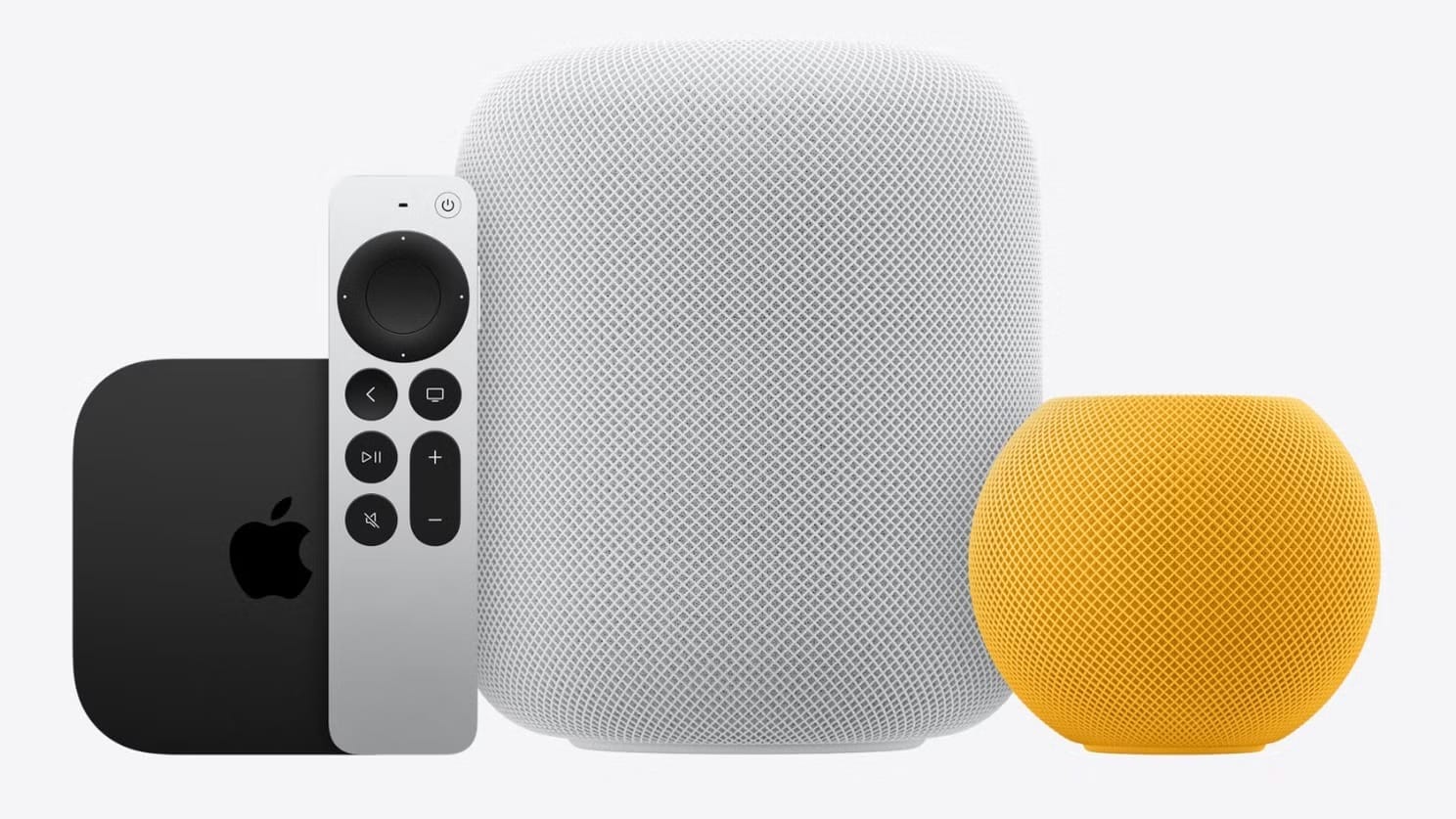
Your Apple Home hub is the single device responsible for remote accessory control, automation execution, HomeKit Secure Video analysis, and shared home access. Without a functioning hub, your smart lights stop responding when you leave the house, your automations run on a coin-flip schedule, and your security cameras quietly stop recording. The hub candidates are limited to three: Apple HomePod, HomePod mini, and Apple TV 4K.
Here is the part that catches people off guard. Apple Home picks your primary hub automatically, and it does not always pick the right one. I have talked to owners who spent weeks troubleshooting automations that fired late or never fired at all, only to discover their HomePod mini in the guest bathroom was running the entire house while the Apple TV 4K hardwired to Ethernet sat in Standby mode doing absolutely nothing. The fix took two taps. The frustration took months.
So how do you actually check which device runs your home, pick the right one, and stop the Standby loop from wrecking your setup? That is what this guide covers, start to finish.
 Ad
AdWhich Apple Devices Actually Qualify as a Home Hub
Apple trimmed the list hard. As of February 10, 2026, only three device types can serve as an Apple Home hub: HomePod (2nd generation), HomePod mini, and Apple TV 4K (3rd generation or later). That is it. The iPad, which Apple originally supported as a hub, lost that capability when the new Apple Home architecture became mandatory. If you were relying on an iPad plugged in on your nightstand to run your automations, that stopped working over a month ago.
Why did Apple drop the iPad? Simply put, iPads move around and go to sleep. A home hub needs to stay powered on, connected to Wi-Fi, and responsive around the clock. HomePod and Apple TV are designed for exactly that. An iPad is designed to travel with you to the couch.
HomePod and HomePod mini become hubs automatically the moment you finish setup. No extra steps. Apple TV 4K requires one additional move: open Settings, navigate to AirPlay and Apple Home, tap Room, and assign it to a room. Once it belongs to a room in the Home app, it joins the hub pool. According to Apple's official support documentation, only the home owner can add a hub device — members and guests cannot.
How to Check Your Hub Status Right Now
Open the Home app on your iPhone. Tap the three-dot menu in the upper right. Select Home Settings, then tap Home Hubs & Bridges. You will see every hub-eligible device listed with a status label: Connected, Standby, or Not Responding.
The device marked Connected is running the show. Every other hub sits in Standby as a backup. If the Connected hub goes offline — say, you unplug it to move furniture — one of the Standby devices takes over. In theory.
In practice, this handoff is not always smooth. I have seen Apple Community forum threads where every single hub shows Standby simultaneously, meaning nothing is actually managing the home. Automations stop. Remote access vanishes. Cameras go dark. And the Home app gives you zero warning that this is happening. You just notice your lights did not turn on at sunset, and then you start digging.
Why Apple's Automatic Hub Selection Gets It Wrong
Apple Home picks the primary hub based on criteria it never explains publicly. From what the smart home community has pieced together, it factors in uptime, network quality, and proximity to accessories. The problem? It re-evaluates constantly. Your Apple TV 4K might be the Connected hub at 8 AM and your HomePod mini in the hallway might grab the role by noon for reasons only the Home app understands.
This hub-hopping is the root cause of most "my automations are unreliable" complaints. Every time the primary hub switches, there is a brief gap. Automations scheduled during that gap either fire late or get dropped entirely. If your home has three or four hub devices, the rotation can happen multiple times a day.
You can fix this. In the Home Hubs & Bridges screen, tap any hub and you will see an option to disable automatic selection. Turn that off, then manually select the device you want as your permanent primary hub. My recommendation? Pick the device with the most reliable network connection. If your Apple TV 4K is hardwired to Ethernet, that is your winner.
 Ad
AdPicking the Right Primary Hub for Your Setup
The table below compares the three Apple Home hub devices across the features that matter most for smart home reliability, including Thread support, always-on availability, and HomeKit Secure Video analysis capability.
| Feature | HomePod mini | HomePod (2nd gen) | Apple TV 4K (3rd gen) |
|---|---|---|---|
| Thread Border Router | Yes | Yes | Wi-Fi + Ethernet model only |
| Always-On Power | Yes (wall-powered) | Yes (wall-powered) | Yes (wall-powered) |
| HomeKit Secure Video Analysis | Yes | Yes | Yes |
| Ethernet Port | No | No | Yes (Wi-Fi + Ethernet model) |
| Best For | Budget hub + Thread mesh | Primary hub + premium audio | Wired reliability + media center |
If you own an Apple TV 4K with the Ethernet port (the Wi-Fi + Ethernet model), that should be your primary hub in almost every scenario. Wired connections do not drop, do not slow down when someone is streaming 4K content on Wi-Fi, and do not compete with forty other wireless devices for bandwidth. The Apple TV 4K is also the only hub device with a physical Ethernet jack, which matters more than most people realize.
HomePod mini is the most affordable hub option at $99, and it doubles as a Thread border router. Thread is the low-power mesh protocol that Matter accessories use to communicate, and having multiple Thread border routers across your home creates a stronger, more responsive mesh network. Think of each HomePod mini as both a hub backup and a mesh node that extends your smart home's reach into rooms where Wi-Fi signal might be weak.
The full-size HomePod (2nd generation) does everything the mini does, with better audio and a more powerful processor for HomeKit Secure Video analysis. If you already own one and it sits in your living room or kitchen — somewhere central with solid Wi-Fi — it makes a strong primary hub candidate. But I would still give the edge to a wired Apple TV 4K over a wireless HomePod for raw reliability.
The Standby Loop That Quietly Breaks Your Smart Home
This one deserves its own section because it drives people up the wall. You open Home Hubs & Bridges and every device says Standby. None says Connected. Your home is technically running without a primary hub, which means automations fire sporadically, HomeKit Secure Video cameras stop analyzing footage, and remote access becomes a coin flip.
The fix is annoyingly simple but requires patience. Restart every hub device in your home: unplug each HomePod for 30 seconds and plug it back in, then restart each Apple TV by going to Settings, System, Restart. Wait five full minutes. Do not open the Home app during this time. When you check again, one device should show Connected and the rest should show Standby.
If the loop persists, the nuclear option works: remove all hub devices from the Home app, then re-add them one at a time, starting with the device you want as the primary. This forces Apple Home to rebuild its hub hierarchy from scratch. It takes about ten minutes and solves the problem nearly every time.
What Your Home Hub Actually Does Behind the Scenes
Most people buy a HomePod for music or an Apple TV for streaming and have no idea these devices are silently running their smart home infrastructure. Here is the full list of features that require an active home hub:
- Remote access — controlling accessories when you are away from home
- Automations — time-based triggers, location-based triggers, and sensor-based triggers all execute on the hub
- HomeKit Secure Video — on-device video analysis that identifies people, pets, vehicles, and packages before storing encrypted footage in iCloud
- Shared home access — letting family members and guests control accessories
- Matter accessory pairing — Matter devices require a hub to join the Home app
- Thread mesh networking — Thread-enabled Matter accessories need a Thread border router, which only HomePod mini, HomePod (2nd gen), and the Ethernet Apple TV 4K provide
If you only control accessories while sitting on your couch connected to the same Wi-Fi, you technically do not need a hub. But the moment you want your porch light to turn on at sunset when you are at the office, or you want your HomeKit cameras to record while you are on vacation, the hub becomes non-negotiable.
When You Need a Second or Third Hub
One hub is the minimum. Two hubs give you failover — if the primary goes down, the backup takes over without you lifting a finger. Three hubs spread across your home create a Thread mesh that Matter accessories depend on for fast, reliable communication.
I think two hubs is the sweet spot for most homes. A wired Apple TV 4K as the primary, plus a HomePod mini somewhere central as the failover and Thread router. If you have a large home or accessories in detached rooms (a garage, a guest house, a far bedroom), a third hub in that area prevents Thread dead zones and keeps response times under a second.
Here is a friction point worth mentioning: adding a third HomePod mini sometimes triggers the Standby loop described above. The Home app gets confused about which device should lead. If that happens after adding a new hub, disable automatic selection immediately and pin your preferred primary. It saves a headache.
Quick-Action Checklist for Your Apple Home Hub
- Open the Home app, tap the three-dot menu, select Home Settings, then tap Home Hubs & Bridges
- Verify at least one device shows Connected — if all show Standby, restart every hub device and wait five minutes
- Disable automatic hub selection and manually assign your most reliable device (wired Apple TV 4K if available) as the primary
- Confirm every hub device is running the latest software: tvOS 26.4 for Apple TV, audioOS 26.4 for HomePod
- If you have Matter or Thread accessories, verify at least one hub is a Thread border router (HomePod mini, HomePod 2nd gen, or Ethernet Apple TV 4K)
- Check that iCloud Keychain and two-factor authentication are enabled on your Apple Account — both are required for hub functionality

Related Posts
Your Apple Home Is Missing Its Most Important Sensor
Mar 29, 2026
Friday Night Baseball on Apple TV Delivers the Best MLB Broadcast Nobody Expected
Mar 28, 2026
HomeKit Smart Locks That Actually Secure Your Apple Home in 2026
Mar 27, 2026