
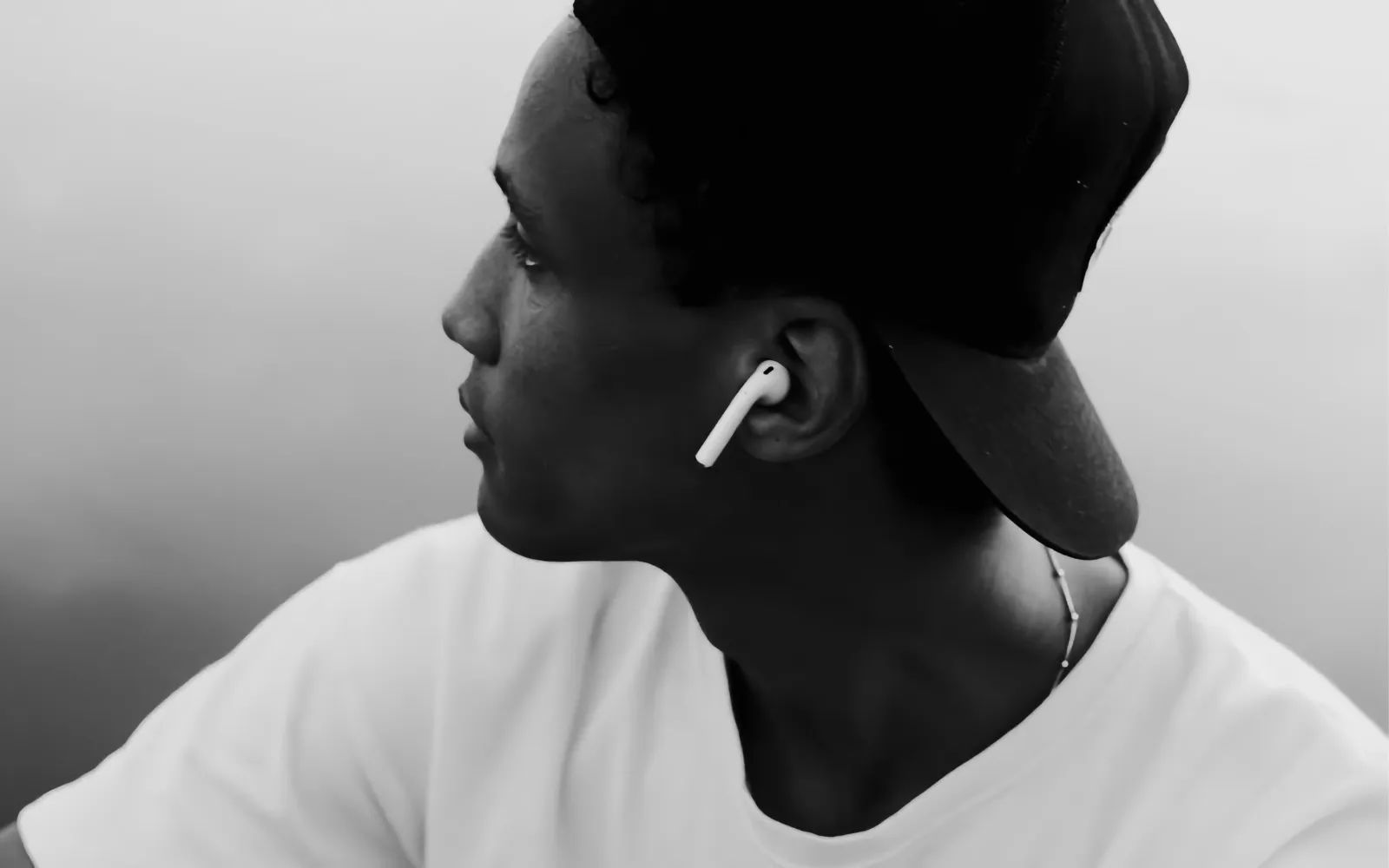

Apple’s Personalized Spatial Audio uses the TrueDepth camera on an iPhone to map the shape of your ears in three dimensions and build a custom audio profile that changes how AirPods Pro deliver spatial sound. The scan takes about 60 seconds. The complication: most AirPods Pro owners never run it, which means they are listening through a generic profile that positions audio based on average ear geometry rather than their own. The difference between generic and personalized is most obvious in Dolby Atmos music tracks, where instruments and vocals are supposed to occupy distinct positions around your head, and in films where dialogue should anchor to the screen even when you turn away.
What Personalized Spatial Audio Actually Does
Every pair of AirPods Pro ships with spatial audio enabled by default, but that default mode relies on a statistical average of human ear shapes known as a head-related transfer function (HRTF). The HRTF is the mathematical model that determines how your brain perceives the direction and distance of a sound source. Because ears vary significantly from person to person, an average HRTF will place sounds in roughly the right locations for most listeners, but roughly is doing a lot of work in that sentence.
Personalized Spatial Audio replaces that statistical average with a custom HRTF built from a 3D scan of your specific ear geometry. The TrueDepth camera captures the contours of your outer ear, the depth of your ear canal opening, and the angles of the folds that shape how sound waves arrive at your eardrum. The result is audio positioning that matches your actual anatomy, so sounds land where the content creator intended them to land. A helicopter panning from left to rear in a film score should trace a smooth arc, not jump between vague zones.
This profile syncs automatically across every Apple device signed into the same Apple Account. That includes iPhone (iOS 16 or later), iPad (iPadOS 16.1 or later), Mac with Apple Silicon (macOS Ventura or later), Apple TV (tvOS 16 or later), Apple Watch (watchOS 9 or later), and Vision Pro. Apple confirms these requirements on its Personalized Spatial Audio support page. The profile data is processed entirely on-device and synced via end-to-end encryption through iCloud, so the 3D model of your ears never reaches Apple’s servers in readable form.
For a broader look at how spatial audio works across Apple Music, Netflix, and Spotify before personalizing it, the spatial audio setup basics guide covers the foundational configuration.
How to Run the TrueDepth Ear Scan
The scanning process has three stages: a front face capture, a right ear capture, and a left ear capture. The entire process takes about 60 seconds when it goes smoothly. Here is the step-by-step walkthrough.
Connect your AirPods Pro to your iPhone. Make sure the AirPods are in your ears and actively connected, not just paired. The Personalized Spatial Audio option will not appear unless the AirPods have an active Bluetooth connection.
Open Settings and tap your AirPods name at the top of the screen. Scroll down to Personalized Spatial Audio, then tap Personalize Spatial Audio. This launches the TrueDepth camera interface.
Front scan. Hold the iPhone about 12 inches in front of your face and position your face inside the on-screen frame. Slowly move your head in a small circle. The camera captures the front profile of both ears simultaneously. A progress indicator fills as the scan completes.
Right ear scan. Hold the iPhone in your right hand and extend your arm about 45 degrees to the right. Slowly turn your head to the left so the camera gets a direct view of your right ear. This is the step that trips up most people: holding the phone to the right while turning your head to the left feels counterintuitive, and the green checkmark on screen is the only confirmation that you hit the correct angle. When the scan fails, the screen resets without explaining what went wrong, so you may need two or three attempts before it registers.
Left ear scan. Switch the iPhone to your left hand, extend about 45 degrees to the left, and slowly turn your head to the right. The same green checkmark confirms success.
Audio and visual cues guide each step, similar to the Face ID enrollment process. The entire flow is linear: front, right, left, done. No branching menus, no nested options.
Personalized Spatial Audio is compatible with AirPods Pro (1st, 2nd, and 3rd generation), AirPods Max, AirPods (3rd generation or later), Beats Fit Pro, and several other Beats models. The scan itself requires an iPhone with a TrueDepth camera, which means iPhone X or later. There are additional hidden AirPods settings worth exploring once the scan is complete, including conversation awareness and adaptive audio controls.
Affiliate disclosure: some links in this article are Amazon Associate links. If you buy through them, Zone of Mac may earn a small commission at no extra cost to you, and we only recommend products that genuinely bring value to your Apple setup.
Why Ear Tip Fit Makes or Breaks Your Calibration
The calibration scan captures the shape of your outer ear, but the ear tip seal determines how much of that personalized profile actually reaches your ear canal. A poor seal lets ambient noise leak in and bass frequencies escape, which undermines the precise positioning that Personalized Spatial Audio is trying to deliver. The scan and the seal work together: one without the other leaves performance on the table.
Apple includes a built-in diagnostic for this. Open Settings > AirPods > Ear Tip Fit Test. The test plays a short audio clip and uses the AirPods’ internal microphones to measure the seal quality in each ear independently. A green checkmark means the seal is good. A yellow “Adjust or Try a Different Ear Tip” result means the stock silicone tips are not forming an adequate seal with your ear canal.
Silicone tips work well for many people, but ear canal shapes vary widely. Some canals are oval rather than round, some are wider at the opening and narrow sharply, and some simply fall between Apple’s small and medium sizes. Memory foam tips solve this by conforming to the ear canal over about 30 seconds of body heat, creating a denser seal than silicone can achieve. This directly improves both noise isolation and the accuracy of Personalized Spatial Audio positioning.
The Comply TrueGrip MAX tips use heat-activated memory foam with a SmartSkin coating that resists moisture and sweat. They are designed specifically for AirPods Pro 3 and fit inside the standard charging case without interference. The foam compresses for insertion and then expands to fill the ear canal, which means the seal stays consistent even during movement, workouts, and long listening sessions. For anyone who has tried multiple silicone tip sizes and still gets a mediocre Ear Tip Fit Test result, foam tips are the most direct fix.
You can pick up the Comply TrueGrip MAX ear tips for AirPods Pro 3 on Amazon.
Join The Inner Circle For Serious Apple Users
Exclusive Apple tips. Free to join.
Check your inbox for a confirmation link.
Something went wrong. Please try again.
How to Test Whether Calibration Actually Worked
Open Apple Music and search “Spatial Audio” in the Browse tab. Pick any Dolby Atmos track. Atmos mixes position individual instruments and vocal layers in a three-dimensional sound field, which makes them the most revealing test for spatial audio calibration.
While the track plays, open Control Center and long-press the volume slider. Toggle between Personalized Spatial Audio and Fixed. With personalized mode active, instruments should feel more precisely positioned around your head rather than sitting in a flat stereo field. Vocals that sounded centered but vague in Fixed mode should snap to a more defined location.
On a Mac with Apple Silicon, open System Settings > Sound > AirPods > Spatial Audio and confirm that “Personalized” is listed beneath the spatial audio toggle. This confirms the profile synced from your iPhone.
For a more dramatic comparison, test with a Dolby Atmos film on Apple TV+. Dialogue should feel anchored to the screen center, and environmental sounds should track naturally as you turn your head. Head tracking is the spatial audio feature that benefits most from personalization: the system needs accurate ear geometry to keep the sound stage locked to the screen while your head moves.
When the difference between modes is subtle, the first scan may have captured a bad angle on one ear. Delete the profile by going to Settings > AirPods > Personalized Spatial Audio and tapping “Stop Using Personalized Spatial Audio.” Then run the scan again. Second attempts often produce a noticeably better result, particularly for the right ear capture that causes trouble during the initial setup.
Here is how the two modes compare across common listening scenarios.
| Feature | Generic Spatial Audio | Personalized Spatial Audio |
|---|---|---|
| Head-Related Transfer Function | Statistical average | Custom 3D ear scan |
| Audio Positioning Accuracy | Approximate | Tuned to your anatomy |
| Setup Required | None | 60-second TrueDepth scan |
| Cross-Device Sync | Yes | Yes (iCloud encrypted) |
Accessibility and Clarity
The Personalized Spatial Audio scan requires the TrueDepth camera, which provides audio and visual cues throughout the process. VoiceOver reads each instruction aloud, making the scan accessible to users with low vision. Every on-screen prompt is paired with a spoken equivalent, so no step depends solely on visual feedback.
The head movement required during scanning may be challenging for users with limited neck mobility. In that case, having someone assist by angling the phone rather than moving the head can produce the same result. The camera needs a specific viewing angle of the ear, and it does not matter whether the phone moves or the head moves to achieve it.
From a cognitive accessibility standpoint, the three-step scan flow is predictable and sequential: front, right ear, left ear. There are no branching menus or nested settings to navigate. The Ear Tip Fit Test provides both visual (green checkmark versus yellow warning) and textual feedback, so the result is clear regardless of color perception. Spatial audio itself can benefit users who rely on directional audio cues for orientation in immersive content, because personalized positioning makes those cues more reliable.
Quick-Action Checklist
- Connect AirPods Pro to iPhone and open Settings.
- Tap your AirPods name at the top of Settings.
- Tap Personalized Spatial Audio, then Personalize Spatial Audio.
- Complete the front, right ear, and left ear scans.
- Run the Ear Tip Fit Test (Settings > AirPods > Ear Tip Fit Test).
- Switch to memory foam tips and re-test when the seal test fails.
- Play a Dolby Atmos track and toggle between Fixed and Personalized in Control Center to confirm the difference.
- Delete and re-scan when the first attempt feels off.

Blaine Locklair
Founder of Zone of Mac with 25 years of web development experience. Every guide on the site is verified against Apple's current documentation, tested with real hardware, and written to be fully accessible to all readers.
follow me :
Related Posts
Your AirPods Work with Android — Here’s What Apple Holds Back
Apr 10, 2026
Your AirPods Are Collecting Grime That’s Killing Your Sound
Apr 09, 2026
Your AirPods Have a FaceTime Trick That Changes Group Calls
Apr 02, 2026