
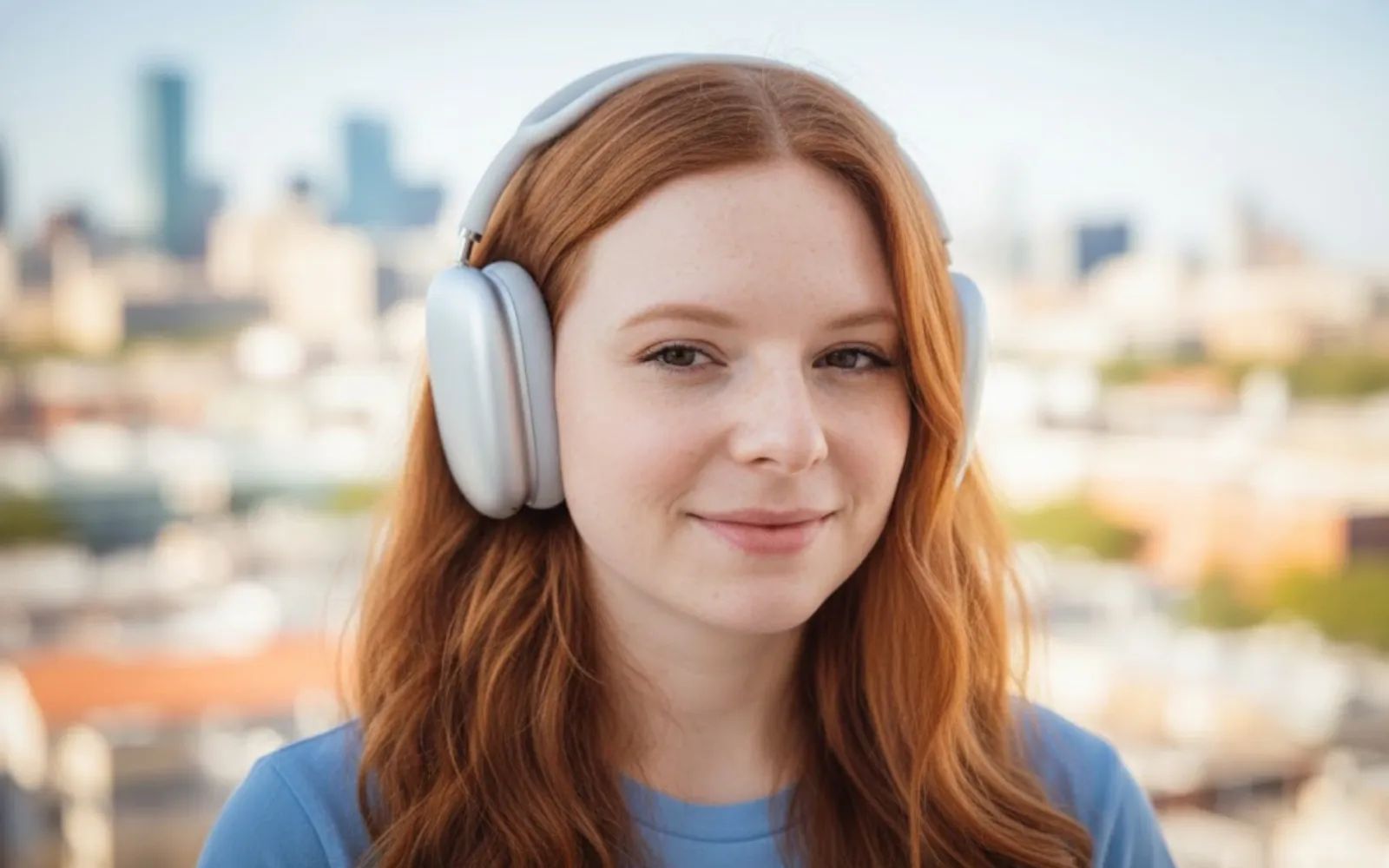

Spatial Audio on an Apple Silicon Mac turns a pair of AirPods into a surround-sound system that tracks your head movement and anchors dialogue to the screen. It works across Apple Music, Apple TV, FaceTime, and a growing list of third-party apps. But the gap between "supported" and "actually working" is wider than Apple's marketing suggests, because three separate layers of requirements need to line up before you hear a single spatialized note: the right Mac hardware, compatible headphones, and a set of macOS Tahoe settings scattered across four different menus.
Getting just one layer wrong produces the same frustrating result: the Spatial Audio toggle either greys out or vanishes from the menu bar entirely.
What Spatial Audio Actually Requires on a Mac
Apple's official support documentation lists the hardware requirement as "Mac with Apple silicon." Any Mac running an M1, M2, M3, M4, or M5 chip supports Spatial Audio. Intel Macs do not, regardless of macOS version. The software floor is macOS 12.3 Monterey for basic Spatial Audio and macOS 13 Ventura or later for Personalized Spatial Audio, which maps your ear shape for a custom sound profile.
The headphone side is where confusion starts. Spatial Audio with dynamic head tracking requires hardware containing gyroscopes and accelerometers, which limits head tracking to AirPods (3rd generation or later), AirPods Pro (any generation), AirPods Max, and select Beats models like the Fit Pro and Studio Pro. Third-party Bluetooth headphones can play Dolby Atmos content in Fixed mode, but head tracking is exclusive to Apple and Beats hardware with motion sensors.
Built-in MacBook Pro speakers (2018 or later), MacBook Air speakers (2018 or later), iMac speakers (2021 or later), and the Apple Studio Display speaker system can all play Dolby Atmos tracks natively through Apple Music without headphones. The speaker array simulates spatial positioning. If you have never tried this, find a Dolby Atmos badge on an album in Apple Music and press play with the lid open. The difference from standard stereo is immediately obvious on a 14-inch or 16-inch MacBook Pro, where the six-speaker array has real low-end presence.
The Four Settings That Control Everything
Spatial Audio on Mac is not a single toggle. Four distinct settings interact, and missing any one of them can silently disable the feature.
Control Center Audio Module
Connect your AirPods, then click the Sound icon in the menu bar. You should see a Spatial Audio section beneath the volume slider with three options: Off, Fixed, and Head Tracked. If this section does not appear, your headphones are not recognized as compatible. Disconnect and re-pair them from System Settings. A stale Bluetooth pairing after a macOS update is the single most common reason for a missing toggle.
Apple Music Dolby Atmos Playback
Open Apple Music, navigate to Music in the menu bar, then Settings, then the Playback tab. Set the Dolby Atmos dropdown to Automatic. This enables Atmos only when compatible headphones or speakers are detected. Apple documents this setting in their Music app Spatial Audio support page.
Personalized Spatial Audio Profile
This requires an iPhone with Face ID (iPhone X or later). Open Settings on your iPhone, tap your connected AirPods, and select Personalized Spatial Audio. The TrueDepth camera scans both ears in about 30 seconds, and the profile syncs across every Apple device signed into the same Apple Account. Without this profile, Spatial Audio still works, but the soundstage is generic rather than tuned to your ear geometry.
Accessibility Audio Settings
Open System Settings, navigate to Accessibility, then Audio. If Mono Audio is enabled, it completely overrides Spatial Audio and collapses everything to a single channel. Check the balance slider on the same screen: if pushed fully to one side, Spatial Audio's positional effect becomes imperceptible even though the toggle appears active.
Here is a quick comparison of the three Spatial Audio modes available on your Mac when compatible headphones are connected.
| Mode | What It Does | Best For | Headphones Required |
|---|---|---|---|
| Off | Standard stereo output, no spatial processing | Podcasts, voice calls, mono content | Any |
| Fixed | Spatial soundstage without head tracking | Music listening, casual video | AirPods 3, AirPods 4, AirPods Pro, AirPods Max |
| Head Tracked | Sound anchored to screen position as you move | Movies, TV shows, immersive gaming | AirPods 3, AirPods 4, AirPods Pro, AirPods Max |
Affiliate disclosure: some links in this article are Amazon Associate links. If you buy through them, Zone of Mac may earn a small commission at no extra cost to you, and we only recommend products that genuinely bring value to your Apple setup.
The Headphones That Deliver the Full Experience
Spatial Audio quality varies significantly between compatible headphones. The AirPods Pro 3 use a new H3 chip paired with a redesigned low-distortion driver that produces wider spatial separation than the AirPods Pro 2. The adaptive noise cancellation matters here: Spatial Audio performs best when outside sound is blocked, because positional cues are subtle and easily masked by ambient noise. The silicone ear tips create a physical seal, and the Pro 3 includes four sizes. A loose fit does not just reduce bass; it collapses the spatial stage. If you tried Spatial Audio and thought it sounded flat, swap to a different ear tip before giving up on the feature.
You can pick up the Apple AirPods Pro 3 on Amazon https://www.amazon.com/dp/B0FQFB8FMG?tag=zoneofmac-20
For extended desk listening, over-ear headphones change the equation. The AirPods Max with USB-C provide a larger soundstage than any in-ear option because the 40mm drivers have room to breathe, and the ear cushions create passive isolation without insertion fatigue. Head tracking feels more precise during long movie sessions because the heavier headphone stays stable, reducing micro-adjustments that can make spatial positioning jitter on lighter earbuds. One quirk worth noting: the sleep mode activates after about five seconds of sitting motionless, and reconnecting after sleep occasionally drops the Spatial Audio toggle until you manually reselect Head Tracked from Control Center.
Here's the Apple AirPods Max with USB-C https://www.amazon.com/dp/B0DGJC52FP?tag=zoneofmac-20
Join The Inner Circle For Serious Apple Users
Exclusive Apple tips. Free to join.
Check your inbox for a confirmation link.
Something went wrong. Please try again.
Troubleshooting When the Toggle Disappears
The most common Spatial Audio failure on Mac is not a broken feature; it is a communication breakdown between headphone firmware and macOS. Work through these steps in order.
Update AirPods firmware. Place your AirPods in the case, close the lid, connect to power, and leave near your iPhone for 30 minutes. Firmware updates only install during charging near a paired iOS device.
Reset the Core Audio daemon. Open Terminal and run sudo killall coreaudiod then enter your admin password. This clears stale audio routing state from sleep/wake cycles and audio app crashes.
Remove and re-pair headphones. Open System Settings, go to Bluetooth, click the "i" icon next to your AirPods, and select Forget This Device. Then open the case lid near your Mac and follow the pairing prompt. A fresh pairing rebuilds the services profile that tells macOS which audio features the headphones support.
Check app compatibility. Spatial Audio works in Apple Music (Dolby Atmos tracks only), Apple TV, FaceTime, Safari (supported web video), Disney+, HBO Max, Hulu, and Plex. If it works in Apple Music but not Spotify, that is expected: Spotify does not support Apple's Spatial Audio API on Mac. For non-compatible apps, enable Spatialize Stereo from the Control Center audio module to add simulated spatial width.
The companion guide on configuring Spatial Audio on AirPods for Apple Music, Netflix, and Spotify covers app-by-app setup in detail. For a deeper look at AirPods Max across both macOS Tahoe and iOS 26, the hidden audio power of AirPods Max guide walks through lossless playback and advanced noise cancellation profiles.
Accessibility and Clarity
For users with hearing loss in one ear, the Mono Audio toggle in Accessibility settings is not a bug but a critical feature. It collapses the spatial field into both drivers equally, ensuring no dialogue is lost to the weaker side. A middle ground exists in the balance slider, which shifts the spatial center toward your stronger ear without fully collapsing to mono.
VoiceOver users can navigate the Control Center Spatial Audio controls using standard gestures. The three-option selector (Off, Fixed, Head Tracked) is fully labeled and keyboard-navigable. The Personalized Spatial Audio setup on iPhone uses the camera, which requires sighted assistance or a well-lit environment where voice prompts can guide positioning. Apple has not yet added haptic feedback to the ear-scanning process.
The four separate settings locations for Spatial Audio create unnecessary complexity from a cognitive accessibility standpoint. The checklist below consolidates every step into a linear sequence specifically to reduce that load.
Quick-Action Checklist: Get Spatial Audio Working on Your Mac
- Confirm your Mac has Apple silicon: click the Apple menu in the top-left corner, select About This Mac, check the Chip line.
- Update to macOS 13 Ventura or later (macOS Tahoe recommended).
- Connect AirPods (3rd gen+), AirPods Pro, or AirPods Max.
- Open Control Center, click Sound, select Head Tracked under Spatial Audio.
- In Apple Music: Music menu, Settings, Playback, set Dolby Atmos to Automatic.
- Disable Mono Audio: System Settings, Accessibility, Audio. Ensure the toggle is off and balance is centered.
- Set up Personalized Spatial Audio on iPhone: Settings, your AirPods name, Personalized Spatial Audio.
- If toggle is missing: update AirPods firmware, run sudo killall coreaudiod in Terminal, re-pair via Bluetooth.
- Test with a Dolby Atmos track in Apple Music (look for the badge on the album page).

Blaine Locklair
Founder of Zone of Mac with 25 years of web development experience. Every guide on the site is verified against Apple's current documentation, tested with real hardware, and written to be fully accessible to all readers.
follow me :
Related Posts
Seven Mac Accessories That Turn a Good Desk Into a Great One
Apr 10, 2026
Your Mac Has a Networking Time Bomb That Only a Reboot Defuses
Apr 09, 2026
Your Mac Feels Slow After macOS Tahoe — Here’s What Actually Fixes It
Apr 08, 2026