
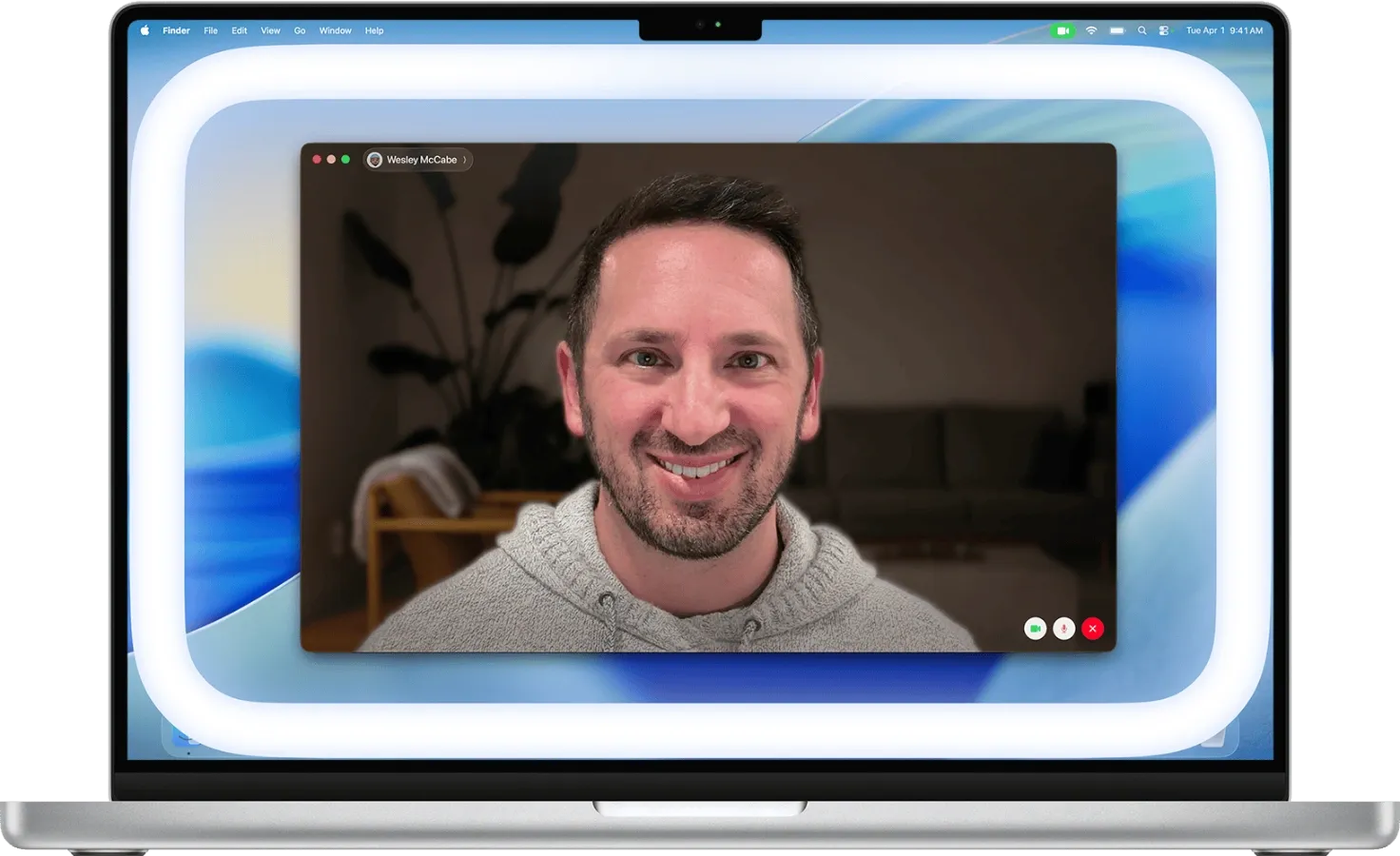
macOS Tahoe 26.2 introduced Edge Light, a feature that uses your Mac's display as a soft fill light during video calls. The technology works by illuminating portions of your screen with a warm glow that bounces onto your face, reducing shadows and improving how you appear on camera. For remote workers who hop on FaceTime, Zoom, or Microsoft Teams calls throughout the day, this addition eliminates the need to position a separate light source or deal with unflattering overhead lighting.
Key Takeaways
- Open System Settings, navigate to Camera, then select Video Effects to enable Edge Light
- Customize light width (narrow, medium, wide) and color temperature (warm to cool) for different environments
- Enable "Turn on automatically in low light" to let your Mac detect when illumination is needed
- Mouse awareness ensures the light recedes when you move your cursor to access content underneath
- Edge Light is available on Mac computers introduced in 2024 and later running macOS Tahoe 26.2 or newer
- The feature works in any video conferencing app that uses your Mac's camera
At-A-Glance Comparison: Edge Light vs External Lighting
This table summarizes the key differences between macOS Edge Light and dedicated external lights for video calls on Mac.
| Attribute | Edge Light | External Light (e.g., Logitech Litra Glow) |
|---|---|---|
| Cost | Free (built into macOS) | $50–$200 |
| Setup | Toggle in System Settings | Mount, cable routing, app setup |
| Light Intensity | Moderate (display-dependent) | High (dedicated LEDs) |
| Best For | Quick calls, travel setups | Professional streaming, content creation |
How Edge Light Actually Works
Edge Light creates a visible glow along the edges of your Mac's display during video calls. Unlike the screen brightness you already know, this feature dedicates a portion of your display specifically to projecting light toward your face. The effect is subtle but noticeable. In a dimly lit room, the difference between having Edge Light enabled and disabled can mean the difference between looking like a silhouette and looking like a human being.
The feature uses your Mac's internal ambient light sensor to determine when illumination is needed. When enabled, Edge Light projects a soft white or warm-toned light that wraps around the frame of your video feed. The result resembles what you'd get from positioning a small LED panel just below your webcam. Apple designed the light to be diffuse rather than harsh, avoiding the stark "interrogation room" aesthetic that cheaper ring lights sometimes produce.
One thoughtful detail: mouse awareness. When you move your cursor toward the illuminated areas, the light recedes so you can click buttons or access content without the glow interfering. This prevents the frustrating scenario where you're trying to share your screen but can't see the controls because your face-light is blinding you.
Join The Inner Circle For Serious Apple Users
Exclusive Apple tips. Free to join.
Setting Up Edge Light on Your Mac
Getting Edge Light running takes about thirty seconds. Open System Settings by clicking the Apple menu in the top-left corner, then selecting System Settings. Navigate to Camera in the sidebar, then click Video Effects. You'll see Edge Light listed among the available options. Toggle it on, and the light activates immediately.
Affiliate disclosure: some links in this article are Amazon Associate links. If you buy through them, Zone of Mac may earn a small commission at no extra cost to you, and we only recommend products that genuinely bring value to your Apple setup.
From there, you can customize two primary settings: light width and color temperature. Light width determines how much of your display contributes to the illumination. A narrow setting concentrates the light, while a wide setting spreads it across more of the screen. Color temperature ranges from warm (around 2700K, similar to incandescent bulbs) to cool (closer to 6500K, resembling daylight). Warmer tones tend to be more flattering for skin, while cooler tones provide better color accuracy if you're showing products or physical items on camera.
Enable "Turn on automatically in low light" if you want Edge Light to activate only when your Mac detects insufficient ambient lighting. This prevents the feature from running unnecessarily during daytime calls near a window.
Accessibility and Clarity: Who Benefits Most
Edge Light offers genuine accessibility advantages for users with specific visual needs. For people with light sensitivity, the ability to customize color temperature means avoiding the harsh blue tones that trigger discomfort. The automatic mode prevents sudden bright flashes by smoothly ramping illumination up or down based on ambient conditions.
Users who rely on screen readers or assistive technologies will find that Edge Light integrates without disrupting VoiceOver or other accessibility features. The light operates at the display level, meaning it doesn't overlay any interface elements or create additional cognitive load. The mouse awareness feature also helps users with motor difficulties who may take longer to navigate to controls, as the light won't obscure their targets.
That said, Edge Light has limitations for users who need consistent, professional-grade illumination. The feature depends entirely on your Mac's display brightness capabilities. If you have an older Mac or one with a less bright panel, the effect will be more subtle. Users who experience eye strain from bright screens may find that running Edge Light for extended periods becomes uncomfortable, even at lower intensity settings.
When You Still Want External Lighting
Edge Light handles casual video calls and work meetings well enough. But for content creation, streaming, or professional video production, dedicated lighting remains superior. The reason comes down to physics: your Mac's display can only output so much light, and that light travels in a fixed direction. External lights offer adjustable angles, higher intensity, and more precise control over how shadows fall across your face.
The Logitech Litra Glow exemplifies what a dedicated solution offers. Its TrueSoft technology produces full-spectrum LED light with cinematic color accuracy, flattening skin tones in ways that even the best display-based illumination cannot match. The frameless diffuser eliminates harsh shadows entirely, while the three-way adjustable mount lets you position the light exactly where you need it. For Mac users who spend significant time on camera, whether for YouTube videos, Twitch streams, or professional video conferences, the Litra Glow delivers results that Edge Light simply cannot replicate.


Here's where you can pick up the Logitech Litra Glow https://www.amazon.com/dp/B097QZGRCQ?tag=zoneofmac-20
The Friction You'll Notice
After using Edge Light across several weeks of video calls, a few limitations became clear. The most significant: the feature only works on Macs introduced in 2024 and later. If you're running macOS Tahoe on an older machine, Edge Light won't appear in your Video Effects settings. Apple hasn't explicitly stated why, but the limitation likely relates to display hardware capabilities and the ambient light sensors required for automatic activation.
The second friction point involves competing with your actual screen content. When you're sharing your screen during a call, Edge Light continues running. This means part of your display is dedicated to illuminating your face rather than showing your presentation or document. In practice, this isn't usually a problem because the light areas sit at the edges, but it's worth knowing before you start a critical demo.
Finally, Edge Light won't save you if your background lighting is fundamentally wrong. If you're sitting with a bright window behind you, no amount of face illumination will prevent you from appearing as a dark silhouette against a blown-out background. The feature supplements good lighting practice; it doesn't replace it.
Combining Edge Light with Your Existing Setup
For the best results, treat Edge Light as one component of a broader lighting strategy rather than a complete solution. Position your Mac so that natural light comes from in front of you or to the side, not directly behind. If you're in a room without windows or frequently take calls at night, Edge Light provides enough illumination to avoid looking like you're broadcasting from a cave.
Users who already own external lights can still benefit from Edge Light as supplementary fill. The combination of a key light (like a ring light or LED panel) plus Edge Light's subtle glow creates more even illumination across your face. This reduces the harsh shadows that single-source lighting sometimes creates around the nose and eyes.
For Mac users who travel frequently, Edge Light removes one item from the packing list. Rather than carrying a portable light, you can rely on your MacBook's display to handle basic illumination in hotel rooms, coffee shops, or airport lounges. The feature works identically on MacBook Air and MacBook Pro models from 2024 onwards, making it a genuine convenience for remote workers who aren't always in their home office.
If you've found yourself squinting at colleagues during video calls or receiving comments about how "dark" you look on camera, Edge Light offers an immediate improvement without additional purchases or setup time. The feature lives in System Settings, waiting to be discovered by the millions of Mac users who've never scrolled past the first page of Video Effects options. For quick calls and everyday meetings, your Mac's display might be all the ring light you need.

Related Posts
Seven Mac Accessories That Turn a Good Desk Into a Great One
Apr 10, 2026
Your Mac Has a Networking Time Bomb That Only a Reboot Defuses
Apr 09, 2026
Your Mac Feels Slow After macOS Tahoe — Here’s What Actually Fixes It
Apr 08, 2026