
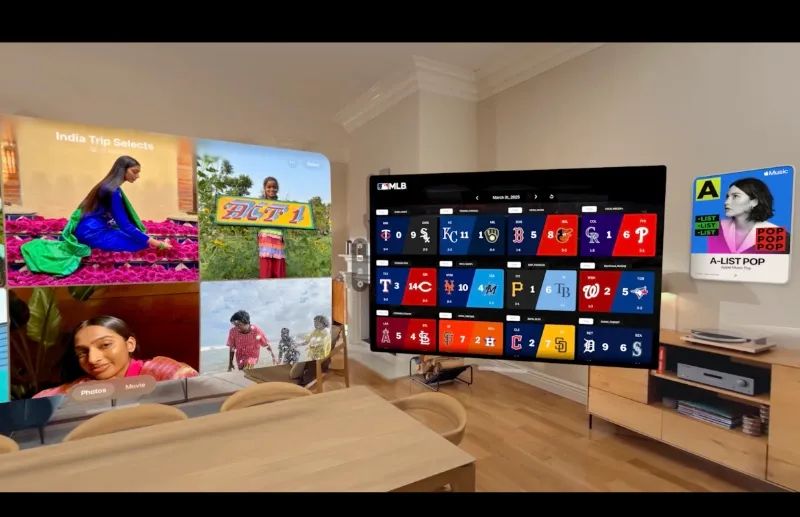

Spatial widgets in visionOS 26 transform how you interact with your Apple Vision Pro by placing glanceable information directly into your physical environment. A calendar can live on your office wall. A weather widget can sit on your kitchen counter. An album cover from Apple Music can hang like artwork in your living room. These widgets persist exactly where you leave them, reappearing automatically when you return to that room or restart your headset.
Key Takeaways
- Open the Widgets app on Vision Pro to browse and add spatial widgets
- Pinch and drag any widget to snap it onto a wall, desk, or shelf
- Customize frame thickness, color, and depth through the widget's settings
- Widgets persist across sessions and only appear in the room where they were placed
- Compatible iPhone and iPad widgets automatically work with visionOS 26
- The Apple Music poster widget displays album art as decorative spatial art
At-A-Glance: Spatial Widget Capabilities
| Feature | Description | Best Use Case |
|---|---|---|
| Surface Snapping | Widgets attach to walls, desks, shelves | Permanent placement for daily reference |
| Persistence | Widgets remain after restart | Reliable home office setup |
| Customization | Frame color, thickness, depth | Match your room's aesthetic |
| Room Awareness | Widgets only visible in placed room | Privacy between spaces |
The concept behind spatial widgets differs fundamentally from how widgets work on iPhone or iPad. Those platforms treat widgets as panels within a two-dimensional interface. Vision Pro treats widgets as physical objects that occupy real positions in your environment. When you place a Clock widget on the wall beside your desk, it stays there, casting a subtle shadow and tilting slightly toward you for easier reading. That widget will not follow you to another room, and it will not disappear when you take off the headset.
Affiliate disclosure: some links in this article are Amazon Associate links. If you buy through them, Zone of Mac may earn a small commission at no extra cost to you, and we only recommend products that genuinely bring value to your Apple Vision Pro setup.
Finding and Adding Your First Spatial Widget
The Widgets app is your starting point. Open it from the Home View, and you will see a list of compatible apps along the left side of the window. Apple's own apps, including Photos, Calendar, Weather, Clock, and Music, all offer spatial widgets designed specifically for visionOS 26. Third-party apps that already support widgets on iPhone and iPad may also appear here if their developers have enabled compatibility mode.
Tap an app in the list to browse its available widgets. Swipe through the options to find a style that fits your needs. Some apps offer multiple sizes, while others provide different data views. The Clock app, for example, includes both analog and digital faces in several configurations. Once you find a widget you like, tap Add Widget.
The widget appears in front of you with a gray border and the text "Snap to Surface" displayed. At this point, you can pinch and drag the widget's window bar to move it around your space. As you hover the widget over a flat surface where it can be placed, such as a wall, desk, or shelf, the gray border disappears and the widget's actual content becomes visible. Release your grip, and the widget snaps into position.
Customizing How Widgets Look and Feel
After placing a widget, tap the customize button that appears below it to access appearance settings. You can adjust the frame width from thin to thick, change the frame color to complement your room, and toggle whether the widget sits flush with the surface or appears inset, as if embedded within the wall itself.
The inset option creates a particularly striking effect with certain widgets. A calendar embedded into your wall looks like a built-in information display rather than a floating panel. The Clock widget benefits from this treatment as well, giving your space an architectural quality that pure virtual objects cannot achieve.
Horizontal surfaces behave slightly differently than vertical ones. When you place a widget on a desk, table, or shelf, it tilts gently toward you. This subtle angle improves legibility and helps the widget feel grounded rather than artificially flat. The shadow cast beneath the widget reinforces this sense of physical presence.
The Apple Music Poster Widget
One spatial widget stands apart from the rest. The Apple Music poster widget displays the album art of whatever playlist or album you have playing, rendered as if it were a framed poster in your room. Beneath the artwork, a set list of artists from the current playlist appears, creating an effect reminiscent of a concert poster.
This widget works particularly well in living rooms or entertainment spaces. Placed beside your television or on an adjacent wall, it transforms your music experience into something visual and spatial. The album art shifts as your playlist progresses, making your space feel dynamically connected to what you are listening to.
If you use Vision Pro regularly for focused work or relaxation with music, consider dedicating a wall section to this widget. It occupies the same visual space that a physical poster would, but updates automatically based on your listening habits.
Room Awareness and Privacy
Spatial widgets only appear in the room where you placed them. Walk into another room, and those widgets will not follow you. Return to the original room, and they reappear exactly where you left them. This behavior applies even after restarting Vision Pro or taking an extended break.
Apple implemented this room awareness to prevent visual clutter and preserve the sense that widgets belong to specific spaces rather than floating universally around you. It also provides a natural layer of privacy. A calendar widget in your home office will not be visible when you use Vision Pro in the living room with family members.
The system determines room boundaries using the same spatial mapping technology that powers the rest of visionOS. Walls, doorways, and significant architectural features help Vision Pro understand where one room ends and another begins. In open floor plans where rooms blend together, you may find that widgets placed in one area remain visible across a larger zone than expected.
Accessibility and Clarity
Spatial widgets benefit users with visual limitations in several meaningful ways. The ability to customize frame color provides high-contrast options for those who need distinct visual boundaries. Inset widgets with darker frames stand out clearly against light walls, while lighter frames work better in dim environments.
VoiceOver support extends to spatial widgets as well. Users who navigate Vision Pro through audio cues can locate, select, and customize widgets using the same gestures and spoken feedback available throughout visionOS. The persistent placement of widgets also reduces cognitive load by eliminating the need to search for information, since users know exactly where to look each time they enter a room.
For users with motor limitations, the pinch-and-drag placement gesture may require some practice. Taking time to position widgets within comfortable reach during initial setup pays dividends later, as interacting with a well-placed widget feels natural and requires minimal physical effort.
Keeping Your Vision Pro Safe and Ready
If you plan to use Vision Pro across multiple rooms or take it traveling, protecting the hardware becomes essential. The Syntech Hard Carrying Case offers a waterproof, shockproof shell constructed from three composite layers. The interior features precision-cut compartments that hold your Vision Pro, battery, and accessories without movement during transport. A mesh pocket accommodates the power adapter, Zeiss optical inserts, and additional bands. The case measures 12.39 by 9.06 by 4.93 inches, fitting easily into larger bags or carry-on luggage while keeping everything organized and protected.
Here's where you can buy the Syntech Hard Carrying Case for Apple Vision Pro https://www.amazon.com/dp/B0D6Y26SLP?tag=zoneofmac-20
Building Your Spatial Widget Layout
Start with utility widgets in spaces where you spend focused time. A Calendar widget beside your workspace keeps appointments visible without interrupting your workflow. A Weather widget near your front door helps you decide what to wear before heading out. A Clock widget in any room where you tend to lose track of time provides grounding context.
Once the practical widgets are in place, consider adding visual ones. The Photos widget cycles through your library, bringing memories into your physical space in a way that framed photographs cannot replicate. Placed on a wall where you frequently glance, it provides moments of connection throughout your day.
Multiple instances of the same widget are supported. You could place separate Calendar widgets in your home office and kitchen, each configured to show different calendars or time ranges. The same principle applies to Clock widgets, allowing you to display times in multiple zones if your work involves international collaboration.
When arranging multiple widgets on a single wall, they snap into a familiar grid layout. Following consistent spacing makes your widget wall feel intentional rather than cluttered. Leave breathing room between widgets, and resist the temptation to fill every available surface. A few well-chosen widgets communicate more effectively than a crowded display.
Spatial widgets represent one of the most practical additions to visionOS 26. They shift Vision Pro from a device you put on for specific tasks to an ambient presence that enhances your home with persistent, useful information, for guidance on using other visionOS 26 features like Look to Scroll, see our guide at https://www.zoneofmac.com/scroll-with-your-eyes-on-vision-pro-using-look-to-scroll/. By placing widgets thoughtfully and customizing their appearance, you create a spatial computing environment that feels genuinely yours.

Deon Williams
Staff writer at Zone of Mac with two decades in the Apple ecosystem starting from the Power Mac G4 era. Reviews cover compatibility details, build quality, and the specific edge cases that surface after real-world use.
Related Posts
Your Entire Steam Library Now Streams to Apple Vision Pro
Apr 08, 2026
The Best Apple Vision Pro Apps Worth Downloading in visionOS 26
Mar 29, 2026
Your Apple Vision Pro Has a Fifth F1 Feed Nobody Mentions
Mar 10, 2026